
1. Introduction
This manual provides detailed instructions for setting up, operating, and maintaining your BOSGAME Mini PC B100. Please read this manual thoroughly before using the device to ensure optimal performance and longevity.

Image: Front view of the BOSGAME Mini PC B100, showcasing its compact design.
2. What's in the Box
Verify that all items are present in the package:
- 1 x BOSGAME Mini PC B100
- 1 x VESA Mount with Screws
- 1 x Power Adapter
- 1 x HDMI Cable
- 1 x User Manual
3. Product Features
The BOSGAME Mini PC B100 is designed for efficiency and versatility, featuring:
- Processor: Intel 12th Gen Alder Lake N100 CPU (up to 3.4Ghz, 4 Cores/4 Threads, 6MB cache)
- Memory: 16GB SO-DIMM DDR4 RAM
- Storage: 512GB PCIe 3.0 M.2 2280 NVMe SSD
- Graphics: Intel UHD Graphics with 4K triple display support
- Connectivity: Full-function USB-C port (PD 3.0, data transfer, 4K video output), 4x USB 3.2 Gen 2 ports, 2x HDMI ports, 2.5G RJ45 LAN port, Audio Jack, Wi-Fi 5 (2.4G+5G Dual-band), Bluetooth 4.2
- Operating System: Pre-installed Windows 11 Pro, supports Linux and Ubuntu
- Compact Design: Small form factor (4.96*4.41*1.61 inches, 0.86 lb) for space-saving installation.

Image: Overview of the Mini PC's key features including ports, OS, RAM, SSD, Wi-Fi, and Bluetooth.

Image: Detailed view of the Intel Alder Lake-N100 processor specifications.
4. Setup
4.1 Initial Power-On and Windows 11 Pro Setup
Follow these steps for the initial setup of your Mini PC with Windows 11 Pro:
- Connect the power adapter to the Mini PC and a power outlet.
- Connect your monitor(s) using HDMI or USB-C.
- Connect a keyboard and mouse to the available USB ports.
- Press the power button to turn on the Mini PC.
- Upon first boot, the Windows 11 Pro setup wizard will guide you through language selection, region, keyboard layout, and network connection.
- You may choose to connect to a network during setup or continue with limited setup.
- Review and accept the Microsoft Software License Terms.
- Enter your desired user name and password for the device.
- Configure privacy settings as prompted.
- The system will finalize setup, which may take a few minutes. Do not turn off the PC during this process.
Video: A step-by-step guide on setting up Windows 11 Pro on the BOSGAME Mini PC B100.
5. Operating the Mini PC
The BOSGAME Mini PC B100 is suitable for various applications:
- Office Work: Efficiently run multiple office applications for productivity.
- Home Theater: Enjoy 4K streaming and multimedia content.
- Education: Ideal for learning environments and online classes.
- Industrial Applications: Suitable for specific industrial control or display tasks.

Image: Examples of how the Mini PC can be used in household, office, entertainment, and industrial settings.
6. Connectivity
The Mini PC offers comprehensive connectivity options:
- USB Ports: 4x USB 3.2 Gen 2 ports for peripherals.
- HDMI Ports: 2x HDMI 2.0 ports for display output.
- USB-C Port: 1x Full-Function USB-C port supporting Power Delivery (PD 3.0 up to 100W), data transfer, and 4K video output.
- Ethernet: 1x 2.5G RJ45 LAN port for high-speed wired network connections.
- Wireless: Built-in M.2 KEY E 2230 WiFi module (Wi-Fi 5 - 802.11ac, 2.4G+5G Dual-band) and Bluetooth 4.2.
- Audio: 1x Audio Jack for headphones or speakers.

Image: Illustration of the full-function Type-C PD3.0 port, supporting 4K display, data transfer, and power input.

Image: Details on the Mini PC's Wi-Fi 5 and Bluetooth 4.2 capabilities for strong wireless connections.
7. Display Configuration
The BOSGAME Mini PC B100 supports up to three 4K displays simultaneously, enhancing productivity and multitasking capabilities.
- Connect two monitors via the HDMI 2.0 ports.
- Connect a third monitor via the full-function USB-C port.
- Ensure your monitors support 4K resolution for optimal visual experience.
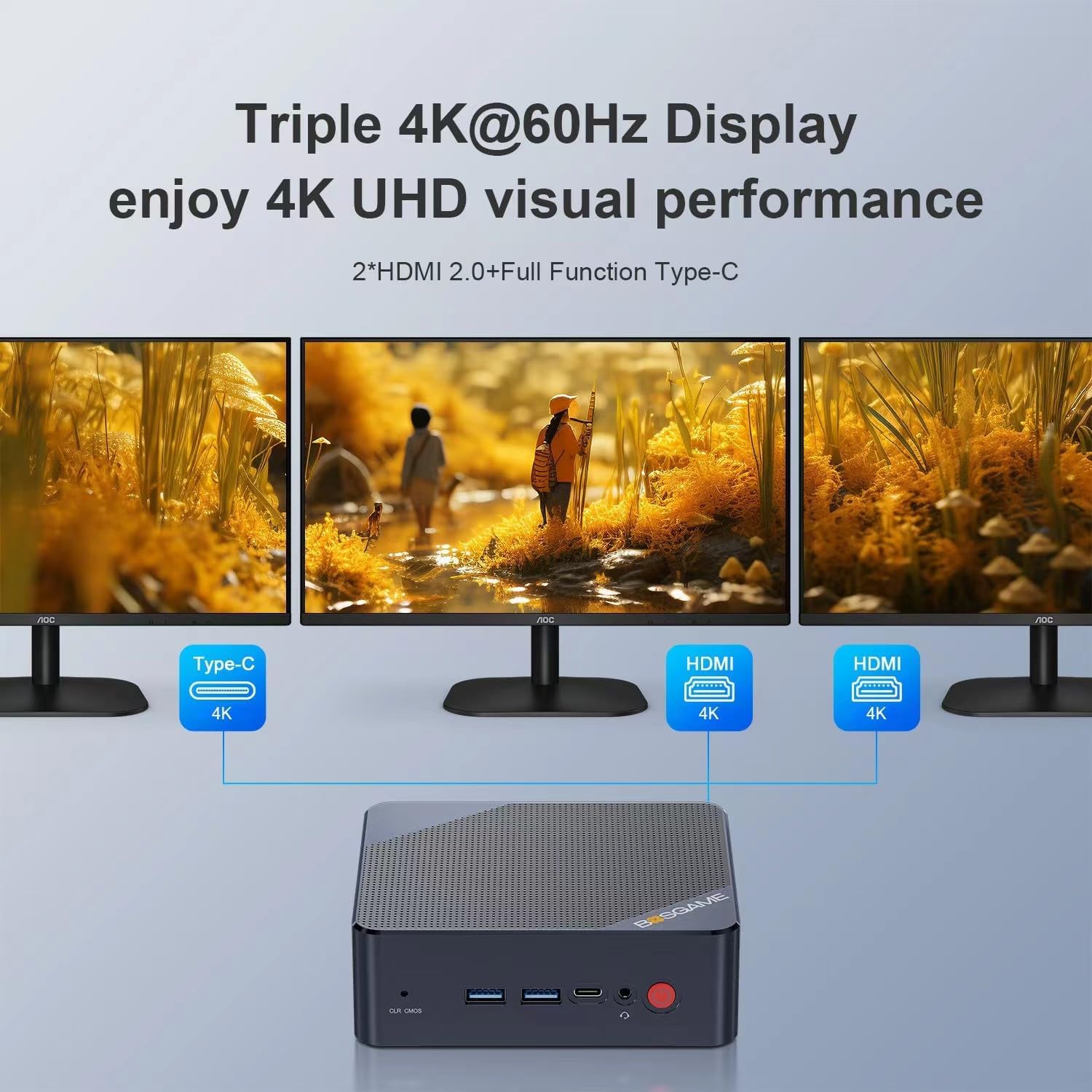
Image: Diagram illustrating the triple 4K@60Hz display setup using two HDMI ports and one full-function Type-C port.
8. Operating System
The Mini PC comes with Windows 11 Pro pre-installed. It also supports other operating systems, providing flexibility for users:
- Windows 11 Pro: Pre-installed for immediate use.
- Linux: Compatible with various Linux distributions.
- Ubuntu: Supports Ubuntu for open-source environments.

Image: Visual representation of the Mini PC's compatibility with Windows, Ubuntu, and Linux operating systems.
9. Mounting the Mini PC (VESA)
The BOSGAME Mini PC B100 includes a VESA mount for convenient installation behind a monitor or on a wall, saving desk space.
9.1 VESA Mount Installation Steps:
- Identify the VESA mounting holes on the back of your monitor.
- Attach the VESA bracket to the Mini PC using the provided screws.
- Align the Mini PC with the attached bracket to the VESA holes on your monitor.
- Secure the Mini PC to the monitor using the remaining screws.
Video: Instructions on how to install the wall bracket for the BOSGAME Mini PC B100.

Image: The compact size of the Mini PC and its VESA mounting capability for behind-monitor installation.
10. Maintenance
To ensure the longevity and optimal performance of your BOSGAME Mini PC B100, follow these maintenance guidelines:
- Cleaning: Regularly clean the exterior with a soft, dry cloth. Avoid liquid cleaners. Use compressed air to clear dust from vents.
- Ventilation: Ensure the Mini PC's vents are not obstructed to prevent overheating.
- Software Updates: Keep your operating system and drivers updated to the latest versions for security and performance improvements.
- Storage Management: Periodically check storage usage and remove unnecessary files to maintain system speed.
- Power Supply: Use only the provided power adapter.
11. Troubleshooting
This section addresses common issues you might encounter with your Mini PC.
11.1 No Power / System Not Starting
- Check if the power adapter is securely connected to both the Mini PC and a working power outlet.
- Ensure the power button is pressed firmly.
- Verify the power outlet is functional by plugging in another device.
11.2 No Display Output
- Confirm that the HDMI or USB-C cable is securely connected to both the Mini PC and the monitor.
- Ensure the monitor is powered on and set to the correct input source (HDMI 1, HDMI 2, USB-C).
- Try a different display cable or monitor if available.
11.3 Wi-Fi / Bluetooth Connectivity Issues
- Check if Wi-Fi and Bluetooth are enabled in the operating system settings.
- Restart the Mini PC and your router/modem.
- Ensure the Mini PC is within range of your Wi-Fi network.
- Update wireless drivers if necessary.
11.4 Slow Performance
- Close unnecessary applications running in the background.
- Check for sufficient free storage space on the SSD.
- Ensure the Mini PC has adequate ventilation to prevent thermal throttling.
- Run a system scan for malware or viruses.
12. Specifications
| Brand | BOSGAME |
| Model Number | B100 |
| Processor | Intel 12th Gen Alder Lake N100 (4C/4T, up to 3.4 GHz, 6MB Cache) |
| Graphics | Intel UHD Graphics (Integrated) |
| RAM | 16GB DDR4 SO-DIMM (3200MHz) |
| Storage | 512GB PCIe 3.0 M.2 2280 NVMe SSD |
| Operating System | Windows 11 Pro (Pre-installed), supports Linux/Ubuntu |
| Video Output | 2x HDMI 2.0, 1x Full-Function USB-C (Triple 4K Display) |
| USB Ports | 4x USB 3.2 Gen 2 |
| Network | 1x 2.5G RJ45 Ethernet, Wi-Fi 5 (802.11ac), Bluetooth 4.2 |
| Audio | 1x Audio Jack |
| Dimensions | 4.96 x 4.41 x 1.61 inches |
| Weight | 0.86 lb |
| Additional Features | Auto Power ON, Wake ON LAN, PXE |
13. Warranty and Support
BOSGAME provides comprehensive support for your Mini PC B100.
- Warranty: One-year manufacturer's warranty.
- Technical Support: Lifetime technical support (7*24-hour).
Contacting Support:
For any technical issues or inquiries, please use the following methods:
- Via Amazon: Log in to your Amazon buyer account, find your order, click "Get Help," and then "Ask a question."
- Email: Contact support@bosgamepc.com. Responses are typically provided on working days.

