1. Introduction
This manual provides instructions for the safe and efficient operation of your ChargeWorx Mini Portable Charger Power Bank, Model CX6896BK. Please read this manual thoroughly before use and retain it for future reference.
2. Product Overview
The ChargeWorx Mini Portable Charger Power Bank is a compact and versatile charging solution designed for mobile devices. It features a built-in USB-C connector, a 5,000 mAh battery capacity, and an LCD display for monitoring battery levels. The device supports fast charging, dual output, and pass-through charging capabilities.

Image: The ChargeWorx Mini Portable Charger connected directly to the charging port of a smartphone, displaying '100' on its LCD screen.
Key Features:
- Built-in USB-C Connector: Directly connects to compatible devices.
- 5,000 mAh Battery Capacity: Provides extended power for mobile devices.
- LCD Power Indicator: Displays the current battery percentage.
- Fast Charging: Supports 5V/A fast charging.
- Dual Output: Charge two devices simultaneously using the built-in USB-C connector and the additional USB-C port.
- Pass-Through Charging: Allows charging of a device while the power bank itself is being charged.
- Compact and Portable Design: Easily fits into pockets or bags.
- Protective Cap: Covers the built-in USB-C connector when not in use.

Image: An internal diagram of the power bank highlighting the digital battery display and the C-type output connector.
3. Package Contents
- ChargeWorx Mini Portable Charger Power Bank (Model CX6896BK)
- User Manual
4. Setup
Initial Charging of the Power Bank:
- Connect a USB-C charging cable (not included) to the USB-C input/output port on the side of the power bank.
- Connect the other end of the USB-C cable to a compatible USB power adapter (e.g., wall charger, computer USB port).
- The LCD display will show the charging progress, indicating the battery percentage.
- Charge the power bank until the LCD display shows 100%.

Image: An internal diagram of the power bank illustrating the USB-C input/output port and its 5000mAh power bank capacity.
5. Operating Instructions
Charging a Device:
- Remove the protective cap from the built-in USB-C connector.
- Carefully plug the built-in USB-C connector directly into your device's USB-C charging port.
- The power bank will automatically begin charging your device. The LCD display on the power bank will show its remaining battery percentage.
- To stop charging, simply disconnect the power bank from your device. Replace the protective cap when not in use.

Image: A smartphone displaying '75% Charged' while connected to the ChargeWorx power bank, held in a user's hand.
Dual Device Charging:
The power bank supports charging two devices simultaneously:
- Connect the first device using the built-in USB-C connector as described above.
- Connect a second device to the power bank's USB-C input/output port using a compatible USB-C charging cable (not included).
- Both devices will charge concurrently.
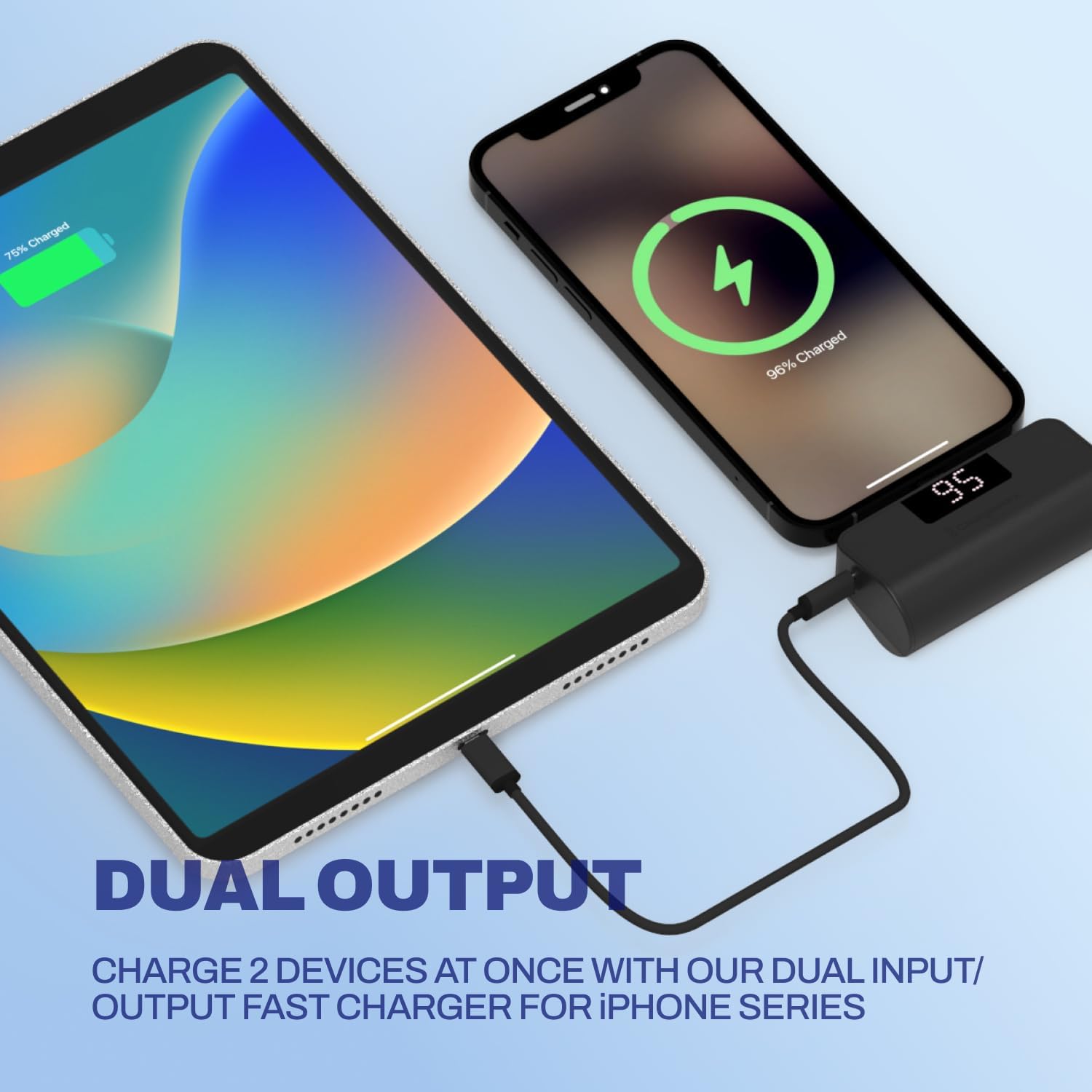
Image: A smartphone and a tablet are shown charging simultaneously, with the smartphone connected directly to the power bank and the tablet connected via a cable to the power bank's additional USB-C port.
Pass-Through Charging:
You can charge a device while the power bank itself is being recharged:
- Connect your device to the power bank using the built-in USB-C connector.
- Connect the power bank to a power source using a USB-C charging cable plugged into its USB-C input/output port.
- Both the power bank and your connected device will charge.
6. LCD Display Information
The integrated LCD screen provides real-time information about the power bank's battery status. When the power bank is in use (charging a device) or being charged, the display will illuminate and show the current battery percentage from 0 to 100%.

Image: A close-up of the ChargeWorx power bank, highlighting its easy-to-read digital LCD display and the included soft protective cap for the USB-C connector.
7. Safety Information
- Do not expose the power bank to extreme temperatures, direct sunlight, or fire.
- Avoid dropping or subjecting the power bank to strong impacts.
- Do not disassemble, modify, or attempt to repair the device.
- Keep the power bank away from water and other liquids.
- Ensure the built-in USB-C connector is properly aligned and inserted into your device's port to prevent damage. Avoid applying excessive force or stress to the connector while in use, especially when the device is in a pocket or bag, as this may cause damage to the connector or your phone's charging port.
- Use only compatible charging cables and adapters.
- Keep out of reach of children.
8. Maintenance
- Cleaning: Wipe the power bank with a soft, dry cloth. Do not use harsh chemicals or abrasive materials.
- Storage: Store the power bank in a cool, dry place away from direct sunlight and moisture. If storing for extended periods, charge the power bank to approximately 50% every three months to maintain battery health.
- Always replace the protective cap over the built-in USB-C connector when not in use to prevent dust and damage.
9. Troubleshooting
Power Bank Not Charging:
- Ensure the USB-C charging cable is securely connected to both the power bank and the power adapter.
- Verify that the power adapter is functioning correctly and plugged into a live power outlet.
- Try using a different USB-C cable or power adapter.
Device Not Charging from Power Bank:
- Check if the power bank has sufficient charge (refer to the LCD display).
- Ensure the built-in USB-C connector is fully and correctly inserted into your device's charging port.
- If using the additional USB-C port, ensure the cable is securely connected and functional.
- Confirm your device is compatible with USB-C charging.
- Restart your device and try again.
Slow Charging:
- Ensure both the power bank and your device support fast charging.
- Check if the charging cable and power adapter (if charging the power bank) are rated for fast charging.
- Charging multiple devices simultaneously may reduce individual charging speeds.
10. Specifications
| Model Number | CX6896BK |
| Battery Capacity | 5000 mAh |
| Connector Type | Built-in USB-C, USB-C Input/Output Port |
| Product Dimensions | 3.07 x 1.06 x 2.09 inches |
| Item Weight | 5.9 ounces |
| Special Features | Auto Shut-Off, Built-in Cable, Digital Display, Over Charging Protection, Pocket Size |
11. Warranty and Support
For warranty information or technical support, please refer to the official ChargeWorx website or contact their customer service department. Keep your purchase receipt as proof of purchase for any warranty claims.

