
Product Overview
The GLOBE Electric Wi-Fi Smart Motion Security Video Light is an advanced outdoor lighting solution designed to enhance security and convenience. This hardwired LED light features a 1080p camera, motion detection, and an audible alarm, all controllable via the GLOBE SUITE™ App. It provides bright white illumination and offers flexible installation options.

Image: The GLOBE Electric Smart Motion Security Video Light shown with its accompanying smartphone application interface, demonstrating real-time control and monitoring capabilities.
Setup and Installation
1. Unpacking and Preparation
- Carefully remove all components from the packaging.
- Ensure all parts listed in the packing list are present.
- Turn off power at the circuit breaker before beginning installation.
2. Mounting Options
The security light supports both wall mount and eave mount installations. Choose the option that best suits your property's layout.

Image: Illustration of the dual mounting system, demonstrating how the fixture can be rotated for either wall or eave installation, along with adjustable lamp heads for optimal light placement.
- Wall Mount: Position the fixture so the light heads face outwards and the motion sensor points downwards.
- Eave Mount: Rotate the fixture 180 degrees so the light heads face downwards and the motion sensor points outwards.
- Use the included mounting hardware for secure installation.
3. Electrical Connection
This is a hardwired device. Connect the light to your home's electrical system according to local electrical codes. If you are unsure, consult a qualified electrician.
- Connect the ground wire (green or bare copper) to the ground screw in the junction box.
- Connect the white wire (neutral) from the fixture to the white wire from the junction box.
- Connect the black wire (live) from the fixture to the black wire from the junction box.
- Secure all connections with wire nuts.
4. App Download and Wi-Fi Connection
To utilize smart features, download the GLOBE SUITE™ App and connect the device to your home Wi-Fi network (2.4 GHz only).
- Download the "GLOBE SUITE" app from your smartphone's app store (iOS or Android).
- Create an account or log in.
- Follow the in-app instructions to add your new security light. This typically involves putting the device into pairing mode and connecting it to your 2.4 GHz Wi-Fi network.

Image: A user interacting with the Globe Suite app on a smartphone, demonstrating the ability to view and control the security light remotely from any location.
Operating Instructions
1. App Control and Features
The GLOBE SUITE™ App provides comprehensive control over your security light:
- Live View: Access the 1080p HD camera feed in real-time to monitor your property.
- Motion Detection: Adjust sensitivity and receive instant notifications when motion is detected within the 180° detection zone (up to 50 ft / 15 m).
- Audible Alarm: Activate the built-in alarm remotely via the app.
- Light Control: Turn the light on/off, adjust brightness, and set how long the light stays on after motion detection.
- Scheduling: Create custom schedules for the light to turn on/off or activate the alarm based on your needs.
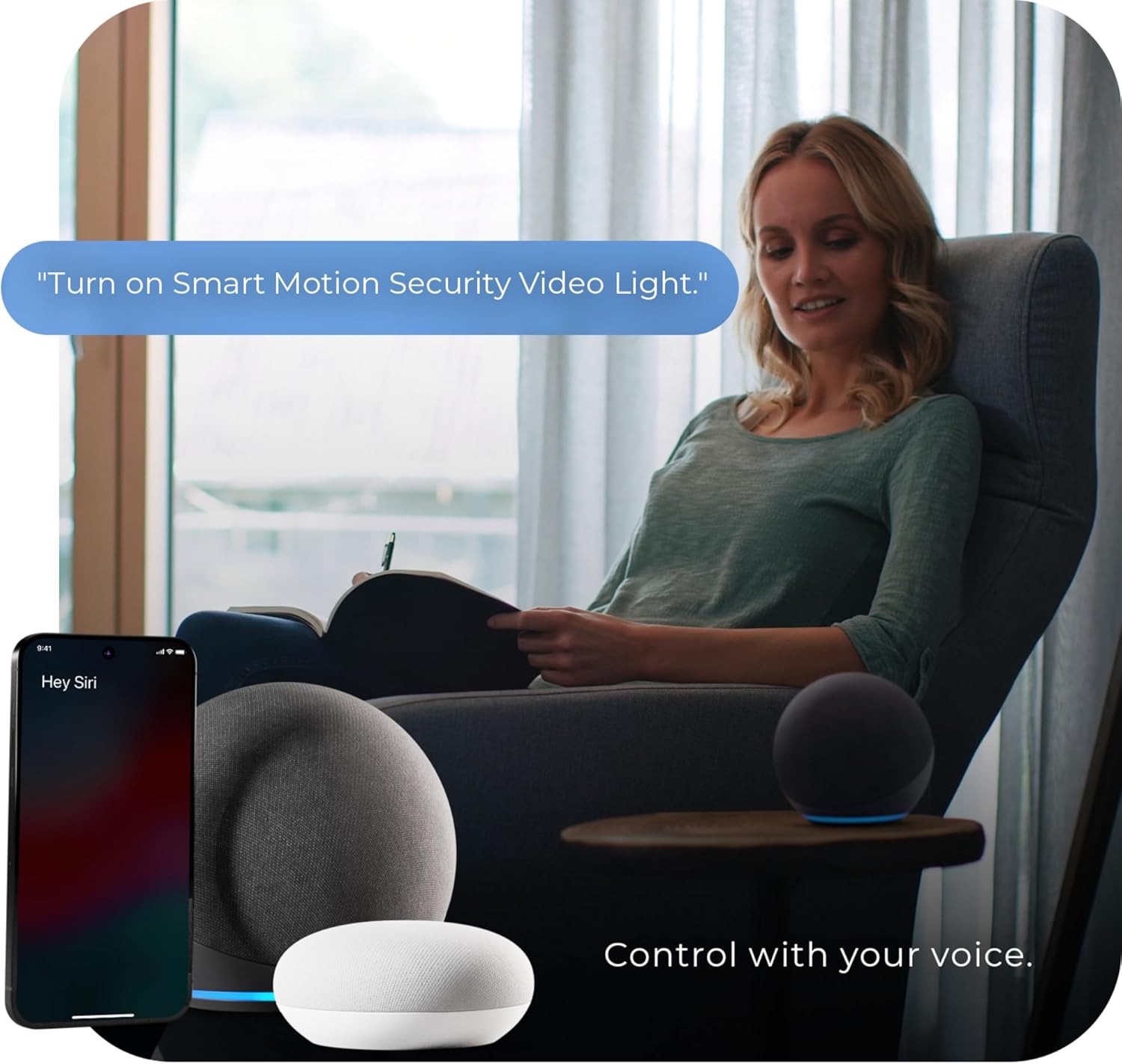
Image: A smartphone displaying a notification from the security light app, indicating that motion has been detected, allowing users to stay informed whether home or away.

Image: The scheduling feature within the security light app, allowing users to set daily or weekly schedules for light activation and siren activation.
2. Motion Detection Adjustment
You can fine-tune the motion sensor sensitivity through the GLOBE SUITE™ App to prevent false alarms or ensure optimal detection.
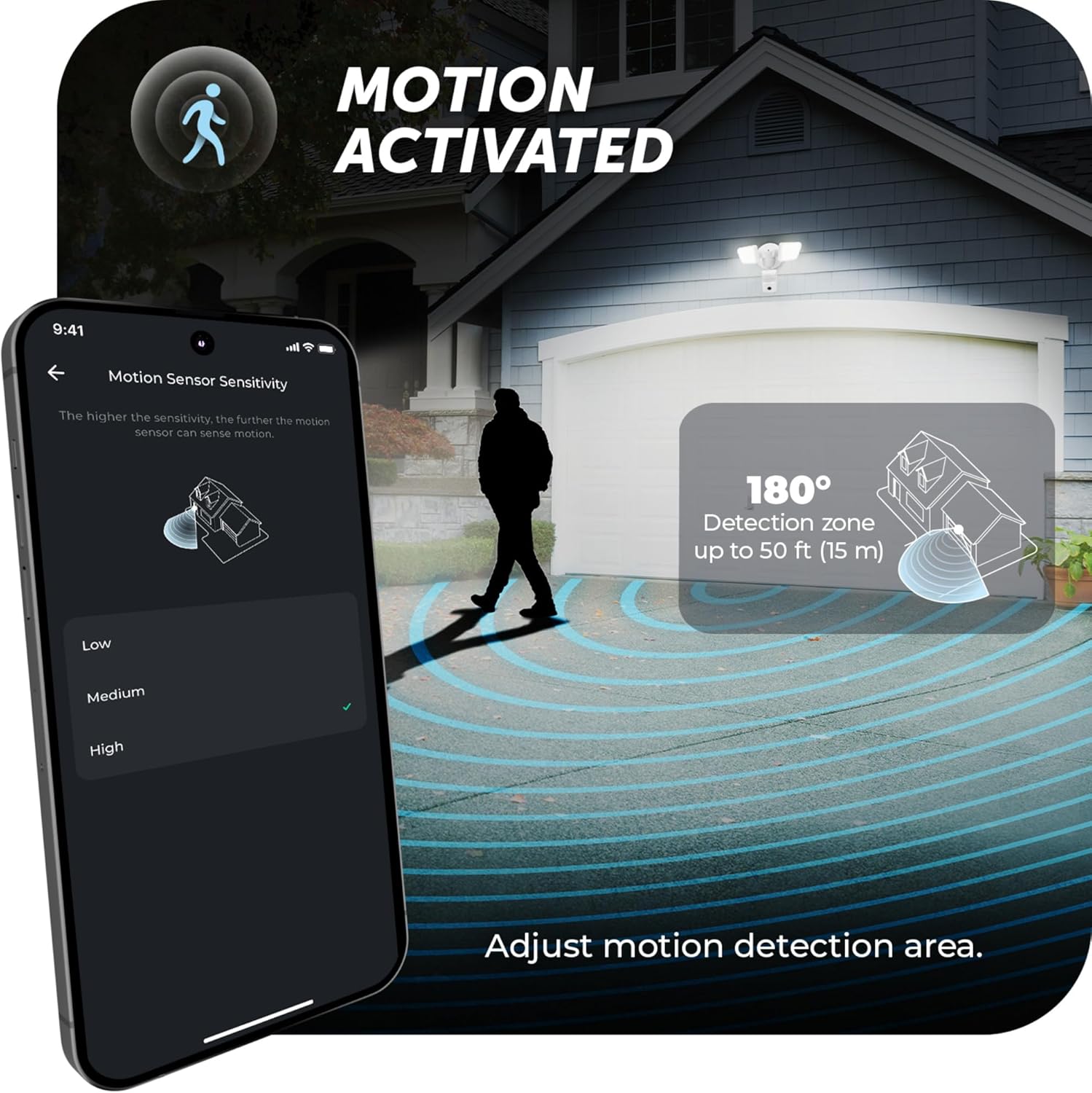
Image: The app interface for adjusting motion sensor sensitivity, illustrating the 180-degree detection zone and its range of up to 50 feet (15 meters).
3. Voice Control Integration
The security light is compatible with voice assistants like Amazon Alexa and Google Assistant, allowing for hands-free control.
- Link your GLOBE SUITE™ account with your preferred voice assistant in their respective apps.
- Use commands such as "Turn on Smart Motion Security Video Light" to control the device.
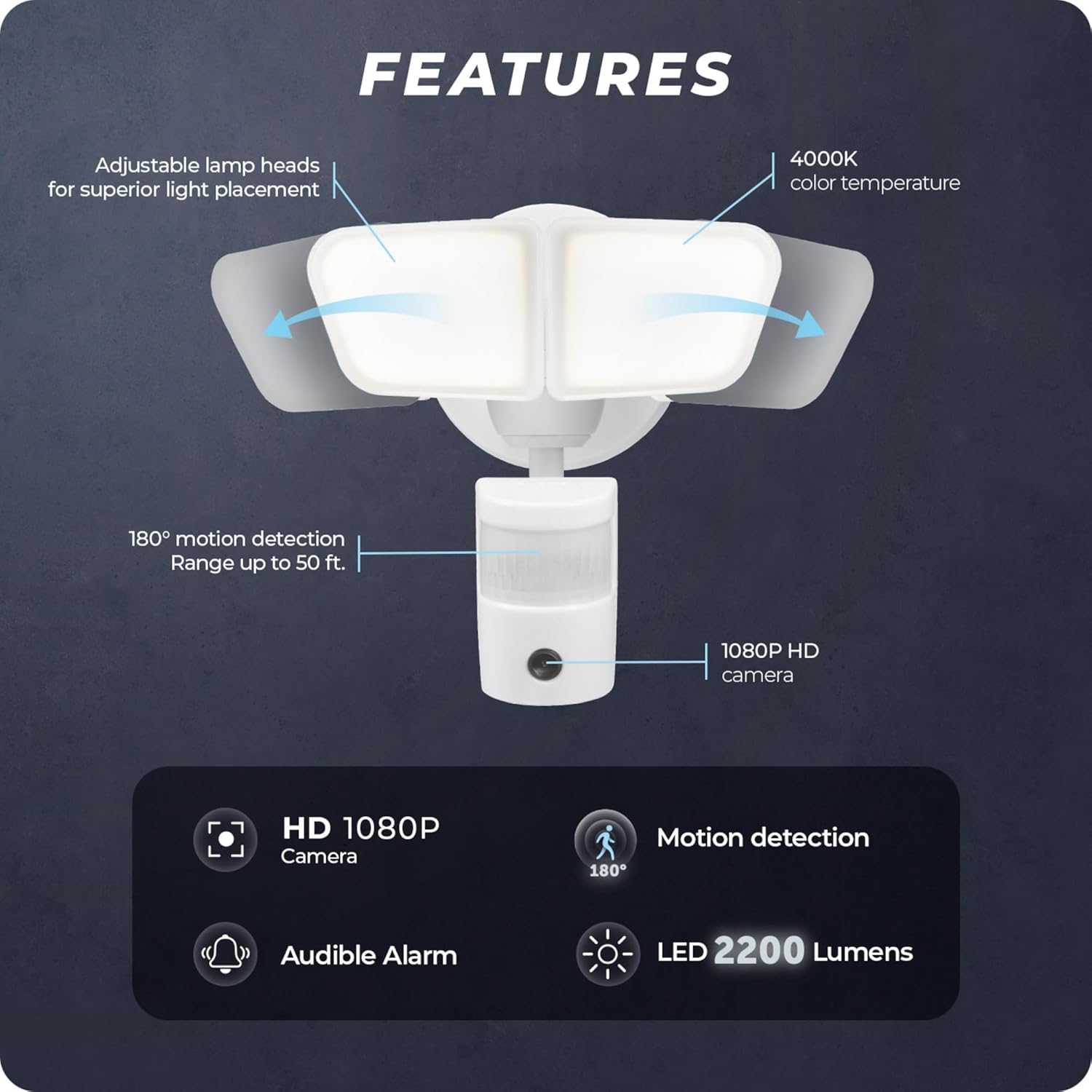
Image: A user demonstrating voice control functionality for the security light, integrated with smart home devices like Amazon Alexa and Google Assistant.
Maintenance
Regular maintenance ensures optimal performance and longevity of your security light.
- Cleaning: Periodically wipe the light fixture, camera lens, and motion sensor with a soft, damp cloth. Avoid abrasive cleaners or solvents.
- Inspection: Annually inspect the wiring and mounting hardware for any signs of wear, corrosion, or loosening. Ensure all connections remain secure.
- Software Updates: Keep the GLOBE SUITE™ App updated to the latest version to receive new features and security enhancements.
Note: Always turn off power at the circuit breaker before performing any maintenance on the electrical components.
Troubleshooting
| Problem | Possible Cause | Solution |
|---|---|---|
| Light does not turn on. | No power; faulty wiring; light mode set to "Off" in app. | Check circuit breaker. Verify wiring connections. Ensure light mode is set to "On" or "Auto" in the GLOBE SUITE™ App. |
| Motion detection is not working or is too sensitive. | Sensor obstructed; sensitivity settings incorrect; environmental factors. | Clear any obstructions from the sensor. Adjust motion sensitivity settings in the GLOBE SUITE™ App (Low, Medium, High). Avoid pointing the sensor at moving trees or busy streets. |
| Cannot connect to Wi-Fi. | Incorrect Wi-Fi password; 5 GHz network; weak signal. | Ensure you are connecting to a 2.4 GHz Wi-Fi network. Double-check your Wi-Fi password. Move the light closer to your router or consider a Wi-Fi extender. |
| Video feed is unclear or pixelated. | Poor Wi-Fi signal; dirty camera lens. | Improve Wi-Fi signal strength. Gently clean the camera lens with a soft cloth. |
Product Specifications
| Feature | Detail |
|---|---|
| Brand | GLOBE |
| Model Number | 17000214 |
| Color | White, Smart 180-Degree |
| Material | Plastic |
| Power Source | Hardwired |
| Light Source Type | LED |
| Wattage | 26 watts |
| Voltage | 120 Volts |
| Lumen Output | 2200 lumens |
| Color Temperature | 4000 Kelvin (Bright White) |
| CRI | 80 |
| Motion Detection Zone | 180 degrees |
| Motion Detection Range | Up to 50 ft (15 m) |
| Camera Resolution | 1080p HD |
| Connectivity | Wi-Fi (2.4 GHz only) |
| Control Method | App (GLOBE SUITE™), Voice (Alexa, Google Assistant) |
| Product Dimensions (L x W x H) | 8.2" x 8.3" x 7.9" (20.9 cm x 21 cm x 20 cm) |
| Item Weight | 1.87 pounds |
| Included Components | Mounting Hardware |

Image: Detailed dimensional drawing of the security light, providing length, width, and height measurements in both inches and centimeters.
Warranty and Support
Warranty Information
This GLOBE Electric Wi-Fi Smart Motion Security Video Light is backed by a 1-year manufacturer's limited warranty. This warranty covers defects in materials and workmanship under normal use.
For specific warranty terms and conditions, please refer to the documentation included with your product or visit the official GLOBE Electric website.
Customer Support
For technical assistance, troubleshooting, or warranty claims, please contact GLOBE Electric customer support. You can typically find contact information on the product packaging, the GLOBE Electric website, or within the GLOBE SUITE™ App.
Ensure you have your product model number (17000214) and proof of purchase ready when contacting support.


