
Product Overview
The Guiheng Dual Mode Wireless Bluetooth Mouse offers versatile connectivity and a silent, ergonomic design. It features LED lighting, a rechargeable battery, and compatibility with various devices.
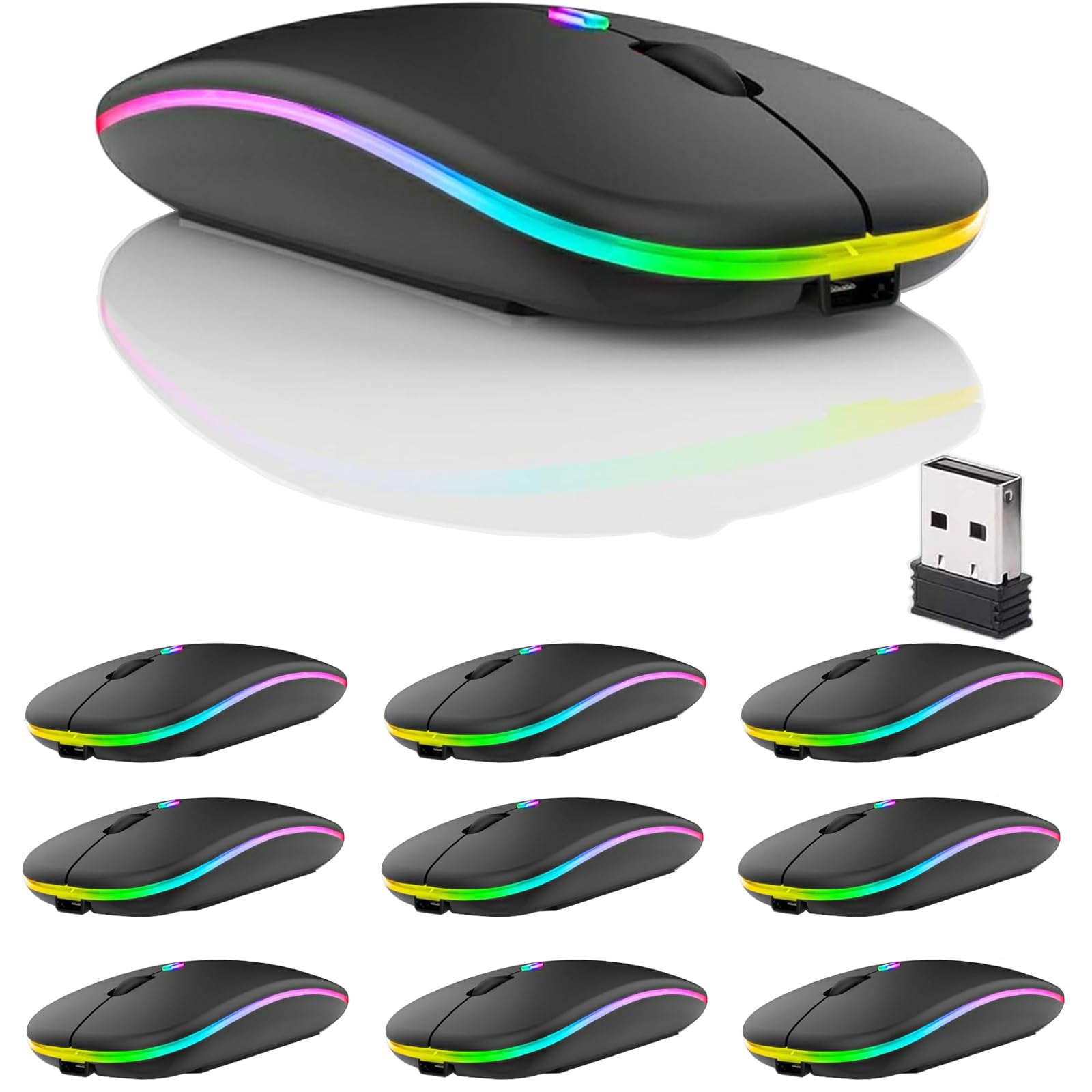
Image Description: A black Guiheng Dual Mode Wireless Bluetooth Mouse with colorful LED lighting along its edges, positioned on a laptop keyboard.
Package Contents
- Guiheng Dual Mode Wireless Bluetooth Mouse
- USB Receiver (stored inside the mouse)
- USB-C Charging Cable
Setup
Charging the Mouse
Before first use, fully charge the mouse.
- Locate the USB-C charging port at the front of the mouse.
- Connect the provided USB-C charging cable to the mouse and a USB power source (e.g., computer USB port, USB wall adapter).
- The mouse will indicate charging status (e.g., LED light changes). A full charge typically takes 2-3 hours.
Note: Use slow charging options only. Fast charging is not supported.

Image Description: A black Guiheng Dual Mode Wireless Bluetooth Mouse connected to a charging cable, illustrating the charging process and battery capacity.
Connecting via USB Receiver (2.4G Mode)
- Locate the USB receiver stored in the compartment on the underside of the mouse.
- Remove the USB receiver and plug it into an available USB port on your computer or device.
- Slide the mode switch on the underside of the mouse to the "2.4G" position.
- The mouse should connect automatically.

Image Description: The underside of the Guiheng Dual Mode Wireless Bluetooth Mouse showing the USB receiver stored in its compartment and the mode switch.
Connecting via Bluetooth (BT5.2 Mode)
- Slide the mode switch on the underside of the mouse to the "BT" (Bluetooth) position.
- On your device (laptop, tablet, phone), go to Bluetooth settings and enable Bluetooth.
- Search for new devices. The mouse should appear as "BT5.2 Mouse" or similar.
- Select the mouse to pair.

Image Description: A visual representation of the mouse's dual mode connectivity, highlighting Bluetooth 5.2 and 2.4G wireless options.
Operating Instructions
Basic Functions
- Left Click: Primary selection.
- Right Click: Context menu.
- Scroll Wheel: Scroll up/down. Can also be clicked for middle-click functionality.
DPI Adjustment
The mouse features 3 adjustable DPI settings (800, 1200, 1600) for varying cursor sensitivity.
To change DPI, press the DPI button located behind the scroll wheel. Each press cycles through the available settings.

Image Description: Close-up of the mouse showing the DPI button and indicating the three adjustable DPI settings (800, 1200, 1600).
LED Lighting
The mouse features a 7-color LED light strip that changes randomly during use, providing ambient lighting.
Automatic Sleep Mode
To conserve battery, the mouse will enter sleep mode after 5 minutes of inactivity.
To wake the mouse, simply click any button or move it.
Maintenance
- Keep the mouse clean by wiping it with a soft, dry cloth.
- Avoid exposing the mouse to extreme temperatures or moisture.
- Store the USB receiver inside the mouse when not in use to prevent loss.
- Recharge the mouse when the battery is low to ensure continuous operation.
Troubleshooting
Mouse Not Responding
- Ensure the mouse is turned on and the mode switch is set correctly (2.4G for USB receiver, BT for Bluetooth).
- For 2.4G mode, ensure the USB receiver is securely plugged into a working USB port.
- For Bluetooth mode, ensure Bluetooth is enabled on your device and the mouse is paired. Try re-pairing if necessary.
- Check the battery level and charge the mouse if needed.
Lag or Intermittent Connection
- Ensure the mouse is within the operating range (up to 10 meters).
- Reduce interference by moving away from other wireless devices.
- If using 2.4G, try plugging the USB receiver into a different USB port.
- If using Bluetooth, try disconnecting and re-pairing the mouse.
LED Lights Not Working
- Ensure the mouse is powered on.
- The LED lights are designed to change randomly; there is no manual control for specific colors.
Specifications
| Feature | Detail |
|---|---|
| Brand | Guiheng |
| Connectivity Technology | USB (2.4G Wireless), Bluetooth 5.2 |
| Movement Detection Technology | Optical |
| Special Feature | Soundless (Silent Click) |
| DPI Settings | 800, 1200, 1600 |
| Power Source | Battery Powered (Rechargeable) |
| Battery Capacity | 500mAh Lithium Battery |
| Operating System | Linux, Windows 10, Windows 8, Mac OS, Android, iOS |
| Compatible Devices | Personal Computer, Laptop, iPad, Tablet, Phone, TV |
| Range | 10.0 meters |
| Hand Orientation | Ambidextrous |
| Material | Plastic |
| UPC | 762238967950 |
| ASIN | B0CWLN4M3B |
Warranty and Support
This product comes with a standard manufacturer's warranty. For specific warranty details or technical support, please refer to the product packaging or contact Guiheng customer service.
Online resources and FAQs may also be available on the manufacturer's website.