
1. Safety Information
Please read all safety instructions carefully before using this product. Failure to follow these instructions may result in electric shock, fire, or other hazards.
- Do not expose the projector to rain or moisture to prevent fire or electric shock.
- Do not open the projector casing. There are no user-serviceable parts inside. Refer all servicing to qualified service personnel.
- Ensure proper ventilation. Do not block ventilation openings.
- Use only the power adapter supplied with the projector.
- Avoid direct eye exposure to the projector lens when the lamp is on.
- Keep the projector away from heat sources and direct sunlight.
2. Package Contents
Verify that all items listed below are included in your package:
- 1 x Jectse Mini LED Projector
- 1 x Remote Control (2 AAA batteries not included)
- 1 x AV Line (3-in-1 RCA cable)
- 1 x Instruction Manual
- 1 x Power Adapter

Figure 2.1: Contents of the Jectse Mini LED Projector package.
3. Product Overview
The Jectse Mini LED Projector is a compact and portable device designed for various multimedia applications. It features a 1080P resolution, LED light source, and multiple connectivity options.

Figure 3.1: Front and top view of the Jectse Mini LED Projector.
3.1 Projector Components

Figure 3.2: Top panel controls of the Jectse Mini LED Projector.
- Lens: Projects the image onto the screen.
- Ventilation Grille: Ensures proper airflow for cooling.
- Control Buttons: (Refer to Figure 3.2) For basic navigation and power control.
- Focus Wheel: Adjusts image clarity.
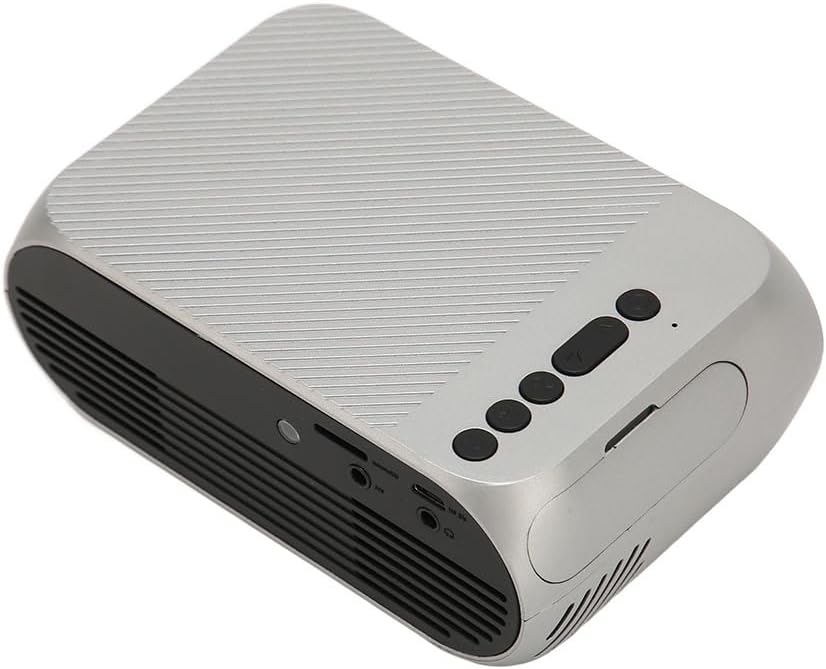
Figure 3.3: Rear and side view with input/output ports.
3.2 Input/Output Ports
- HD Multimedia Interface (HDMI): For connecting devices like laptops, gaming consoles, and media players.
- AV Port: For connecting older devices using the included AV cable.
- USB Port: For connecting USB drives to play media files directly.
- Power Input: For connecting the power adapter.
- Audio Output (3.5mm Jack): For connecting external speakers or headphones.
4. Setup
4.1 Placement
Place the projector on a stable, flat surface. Ensure there is adequate space around the projector for ventilation. The ideal projection distance is between 1.5 to 2 meters for optimal image size and clarity.

Figure 4.1: Recommended projection distance and screen sizes.
4.2 Power Connection
- Connect the power adapter to the projector's power input port.
- Plug the power adapter into a suitable electrical outlet (100-240V).
4.3 Connecting Input Sources
The projector supports HD Multimedia Interface, AV, and USB inputs.

Figure 4.2: Projector compatibility with various devices.
- HD Multimedia Interface: Connect an HD Multimedia Interface cable from your source device (e.g., laptop, game console) to the projector's HD Multimedia Interface port.
- AV: Connect the included AV cable to the projector's AV port and the corresponding audio/video output ports on your source device.
- USB: Insert a USB flash drive into the projector's USB port.
4.4 Focus Adjustment
After powering on the projector, rotate the focus wheel (usually located near the lens) until the projected image appears clear and sharp.
5. Operating Instructions
5.1 Powering On/Off
- To Power On: Press the Power Switch button on the projector or the power button on the remote control.
- To Power Off: Press the Power Switch button again. The projector will shut down.
5.2 Source Selection
After powering on, use the "Signal Source Button" on the projector or the "Source" button on the remote control to cycle through available input sources (HD Multimedia Interface, AV, USB).
5.3 Menu Navigation
Use the Direction Buttons and Confirm Button on the projector or the arrow keys and OK button on the remote control to navigate through the projector's on-screen menu for settings adjustments (e.g., picture mode, aspect ratio, sound settings).
5.4 Remote Control Usage
Insert two AAA batteries (not included) into the remote control. Point the remote control towards the projector's IR receiver to operate functions such as power, source selection, volume, and menu navigation.
6. Maintenance
6.1 Cleaning the Lens
Use a soft, lint-free cloth specifically designed for optical lenses to gently wipe the projector lens. Do not use abrasive cleaners or excessive force, as this can scratch the lens.
6.2 General Cleaning
Wipe the exterior of the projector with a soft, dry cloth. Do not use liquid cleaners or solvents. Ensure the ventilation grilles are free from dust and debris to maintain optimal cooling.
7. Troubleshooting
| Problem | Possible Cause | Solution |
|---|---|---|
| No image projected |
|
|
| Image is blurry |
|
|
| No sound |
|
|
| Remote control not working |
|
|
8. Specifications
| Feature | Detail |
|---|---|
| Brand | Jectse |
| Model Number | Jectse3giz17bkpy |
| Resolution | 1920*1080p |
| Light Source | LED |
| LED Life | 3000 hours |
| Projection Distance | 1.5-2m |
| Projection Ratio | 1.6:1 |
| Aspect Ratio | 16:9 |
| Power Input | 100-240V |
| Product Size | 13 x 8.5 x 5 cm (approx. 5.1 x 3.3 x 2 inches) |
| Item Weight | 1.1 pounds |
| Connectivity Technology | HD Multimedia Interface, AV, USB |
| Special Features | Adjustable, Portable Design |
9. Warranty and Support
For warranty information or technical support, please refer to the contact details provided with your purchase or visit the official Jectse website. Keep your proof of purchase for warranty claims.