
1. Introduction
Thank you for purchasing the EsaSam Double Din Car Stereo Multimedia Radio. This manual provides detailed instructions for the installation, operation, and maintenance of your new car stereo system. Please read this manual thoroughly before installation and use to ensure proper function and to prevent damage.
2. Safety Information
- Always consult a professional for installation to avoid damage to the vehicle's electrical system or the unit.
- Do not operate the unit in a manner that distracts you from driving. Always prioritize road safety.
- Ensure all wiring connections are secure and properly insulated to prevent short circuits.
- Avoid exposing the unit to extreme temperatures, direct sunlight for prolonged periods, or excessive moisture.
- Do not attempt to disassemble or modify the unit. This may void the warranty and cause damage.
3. Package Contents
Verify that all items are present in the package:
- EsaSam Car Stereo Head Unit (9-inch touchscreen)
- Power Adapter Harness
- Frame for Lada Granta 2018-2019
- GPS Antenna
- AHD Rear View Camera
- External Microphone
- RCA Cable (Audio Out, AUX In, Subwoofer Out)
- USB Cables
- 4G Antenna (if applicable to your model variant)

Image: Overview of included accessories such as RCA cables, reversing camera, microphone, GPS antenna, and 4G antenna.
4. Product Overview and Key Features
The EsaSam Double Din Car Stereo is an advanced multimedia system designed for the Lada Granta 2018-2019. It features a 9-inch high-definition IPS touchscreen and runs on the Android 12 operating system, offering a wide range of functionalities for an enhanced driving experience.
- Operating System: Android 12
- Processor: 4-core (for m100s model)
- Memory: 1GB RAM + 32GB ROM (for m100s model)
- Display: 9-inch IPS Capacitive Multi-Touch Screen, 1024*600 resolution
- Connectivity: Built-in WiFi, Bluetooth 4.0, 4G LTE support (with SIM card slot)
- Navigation: Integrated GPS with support for online and offline maps (GPS antenna included)
- Audio: FM/AM/RDS Radio (AM: 520-1700 Hz, FM: 87.5-108.5MHz), AUX-IN, Subwoofer audio output, various sound effects.
- Multimedia: HD 1080P video playback, USB support, file manager for Android apps.
- Integration: Wireless Carplay & Android Auto, Steering Wheel Control (SWC) support, Mirror Link (Android & iOS), AHD Rear View Camera input.
- Additional Features: Dual Zone function, Day/Night UI switching, Multi-language support.
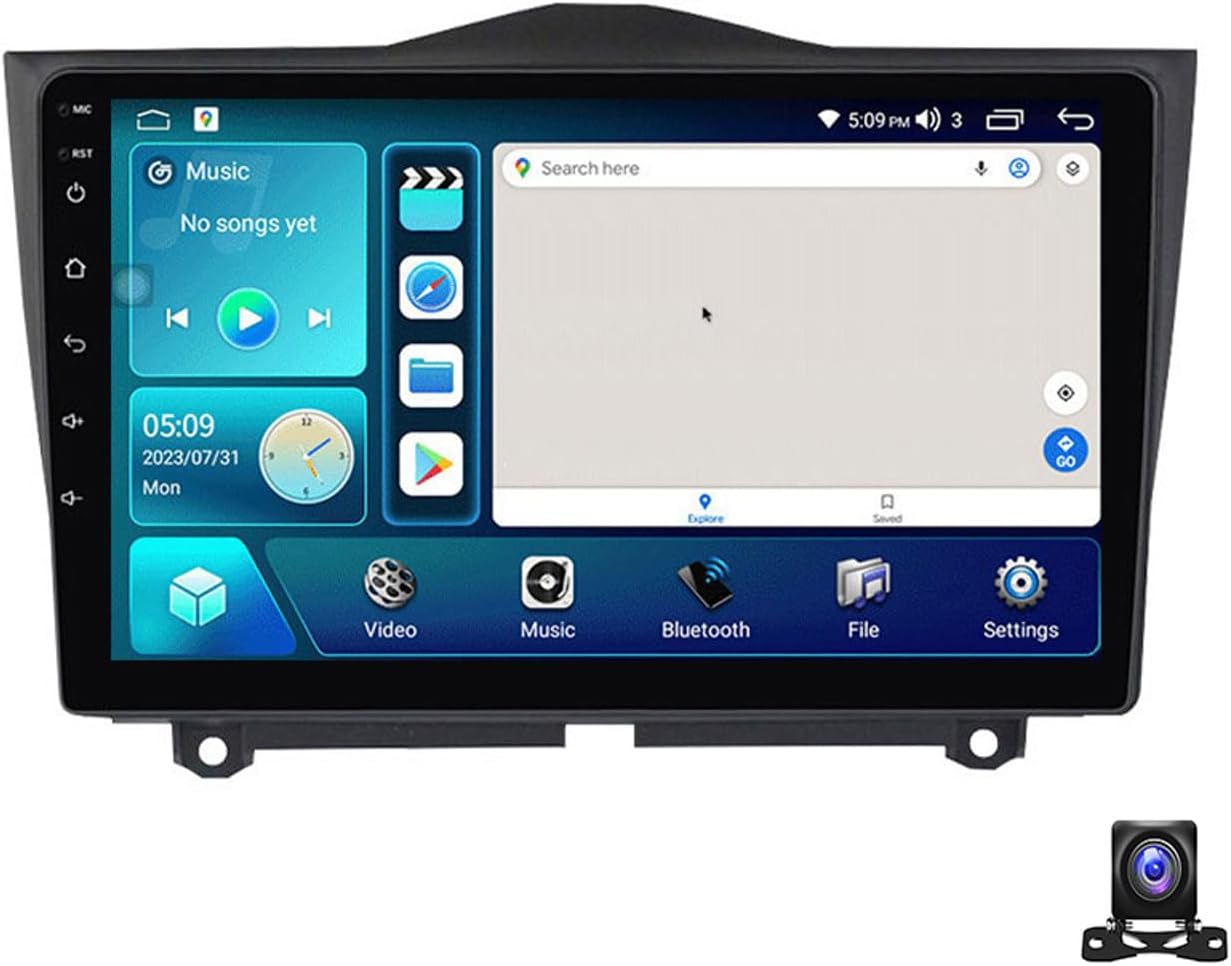
Image: Front view of the EsaSam 9-inch car stereo head unit.
5. Setup and Installation
5.1 Professional Installation Recommended
Due to the complexity of car electrical systems, professional installation is highly recommended to ensure correct wiring and to prevent damage to your vehicle or the stereo unit.
5.2 Installation Steps Overview
- Remove Original Unit: Carefully remove the existing car stereo and trim from your Lada Granta dashboard.
- Connect Wiring Harness: Connect the provided power adapter harness to the vehicle's wiring. Ensure all connections are secure. Refer to the wiring diagram below.
- Connect Peripherals: Connect the GPS antenna, external microphone, AHD rear view camera, and any other accessories (USB, 4G antenna) to the corresponding ports on the head unit.
- Test Functionality: Before fully securing the unit, temporarily power it on to test basic functions like power, display, and sound.
- Install Head Unit: Mount the EsaSam head unit into the dashboard opening using the provided frame. Secure it firmly.
- Final Assembly: Reinstall any removed trim pieces.

Image: Comparison showing the car dashboard before and after the EsaSam car stereo installation.
5.3 Wiring Diagram (General)
The following image illustrates typical wiring connections. Specific wire colors and functions may vary slightly. Always refer to the labels on your harness.

Image: Detailed view of the rear connections of the car stereo, showing ports for USB, WiFi, 4G, and other inputs, along with setup steps for Carplay/Android Auto.
5.4 Initial Power On and Basic Settings
After installation, turn on your vehicle's ignition. The unit should power on automatically.
- Language: Navigate to Settings > System > Languages & input to select your preferred language.
- Date & Time: Set the correct date and time in Settings > System > Date & time.
- Factory Password: For M100S models, the factory password is 8888. This may be required for certain system settings.
5.5 Network Connection
Connect your unit to the internet for online navigation, app downloads, and other features.
- Wi-Fi: Go to Settings > Network & internet > Wi-Fi. Turn Wi-Fi on and select your network, then enter the password. The unit supports 5GHz Wi-Fi for faster transmission.
- 4G LTE: If your unit supports 4G (check specifications) and you have a 4G SIM card, insert it into the designated slot. The unit will automatically connect to the 4G network.
6. Operating Instructions
6.1 User Interface and Navigation
The unit features an intuitive Android interface. Swipe left/right on the home screen to access different apps and widgets. The UI supports automatic day and night mode switching for optimal visibility.

Image: Demonstrates Day and Night UI switching, along with interfaces for Steering Wheel Control, Bluetooth functions, and FM/AM Radio.
6.2 GPS Navigation
Access the Navigation app from the home screen. The unit supports global positioning systems (GPS, BDS, GLONASS) and can use both online and offline maps. For offline maps, download them via Wi-Fi first.
Image: Displays the GPS navigation interface, including real-time traffic conditions and support for split-screen view with other applications like music.
6.3 FM/AM Radio
Tap the 'Radio' icon to access the FM/AM tuner. You can manually tune, auto-scan for stations, and save your favorite frequencies. The unit supports RDS (Radio Data System) for displaying station information.
- FM Frequency Range: 87.5-108.5MHz
- AM Frequency Range: 520-1700 Hz
6.4 Bluetooth Functionality
Connect your smartphone via Bluetooth for hands-free calling and audio streaming.
- Pairing: Go to Settings > Connected devices > Bluetooth. Turn Bluetooth on. On your phone, search for the car stereo (usually named 'CarBT' or similar) and pair.
- Hands-Free Calling: Once paired, you can make and receive calls directly from the stereo screen. Your phone's contact list can be synchronized.
- Bluetooth Music: Stream audio from your phone to the car stereo.
6.5 Wireless CarPlay & Android Auto
Connect your smartphone for a seamless integration of phone features onto the car stereo display.
- Wireless Connection: Ensure your phone's Wi-Fi and Bluetooth are on. Open the 'CarPlay' or 'Android Auto' app on the stereo. Follow the on-screen instructions to connect your phone.
- Wired Connection: For Android Auto, you may also connect via a USB cable.
6.6 Multimedia Playback
Play audio and video files from various sources.
- USB: Insert a USB drive into the USB port. The unit will detect media files (audio, video, images) and allow playback through the 'Music' or 'Video' apps.
- Supported Formats: Supports HD 1080P video playback and various audio formats.
6.7 Steering Wheel Control (SWC)
The unit supports your vehicle's original steering wheel controls for safe operation.
- Configuration: Go to Settings > Car settings > Steering Wheel Control.
- Learning Function: Follow the on-screen instructions to assign functions to your steering wheel buttons. Press a button on the steering wheel, then select the desired function on the screen.
6.8 Rear View Camera
The included AHD rear view camera provides a clear image when reversing.
- When the vehicle is shifted into reverse gear, the display will automatically switch to the camera view.
- Ensure the camera is properly installed and connected to the 'CAM IN' port.
6.9 Split Screen Function
Run two applications simultaneously on the screen for enhanced multitasking, such as navigation and music playback.
- To activate, open one app, then long-press the recent apps button or drag another app from the recent apps list to one side of the screen.
7. Advanced Features (Optional Accessories)
The EsaSam car stereo supports various optional accessories that can be purchased separately to expand its functionality.

Image: Illustrates optional features such as ADAS DVR, OBD II diagnostic tool, and TPMS (Tire Pressure Monitoring System) integration.
7.1 ADAS DVR (Advanced Driver-Assistance Systems Digital Video Recorder)
Connect an optional ADAS DVR for features like front vehicle distance prediction, front vehicle anti-collision warning, and lane deviation warning. This requires a compatible DVR unit.
7.2 OBD II (On-Board Diagnostics)
Connect an optional OBD II adapter to diagnose your car's status, view real-time data, and check fault codes. This requires a compatible OBD II adapter.
7.3 TPMS (Tire Pressure Monitoring System)
Integrate an optional TPMS to monitor tire pressure and temperature in real-time. This requires a compatible TPMS receiver and sensors.
7.4 DSP (Digital Sound Processor)
The unit includes a Digital Sound Processor, allowing for advanced audio customization. Access the DSP settings in the system menu to adjust equalizer, sound effects (pop, rock, jazz), and other audio parameters for an optimized listening experience.
8. Maintenance
- Cleaning: Use a soft, dry cloth to clean the screen and unit. Avoid abrasive cleaners or solvents.
- Software Updates: Periodically check for software updates through the system settings or the manufacturer's website to ensure optimal performance and access to new features.
- Avoid Overheating: Ensure proper ventilation around the unit. If a cooling fan is present, ensure it is not obstructed.
9. Troubleshooting
If you encounter issues, refer to the following common problems and solutions:
| Problem | Possible Cause | Solution |
|---|---|---|
| Unit does not power on. | Incorrect wiring, blown fuse, power supply issue. | Check power connections and vehicle fuses. Consult a professional if necessary. |
| No sound. | Speaker wiring issue, volume too low, mute activated. | Check speaker connections, increase volume, ensure unit is not muted. |
| GPS signal lost or inaccurate. | GPS antenna obstructed or disconnected, poor satellite coverage. | Ensure GPS antenna is properly installed and has a clear view of the sky. Check antenna connection. |
| Bluetooth not connecting. | Bluetooth off on unit or phone, incorrect pairing process. | Ensure Bluetooth is enabled on both devices. Delete previous pairings and re-pair. |
| Rear view camera not displaying. | Camera wiring issue, camera faulty, reverse trigger not connected. | Check camera power and video connections. Ensure reverse trigger wire is correctly connected. |
For issues not listed here, or if solutions do not resolve the problem, please contact customer support.
10. Specifications
The following specifications apply to the 4 core m100s 1g+32g model:
- Model: 4 core m100s 1g+32g
- Operating System: Android 12
- Processor: 4-Core
- RAM: 1GB DDR3
- ROM: 32GB
- Screen Size: 9 Inch
- Screen Resolution: 1024*600
- Screen Type: IPS Capacitive Multi-Touch
- Bluetooth Version: 4.0
- Wi-Fi: Built-in (supports 5GHz)
- Radio Tuner: FM/AM with RDS
- FM Frequency: 87.5-108.5MHz
- AM Frequency: 520-1700 Hz
- Video Output: Support HD 1080P
- Audio Output: AUX-IN, Subwoofer output
- Compatibility: Lada Granta 2018-2019
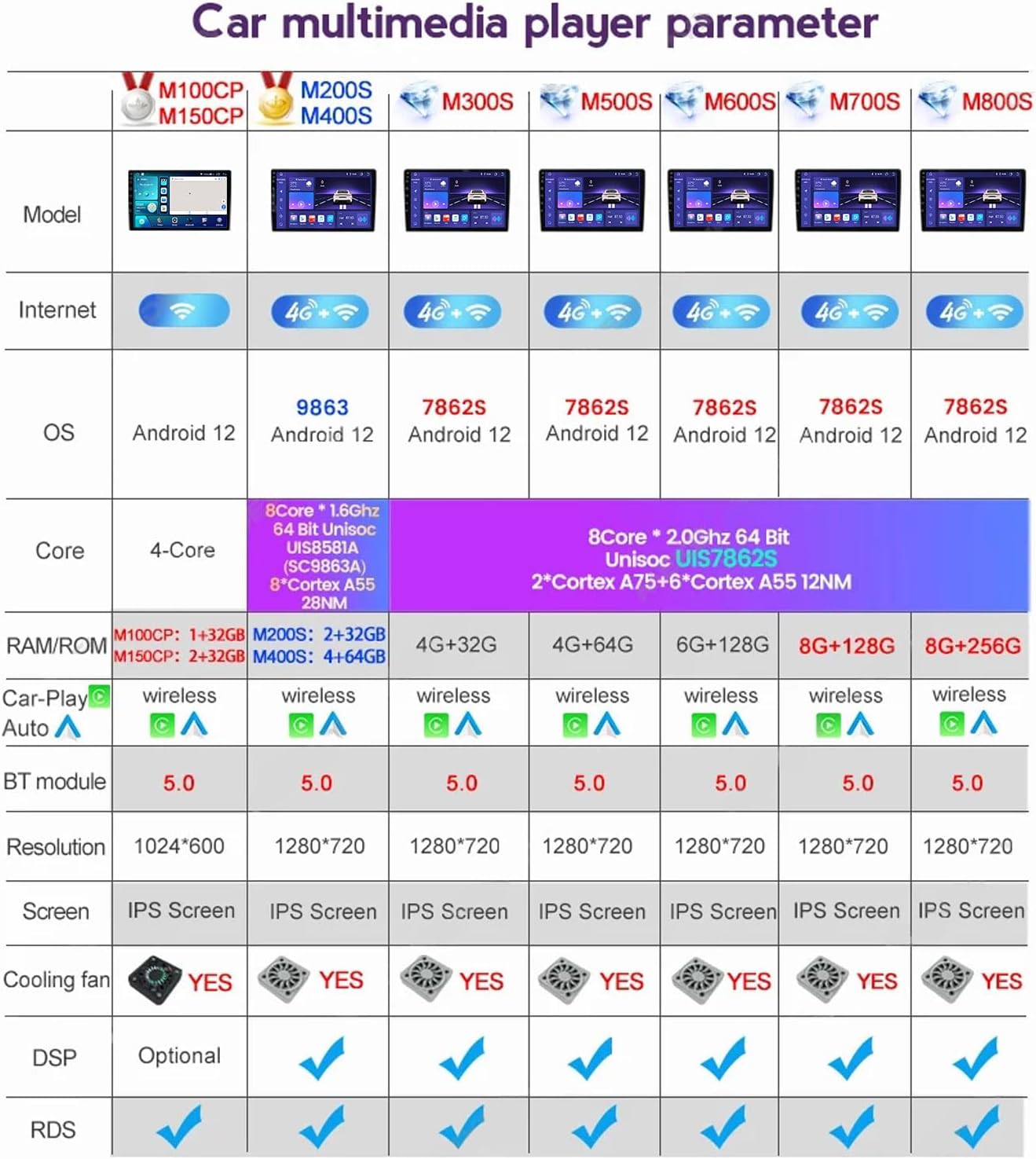
Image: Parameter table detailing specifications for different EsaSam car multimedia player models, including core count, RAM/ROM, OS, and features.
11. Warranty and Support
11.1 Warranty Information
This product is covered by a standard manufacturer's warranty. Please refer to your purchase documentation or contact the seller for specific warranty terms and duration. The warranty typically covers defects in materials and workmanship under normal use.
11.2 Customer Support
If you require technical assistance, have questions about installation, or encounter any issues not covered in this manual, please contact EsaSam customer support through the retailer where you purchased the product. Provide your model number (4 core m100s 1g+32g) and a detailed description of the issue for efficient support.