
1. Introduction
This manual provides detailed instructions for the installation, operation, and maintenance of your KICHI TUYA 24V WiFi Smart Programmable Thermostat. This device is designed to control various 24V HVAC systems, offering smart features for enhanced comfort and energy efficiency.
2. Product Features
- Universal Compatibility: Supports 24V HVAC systems including furnaces, air conditioners (2H/2C), heat pumps (2H/2C + 2 AUX levels), boilers, PTAC units, and 3-speed fan coil systems.
- Multiple Operating Modes: Features 5 modes: System Off, Emergency Heat, Cool Only, Heat Only, and Auto. The Auto mode automatically switches between heating and cooling.
- Smart Control: Integrates with Smart Life or Tuya Smart App for remote control and supports voice commands via Amazon Alexa and Google Assistant. Requires a 2.4 GHz Wi-Fi network.
- Easy Installation: Includes a C-wire converter, base, and backplate. Equipped with 10 terminal blocks (RC, RH, C, Y2, Y1, G, S, O/B, W1, W2) and 2 expandable ports.
- Informative Display: The LCD screen shows current weather, indoor and outdoor temperatures, a cleaning reminder, time, day of the week, system status, fan mode, and Wi-Fi connectivity.
- Advanced Programming: Allows setting up to 4 different temperature ranges daily, with a temperature control accuracy of 0.5°C.
- Modern Design: Features a stylish appearance with 5 colored backlights, a responsive touch dial, and a clear, easy-to-read LCD screen.
3. Package Contents
Verify that all items are present in the package:
- 1 x KICHI TUYA WiFi Thermostat
- 1 x Adapter (C-wire converter)
4. Specifications
| Power Supply | 24VDC/AC ±10% |
| Current Load | 1A (Inductive), 3A (Resistance) |
| Sensor | NTC3950, 10K |
| Set Temperature Range | 5 ~ 35°C (41 ~ 95°F) |
| Accuracy | 0.5°C (1°F) |
| Display Temperature Range | 5 ~ 35°C (41 ~ 95°F) |
| Ambient Temperature | 0 ~ 45°C (32 ~ 113°F) |
| Ambient Humidity | 5 ~ 95% RH (Non-condensing) |
| Storage Temperature | -5 ~ 45°C (23 ~ 113°F) |
| Time Error | < 1% |
| Power Consumption | < 1.5W |
| Material | Plastic |
| Color | White |
| Connectivity | Wi-Fi (2.4 GHz only) |
| Controller Type | Amazon Alexa, Google Assistant, Mechanical Dial |
5. Setup and Installation
5.1 Wiring the Thermostat
The KICHI TUYA thermostat requires a 24V power supply. If your existing system does not have a C-wire, use the included adapter (C-wire converter) for proper power delivery. Refer to the diagram below for typical wiring connections.

Image: The KICHI TUYA 24V WiFi Thermostat unit shown alongside its C-wire adapter, which features clearly labeled terminal blocks for wiring into an HVAC system.
Wiring Terminals:
- RC/RH: 24V Power (Cooling/Heating)
- C: Common Wire (Required for continuous power)
- Y1/Y2: Cooling Stages
- G: Fan
- S: Sensor (Optional)
- O/B: Reversing Valve (Heat Pumps)
- W1/W2: Heating Stages
Important: Always turn off power to your HVAC system at the circuit breaker before beginning any wiring. If you are unsure about wiring, consult a qualified electrician or HVAC technician.
5.2 App Installation and Wi-Fi Connection
- Download the Smart Life or Tuya Smart app from your smartphone's app store (iOS or Android).
- Register for a new account or log in if you already have one.
- Follow the in-app instructions to add a new device. Ensure your smartphone is connected to a 2.4 GHz Wi-Fi network. The thermostat only supports 2.4 GHz Wi-Fi.
- Put the thermostat into pairing mode (refer to the thermostat's on-screen instructions or quick start guide for specific steps, usually involves holding a button).
- Complete the pairing process through the app.
6. Operating the Thermostat
6.1 Basic Controls
The thermostat features a touch dial and an LCD screen for direct control. Rotate the dial to adjust temperature settings and press to confirm selections or navigate menus.
6.2 Operating Modes
Select from the following system modes:
- System Off: Turns off all heating and cooling.
- Heat Only: The system will only provide heating.
- Cool Only: The system will only provide cooling.
- Emergency Heat: Activates auxiliary heating (for heat pump systems).
- Auto: The thermostat automatically switches between heating and cooling to maintain the set temperature range.
6.3 Programming Mode
The thermostat allows for daily programming with up to 4 different temperature settings per day. You can set schedules for 5+2, 6+1, or 7-day cycles.

Image: A smartphone screen displaying the programming interface within the Smart Life/Tuya app, showing daily schedules for wake, away, home, and sleep periods with corresponding temperature settings.
Access programming settings via the thermostat's menu or the Smart Life/Tuya Smart app.
6.4 Remote Control via App
Control your thermostat from anywhere using the Smart Life or Tuya Smart app on your smartphone.
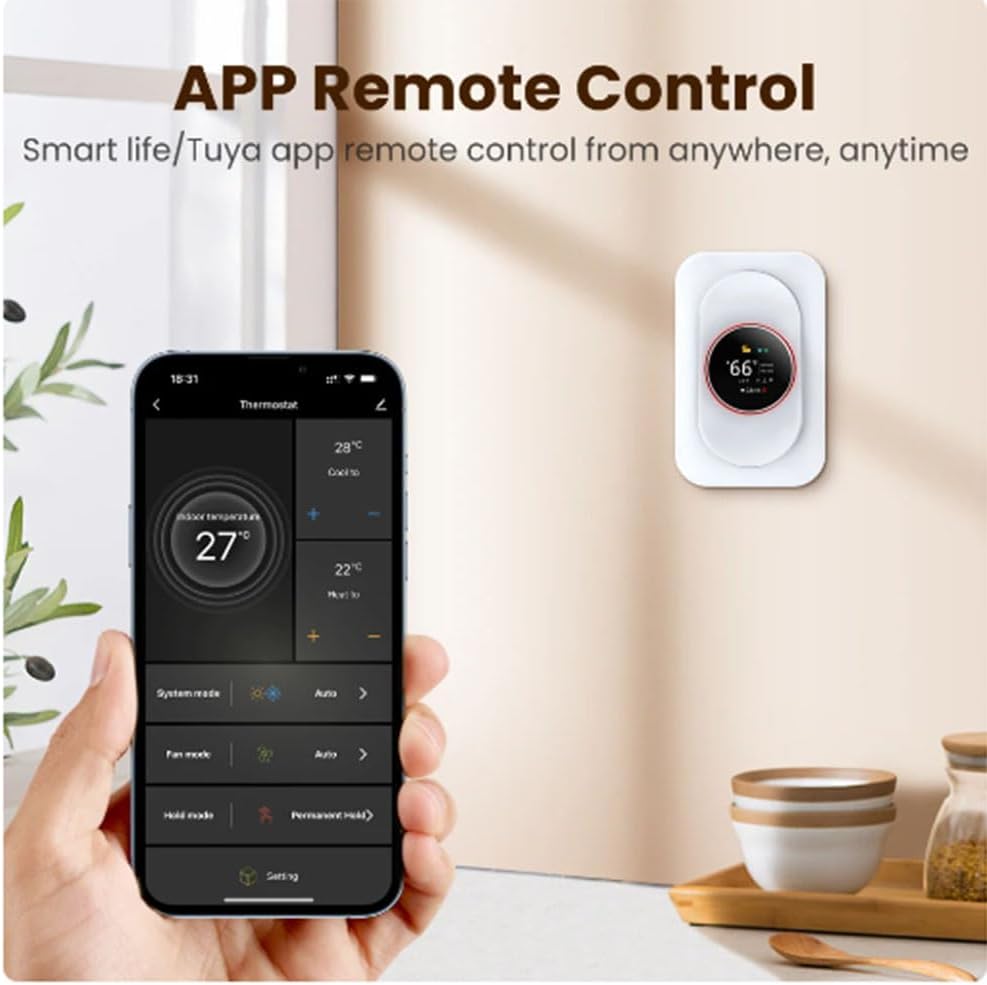
Image: A hand holding a smartphone displaying the Smart Life/Tuya app interface for the thermostat, showing current temperature, set temperature, system mode, and fan mode, with the physical thermostat visible in the background.
The app allows you to adjust temperature, change modes, set schedules, and monitor your home's climate.
6.5 Voice Control
Integrate your thermostat with Amazon Alexa or Google Assistant for convenient voice control. Link your Smart Life/Tuya Smart account within the Alexa or Google Home app.
Example Commands:
- "Alexa, set the thermostat to 22 degrees."
- "Hey Google, what's the temperature in the living room?"
- "Alexa, turn on the heat."
6.6 Temperature Calibration
If you notice a discrepancy between the thermostat's reading and another thermometer, you can calibrate the temperature sensor. The calibration range is typically ±9°C.

Image: An illustration demonstrating temperature calibration, showing a thermostat displaying 27°C while the room temperature is adjusted to 18°C, with a slider indicating a calibration range from -9°C to +9°C.
Access this setting through the thermostat's advanced menu or the app.
6.7 Backlight Brightness Adjustment
Adjust the brightness of the thermostat's backlight to suit your preference, especially to avoid disturbance during sleep. The brightness range is typically from 0 to 100.

Image: A person sleeping, with a KICHI thermostat mounted on the wall. An overlay shows a brightness slider from 0 to 100, illustrating the adjustable backlight feature designed to prevent sleep disturbance.
This setting can usually be found in the thermostat's display settings or the app.
7. Maintenance
The thermostat is designed for low maintenance. A cleaning reminder may appear on the screen periodically.
- Cleaning: Gently wipe the screen and exterior with a soft, dry, or slightly damp cloth. Do not use abrasive cleaners or solvents.
- Sensor: Ensure the temperature sensor (small opening on the thermostat) is not obstructed by dust or debris for accurate readings.
8. Troubleshooting
If you encounter issues with your thermostat, try the following steps:
- No Power/Blank Screen: Check the circuit breaker for your HVAC system. Ensure the C-wire is correctly connected and providing 24V power.
- Wi-Fi Disconnection: Verify your router is operating on a 2.4 GHz band. Restart your router and the thermostat. Re-attempt the Wi-Fi pairing process in the app.
- Incorrect Temperature Reading: Check for obstructions around the thermostat's sensor. Perform a temperature calibration as described in Section 6.6.
- System Not Responding: Ensure the system mode is correctly selected (Heat, Cool, Auto). Check wiring connections for looseness.
- App Issues: Ensure the Smart Life/Tuya Smart app is updated to the latest version. Clear the app's cache or reinstall it if problems persist.
For persistent issues, contact customer support.
9. Warranty and Support
For warranty information and technical support, please refer to the documentation provided with your purchase or visit the official KICHI website. Keep your proof of purchase for warranty claims.
Manufacturer: KICHI
Model Number: TJH-2561