
1. Introduction
This manual provides comprehensive instructions for the UNSTINCER USB 3.0 to Dual HDMI Adapter. This device allows you to connect two external HDMI displays to your computer via a single USB 3.0 port, expanding your visual workspace and enhancing productivity. Please read this manual carefully before use to ensure proper installation and operation.
2. Product Overview
The UNSTINCER USB 3.0 to Dual HDMI Adapter is a versatile external graphics card solution. It converts an available USB 3.0 port on your PC, Mac, or Chromebook into two HDMI outputs, supporting resolutions up to 1080p (1920 x 1080 pixels) at 60 Hz for both video and audio. It also features a 3.5mm stereo audio output.


3. Key Features
- Multi-System Support: Compatible with Windows 11/10/8.1/8/7/XP (32bit)/Vista (32bit), MacBook Air/Pro (M1/M2/M3 and Intel Powered), and Chromebooks. Note: Does not support Windows XP (64-bit) and Vista (64-bit).
- Dual Display Extension: Extends 2 independent screens via a single USB 3.0 port. Supports both mirrored and extended display modes.
- High Resolution: Delivers 1080p Full HD (1920 x 1080 @ 60 Hz) on both HDMI outputs simultaneously when connected via USB 3.0.
- Audio Output: Includes a 3.5mm stereo audio output jack.
- Plug and Play (with Driver): USB-powered, no external power supply needed. Requires driver installation for initial setup.
- Multiple Display Modes: Supports Extension, Mirror, Primary, and Screen Rotation modes.
- Enhanced Productivity: Windows supports up to 8 displays, Mac OS supports up to 6, significantly improving work efficiency.
4. Setup Instructions
Follow these steps to set up your UNSTINCER USB 3.0 to Dual HDMI Adapter:
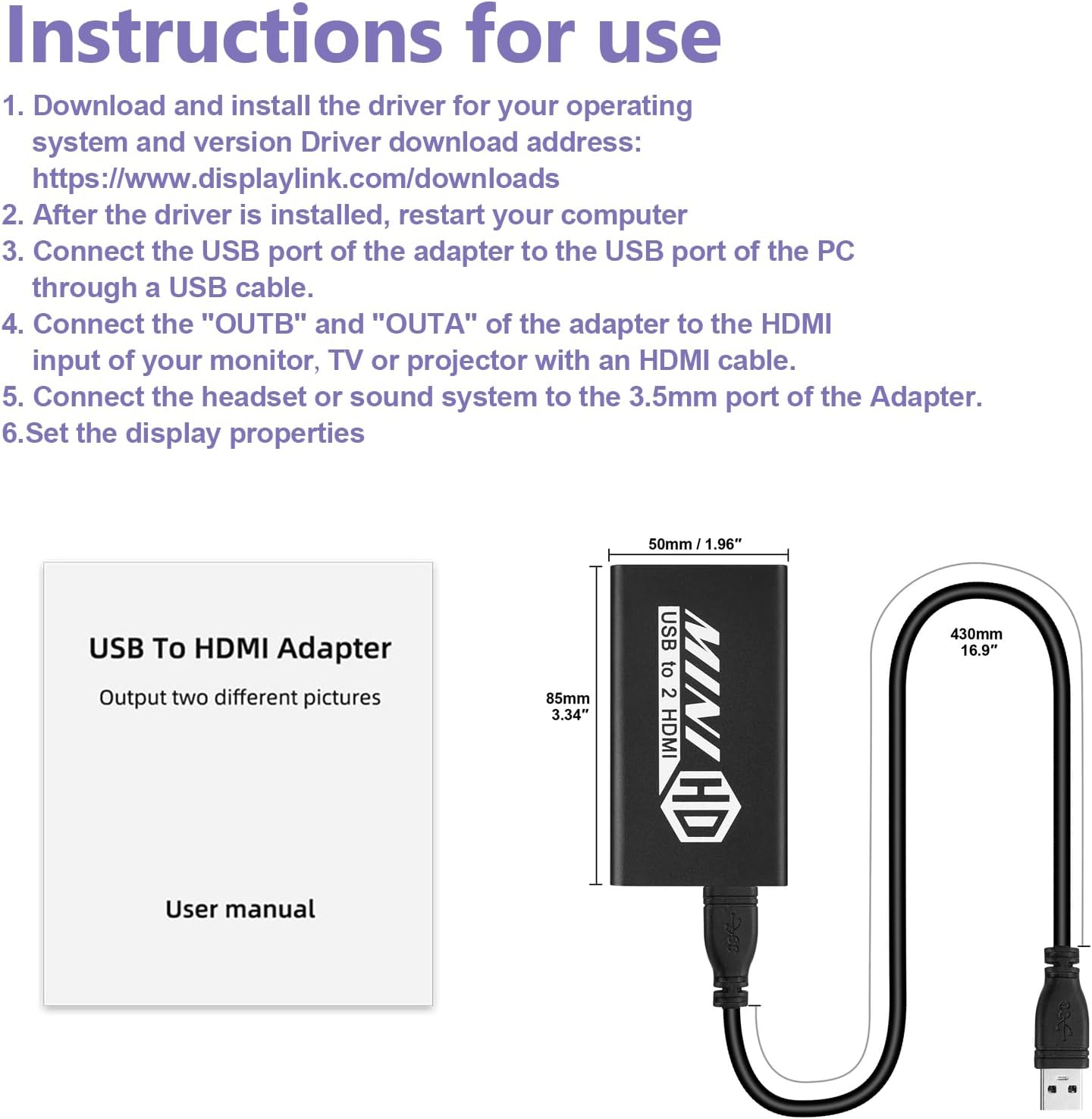
- Download and Install Driver: Download and install the DisplayLink driver for your operating system. The driver can typically be found at www.displaylink.com/downloads.
- Restart Computer: After the driver installation is complete, restart your computer.
- Connect Adapter to Computer: Connect the USB plug of the adapter to an available USB 3.0 port on your PC or laptop using a USB cable.
- Connect Displays: Connect your monitors, TVs, or projectors to the "OUTA" and "OUTB" HDMI ports of the adapter using HDMI cables.
- Connect Audio (Optional): If desired, connect headphones or speakers to the 3.5mm audio port on the adapter.
- Configure Display Settings: Adjust your display properties in your operating system settings to set up mirror, extend, or other display modes.
5. Operating Instructions
The UNSTINCER adapter supports various display configurations to suit your needs:
- Mirror Mode: Duplicates your primary display onto the connected external monitors. Ideal for presentations or sharing content.
- Extended Mode: Extends your desktop across multiple screens, allowing for a larger workspace and improved multitasking.
- Primary Mode: Designates one of the connected displays as the main screen.
- Screen Rotation Mode: Allows you to rotate the display orientation (e.g., portrait or landscape) on your external monitors.
To switch between display modes, press the Windows key + P simultaneously on Windows systems, or adjust settings in your operating system's display preferences for Mac and ChromeOS.


6. Maintenance
The UNSTINCER USB 3.0 to Dual HDMI Adapter is designed for durability and stable performance. No specific maintenance is required beyond general care:
- Keep the adapter clean and free from dust. Use a soft, dry cloth for cleaning.
- Avoid exposing the device to extreme temperatures, humidity, or direct sunlight.
- Do not attempt to disassemble or repair the adapter yourself.
The adapter features an upgraded heat sink design to enhance heat dissipation efficiency and ensure stable output during prolonged use.

7. Troubleshooting
- No Display on Monitors:
- Ensure the DisplayLink driver is correctly installed and your computer has been restarted.
- Verify that the USB cable is securely connected to a USB 3.0 port on your computer and the adapter.
- Check that HDMI cables are firmly connected to both the adapter and your displays.
- Confirm your monitors are set to the correct HDMI input source.
- Try connecting only one monitor at a time to isolate the issue.
- Low Resolution (e.g., 800x600):
- This typically occurs when the adapter is connected to a USB 2.0 port. For 1080p resolution, ensure the adapter is connected to a USB 3.0 port.
- Check your computer's display settings to ensure the resolution is set to the maximum supported by your monitors.
- No Audio from HDMI Outputs:
- If the 3.5mm audio jack is connected, the HDMI outputs (OUTA and OUTB) will not output sound. Disconnect the 3.5mm jack if you require audio through HDMI.
- Ensure your computer's audio output is directed to the DisplayLink device in your sound settings.
- Driver Installation Issues:
- Ensure you download the correct driver version for your operating system from the official DisplayLink website.
- Temporarily disable antivirus software during installation if encountering issues.
8. Specifications
| Feature | Specification |
|---|---|
| Brand | UNSTINCER |
| Model Number | 755801719414 |
| Color | Black |
| Connector Type | USB 3.0/2.0/Type A to HDMI |
| Compatible Devices | HDMI: Monitor, Projector, TV; USB: Laptop, PC |
| Max Resolution (USB 3.0) | 1920 x 1080P @ 60 Hz |
| Max Resolution (USB 2.0) | 800 x 600 @ 60 Hz |
| Number of Ports | 2 (HDMI) |
| Item Dimensions (L x W x H) | 8 x 5 x 1 centimeters |
| Power Source | USB Powered (No external power required) |
| Specific Product Uses | Gaming entertainment, home cinema, business training, data comparison, stock market monitoring |
9. Warranty and Support
For warranty information and technical support, please refer to the UNSTINCER official website or contact your retailer. Keep your purchase receipt for warranty claims.