
1. Introduction
The ProtoArc XKM03 is an ergonomic, foldable Bluetooth keyboard and mouse combo designed for portability and comfortable use across various devices. This manual provides instructions for setup, operation, maintenance, and troubleshooting to ensure optimal performance.

Image: The ProtoArc XKM03 foldable keyboard, ergonomic mouse, and protective carrying case.
Key Features:
- Ergonomic Split Design: The keyboard features a V-shape with a 166-degree angle and split keyset to promote a natural typing posture and reduce wrist strain.
- Ultra-Slim and Foldable: The keyboard folds for compact storage and portability, with automatic power on/off upon unfolding/folding.
- Ergonomic Mouse: The wireless mouse is designed with a contoured shape for palm and thumb support, reducing wrist discomfort. It offers adjustable DPI settings up to 2400.
- Multi-Device Connectivity: Connects to up to three Bluetooth devices simultaneously, allowing for easy switching between them.
- Wide Compatibility: Compatible with Mac OS, iOS, Android, and Windows operating systems on iPads, iPhones, tablets, cellphones, and laptops.
2. Package Contents
- ProtoArc XKM03 Foldable Bluetooth Keyboard
- ProtoArc Ergonomic Bluetooth Mouse
- USB-C Charging Cable
- User Manual
- Carrying Case
3. Setup and Connection
3.1 Charging the Devices
Before initial use, fully charge both the keyboard and the mouse using the provided USB-C charging cable. The charging port for the keyboard is typically located on the side or back edge. The mouse charging port is usually on the front edge.
- A full charge takes approximately 2 hours.
- The keyboard has a standby time of up to 250 hours on a full charge.
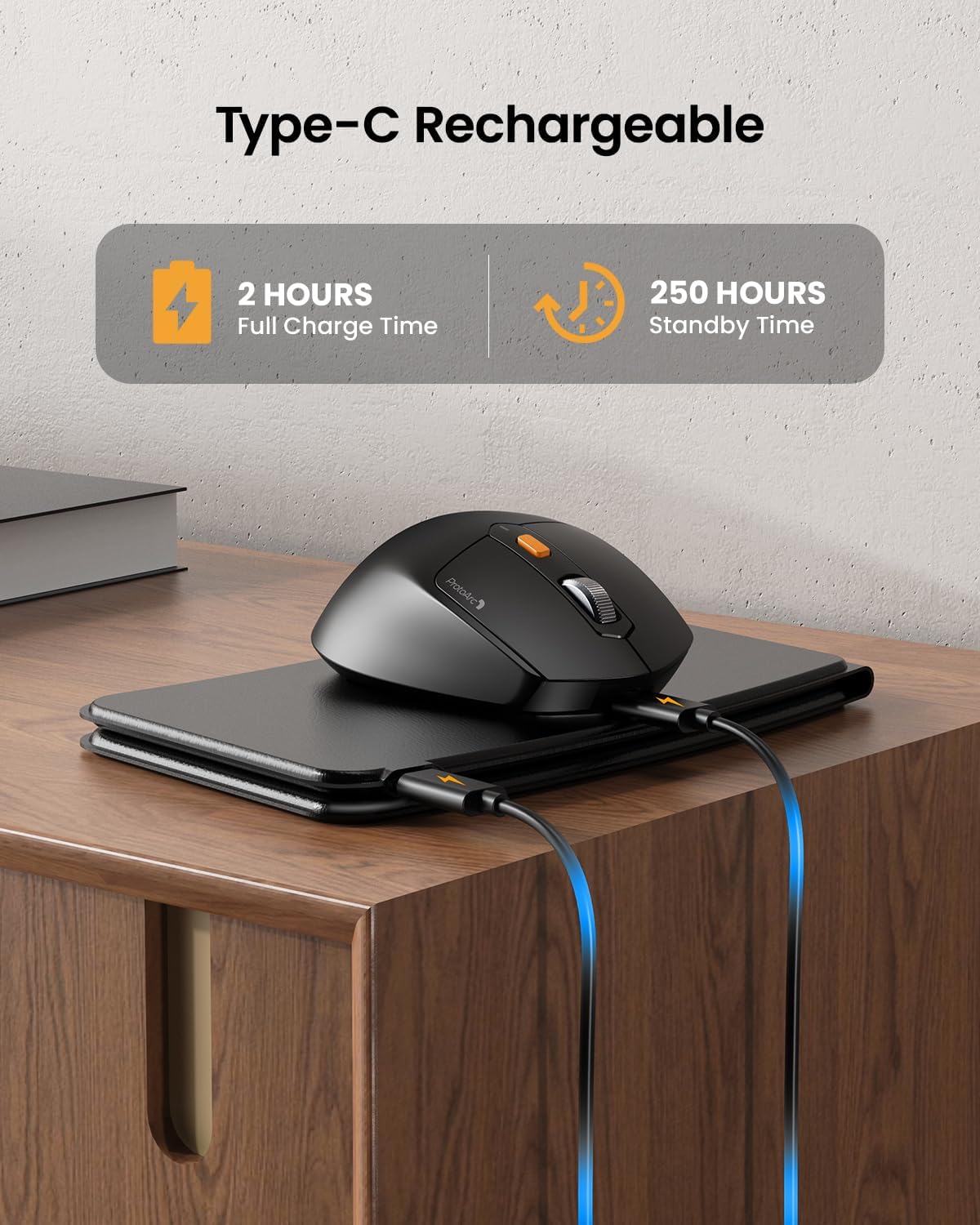
Image: The keyboard and mouse connected to power via USB-C cables for charging.
3.2 Keyboard Bluetooth Pairing
- Unfold the keyboard. This action automatically powers on the keyboard.
- Press and hold the Fn key and one of the Bluetooth channel keys (BT1, BT2, or BT3) for 3-5 seconds until the corresponding indicator light flashes rapidly. This indicates the keyboard is in pairing mode.
- On your device (iPad, tablet, iPhone, laptop), go to Bluetooth settings and search for available devices.
- Select "ProtoArc XKM03 Keyboard" from the list.
- Once connected, the indicator light will stop flashing and remain solid for a few seconds before turning off.
3.3 Mouse Bluetooth Pairing
- Turn on the mouse using the power switch located on its underside.
- Press the Bluetooth pairing button (usually on the underside or top near the scroll wheel) for 3-5 seconds until the indicator light flashes rapidly.
- On your device, go to Bluetooth settings and search for available devices.
- Select "ProtoArc XKM03 Mouse" from the list.
- Once connected, the indicator light will stop flashing.

Image: The keyboard and mouse wirelessly connected to a laptop, tablet, and smartphone, illustrating multi-device capability.
4. Operating Instructions
4.1 Keyboard Usage
The XKM03 keyboard features an ergonomic split design for comfortable typing. An initial adaptation period may be required to become accustomed to the layout.

Image: A user's hands positioned on the V-shaped split keyboard, demonstrating the ergonomic design.
Automatic Power On/Off:
- Unfold the keyboard to power it on.
- Fold the keyboard to power it off.
- The keyboard also features magnetic closure to prevent accidental unfolding.
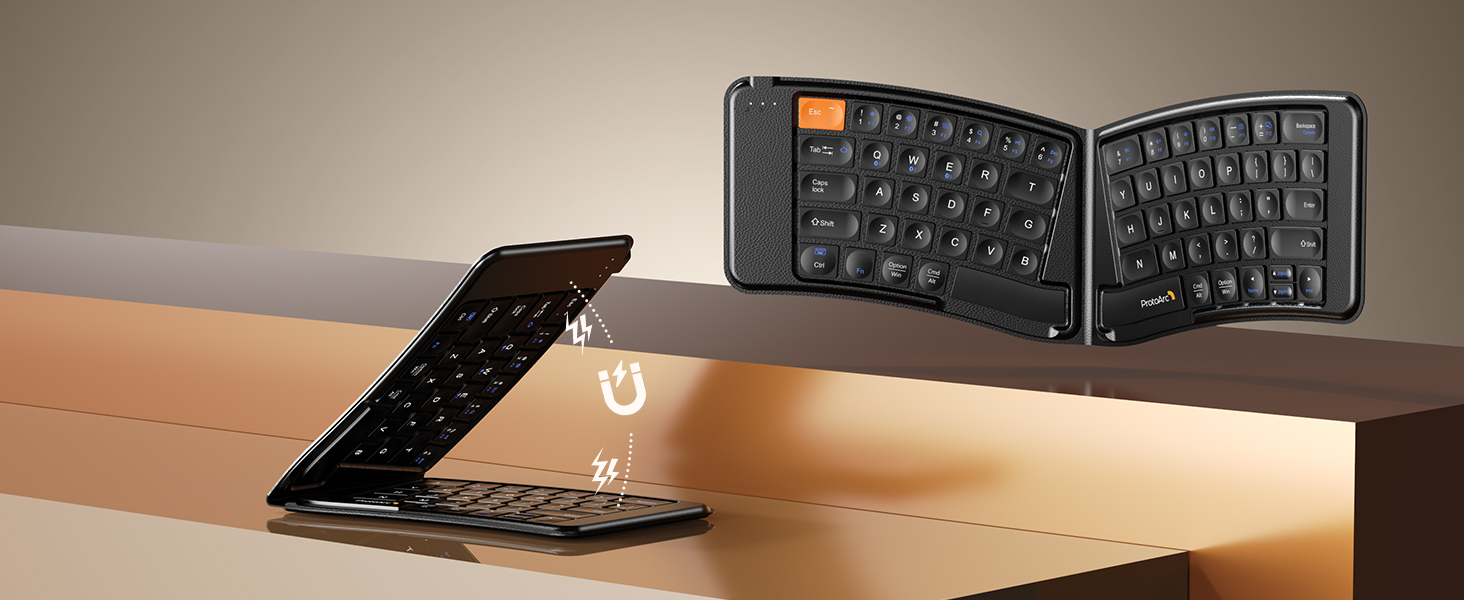
Image: The keyboard shown in both folded and unfolded states, highlighting its magnetic closure mechanism.
4.2 Switching Between Devices
To switch between paired Bluetooth devices, simply press the Fn key along with the corresponding Bluetooth channel key (BT1, BT2, or BT3) that your desired device is paired to.
4.3 Multimedia Function Keys
The keyboard includes multimedia function keys. Refer to the keycap legends for specific functions (e.g., volume control, media playback).
- Press F1-F10 directly to access number 1-0.
- Press Fn + F1-F12 to activate multimedia functions.
- Press Shift + F1-F12 to input symbols like !, @, #.
- Press Fn + Shift + F1-F12 to access F1-F12 functions.
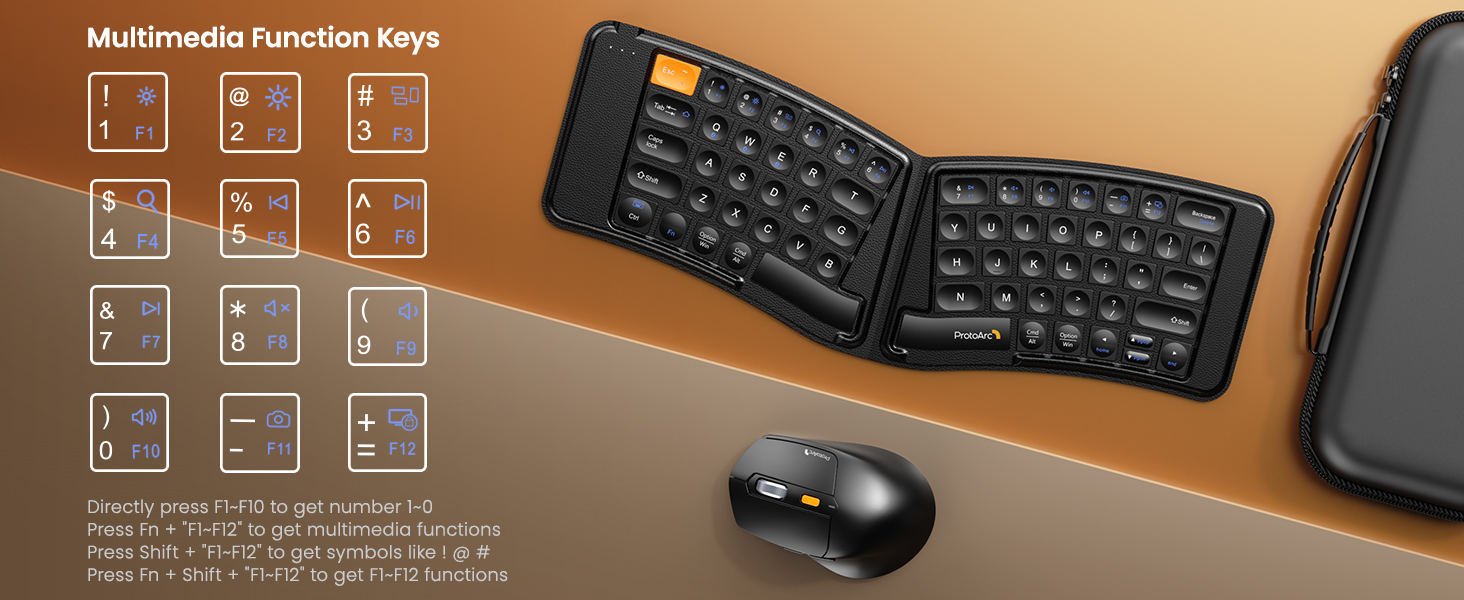
Image: A visual guide to the multimedia function keys and their combinations on the keyboard.
4.4 Mouse Usage
The ergonomic mouse provides comfortable navigation. It features adjustable DPI settings and additional navigation buttons.
- DPI Adjustment: Press the DPI button (usually located behind the scroll wheel) to cycle through different sensitivity levels (e.g., 800, 1200, 1600, 2400 DPI).
- Forward/Backward Buttons: Use the side buttons for quick navigation in web browsers or file explorers.

Image: Diagram illustrating the adjustable DPI settings of the mouse.

Image: Diagram showing the location of the forward and backward buttons on the mouse.
5. Maintenance and Care
- Cleaning: Use a soft, dry cloth to clean the keyboard and mouse. For stubborn dirt, a slightly damp cloth with mild soap can be used, ensuring no liquid enters the devices.
- Storage: When not in use, fold the keyboard and store both devices in the provided carrying case to protect them from dust and damage.
- Charging: Recharge the devices when the battery indicator light shows low power. Avoid prolonged exposure to extreme temperatures.
- Material: The keyboard features a wear-resistant PU leather exterior.

Image: A close-up view of the keyboard's surface, highlighting the PU leather material.
6. Troubleshooting
| Problem | Possible Cause | Solution |
|---|---|---|
| Keyboard/Mouse not connecting via Bluetooth. | Low battery; not in pairing mode; device's Bluetooth is off; interference. |
|
| Keyboard/Mouse frequently disconnects. | Low battery; too far from host device; interference. |
|
| Mouse cursor is erratic or unresponsive. | Low battery; dirty sensor; unsuitable surface; incorrect DPI setting. |
|
| Keyboard keys are not responding. | Low battery; keyboard not powered on; connection issue. |
|
7. Specifications
| Feature | Detail |
|---|---|
| Model Number | XKM03 |
| Brand | ProtoArc |
| Connectivity | Bluetooth (up to 3 devices) |
| Keyboard Design | Ergonomic Split, Foldable |
| Mouse DPI Settings | 800, 1200, 1600, 2400 |
| Charging Port | USB-C |
| Full Charge Time | Approx. 2 hours |
| Standby Time | Approx. 250 hours |
| Compatible OS | Mac OS, iOS, Android, Windows |
| Dimensions (Folded Keyboard) | Approx. 7.68 x 5.62 x 0.5 inches |
| Item Weight | 1.96 pounds (combo) |

Image: Diagram showing the folded dimensions of the keyboard.
8. Warranty and Support
For warranty information and technical support, please refer to the official ProtoArc website or contact their customer service directly. Contact details are typically found on the product packaging or the manufacturer's website.
Manufacturer: ProtoArc


