
Lefant M210P
Lefant M210 Pro Robot Vacuum Cleaner User Manual
Model: M210P
1. Introduction
Welcome to the user manual for your new Lefant M210 Pro Robot Vacuum Cleaner. This device is designed to simplify your home cleaning routine, offering efficient dust and debris removal on various floor types. Please read this manual thoroughly before operating the device to ensure safe and optimal performance.
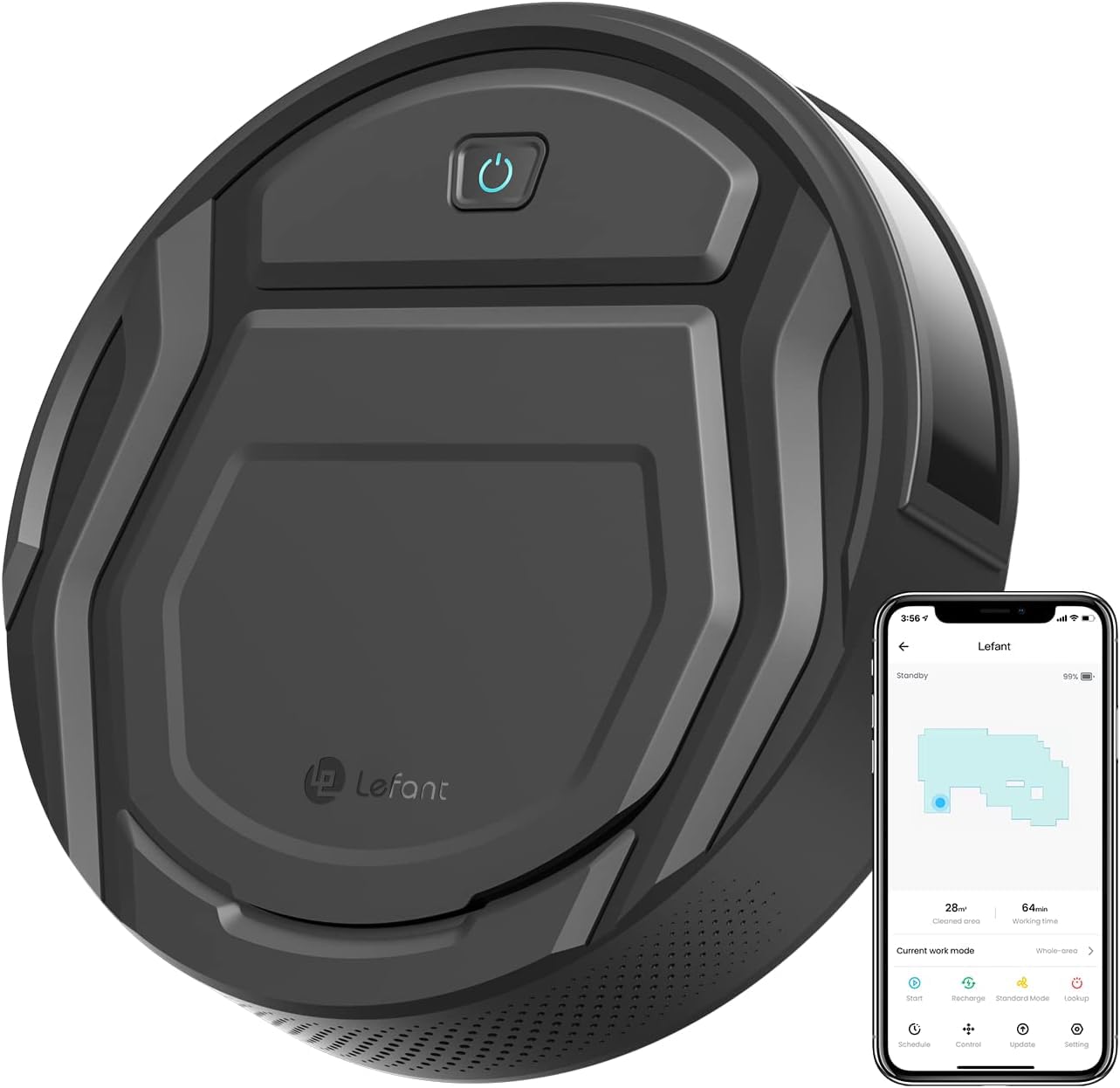
Figure 1: Lefant M210 Pro Robot Vacuum Cleaner
The Lefant M210 Pro features a slim design, powerful suction, and smart navigation capabilities. It is particularly effective for pet owners, thanks to its unique suction port that prevents hair tangling. With multiple cleaning modes and smart control options via app or voice, maintaining a clean home has never been easier.
2. What's in the Box
Upon opening your Lefant M210 Pro package, ensure all the following components are present:
- Lefant M210 Pro Robot Vacuum Cleaner
- Charging Dock
- Power Adapter
- Side Brushes (2 pairs)
- HEPA Filter (pre-installed)
- Cleaning Tool
- User Manual
Video 1: Unboxing and initial setup of the Lefant M210 Pro Robot Vacuum Cleaner, demonstrating the contents of the package and basic assembly.
3. Setup
3.1 Initial Preparation
- Remove all protective films from the robot vacuum and the charging dock.
- Install the side brushes by pressing them onto the posts until they click into place.
3.2 Charging Dock Placement
Place the charging dock against a wall in an open, uncluttered area. Ensure there is at least 0.5 meters (1.6 feet) of clear space on both sides of the dock and 1.5 meters (4.9 feet) in front of it. Plug the power adapter into the charging dock and then into a wall outlet.

Figure 2: The robot vacuum automatically returns to its charging dock when cleaning is complete or battery is low.
3.3 First Use & Charging
Place the robot vacuum onto the charging dock, ensuring the charging contacts align. The indicator light on the robot will illuminate to show it is charging. For the first use, fully charge the robot for at least 5-6 hours.
4. Operating Your Robot Vacuum
4.1 Power On/Off
To power on the robot, flip the main power switch located under the dustbin cover. To start cleaning, press the power button on the robot or use the Lefant App. To pause, press the button once. To send it back to the charging dock, press the button twice.
4.2 Cleaning Modes
The M210 Pro offers 6 flexible cleaning modes:
- Zig-zag cleaning: For systematic coverage of open areas.
- Random cleaning: For general cleaning in unpredictable patterns.
- Spot cleaning: Concentrates on a specific dirty area.
- Cleaning along the wall: Focuses on edges and corners.
- Schedule cleaning: Set a cleaning schedule via the app.
- Manual cleaning: Control the robot's movement manually via the app.
4.3 Smart Control (App/Voice)
Download the 'Lefant Life' app from your smartphone's app store to unlock advanced features, schedule cleanings, and control your robot remotely. The robot is also compatible with Amazon Alexa for voice control.

Figure 3: Control your Lefant M210 Pro via the intuitive smartphone app.
Note: The Lefant M210 Pro only supports 2.4GHz Wi-Fi networks. It is not compatible with 5GHz Wi-Fi.
4.4 Navigation & Obstacle Avoidance
The M210 Pro utilizes upgraded infrared sensors for smart navigation, allowing it to cover your entire house with a logical zig-zag route. These sensors also help it detect obstacles and avoid falls from stairs, ensuring safe and thorough cleaning.

Figure 4: The M210 Pro is designed to effectively pick up pet hair without tangling, making it ideal for homes with pets.
5. Maintenance
Regular maintenance ensures your robot vacuum operates efficiently and prolongs its lifespan.
5.1 Dust Bin & Filter Cleaning
It is recommended to empty the dust bin after each cleaning cycle and clean the HEPA filter every 3 days. To clean, open the top cover, remove the dust bin, and empty its contents. Tap the filter to remove dust and rinse it under running water if necessary (ensure it's completely dry before re-inserting).
5.2 Side Brushes
Check the side brushes weekly for tangled hair or debris. Use the provided cleaning tool to cut and remove any tangled hair. Replace worn-out brushes with new ones from the spare set.
5.3 Sensors & Charging Contacts
Wipe the anti-drop sensors and charging contacts on the robot and charging dock with a clean, dry cloth monthly to ensure proper function.
6. Troubleshooting
If your Lefant M210 Pro encounters issues, refer to the following common problems and solutions:
- Robot does not turn on: Ensure the main power switch is ON and the battery is charged. Place it on the charging dock.
- Robot does not charge: Verify the charging dock is powered on and the robot's charging contacts are aligned with the dock's. Clean contacts if dirty.
- Robot gets stuck frequently: Clear obstacles from the cleaning path. Ensure the robot is not operating in areas with very thick carpets or loose cables.
- Poor cleaning performance: Empty the dust bin, clean the filter, and check if side brushes are tangled or worn.
- App connectivity issues: Ensure your Wi-Fi network is 2.4GHz. Restart your router and the robot. Follow the app's pairing instructions carefully.
7. Specifications
| Feature | Specification |
|---|---|
| Brand | Lefant |
| Model Name | M210P |
| Color | Black |
| Product Dimensions | 11.02"L x 11.02"W x 2.99"H |
| Item Weight | 6.74 pounds |
| Battery Life | 120 minutes (Quiet mode) |
| Capacity (Dust Bin) | 500 Milliliters |
| Filter Type | HEPA filter |
| Control Method | App, Remote, Voice (Alexa) |
| Power Source | Battery Powered |
| Surface Recommendation | Hard Floor, Low-Pile Carpets |
| Special Features | Advanced Custom Cleaning, Anti-Fall, Auto-Docking, Pet Hair Pick Up |
| UPC | 740111631648 |
8. Warranty and Support
For warranty information, technical support, or any questions regarding your Lefant M210 Pro Robot Vacuum Cleaner, please refer to the warranty card included in your package or visit the official Lefant website. You can also contact Lefant customer service directly for assistance.
Related documentsM210P


Ask a question about this manual
Ask about setup, troubleshooting, compatibility, parts, safety, or missing instructions. Manuals+ will review the question and use this page’s manual context to help answer it.