
1. Introduction and Overview
The AOCHUAN M1 Pro is a versatile 4-in-1 device designed to enhance your smartphone videography and photography. It functions as a gimbal stabilizer, extendable selfie stick, desktop stand, and tripod, featuring an integrated AI vision sensor for automatic face tracking and a wireless remote for convenient control. This manual provides essential information for setting up, operating, maintaining, and troubleshooting your M1 Pro to ensure optimal performance.

The AOCHUAN M1 Pro Gimbal Stabilizer in its compact form, ready for use.
2. Key Features
- AI Vision Sensor: Built-in sensor for automatic subject identification and tracking without requiring an app, ensuring subjects remain framed and in focus.
- Seamless Stability: Single-axis gimbal stabilizer provides smooth horizontal or vertical shots, eliminating vibrations for clear footage.
- 360° Rotation: Effortlessly capture panoramic shots and switch between landscape and portrait modes with full 360-degree rotation.
- Versatile 4-in-1 Design: Combines gimbal stabilizer, extendable selfie stick, desktop stand, and tripod functionalities for diverse shooting needs.
- Extendable Selfie Stick: Features a built-in 19-inch aluminum alloy extension rod, reaching up to 34 inches for flexible height and angle adjustments.
- Magnetic Fill Lights: Supports simultaneous use of three magnetic attachable fill lights (one included, others sold separately) with adjustable brightness for optimal illumination in various scenarios.
- Bluetooth Remote Control: Detachable wireless remote allows for convenient photo capture and video recording from a distance.
- Long-lasting Battery: Enjoy up to 7 hours in handheld mode or 4 hours in AI tracking mode on a single charge.
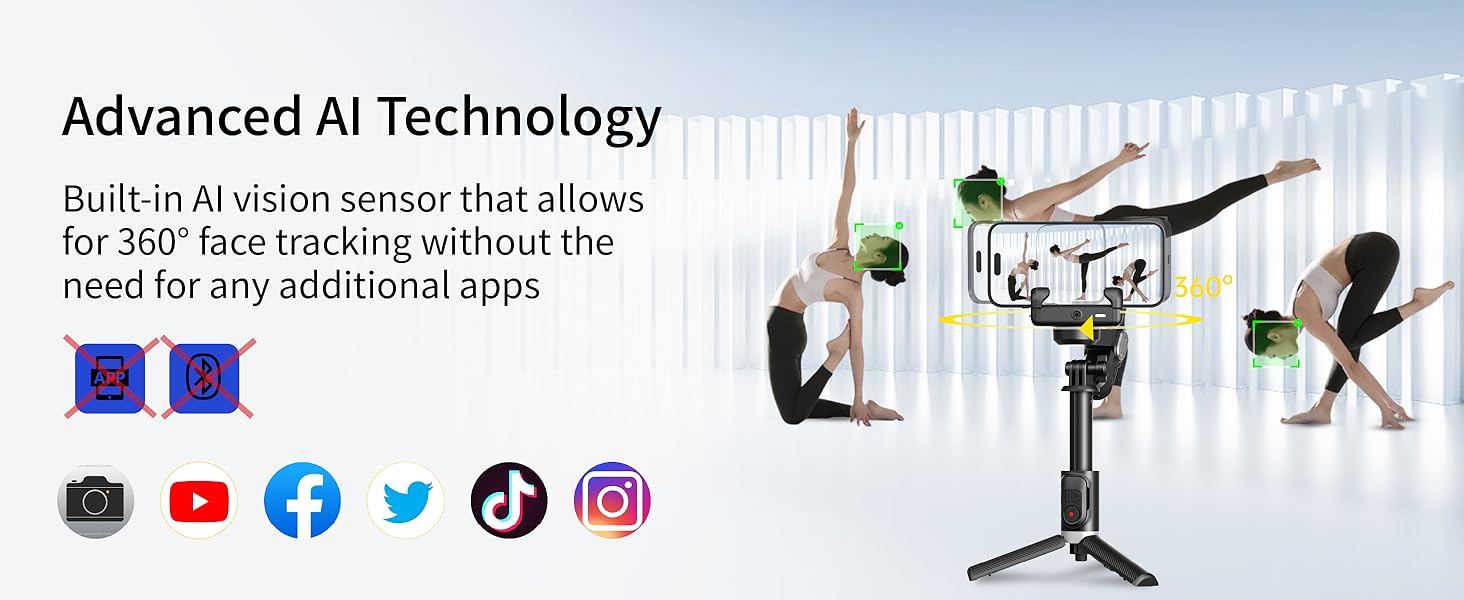
The built-in AI Vision Sensor automatically tracks your subject.
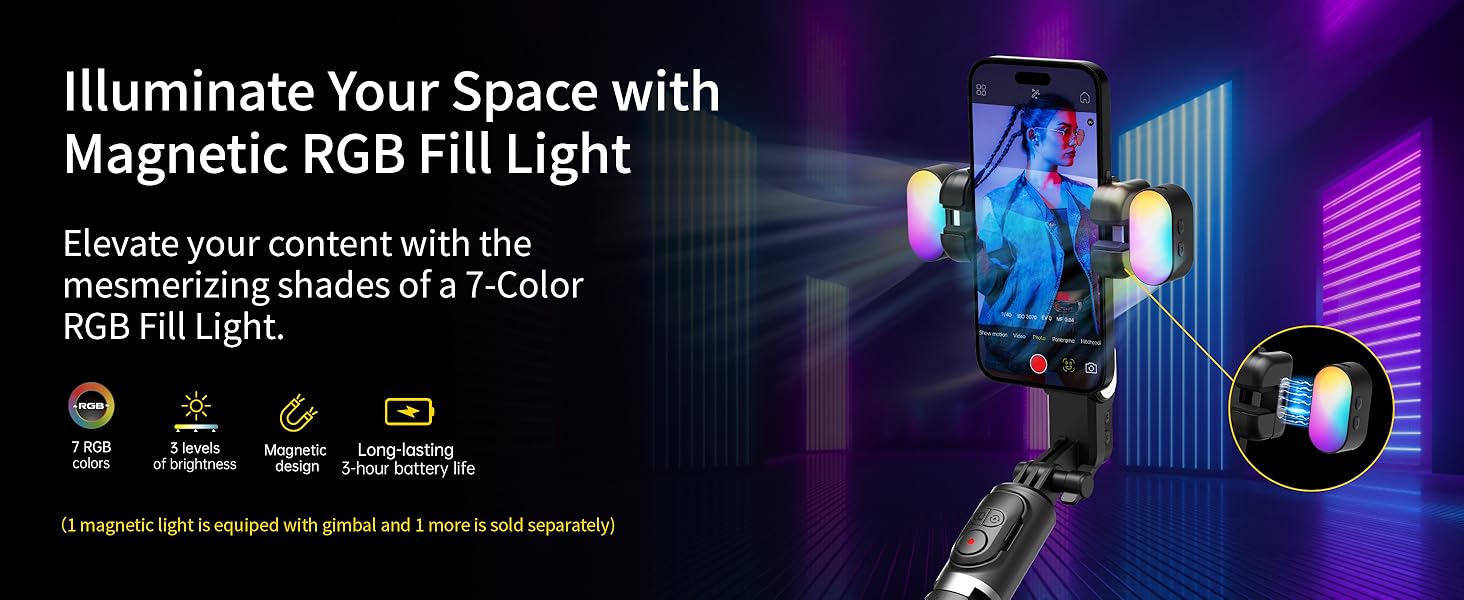
Illuminate your shots with the magnetic RGB fill light.
3. What's in the Box
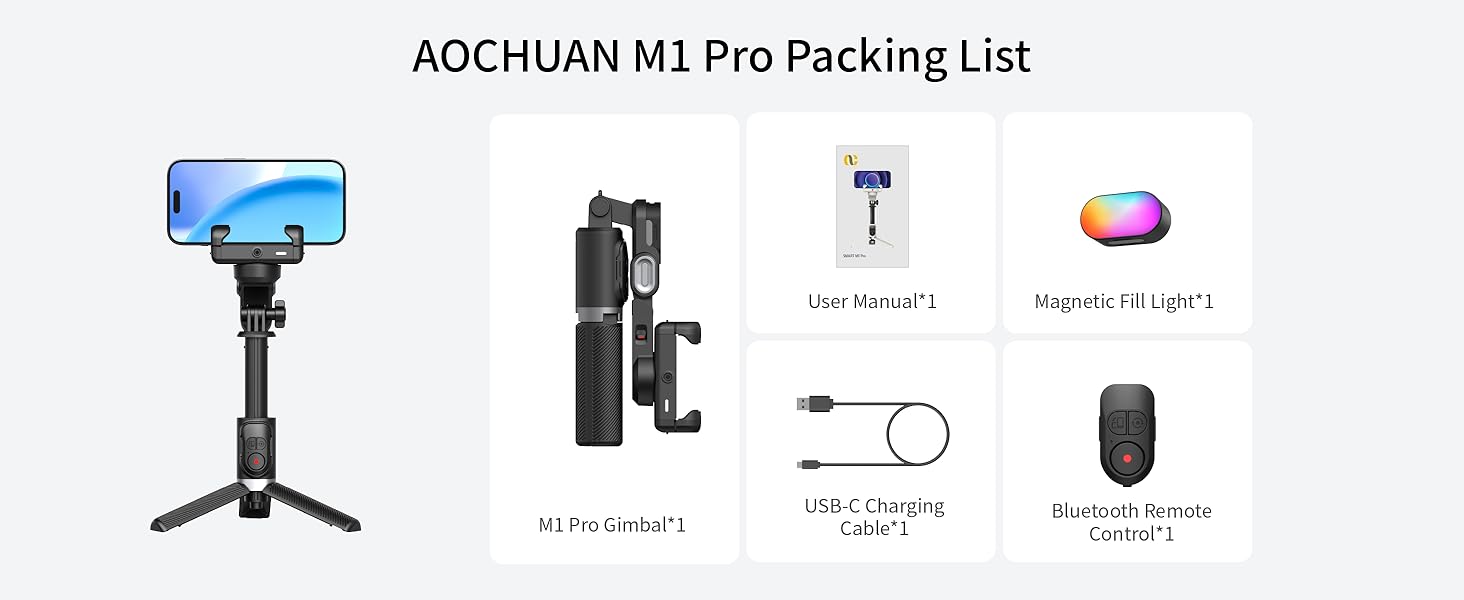
- M1 Pro Gimbal × 1
- USB-C Charging Cable × 1
- User Manual × 1
- Magnetic RGB Fill Light × 1
M1 Pro Gimbal

USB-C Cable

User Manual

Magnetic Fill Light

Bluetooth Remote
4. Setup
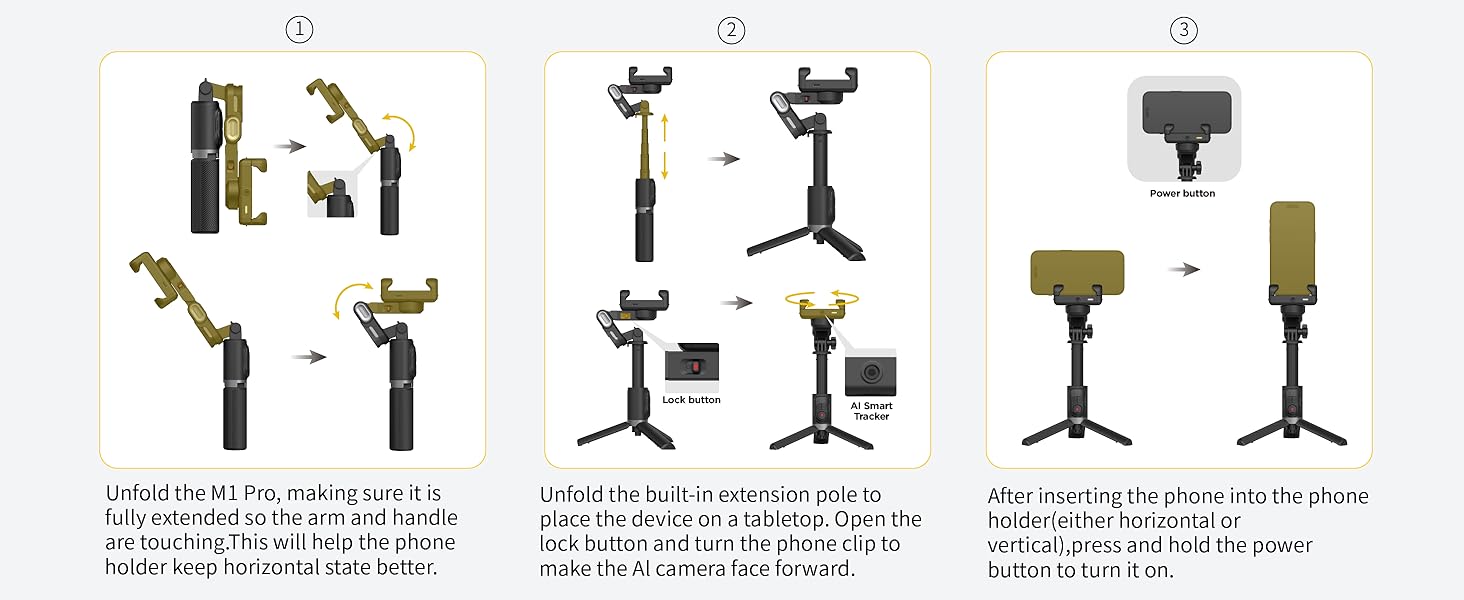
- Unfold the Gimbal: Gently unfold the M1 Pro. Rotate the phone clamp 180 degrees so it faces forward. Ensure the arm and handle are fully extended and touching to maintain a horizontal state.
- Mount Your Smartphone: Open the smart lock on the phone clamp and securely place your smartphone. Ensure the phone camera and the AI camera on the gimbal are facing the same direction. If using as a desktop stand, unfold the built-in extension pole and turn the phone clip to make the AI camera face forward.
- Power On: After inserting the phone, press and hold the power button to turn on the M1 Pro.
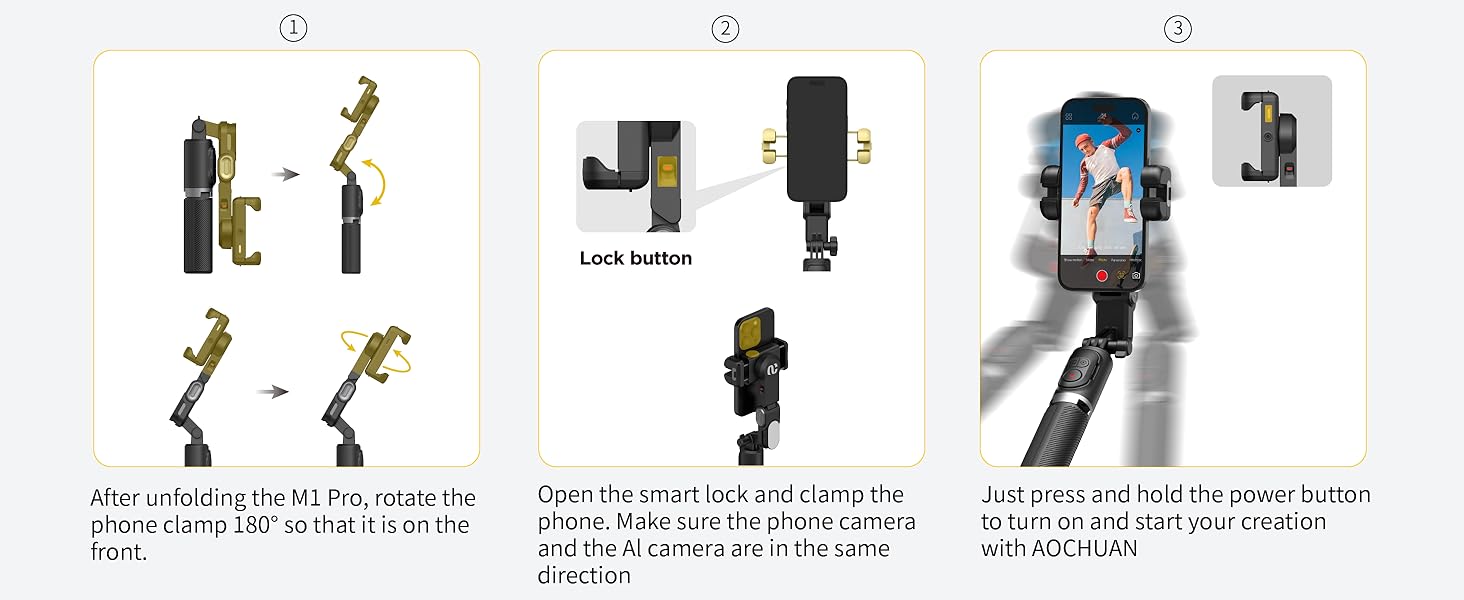
5. Operating Instructions
Modes of Operation
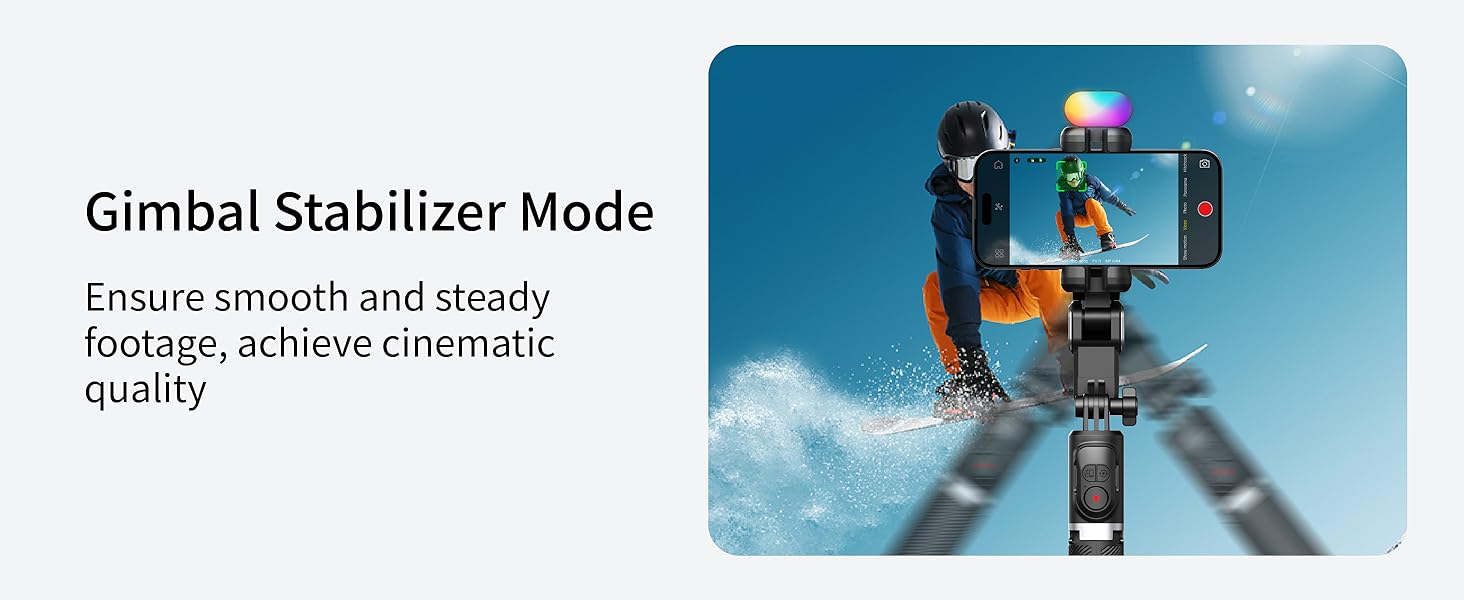
- Gimbal Stabilizer Mode: Ensures smooth and steady footage by counteracting unwanted movements. Ideal for cinematic quality videos.
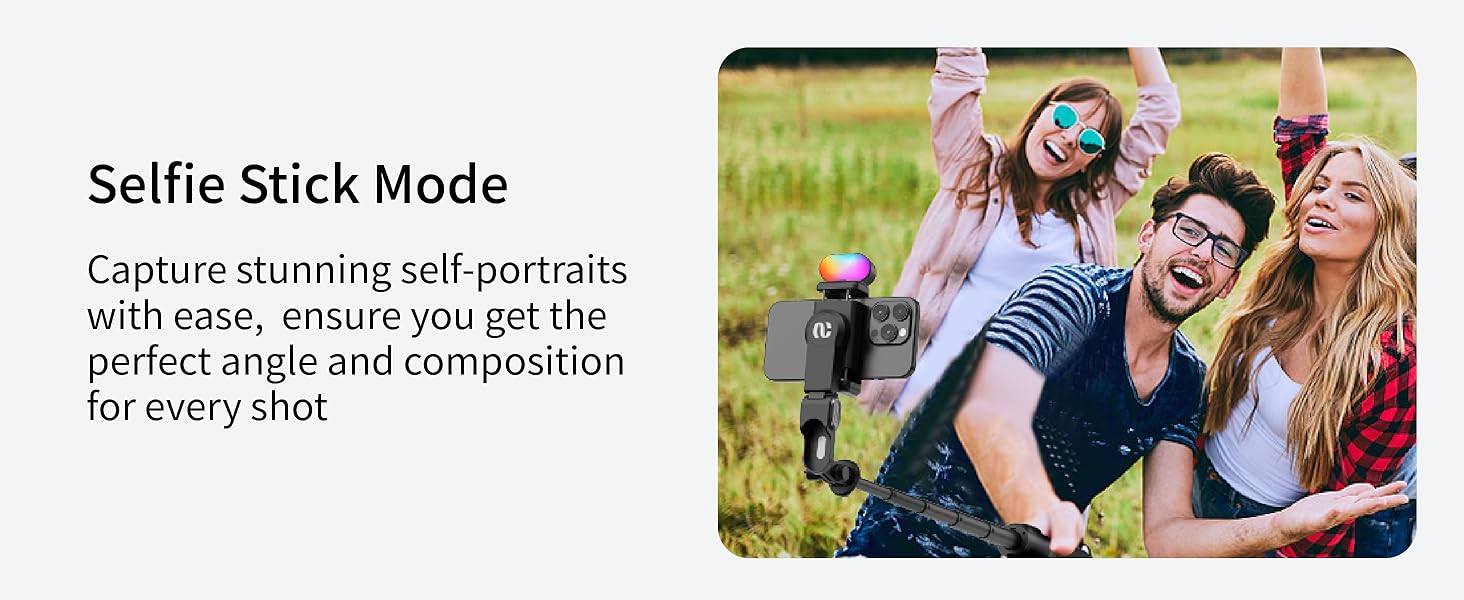
- Selfie Stick Mode: Extend the rod to capture stunning self-portraits and group photos from a wider perspective.
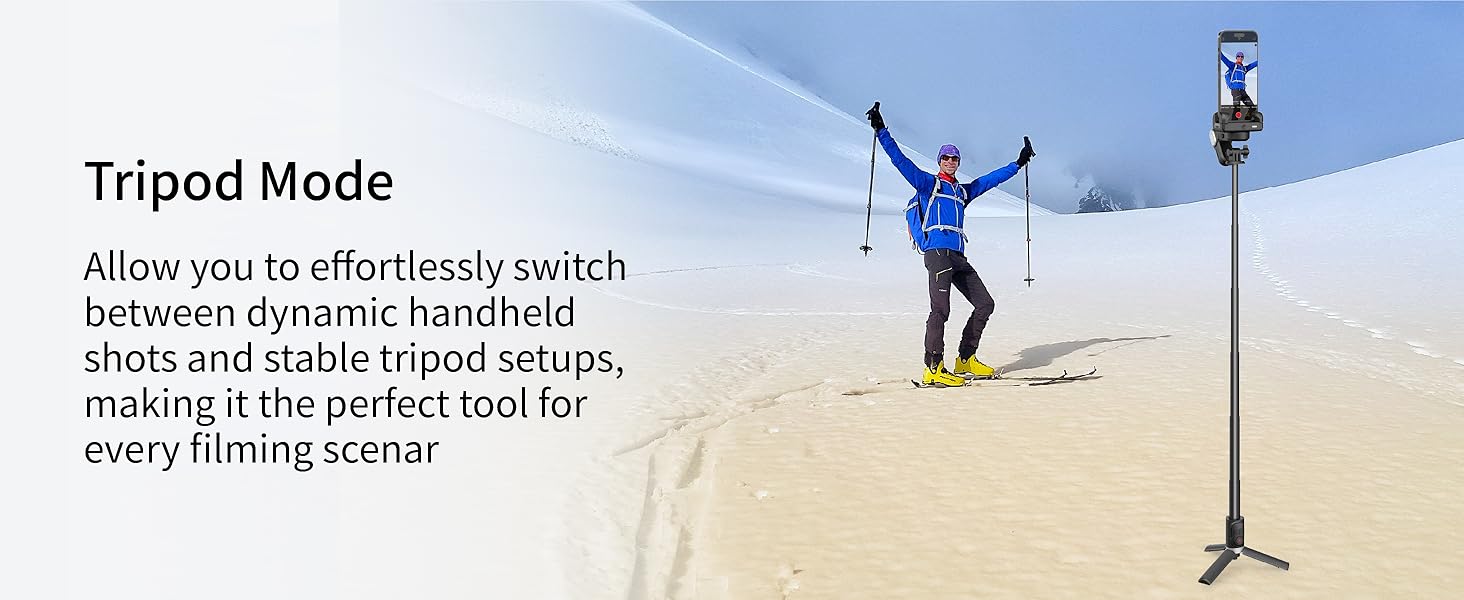
- Tripod Mode: Deploy the integrated tripod legs for stable, stationary shots, perfect for time-lapses, vlogging, or hands-free recording.
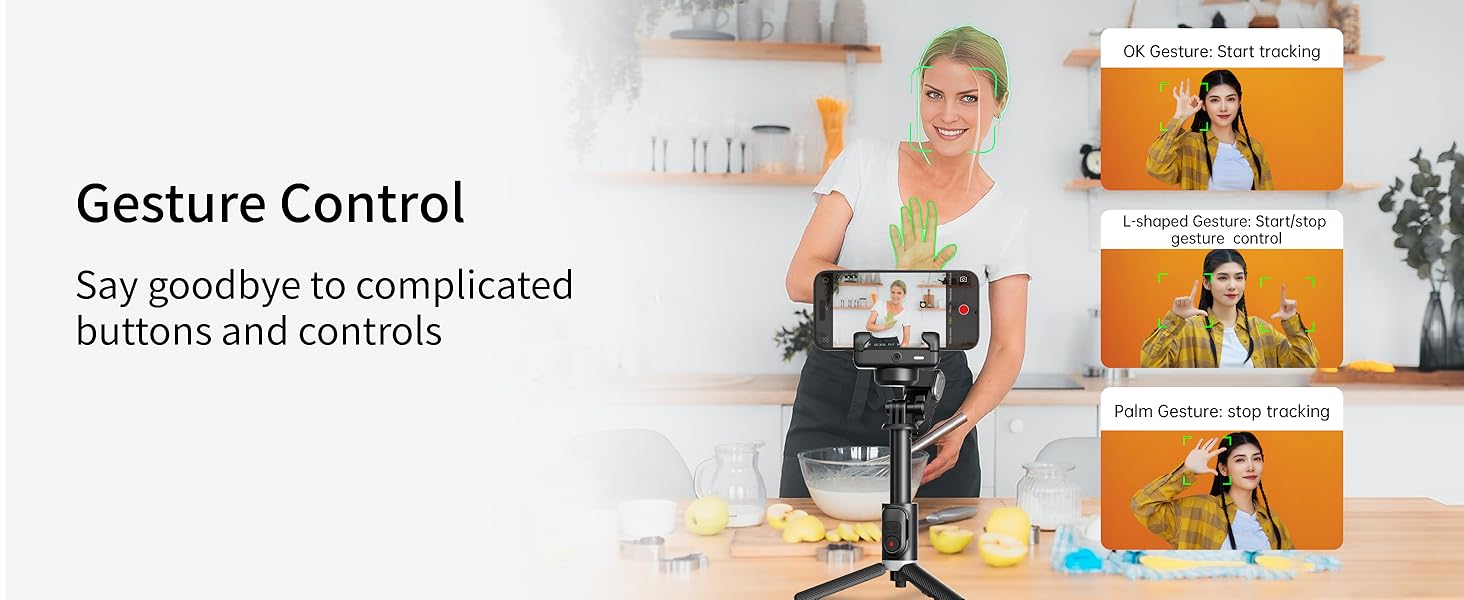
- 360 Tracking Mode (AI Vision Sensor): Activate the AI sensor for automatic face and body tracking. The gimbal will rotate to keep the subject in frame. Use gestures for control:
- OK Gesture: Start tracking
- L-shaped Gesture: Start/stop gesture control
- Palm Gesture: Stop tracking
Using the Wireless Remote Control
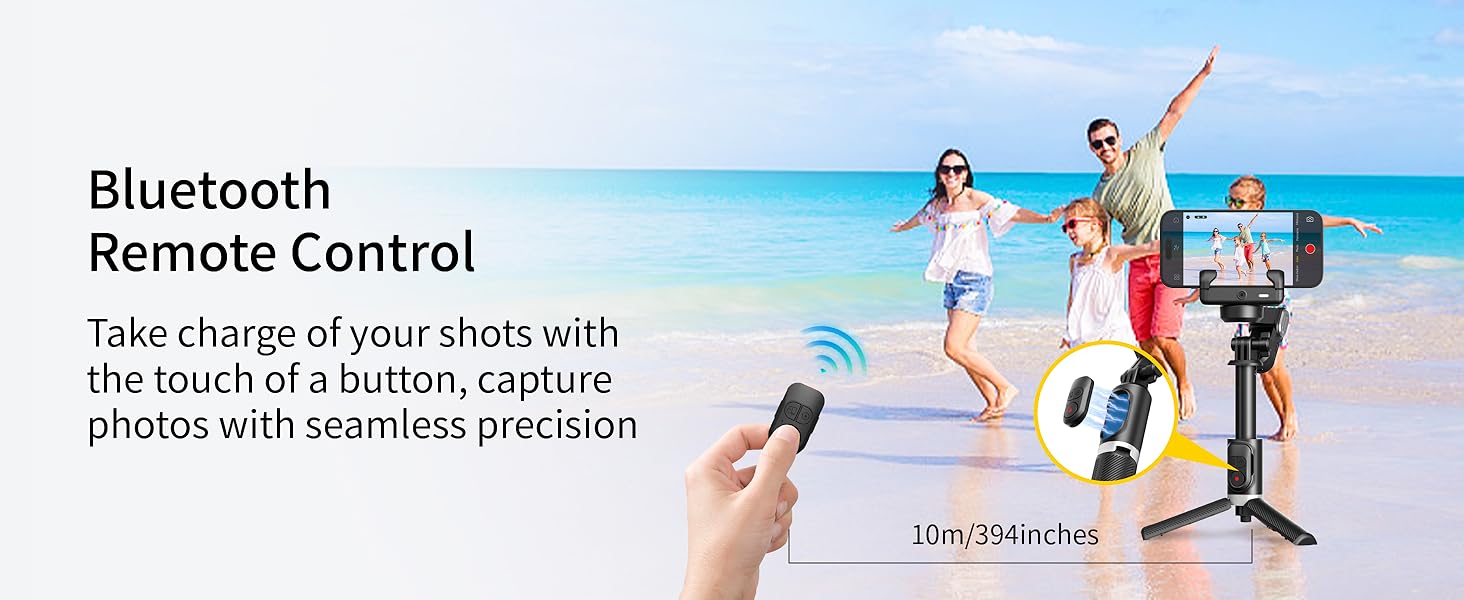
The M1 Pro comes with a detachable Bluetooth remote control. To pair, ensure Bluetooth is enabled on your smartphone and search for the M1 Pro. Once paired, you can use the remote to trigger photo capture or start/stop video recording from a distance of up to 10 meters (394 inches).
Charging the Device
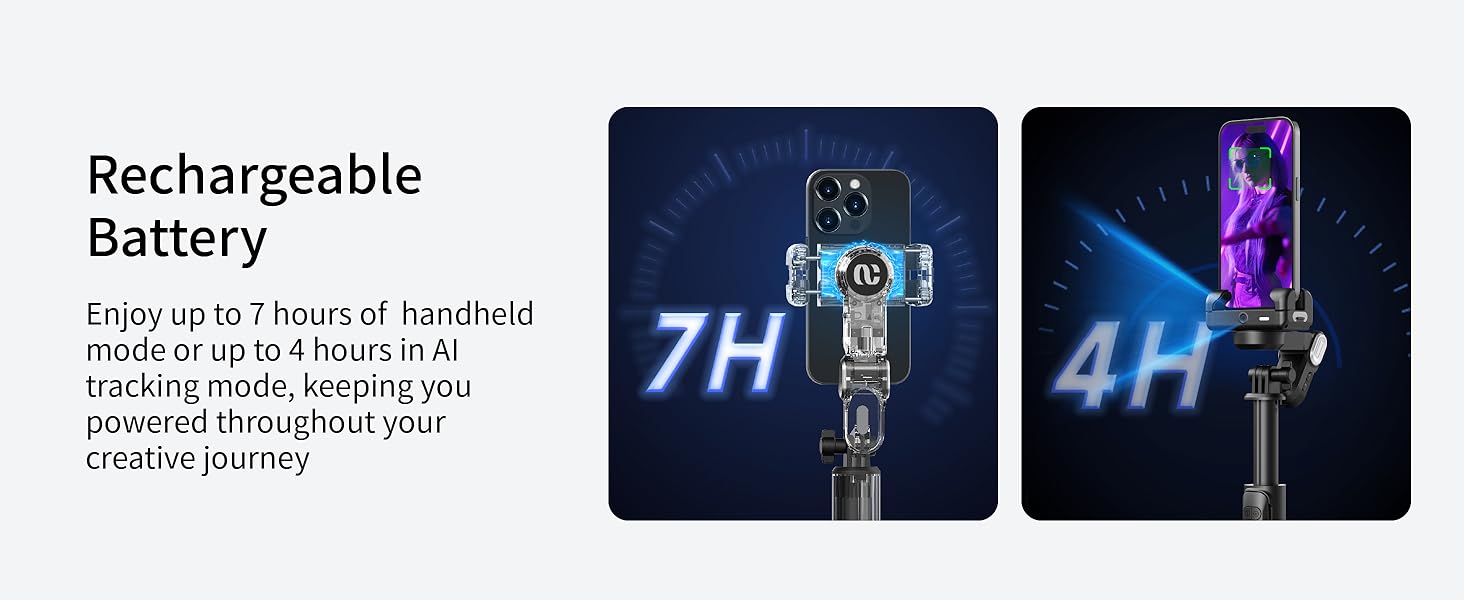
Connect the provided USB-C charging cable to the M1 Pro's charging port and plug the other end into a compatible USB power adapter (not included). The indicator light will show charging status. A full charge provides up to 7 hours of handheld use or 4 hours with AI tracking enabled.
6. Maintenance
- Cleaning: Use a soft, dry cloth to clean the surface of the gimbal. Do not use liquid cleaners or solvents.
- Storage: Store the M1 Pro in a cool, dry place away from direct sunlight and extreme temperatures. Ensure it is folded compactly for protection.
- Battery Care: For optimal battery life, charge the device regularly, even if not in frequent use. Avoid fully discharging the battery for extended periods.
- Handle with Care: Avoid dropping the device or subjecting it to strong impacts, which can damage internal components.
7. Troubleshooting
| Issue | Possible Cause | Solution |
|---|---|---|
| Device does not power on | Low battery; Power button not held long enough | Charge the device; Press and hold the power button for 3 seconds |
| AI tracking not working | Poor lighting; Subject too far/close; AI camera obstructed | Ensure adequate lighting; Maintain optimal distance (0.5-3m); Clear AI camera lens |
| Bluetooth remote not connecting | Remote battery low; Not in pairing mode; Interference | Replace remote battery; Re-enter pairing mode; Move closer to device |
| Unstable footage | Phone not balanced; Excessive movement; Gimbal not calibrated | Ensure phone is centered and secure; Reduce sudden movements; Refer to full manual for calibration steps if needed |
8. Specifications
| Attribute | Detail |
|---|---|
| Product Dimensions | 7 x 1.7 x 4 inches (Folded) |
| Item Weight | 0.96 ounces |
| Model Number | M1 Pro |
| Batteries | 1 Lithium Ion battery required |
| Maximum Weight Recommendation | 350 Grams |
| Extendable Rod Length | Up to 19 inches (overall height up to 34 inches) |
| Compatible Devices | iPhone 15 14 13 12 11 Pro Max, Samsung Galaxy S21/S21 Ultra S23 Ultra, Huawei p30 pro/p30/p20 pro/p10/p10 plus, and similar smartphones |
9. Warranty and Support
The AOCHUAN M1 Pro Gimbal Stabilizer is covered by a manufacturer's warranty. Please refer to the warranty card included in your product packaging for specific terms and conditions. For technical support, troubleshooting assistance, or warranty claims, please contact AOCHUAN customer service through the official brand website or your point of purchase. Keep your purchase receipt as proof of purchase.