
Introduction
This manual provides comprehensive instructions for the installation, operation, and maintenance of your ACECAR GPS Speedometer G19. This device is designed to enhance driving safety and convenience by displaying essential vehicle information directly in your line of sight. It utilizes GPS technology to provide accurate speed, direction, and other data, compatible with all vehicle types.

Image: The ACECAR GPS Speedometer G19 unit, showcasing its sleek design and digital display.
Package Contents
Please verify that all items listed below are present in your package:
- ACECAR GPS Speedometer G19 Host Unit
- USB Power Cable
- Non-slip Mat
- User Manual (this document)

Image: Contents of the ACECAR G19 package, including the main unit, USB cable, non-slip mat, and manual.
Product Overview and Features
The ACECAR G19 features a 7-inch high-definition LED display designed for clear visibility in various lighting conditions. It integrates multiple functions to provide comprehensive driving data.
Display Elements and Functions:

Image: A detailed diagram illustrating the various display elements and their corresponding functions on the G19 unit.
- Atmosphere Decoration Lamp: Ambient lighting for visual appeal.
- Acceleration Time: Displays the time taken to accelerate (e.g., 0-100 km/h).
- Driving Angle: Indicates the current driving direction.
- Driving Distance: Shows the distance traveled for the current trip.
- Compass: Provides cardinal directions (N, S, E, W).
- Speed Display Area: Shows current speed in KM/H or MPH.
- Overspeed Alarm: Visual and audible alert when a preset speed limit is exceeded.
- Fatigue Driving Alarm: Alerts the driver after a continuous period of driving (e.g., 4 hours).
- Calendar: Displays the current date.
- Altitude: Shows the current elevation.
- Travel Time: Displays the duration of the current trip.
- Time: Current time, automatically set via GPS.
- MPH/KM/H Switching: Indicator for the selected speed unit.
Key Features:
- GPS Speedometer Display: Displays MPH/KM/H and driving direction simultaneously.
- Multi-functional Display: Includes speed, clock, compass, calendar, travel time, travel distance, number of satellites, acceleration time, altitude, fatigue driving, and overspeed alarm.
- Integrated Compass: Assists with navigation by indicating direction.
- Automatic Brightness Adjustment: Light sensor adjusts display brightness for optimal visibility day and night.
- Two Alarm Functions: Configurable overspeed alarm and fatigue driving reminder.
- Plug and Play Installation: Simple setup requiring only a USB power source.

Image: Examples of various display modes available on the ACECAR G19, including Blue White, Off-road, Urban, Concise, and Full display modes.
Setup
The ACECAR G19 is designed for easy, plug-and-play installation. No complex wiring or tools are required.
- Placement: Choose a suitable location on your dashboard where the display is clearly visible without obstructing your view of the road. Use the provided non-slip mat to secure the unit.
- Power Connection:
- Connect one end of the supplied USB cable to the USB interface on the back of the G19 unit.
- Plug the other end of the USB cable into a 5V USB power supply in your vehicle (e.g., a USB port, cigarette lighter adapter with USB output).
- Cable Management: Route the USB cable neatly to avoid interference with driving controls. You may tuck the wire into the A-pillar seal for a cleaner installation.
- Initial Power On: Once connected, the unit will power on automatically. It will begin searching for GPS satellites. This may take a few moments, especially during the first use or if the vehicle has been stationary for a long time.

Image: Step-by-step guide for installing the ACECAR G19, showing USB connection and cable routing.
Operating Instructions
The ACECAR G19 is operated using three buttons located on the back of the unit: Left Key, OK Key, and Right Key.
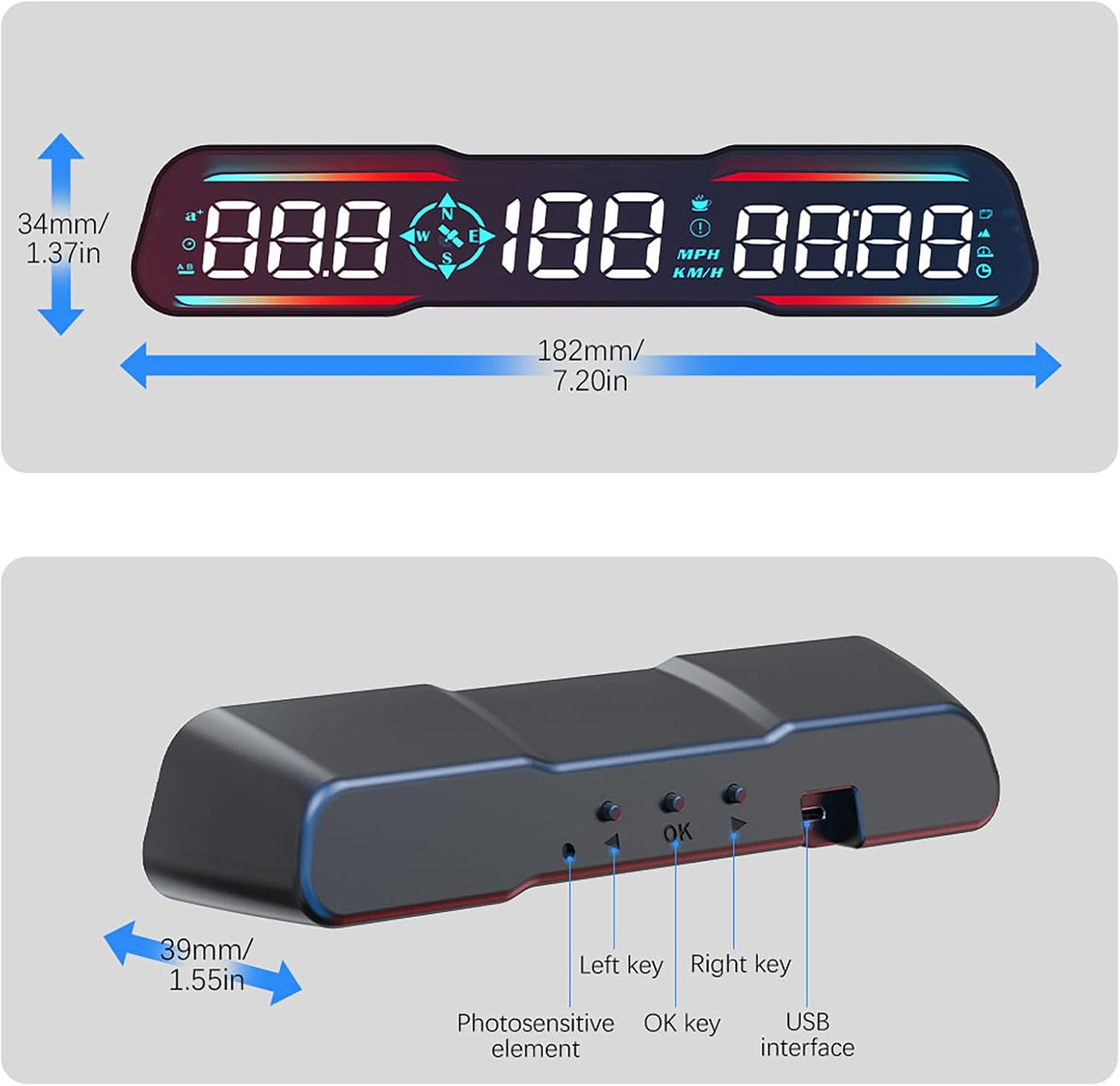
Image: Rear view of the ACECAR G19, highlighting the Left, OK, and Right control buttons, along with the photosensitive element and USB interface.
Basic Operation:
- Power On/Off: The unit powers on automatically when connected to power and off when power is removed.
- GPS Signal Acquisition: Upon startup, the device will search for GPS satellites. The compass and speed readings will become accurate once a sufficient signal is acquired.
Setting Adjustments:
Use the Left, OK, and Right keys to navigate menus and adjust settings. Specific instructions for each setting are typically found in the detailed manual provided with the product. Common adjustments include:
- Speed Unit (MPH/KM/H): Press the OK key to enter the settings menu. Use Left/Right keys to navigate to the speed unit option and OK to confirm.
- Overspeed Alarm Threshold: Set the desired speed limit for the overspeed alarm. The default is 120 KM/H.
- Fatigue Driving Alarm Duration: Configure the continuous driving time before the fatigue alarm activates (e.g., 4 hours).
- Display Modes: Switch between different display layouts (e.g., concise, urban, off-road, full display) to show preferred information.

Image: Visual representation of the overspeed alarm and fatigue driving alarm icons on the ACECAR G19 display.
Maintenance
Proper maintenance ensures the longevity and optimal performance of your ACECAR GPS Speedometer G19.
- Cleaning: Use a soft, dry cloth to clean the display and exterior of the unit. Avoid using abrasive cleaners, solvents, or spray directly onto the device.
- Temperature: Do not expose the unit to extreme temperatures (hot or cold) for extended periods, as this can affect the LCD and internal components.
- Water Exposure: The device is not waterproof. Avoid contact with water or excessive moisture.
- Storage: If storing the device for a long time, disconnect it from power and store it in a cool, dry place.
Troubleshooting
If you encounter issues with your ACECAR GPS Speedometer G19, please refer to the following common problems and solutions:
| Problem | Possible Cause | Solution |
|---|---|---|
| No Display / Unit Not Powering On | No power supply or faulty USB cable/port. | Check the USB cable connection. Ensure the vehicle's USB port or cigarette lighter adapter is providing 5V power. Try a different USB port or power source. |
| No Speed Reading / Inaccurate Speed | Weak or no GPS signal; unit not acquiring satellites. | Ensure the unit has a clear view of the sky (not obstructed by metalized windshields or tunnels). Move the vehicle to an open area. GPS acquisition can take longer during first use or after long periods of inactivity. If speed is consistently off, check the speed calibration settings in the menu (refer to the full manual for calibration steps). |
| Compass Not Working / Inaccurate | No GPS signal; magnetic interference. | Ensure a strong GPS signal. Avoid placing the unit near strong magnetic fields or large metal objects that could interfere with the compass. |
| Display Too Bright/Dim | Automatic brightness sensor obstructed or malfunctioning. | Ensure the photosensitive element on the back of the unit is not covered. The unit adjusts brightness automatically. |
| Alarms Not Functioning | Alarm settings are off or threshold not met. | Verify that the overspeed and fatigue driving alarm functions are enabled and correctly configured in the settings menu. |
Specifications
Key technical specifications for the ACECAR GPS Speedometer G19:
- Model: G19
- Display Type: LCD
- Screen Size: 7 inches (17.8 Centimeters)
- Material: Plastic
- Product Dimensions (L x W x H): 7.2 x 1.55 x 1.37 inches (182 x 39 x 34 mm)
- Item Weight: 3.52 ounces (0.22 Pounds)
- Power Supply: 5V via USB
- Compatibility: Universal for all vehicles (new energy, gas-electric hybrid, motorcycle, fuel car, bus, truck, etc.)
Image: Diagram showing the dimensions of the ACECAR G19 unit in both inches and millimeters.
Warranty Information
The ACECAR GPS Speedometer G19 comes with a 12-month warranty from the date of purchase. This warranty covers manufacturing defects and malfunctions under normal use. It does not cover damage caused by misuse, accidents, unauthorized modifications, or improper installation.
Please retain your proof of purchase for warranty claims.
Support
For further assistance, technical support, or warranty inquiries, please contact ACECAR customer service through the platform where you purchased the product or refer to the contact information provided in the original product packaging.
You may also visit the official ACECAR store for additional product information and support resources: