
DREAME RLL42SD
DREAME L10s Plus Robot Vacuum and Mop Combo User Manual
Model: RLL42SD
1. Introduction
The DREAME L10s Plus is an advanced self-empty robot vacuum and mop combo designed to provide a comprehensive and hands-free cleaning experience for your home. Equipped with powerful suction, intelligent mopping capabilities, and smart navigation, it efficiently handles various floor types, including hard floors and carpets, and is particularly effective at managing pet hair.
This manual provides detailed instructions on how to set up, operate, maintain, and troubleshoot your DREAME L10s Plus to ensure optimal performance and longevity.
2. Package Contents
Please verify that all items listed below are included in your package:
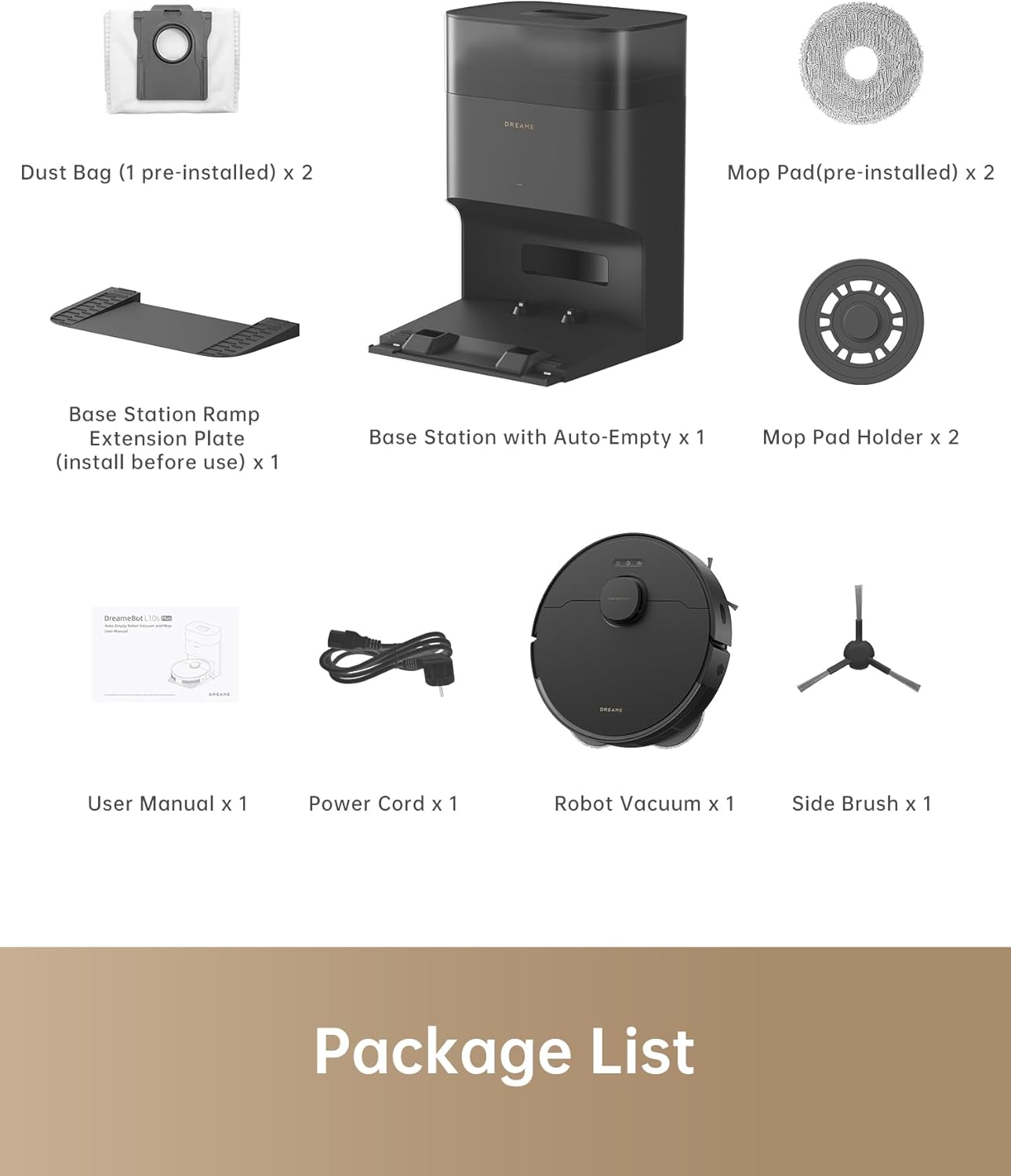
Image: All components included in the DREAME L10s Plus package.
- Robot Vacuum x 1
- Base Station with Auto-Empty x 1
- Dust Bag (1 pre-installed) x 2
- Mop Pad (pre-installed) x 2
- Mop Pad Holder x 2
- Base Station Ramp Extension Plate (install before use) x 1
- Power Cord x 1
- Side Brush x 1
- User Manual x 1
3. Setup
3.1 Unpacking and Base Station Placement
Carefully remove all packaging materials. Place the Base Station on a hard, level surface against a wall, ensuring there are no obstacles within 1.5 meters (4.9 feet) in front and 0.5 meters (1.6 feet) to either side. Connect the power cord to the Base Station and plug it into a power outlet.

Image: The DREAME L10s Plus robot vacuum and its base station.
3.2 Installing Components
- Side Brush: Press the side brush onto its post on the bottom of the robot until it clicks into place.
- Mop Pads: Attach the mop pads to the mop pad holders, then align the holders with the slots on the bottom of the robot and push them in until they are securely fastened.
3.3 Initial Charging
Place the robot vacuum onto the Base Station. Ensure the charging contacts on the robot align with those on the Base Station. The robot will automatically begin charging. For first-time use, it is recommended to fully charge the robot before its initial cleaning cycle.
3.4 Connecting to the Dreamehome App
- Download the Dreamehome App from your mobile app store.
- Open the app and create an account or log in.
- Follow the in-app instructions to add your DREAME L10s Plus device. This typically involves turning on the robot, resetting its Wi-Fi, and connecting your phone to the robot's temporary Wi-Fi hotspot before connecting it to your home Wi-Fi network.
- Once connected, the app will guide you through the initial mapping process, allowing the robot to create a layout of your home for efficient cleaning.
4. Operating Instructions
4.1 Starting a Cleaning Cycle
You can start a cleaning cycle in several ways:
- On the Robot: Press the Power/Clean button on the robot once to start a full cleaning cycle.
- Via Dreamehome App: Open the app, select your device, and tap 'Clean' to start. The app offers more advanced options like selecting specific rooms, zones, or setting virtual walls.
- Voice Control: If integrated with a compatible smart home assistant (e.g., Amazon Echo), you can use voice commands like "Hey Siri, start vacuuming."
4.2 Cleaning Modes
The DREAME L10s Plus supports various cleaning modes, configurable via the Dreamehome App:
- Vacuum Only: For dry debris on all floor types.
- Mop Only: For wet cleaning on hard floors.
- Vacuum & Mop: Simultaneous vacuuming and mopping.
4.3 Advanced Features
- Hands-Free Dust Emptying: The DualBoost 2.0 system automatically transfers collected dust into a 4L E12 dust bag in the base station, providing up to 90 days of hands-free dust disposal.

Image: The robot vacuum automatically emptying dust into its base station.
- DuoScrub Mopping System: Two high-speed rotary mops scrub under pressure to remove stubborn dirt and spills, with fiber mop pads reducing water stains.

Image: The robot vacuum actively mopping a hard floor with its dual rotary mops.
- 7000 Pa Strong Suction: Provides powerful suction to effectively pick up food crumbs, litter, and pet hair from various surfaces.

Image: Visual representation of the robot's powerful 7000Pa suction capability.
- 7mm Auto Lifting Mop: Ultrasonic Carpet Detection allows the robot to identify carpets and automatically lift its mops by 7mm to prevent wetting while vacuuming carpets.

Image: The robot vacuum demonstrating its 7mm mop lifting feature when encountering a carpet.
- 3DAdapt Obstacle Avoidance: The robot uses advanced sensors to detect and navigate around obstacles like shoes and toys, ensuring thorough cleaning without getting stuck.

Image: The robot vacuum utilizing 3DAdapt obstacle avoidance to navigate a room.
- Multi-Floor Mapping: Create and save up to four separate floor maps within the Dreamehome App, allowing for customized cleaning routines across different levels of your home.
- Virtual Walls & No-Mop Zones: Use the app to set virtual boundaries or no-mop zones to restrict the robot from entering certain areas or mopping carpets.
4.4 Official Product Video
Video: An official overview of the DREAME L10s Plus, showcasing its features and operation.
5. Maintenance
Regular maintenance is crucial for the optimal performance and longevity of your DREAME L10s Plus. Always turn off the robot and disconnect the Base Station from power before performing any maintenance.
5.1 Dust Bag / Dustbin Maintenance
- Dust Bag: The 4L E12 dust bag in the Base Station should be replaced approximately every 90 days, or when the app indicates it is full. Simply remove the old bag and insert a new one.
- Robot Dustbin: Although the robot self-empties, it's good practice to periodically check and manually clean the robot's internal dustbin and filter.
5.2 Main Brush and Side Brush
- Main Brush: Remove the main brush cover and lift out the brush. Use the cleaning tool to remove tangled hair and debris. Clean the brush bearings.
- Side Brush: Unscrew and remove the side brush. Clean any hair or debris wrapped around it.
5.3 Mop Pads and Water Tank
- Mop Pads: After each mopping session, remove the mop pads from their holders and wash them thoroughly. They can be hand-washed or machine-washed.
- Water Tank: Empty any remaining water from the robot's water tank after each use. Periodically clean the tank to prevent mold or odor buildup.
5.4 Sensors and Charging Contacts
Wipe all sensors (cliff sensors, wall sensor, obstacle avoidance sensors) and charging contacts on both the robot and the Base Station with a soft, dry cloth. This ensures proper navigation and charging.
6. Troubleshooting
If you encounter issues with your DREAME L10s Plus, please refer to the following common problems and solutions:
| Problem | Possible Cause | Solution |
|---|---|---|
| Robot not charging | Charging contacts are dirty; Power cord not connected; Robot not properly docked. | Clean charging contacts; Ensure power cord is securely plugged in; Re-dock the robot, ensuring proper alignment. |
| Poor cleaning performance | Dust bag full; Brushes tangled; Filter clogged; Suction power set too low. | Replace dust bag; Clean main and side brushes; Clean or replace filter; Increase suction power in the app. |
| Robot gets stuck frequently | Obstacles in path; Sensors dirty; Robot operating in a cluttered area. | Clear obstacles; Clean all sensors; Use virtual walls/no-go zones in the app for problem areas. |
| App connectivity issues | Incorrect Wi-Fi password; Robot too far from router; Router settings (e.g., 5GHz network). | Ensure correct Wi-Fi password; Move robot closer to router; Ensure you are connecting to a 2.4GHz Wi-Fi network. |
| Mop not dispensing water or mopping poorly | Water tank empty; Mop pads dirty or not installed correctly; Water outlet clogged. | Fill water tank; Clean and properly attach mop pads; Clean water outlet (refer to app for specific instructions). |
If the problem persists after trying these solutions, please contact DREAME customer support for further assistance.
7. Specifications
| Feature | Specification |
|---|---|
| Brand | DREAME |
| Model | RLL42SD |
| Special Features | Logical navigation, automatic height adjustment, smart mapping, automatic dust collection |
| Color | Black |
| Filter Type | HEPA-like |
| Battery Life | Up to 180 minutes |
| Power Source | Battery Powered |
| Compatible Devices | Amazon Echo |
| Form Factor | Robotic |
| Product Dimensions | 14 x 19 x 13 inches |
| Item Weight | 23.3 pounds |
8. Warranty and Support
Your DREAME L10s Plus comes with a manufacturer's warranty. Please refer to the warranty card included in your package for specific terms and conditions, including the warranty period and coverage details.
For technical support, troubleshooting assistance, or warranty claims, please contact DREAME customer service through the following channels:
- Official Website: Visit the DREAME official website for FAQs, support resources, and contact information.
- Dreamehome App: The app often includes a support section where you can find help or submit inquiries.
Please have your product model number (RLL42SD) and purchase information ready when contacting support.
Ask a question about this manual
Ask about setup, troubleshooting, compatibility, parts, safety, or missing instructions. Manuals+ will review the question and use this page’s manual context to help answer it.