
1. Introduction
Thank you for choosing the GATEXPERT WiFi Control Module. This device allows you to control your sliding or swing gate opener remotely using the Tuya and Smart Life mobile applications, providing convenience and enhanced security. This manual provides detailed instructions for setup, operation, maintenance, and troubleshooting.
2. Product Components
The GATEXPERT WiFi Control Module package includes:
- 1pc of Tuya WiFi Control Module
Please ensure all components are present before proceeding with installation.

Figure 2.1: GATEXPERT WiFi Control Module. This image shows the compact black module with red and blue wires extending from one end.
3. Setup and Installation
Before installation, ensure the power to your gate opener system is disconnected. Incorrect wiring can damage the device or your gate opener.
3.1 Wiring Instructions
The WiFi control module is designed to connect to your existing gate opener's control board. Refer to your gate opener's manual for specific terminal locations for external control devices.
- Connect the module's wires to the appropriate terminals on your gate opener control board. Typically, this involves connecting to the common (COM) and open/close trigger inputs.
- Ensure secure connections to prevent intermittent operation.
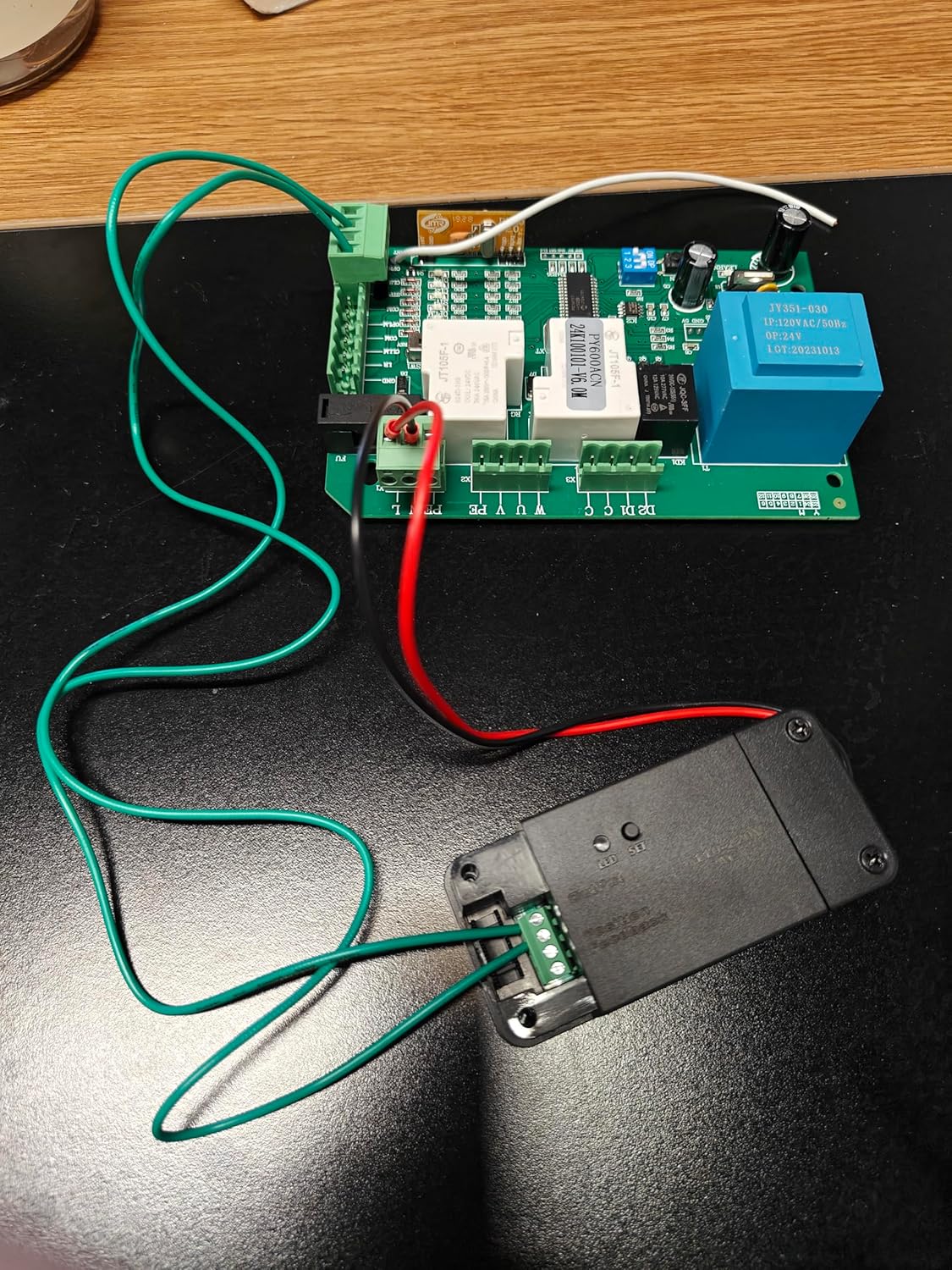
Figure 3.1: WiFi Control Module connected to a gate opener control board. This image illustrates the module wired to a green circuit board, demonstrating the connection points.

Figure 3.2: GATEXPERT WiFi Control Module with wiring. A close-up view of the module showing the red and blue wires connected, ready for installation.
3.2 App Installation and Pairing
The GATEXPERT WiFi Control Module is compatible with the Tuya and Smart Life applications.
- Download the Tuya Smart or Smart Life app from your mobile device's app store (Google Play Store for Android, Apple App Store for iOS).
- Register or log in to your account.
- Power on the GATEXPERT WiFi Control Module. The LED indicator on the module will begin to flash, indicating it is in pairing mode.
- In the app, tap the '+' icon to add a new device.
- Select the appropriate device type (e.g., 'Garage Door Opener' or 'Gate Opener').
- Follow the on-screen instructions to connect the module to your home WiFi network. Ensure your WiFi network is 2.4GHz.
- Once successfully paired, the LED indicator on the module will stop flashing and remain solid.
Video 3.1: Demonstration of connecting the 110V Tuya WiFi module to a PY600ACN control board. This short video illustrates the physical wiring process for the module.
4. Operating Instructions
Once the GATEXPERT WiFi Control Module is successfully installed and paired with your app, you can control your gate from anywhere with an internet connection.
4.1 Using the Mobile App
- Open the Tuya Smart or Smart Life app on your smartphone.
- Select your gate opener device from the device list.
- The app interface will display the current status of your gate (e.g., Open, Closed, Opening, Closing).
- Tap the control button (usually a large icon or button) to open or close your gate.
- You can also set schedules, timers, or integrate with other smart home devices through the app's advanced features.

Figure 4.1: Illustration of the WiFi control module integrated with a sliding gate system, demonstrating phone control. This image shows a gate and a car, with the WiFi module and a phone overlayed, indicating remote operation.

Figure 4.2: Screenshot of the Smart Life or Tuya app interface showing gate status (Opening, Opened, Closing, Closed). This image displays the various states of a gate as seen within the mobile application.
5. Maintenance
The GATEXPERT WiFi Control Module requires minimal maintenance. To ensure optimal performance and longevity:
- Keep the module clean and free from dust and debris. Use a soft, dry cloth for cleaning.
- Periodically check all wiring connections to ensure they remain secure.
- Ensure the module is protected from extreme temperatures and moisture.
6. Troubleshooting
If you encounter issues with your GATEXPERT WiFi Control Module, refer to the following troubleshooting steps:
| Problem | Possible Cause | Solution |
|---|---|---|
| Module not powering on / LED off | No power supply; Incorrect wiring | Check power connections to the module and the gate opener control board. Ensure correct voltage (110V/220V AC). |
| Module not connecting to WiFi | Incorrect WiFi password; Router too far; 5GHz WiFi network | Verify WiFi password. Move module closer to router. Ensure your WiFi network is 2.4GHz. Reset module and try pairing again. |
| Gate not responding to app commands | Incorrect wiring to gate opener board; App not synced; Gate opener issue | Double-check wiring connections between the module and the gate opener control board. Ensure the app shows the module as online. Test the gate opener with its original remote to confirm it's functioning correctly. |
| Gate only closes, does not open (or vice versa) | Incorrect wiring of open/close signals | Review the wiring diagram for your gate opener and ensure the module's output wires are connected to the correct open and close trigger inputs. Some gate openers use a single input for toggle operation. |
If the problem persists after following these steps, please contact GATEXPERT customer support for further assistance.
7. Specifications
| Feature | Detail |
|---|---|
| Manufacturer | GATEXPERT |
| Item Model Number | TUYA WIFI CONTROL |
| Item Weight | 5 ounces |
| Product Dimensions | 1.65 x 3.54 x 0.98 inches |
| Color | Black |
| Included Components | 1pc of tuya wifi control |
| Batteries Required? | No |
| Date First Available | February 24, 2024 |
8. Warranty and Support
GATEXPERT products are designed for reliability and performance. For warranty information or technical support, please contact GATEXPERT customer service through their official website or the retailer where the product was purchased. Please have your model number and purchase date available when contacting support.