1. Introduction
This manual provides detailed instructions for the installation, operation, and maintenance of your Fortdows Android 13 Car Radio. Please read this manual thoroughly before installation and use to ensure proper functionality and safety.
1.1. Product Overview
The Fortdows Android 13 Car Radio is designed to seamlessly integrate into Dodge RAM 1500 and 2500 models from 2013 to 2018. It features an 8-Core processor, 4GB RAM, 32GB ROM, and a 9-inch 1280x800 HD IPS touchscreen. Key functionalities include Wireless CarPlay, Android Auto, 5G WiFi, Bluetooth 5.0, GPS navigation, FM radio, and support for steering wheel controls.
Compatibility Note: This system is specifically designed for Dodge RAM models equipped with manual AC controls. Compatibility may vary for vehicles with automatic AC systems. Consult a professional installer if unsure.
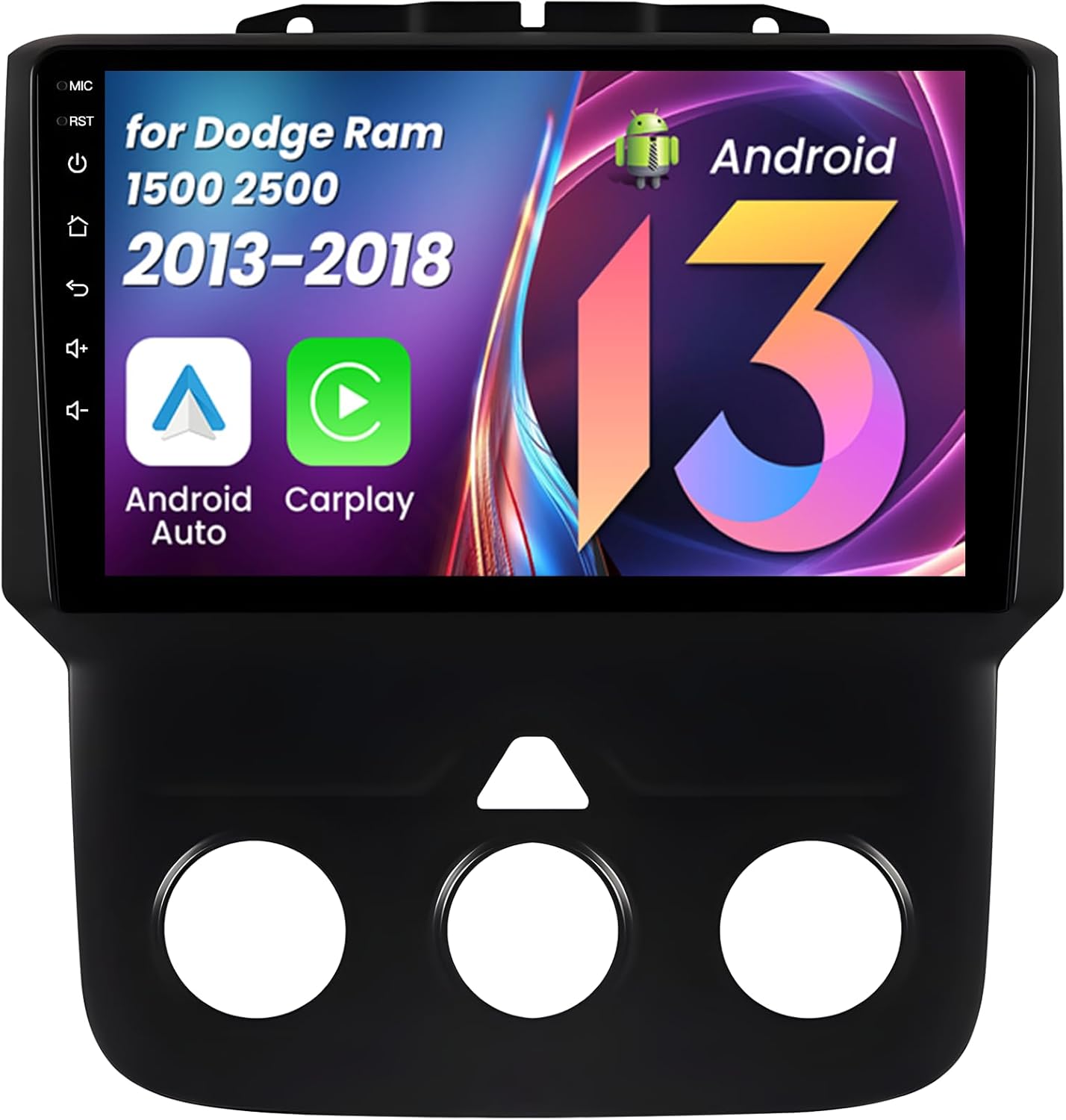
Image 1.1: Front view of the Fortdows Android 13 Car Radio unit.
2. Package Contents
Verify that all items listed below are included in your package:
- 1x Car Radio Unit
- 1x Canbus Decoder
- 1x Power Cable
- 1x Microphone (MIC)
- 1x Camera (Reversing Camera)
- 1x 4G Antenna (Note: 2G configurations do not include a 4G antenna)
- 1x RCA Cable Set
- 1x Crowbar (for trim removal)
- 2x USB Cables
- 1x GPS Antenna
- 1x 1280*800HD Display (integrated)

Image 2.1: Overview of all components included in the package.
3. Setup and Installation
Professional installation is recommended. Ensure the vehicle's battery is disconnected before beginning installation. Refer to your vehicle's service manual for specific dashboard removal procedures.
3.1. Wiring Connections
- Connect the main Power Cable to the corresponding port on the car radio unit.
- Attach the RCA Cable set for audio/video inputs and outputs.
- Connect the Microphone to its designated port.
- Plug in the 6-Pin and 4-Pin USB Cables to the rear of the unit.
- Connect the 4G Antenna (if applicable for your model) and secure it in a suitable location.
- Connect the GPS Antenna and position it for optimal signal reception.
- Connect the Rear Camera Signal Wire and the Camera Extension Cables.
- Connect the Canbus decoder to the main wiring harness.
Ensure all connections are secure and correctly matched to prevent damage or malfunction.
Video 3.1: A detailed guide on connecting the various cables and components to the car radio unit.
3.2. Unit Installation
After all wiring is connected, carefully mount the car radio unit into the dashboard opening. Secure it using the appropriate mounting hardware. Reconnect the vehicle's battery and test the unit's functionality.

Image 3.1: Visual guide for identifying compatible dashboard configurations for Dodge RAM 1500/2500 (2013-2018) with manual AC.
4. Operating Instructions
This section covers the primary functions and features of your Fortdows Android 13 Car Radio.
4.1. Initial Power-On and System Navigation
Upon first power-on, the system will boot to the Android 13 home screen. Navigate through applications using the touchscreen interface. The system supports various UI themes which can be changed in the settings.
Video 4.1: Demonstration of the car radio's user interface, including WiFi connection, Bluetooth pairing, CarPlay, DSP sound settings, and FM radio operation.
4.2. Wireless CarPlay and Android Auto
Connect your compatible smartphone wirelessly to access navigation, music, calls, and messages directly on the car radio's display. Ensure Bluetooth and Wi-Fi are enabled on your phone for a stable connection.

Image 4.1: Wireless CarPlay and Android Auto functionality, showing smartphone integration.
4.3. 5G WiFi Connectivity
The unit supports 5G WiFi for fast internet access. Connect to a mobile hotspot or available Wi-Fi networks to stream content, download apps, and browse online.

Image 4.2: The 5G WiFi function enabling access to online applications and services.
4.4. Bluetooth 5.0
Pair your smartphone via Bluetooth for hands-free calling, audio streaming, and phonebook access. Bluetooth 5.0 ensures a stable and high-quality connection.

Image 4.3: Bluetooth connectivity for calls and music, alongside GPS navigation.
4.5. GPS Navigation
The unit includes built-in GPS with an offline map of North America. It supports both online and offline navigation applications. Ensure the GPS antenna is properly installed for accurate positioning.
4.6. FM Radio
Utilize the built-in FM/AM RDS tuner to listen to your favorite radio stations. The system supports automatic scanning and station saving.

Image 4.4: FM Radio interface for tuning and Mirror Link for screen mirroring.
4.7. DSP Sound Processing
The Digital Sound Processor (DSP) provides advanced audio customization options, including equalization, sound field adjustments, surround sound, stereo sound enhancement, bass enhancement, and sound filters. Adjust these settings to optimize your audio experience.

Image 4.5: DSP sound settings for audio customization, including equalizer and speaker positioning.
4.8. Steering Wheel Controls
The unit supports integration with your vehicle's existing steering wheel controls, allowing you to manage audio, calls, and other functions without diverting your attention from the road.

Image 4.6: Steering wheel control integration for convenient operation.
4.9. Split Screen Functionality
Utilize the split-screen feature to run two applications simultaneously, such as navigation and music playback, enhancing multitasking capabilities.

Image 4.7: Split screen mode allowing simultaneous use of two applications.
4.10. Rear Camera Support
The car radio supports 1080P rear cameras, providing clear video for parking and reversing. The display automatically switches to the camera view when the vehicle is in reverse gear.

Image 4.8: Rear camera display with reference lines for safe maneuvering.
Video 4.2: Overview of the car radio's features, including WiFi, Bluetooth, CarPlay, DSP sound, FM radio, and GPS navigation.
5. Maintenance
5.1. Cleaning the Screen
Use a soft, lint-free cloth to gently wipe the touchscreen. For stubborn smudges, slightly dampen the cloth with water or a screen-safe cleaner. Avoid abrasive materials or harsh chemicals.
5.2. Software Updates
Periodically check for software updates through the system settings or the manufacturer's website. Keeping the software updated ensures optimal performance and access to new features.
6. Troubleshooting
If you encounter issues, refer to the following common problems and solutions:
- No Power: Check all power cable connections and the vehicle's fuse box. Ensure the battery is properly connected.
- No Sound: Verify speaker connections, volume levels, and DSP settings. Check if the mute function is active.
- GPS Signal Loss: Ensure the GPS antenna is securely connected and has a clear view of the sky.
- CarPlay/Android Auto Not Connecting: Ensure Bluetooth and Wi-Fi are enabled on your phone and the car radio. Try restarting both devices.
- Rear Camera Not Displaying: Check the camera connections and the reverse signal wire. Ensure the camera is powered.
- Touchscreen Unresponsive: Try restarting the unit. If the issue persists, a factory reset might be necessary (note: this will erase all user data).
For persistent issues, contact customer support.
7. Specifications
| Feature | Detail |
|---|---|
| Operating System | Android 13 |
| Processor | 8-Core |
| RAM | 4GB |
| ROM | 32GB |
| Screen Size | 9 Inches |
| Display Type | IPS Touchscreen |
| Resolution | 1280x800 HD |
| Wireless Connectivity | 5G Wi-Fi, Bluetooth 5.0 |
| Navigation | Built-in GPS (Offline North America Map) |
| Smartphone Integration | Wireless CarPlay, Android Auto, Mirror Link |
| Audio Features | DSP Sound Processing, FM/AM RDS Radio, Stereo Audio Output |
| Camera Support | 1080P Back Camera (included) |
| Vehicle Compatibility | Dodge RAM 1500 2500 (2013-2018) with Manual AC |
| Mounting Type | Dashboard Mount |
| Item Weight | 4.05 pounds |
| Package Dimensions | 12.32 x 11.93 x 5.59 inches |
8. Warranty and Support
8.1. Warranty Information
This product comes with a 1-Year Warranty from the date of purchase. A 7-Day Return Policy is available for products with defects. Please retain your proof of purchase for warranty claims.
8.2. Customer Support
For technical assistance, warranty claims, or any other inquiries, please contact our customer support team:
- Email: fortdows.cam@gmail.com
- Website: www.fancygod.com


