
Inateck BCST-54
Inateck BCST-54 2D Barcode Scanner User Manual
Model: BCST-54 | Brand: Inateck
1. Introduction
This user manual provides comprehensive instructions for the Inateck BCST-54 2D Barcode Scanner. The BCST-54 is a versatile barcode reader designed to efficiently scan both 1D and 2D barcodes, including those displayed on screens. It offers multiple connection options for various operational environments.
Key features include support for mainstream 2D barcodes and all 1D barcodes, screen scanning capability, a smart base for charging and data transmission, and three distinct connection methods: 2.4Ghz wireless, wired USB, and Bluetooth. The scanner also supports advanced functions such as vibration notification and inventory mode, allowing storage of over 270,000 barcodes.

Figure 1.1: Inateck BCST-54 2D Barcode Scanner with its Smart Base.
2. Packing List
Please verify that all items are present in the package:
- Inateck BCST-54 Barcode Scanner
- Smart Base
- USB Cable
- User Guide

Figure 2.1: All components included in the Inateck BCST-54 package.
3. Setup
3.1 Initial Charging
Before first use, ensure the scanner is fully charged. Connect the Smart Base to a power source or a computer's USB port using the provided USB cable. Place the scanner onto the Smart Base to initiate charging. The indicator light on the scanner will show charging status.

Figure 3.1: The Smart Base recharges the scanner and transmits barcode data.
3.2 Connection Methods
The BCST-54 offers three primary connection methods:
- 2.4Ghz Wireless Mode (via Smart Base): The scanner and Smart Base are paired by default for wireless operation. Connect the Smart Base to your computer via USB.
- Wired Mode (Direct USB Connection): Connect the scanner directly to your computer using the USB cable for plug-and-play functionality. No additional configuration is required.
- Bluetooth Mode: For connecting to mobile phones, tablets, or other Bluetooth-enabled devices. Manual configuration (pairing) is required for this mode. Refer to the "Operating" section for detailed Bluetooth pairing instructions.

Figure 3.2: Overview of the three available connection methods.
4. Operating Instructions
4.1 Scanning Barcodes
The BCST-54 is capable of reading a wide range of barcodes:
- 1D and 2D Barcode Support: Easily reads mainstream 2D barcodes and all 1D barcodes, even those with minor abrasions or surface stains.
- Screen Scanning: Equipped with CMOS sensors, the BCST-54 can accurately read barcodes displayed on various screens, including smartphones, tablets, and computer monitors.

Figure 4.1: The scanner supports a wide array of 1D and 2D barcode formats.
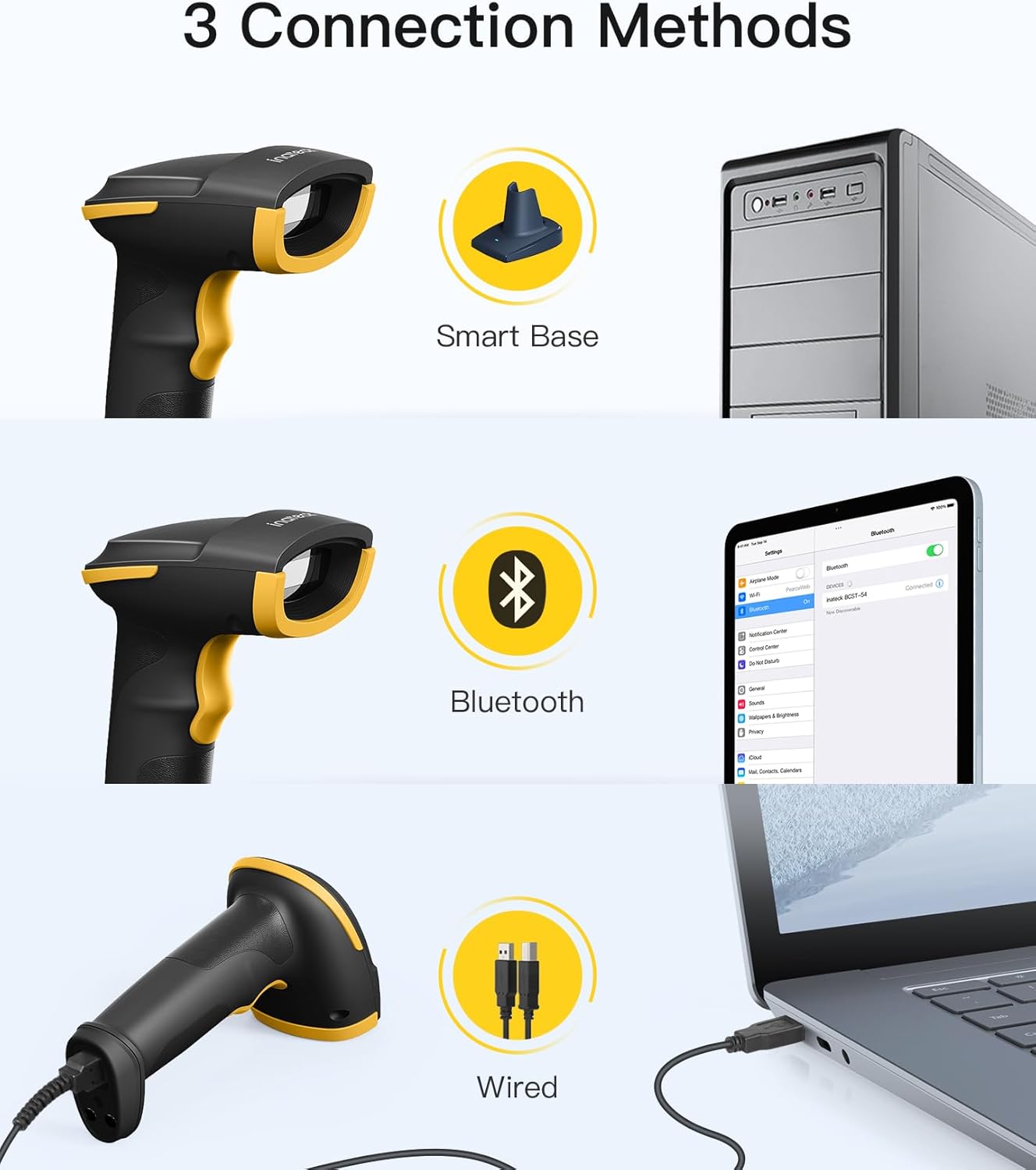
Figure 4.2: The BCST-54 can read barcodes directly from digital screens.
4.2 Advanced Modes
- Auto Scan Mode: The scanner can be configured to automatically scan barcodes when detected, eliminating the need to press the trigger button for each scan. This feature can be enabled by scanning specific configuration barcodes found in the user guide.
- Inventory Mode: This mode allows the scanner to store a large number of barcodes (over 270,000) in its internal buffer. This is useful for collecting data offline, which can then be uploaded to a computer later.
- Vibration Notification: The scanner features a vibration mode that provides tactile feedback upon successful scanning, which is particularly useful in noisy environments or when silent operation is preferred.

Figure 4.3: Inventory Mode allows for data collection without a live connection.

Figure 4.4: Vibration notification provides silent feedback on scanning status.
4.3 Official Product Video
Watch the official product video for a visual guide on the Inateck BCST-54's features and operation:
Video 4.1: Inateck 2D Wireless Barcode Scanner BCST-54 Overview. This video demonstrates the scanner's 1D/2D barcode support, three connection methods (2.4Ghz wireless, wired, Bluetooth), screen scanning capability, auto-scan feature, and inventory mode.
5. Maintenance
Proper maintenance ensures the longevity and optimal performance of your Inateck BCST-54 barcode scanner.
- Cleaning: Use a soft, dry cloth to clean the scanner's exterior. For the scanning window, use a lint-free cloth lightly dampened with a mild, non-abrasive cleaner. Avoid harsh chemicals or abrasive materials that could scratch the lens.
- Storage: Store the scanner in a cool, dry place away from direct sunlight and extreme temperatures. When not in use for extended periods, ensure the battery is partially charged (around 50%) to preserve battery health.
- Battery Care: The scanner uses a Lithium Ion battery. Avoid fully discharging the battery frequently. Recharge the scanner when the battery low indicator appears.
6. Troubleshooting
This section addresses common issues you might encounter with your BCST-54 barcode scanner.
| Problem | Possible Cause | Solution |
|---|---|---|
| Scanner not connecting wirelessly. | Out of range, Smart Base not connected, or pairing issue. | Ensure scanner is within range of Smart Base. Verify Smart Base is properly connected to computer. Re-pair the scanner with the Smart Base if necessary (refer to user guide for pairing QR codes). |
| Cannot scan certain barcodes. | Barcode type not enabled, damaged barcode, or insufficient lighting. | Check if the barcode type is enabled in the scanner's settings (scan configuration QR codes). Ensure barcode is clear and well-lit. Try scanning from different angles. |
| Slow data transmission in wired mode. | USB port issue or specific software settings. | Try a different USB port. Consult the user guide for data transmission speed settings or specific software compatibility. |
| Scanner not charging. | Faulty cable, base, or power source. | Check USB cable and Smart Base for damage. Try a different USB port or power adapter. |
For more detailed troubleshooting or specific configuration needs, please refer to the comprehensive user guide included in your package or contact Inateck customer support.

Figure 6.1: Inateck offers expert support for specific configuration requirements.
7. Specifications
| Feature | Detail |
|---|---|
| Product Dimensions | 3.58 x 2.69 x 6.45 inches |
| Item Weight | 10.7 ounces |
| Model Number | BCST-54 |
| Batteries | 1 Lithium Ion battery required (included) |
| Compatible Devices | Laptop, Desktop, POS, Tablet, Smartphone |
| Power Source | Battery Powered |
| Connectivity Technology | Bluetooth, 2.4Ghz Wireless, Wired USB |
| Manufacturer | Inateck |
| Country of Origin | China |
| Date First Available | January 11, 2024 |
8. Warranty and Support
Inateck products are designed for reliability and performance. For information regarding warranty coverage, technical support, or service, please refer to the warranty card included with your product or visit the official Inateck website. You may also contact Inateck customer service directly for assistance with product inquiries or troubleshooting.
Inateck is committed to providing excellent product experience and support.
Related documentsBCST-54


Ask a question about this manual
Ask about setup, troubleshooting, compatibility, parts, safety, or missing instructions. Manuals+ will review the question and use this page’s manual context to help answer it.