
1. Introduction
This manual provides detailed instructions for the X9 Performance Full Size Bluetooth Keyboard with Phone Holder (Model X9RBBLKBDOCKG). This versatile keyboard offers triple-mode connectivity (2.4G wireless and dual Bluetooth), backlit keys, and an integrated dock for holding smartphones and tablets, enhancing productivity across multiple devices and operating systems.
Key Features:
- Triple Mode Connectivity: Connects via 2.4G wireless (USB dongle) and two independent Bluetooth channels.
- Backlit Keys: Adjustable white LED backlighting for visibility in various lighting conditions.
- Integrated Device Dock: Extra-long dock designed to hold a tablet and a phone simultaneously.
- Full-Size Layout: 110-key layout with a dedicated number pad.
- Rechargeable Battery: Built-in 1000 mAh battery with USB-C charging.
- Multi-OS Compatibility: Compatible with Windows, macOS, iOS, and Android devices.
- Copilot Key: Dedicated key for quick access to AI assistant features.
Package Contents:
- X9 Performance Full Size Bluetooth Keyboard
- USB-C Charging Cable
- 2.4G USB Receiver (stored in the keyboard's battery compartment)
- User Manual
2. Setup
2.1 Charging the Keyboard
Before initial use, fully charge the keyboard. Connect the provided USB-C charging cable to the keyboard's charging port and the other end to a USB power source (e.g., computer USB port, USB wall adapter). The charging indicator light will illuminate during charging and turn off when fully charged.

Image: The X9 Performance keyboard connected to a USB-C charging cable, illustrating the charging process.
2.2 Powering On/Off
Locate the power switch on the keyboard. Slide it to the 'ON' position to power on the keyboard. Slide it to the 'OFF' position to power off.
2.3 Connecting via 2.4G Wireless
- Retrieve the 2.4G USB receiver from its storage slot in the keyboard's battery compartment.
- Plug the 2.4G USB receiver into an available USB port on your computer or device.
- Press the 2.4G key on the keyboard. The indicator light for 2.4G will blink, then become solid when connected.
2.4 Connecting via Bluetooth (BT1 / BT2)
The keyboard supports two independent Bluetooth connections (BT1 and BT2).
- Press and hold either the BT1 or BT2 key for 3-5 seconds until its indicator light blinks rapidly. This indicates pairing mode.
- On your device (e.g., tablet, smartphone, computer), navigate to Bluetooth settings.
- Search for available devices and select "X9 Performance Keyboard" (or similar name).
- Follow any on-screen prompts to complete the pairing process. The indicator light on the keyboard will become solid when successfully connected.
- Repeat these steps for the second Bluetooth channel (BT2) if connecting another device.
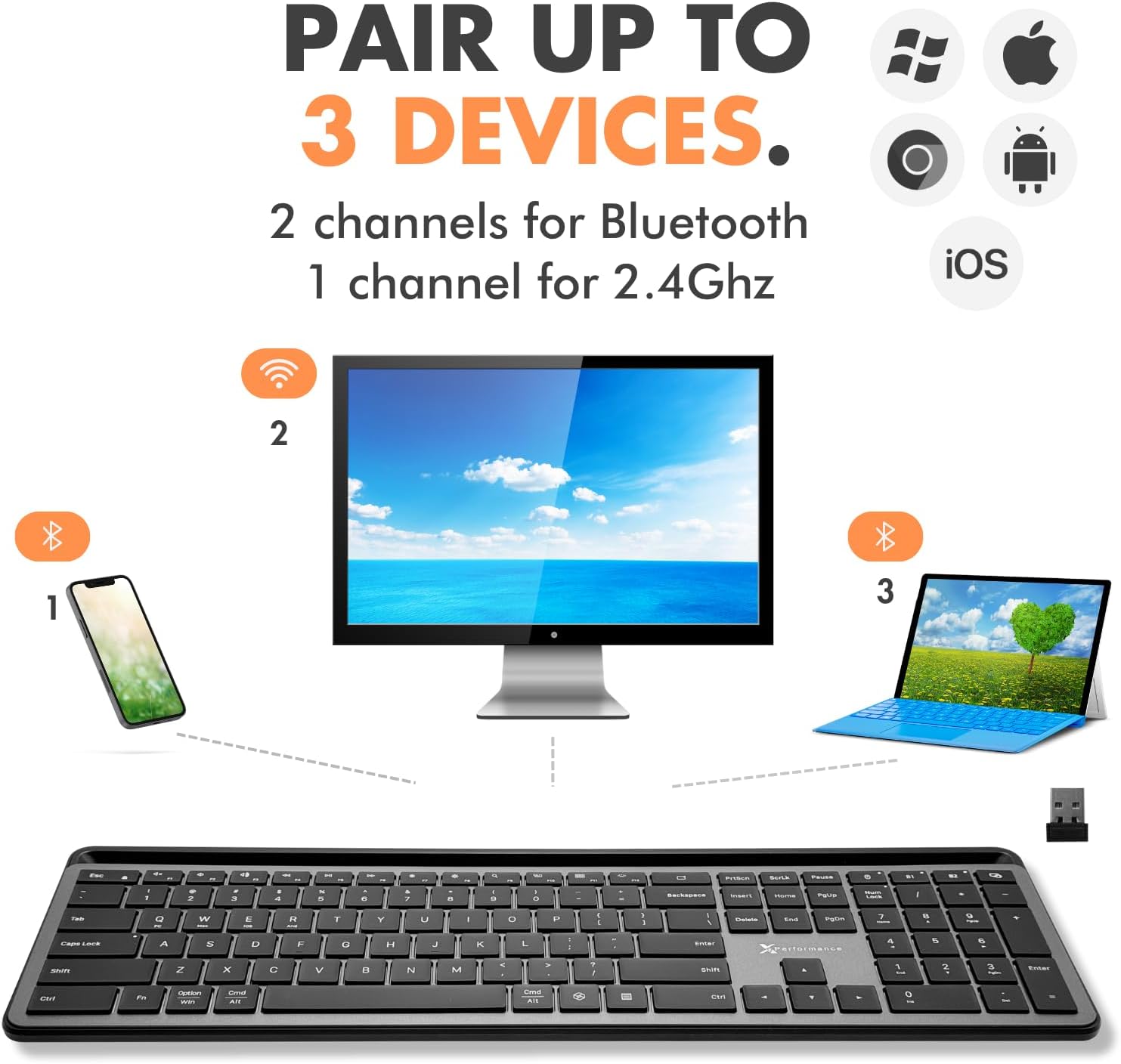
Image: A visual representation of the keyboard's triple-mode connectivity, showing connections to a phone, a monitor, and a laptop.
3. Operating Instructions
3.1 Switching Between Connected Devices
To switch between your connected devices, simply press the corresponding channel key: 2.4G, BT1, or BT2. The keyboard will quickly switch its connection to the selected device.
Video: Demonstrates the X9 Performance Bluetooth Keyboard with Phone Holder in use, highlighting its features and multi-device capabilities.
3.2 Backlight Control
The keyboard features adjustable white LED backlighting. Use the dedicated backlight key (often marked with a light bulb icon or similar) to cycle through brightness levels (Low, Medium, High) or to turn the backlight off.

Image: A close-up view of the keyboard's backlit keys, illustrating the three brightness settings.
3.3 Using the Integrated Device Dock
The keyboard includes an extra-long dock at the top, designed to securely hold your smartphone and tablet simultaneously. This allows for easy viewing and interaction with your devices while typing.
Note: The device dock is approximately 16.75 inches long and 0.45 inches wide. Devices with thick cases may not fit properly.

Image: The X9 Performance keyboard with a tablet and a phone positioned in its extra-long integrated dock.
3.4 Copilot Key Functionality
The keyboard features a dedicated Copilot key, providing quick access to AI assistant features on compatible operating systems and applications. Press this key to activate your device's AI assistant.

Image: A close-up of the keyboard showing the dedicated Copilot key.
3.5 Operating System Compatibility
The keyboard is designed for broad compatibility and works seamlessly with:
- Windows
- macOS
- iOS (iPhone, iPad)
- Android (Smartphones, Tablets)
Specific function keys may behave differently depending on the operating system. Refer to your device's documentation for OS-specific keyboard shortcuts.
4. Maintenance
4.1 Cleaning
To clean the keyboard, power it off and disconnect any cables. Use a soft, lint-free cloth slightly dampened with water or a mild, non-abrasive cleaner. Avoid excessive moisture and do not spray cleaners directly onto the keyboard. For keycaps, a soft brush or compressed air can remove debris.
4.2 Battery Care
To prolong battery life:
- Avoid fully discharging the battery frequently.
- Store the keyboard in a cool, dry place when not in use for extended periods.
- Charge the keyboard regularly, even if not used daily.
5. Troubleshooting
5.1 Keyboard Not Connecting
- Ensure the keyboard is powered on and sufficiently charged.
- For Bluetooth, ensure the correct BT channel (BT1 or BT2) is selected and in pairing mode (rapidly blinking indicator).
- For 2.4G wireless, ensure the USB receiver is securely plugged into your device and the 2.4G channel is selected.
- Try restarting the keyboard and your device.
- Remove and re-pair the keyboard in your device's Bluetooth settings.
5.2 Backlight Not Working
- Ensure the keyboard is powered on.
- Press the backlight key to cycle through brightness levels.
- Check the battery level; low battery may disable backlighting.
5.3 Keys Not Responding
- Verify the keyboard is connected to the correct device channel.
- Ensure the battery is charged.
- Restart the keyboard and the connected device.
- If using 2.4G, try plugging the USB receiver into a different USB port.
6. Specifications
| Model Number | X9RBBLKBDOCKG |
| Brand | X9 Performance |
| Connectivity Technology | Bluetooth, RF (2.4G Wireless) |
| Compatible Devices | Laptop, PC, Mac, iOS (iPhone, iPad), Android (Smartphone, Tablet) |
| Keyboard Description | Backlit Multi Device Wireless Bluetooth Keyboard with Phone Dock |
| Special Features | 2.4G wireless, Rechargeable, Backlit, Full size with number pad, Multi-device dock, Copilot Key |
| Battery Capacity | 1000 mAh |
| Keyboard Backlighting | Single Color (White LED) |
| Product Dimensions | 17.33"L x 5.56"W x 0.89"H (44.02 x 14.12 x 2.26 cm) |
| Item Weight | 2.27 pounds (1.03 kg) |
| Device Dock Dimensions | 16.75"L x 0.45"W (approx.) |
7. Warranty and Support
For information regarding warranty coverage, technical support, or customer service, please refer to the X9 Performance official website or the contact information provided on your product packaging. Keep your purchase receipt for warranty claims.


