
1. Introduction
This manual provides detailed instructions for the installation, operation, and maintenance of your EsaSam Double Din Car Stereo Multimedia Radio. This unit is specifically designed for Isuzu D-Max models from 2015 to 2018. Please read this manual thoroughly before using the product to ensure proper functionality and safety.
2. Product Overview
2.1 Key Features
- Android 12 Operating System with 8-core processor.
- 9-inch High-Definition IPS Touch Screen (1280*720 pixels).
- Support for 1920*1080 video playback.
- Built-in GPS Navigation with support for online and offline maps.
- Integrated Wireless CarPlay and Android Auto.
- Bluetooth 4.0 for hands-free calls and music streaming.
- FM/AM/RDS Radio tuner.
- Built-in 4G WiFi and support for 5GHz WiFi.
- Support for original Steering Wheel Control.
- Includes AHD Rear View Camera and external microphone.
- Multi-language support.
- Support for optional DVR, TPMS, DAB+, and OBD2 (additional purchase required).
2.2 Package Contents
The package includes the main head unit, a frame for Isuzu D-Max 2015-2018, necessary power adapter, an AHD rear view camera, an external microphone, GPS antenna, and 4G antenna. Refer to the accessories image for a visual guide.
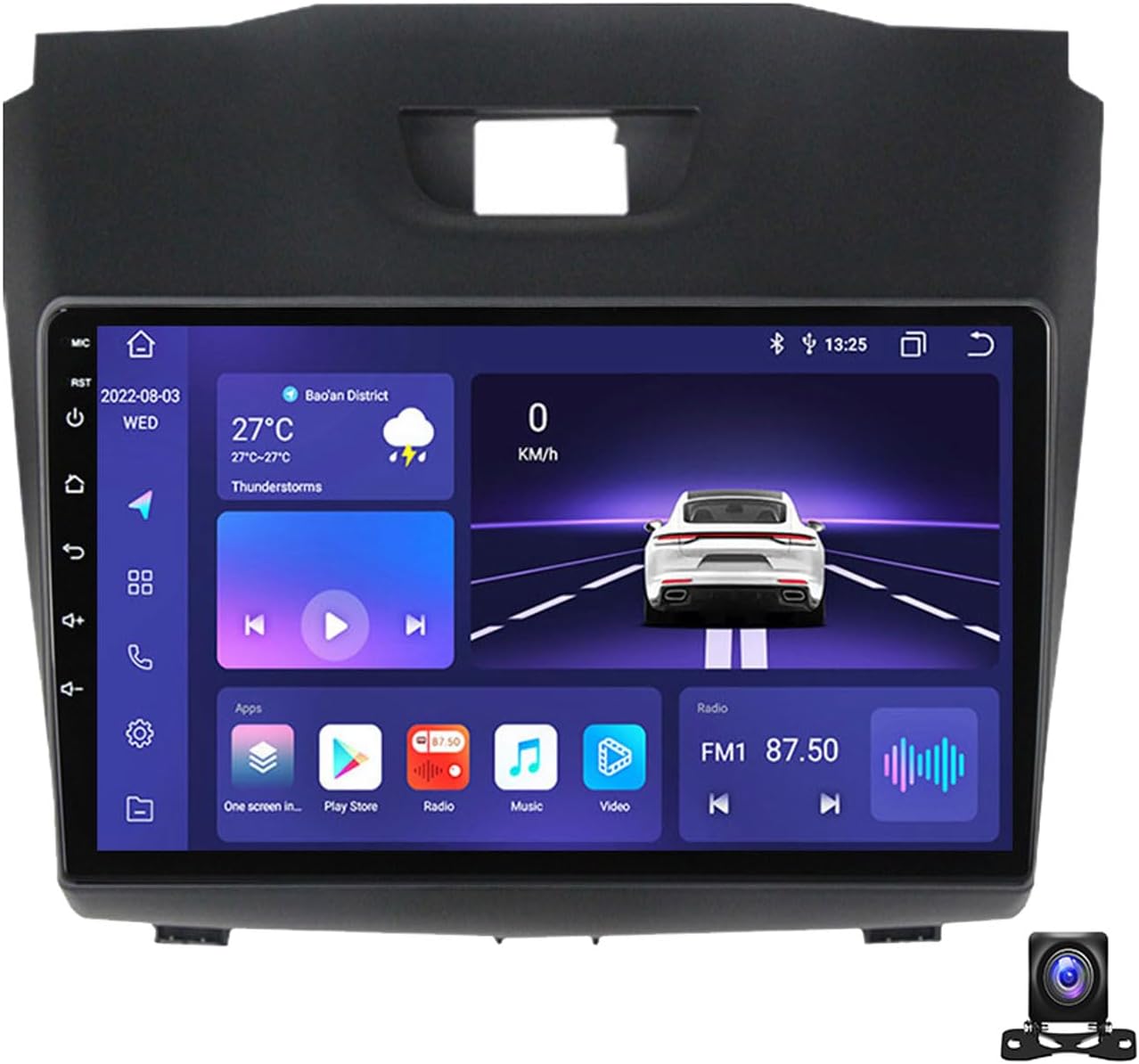
Figure 1: EsaSam Double Din Car Stereo Multimedia Radio main unit with display showing various applications and car speed.

Figure 2: Various accessories including RCA cables, reversing camera, microphone, GPS antenna, and 4G antenna.
3. Setup and Installation
3.1 Compatibility Check
This car stereo is compatible with Isuzu D-Max models from 2015 to 2018. Before installation, compare your vehicle's original center console with the product images to ensure compatibility. If your original console differs, contact customer support for guidance.

Figure 3: Top left shows the original Isuzu D-Max dashboard. Top right shows the EsaSam unit. Bottom shows the EsaSam unit installed in the dashboard.
3.2 Wiring and Connections
- Power Connection: Connect the main power harness to your vehicle's wiring. Ensure all connections are secure to prevent electrical issues.
- GPS Antenna: Connect the GPS antenna and place it in a location with a clear view of the sky for optimal signal reception.
- 4G Antenna: Connect the 4G antenna for cellular data connectivity.
- External Microphone: Plug in the external microphone for improved call quality.
- AHD Rear View Camera: Connect the included AHD rear view camera. Ensure proper routing of the cable to the rear of the vehicle. The system automatically switches to the camera view when reversing.
- USB/SD Connections: Utilize the provided USB ports and SD card slot for multimedia playback or data transfer.
- Steering Wheel Control (SWC): Connect the SWC wires. After installation, navigate to the system settings to configure or learn the canbus protocol for your vehicle's steering wheel controls.

Figure 4: Visual guide for connecting wires (Step 1) and navigating system settings for device sound and cooling fan activation (Steps 2-4).
4. Operating Instructions
4.1 Initial Power-On and System Settings
Upon first power-on, the system will boot into the Android interface. You can customize various settings:
- Language: Access system settings to select your preferred language (English, Russian, French, German, Spanish, Italian, Arabic, etc.).
- Factory Password: For advanced system settings, the factory password for M200S~M800S models is 3368.
- Day/Night UI Switching: The user interface automatically switches between day and night modes for optimal visibility.
4.2 Navigation
The unit comes with a GPS antenna and supports both online and offline navigation. For offline maps, connect to WiFi to download map data for your region. The system supports GPS, BDS, and GLONASS satellite systems for accurate positioning.
Figure 5: Example of the GPS navigation interface and how it can be used in split-screen mode with other applications like music.
4.3 Bluetooth Functionality
Pair your mobile phone via Bluetooth 4.0 to enable hands-free calling and audio streaming. The system supports synchronizing your contact list and displaying caller ID.
- Pairing: Go to Bluetooth settings on the head unit and your phone, search for the device, and pair.
- Calls: Make and receive calls directly from the head unit's touchscreen.
- Music: Stream audio from your phone to the car stereo.

Figure 6: Top right shows the Bluetooth interface for calls and music. Top left illustrates steering wheel control usage.
4.4 CarPlay and Android Auto
The unit supports both wireless CarPlay and Android Auto. Connect your smartphone to access navigation, music, messages, and more directly on the car stereo display.
- Wireless Connection: Follow the on-screen instructions to connect wirelessly.
- Wired Connection: Connect your phone via a USB cable for a wired connection.
Figure 7: Detailed steps for connecting to wireless CarPlay and wired Android Auto.
4.5 Radio Operation
The unit features an FM/AM radio tuner with RDS support. You can save your favorite stations for quick access.
- Frequency Range: AM: 520-1700 Hz; FM: 87.5-108.5MHz.
- Scanning: Use the automatic search function to find available stations.
- Presets: Save your preferred stations to the preset list.
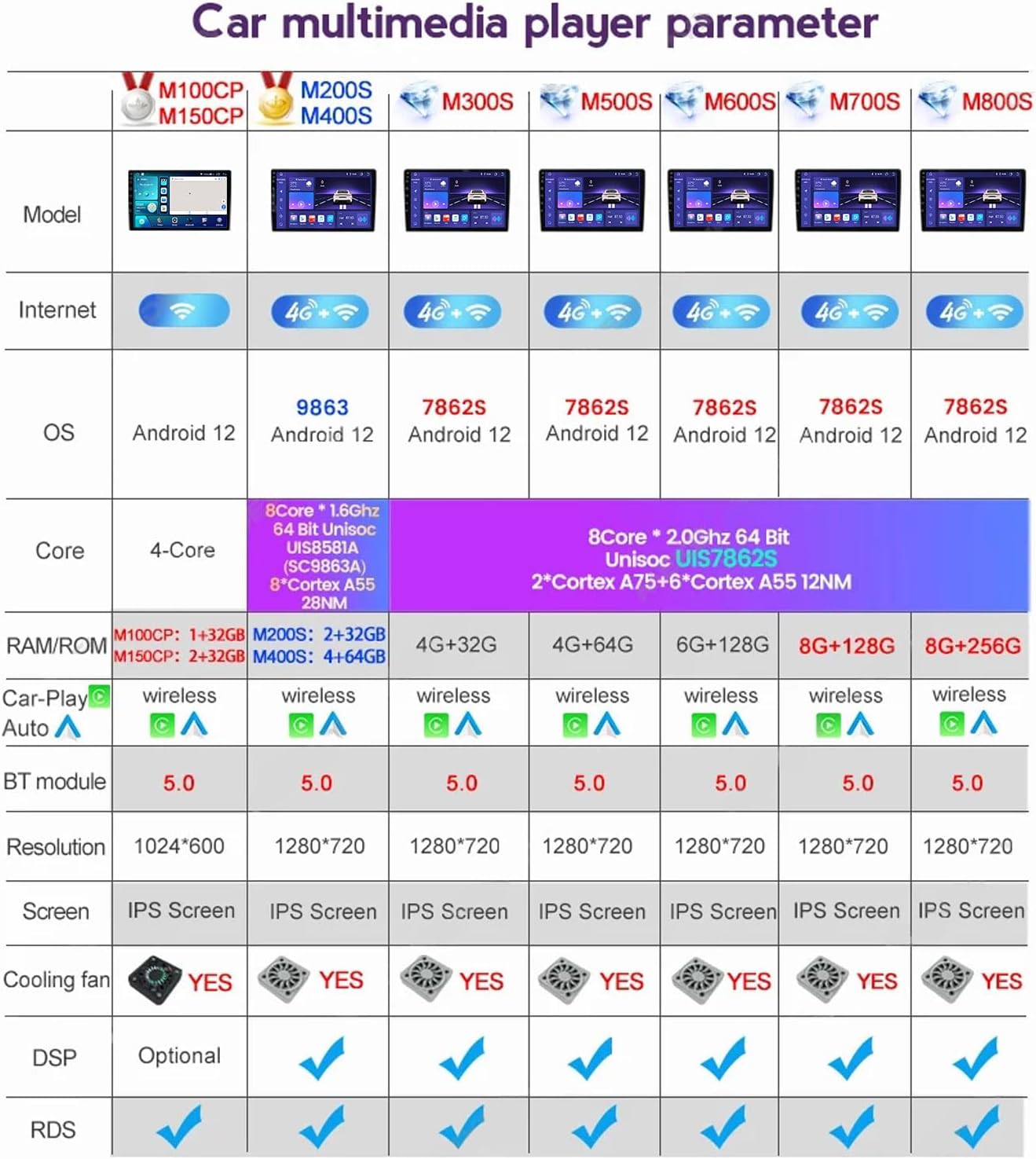
Figure 8: The FM radio interface showing current frequency and a list of preset stations.
4.6 Multimedia Playback
The system supports various audio and video formats. You can play media from USB drives, SD cards, or stream via Bluetooth/WiFi.
- Video Format: Supports HD 1080P video playback.
- Audio Output: AUX-IN Audio, Video / Audio Output, Subwoofer audio output.
- Sound Effects: Adjust various sound effects and music styles (pop, rock, jazz, etc.).
4.7 Split Screen Function
The split-screen feature allows you to run two applications simultaneously on the display, such as navigation and music, for enhanced multitasking.
Figure 9: The split-screen display showing a navigation map on one side and a music player on the other.
4.8 Internet Connectivity
The unit supports 4G LTE and 5GHz WiFi, allowing you to connect to the internet for online navigation, music streaming, video playback, and app downloads.
Figure 10: Illustrations of 4G LTE connectivity with SIM card slot and 5GHz WiFi benefits like fast transmission and wide coverage.
5. Maintenance
5.1 Cleaning the Unit
Use a soft, dry cloth to clean the touchscreen and exterior of the unit. Avoid using abrasive cleaners or solvents, as they may damage the surface.
5.2 Software Updates
Periodically check for software updates to ensure optimal performance and access to new features. Updates can typically be found on the manufacturer's website or through the unit's system settings if an internet connection is available.
6. Troubleshooting
If you encounter issues with your car stereo, refer to the following common problems and solutions:
| Problem | Possible Cause | Solution |
|---|---|---|
| Unit does not power on | Loose power connection, blown fuse | Check power wiring and vehicle fuses. Ensure proper installation. |
| No sound | Volume too low, incorrect audio source, loose speaker wires | Increase volume, select correct audio source, check speaker connections. |
| GPS signal lost or inaccurate | GPS antenna obstruction, poor placement | Ensure GPS antenna has a clear view of the sky. Reposition if necessary. |
| Bluetooth connection issues | Phone not discoverable, incorrect pairing process | Ensure phone's Bluetooth is on and discoverable. Re-attempt pairing process. |
| Steering Wheel Controls not working | Incorrect wiring, unconfigured settings | Check SWC wiring. Go to system settings and configure the canbus protocol. |
| Rear view camera not displaying | Loose camera connection, faulty camera | Check camera wiring and connections. Ensure the vehicle is in reverse. |
For more complex issues, you may need to access advanced system settings using the factory password (3368 for M200S~M800S models). If problems persist, contact customer support.

Figure 11: Illustrations of optional features such as ADAS DVR (Advanced Driver-Assistance Systems Digital Video Recorder), OBD II (On-Board Diagnostics), and TPMS (Tire Pressure Monitoring System).
7. Specifications
| Feature | Specification |
|---|---|
| Model | m800s 8g+256g |
| Operating System | Android 12 |
| Processor | 8-core (Unisoc UIS7862S, 2*Cortex A75 + 6*Cortex A55) |
| RAM | 8GB DDR3 |
| ROM | 256GB |
| Screen Size | 9 Inch |
| Screen Resolution | 1280 x 720 (IPS Capacitive Multi-Touch) |
| Connectivity | Bluetooth 4.0, USB, Wi-Fi (4G LTE, 5GHz WiFi) |
| Radio Tuner | FM/AM/RDS (AM: 520-1700 Hz, FM: 87.5-108.5MHz) |
| Audio Output Mode | AUX, Stereo, Subwoofer output |
| Compatible Flash Memory | SD |
| Special Features | Bluetooth, Touchscreen, GPS Navigation, CarPlay, Android Auto, DSP |
| Vehicle Service Type | Car (Isuzu D-Max 2015-2018) |
| Manufacturer | EsaSam |
Figure 12: A table comparing various parameters across different EsaSam car multimedia player models, including OS, core, RAM/ROM, Car-Play, BT module, resolution, screen type, cooling fan, DSP, and RDS.
8. Warranty Information
Please refer to the manufacturer's official website or your purchase documentation for detailed warranty information regarding the EsaSam Double Din Car Stereo Multimedia Radio. Warranty terms typically cover manufacturing defects for a specified period from the date of purchase.
9. Support
For technical assistance, troubleshooting not covered in this manual, or inquiries about your EsaSam product, please contact EsaSam customer support through their official website or the retailer from whom you purchased the unit. Have your model number (m800s 8g+256g) and purchase details ready when contacting support.