
1. Introduction
Thank you for choosing the SABLUTE Wireless Backlit Keyboard and Mouse Combo. This manual provides essential information for setting up, operating, and maintaining your new wireless peripheral set. Designed for comfort and efficiency, this combo features quiet keys, adjustable backlighting, and broad compatibility across various operating systems.
2. Setup Instructions
- Unpack the Device: Carefully remove the keyboard, mouse, and USB receiver from the packaging.
- Insert USB Receiver: Locate the USB receiver (often stored in the mouse's battery compartment or a dedicated slot). Plug the USB receiver into an available USB-A port on your computer. If your computer only has USB-C ports, use the provided USB-C adapter.
- Power On: Turn on the keyboard and mouse using their respective ON/OFF switches. The devices should automatically connect to your computer. No additional drivers are typically required for basic functionality.
- System Switching: For optimal compatibility, the keyboard supports one-key switching between Windows and Mac systems. Refer to the operating instructions for specific key combinations.

3. Operating Instructions
3.1 Backlight Control
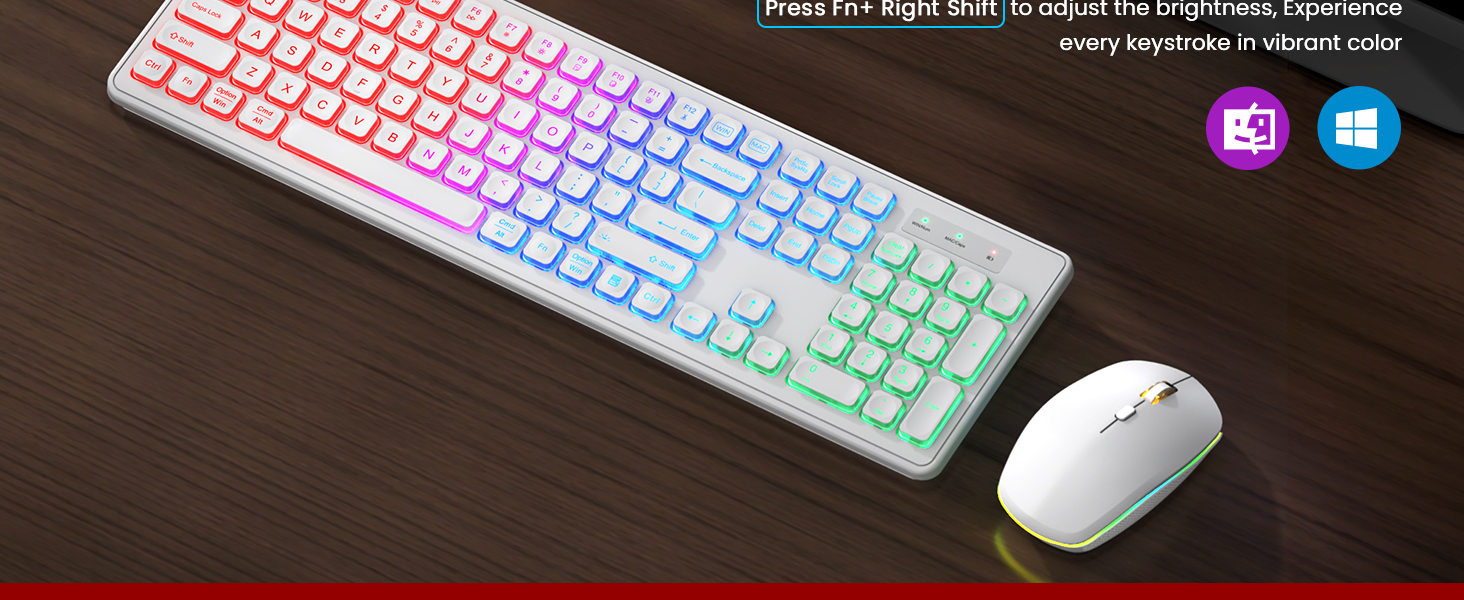
- Turn On/Off Backlight: Press Fn + Shift to toggle the keyboard backlight on or off.
- Adjust Brightness: Press Fn + Shift repeatedly to cycle through different brightness levels.
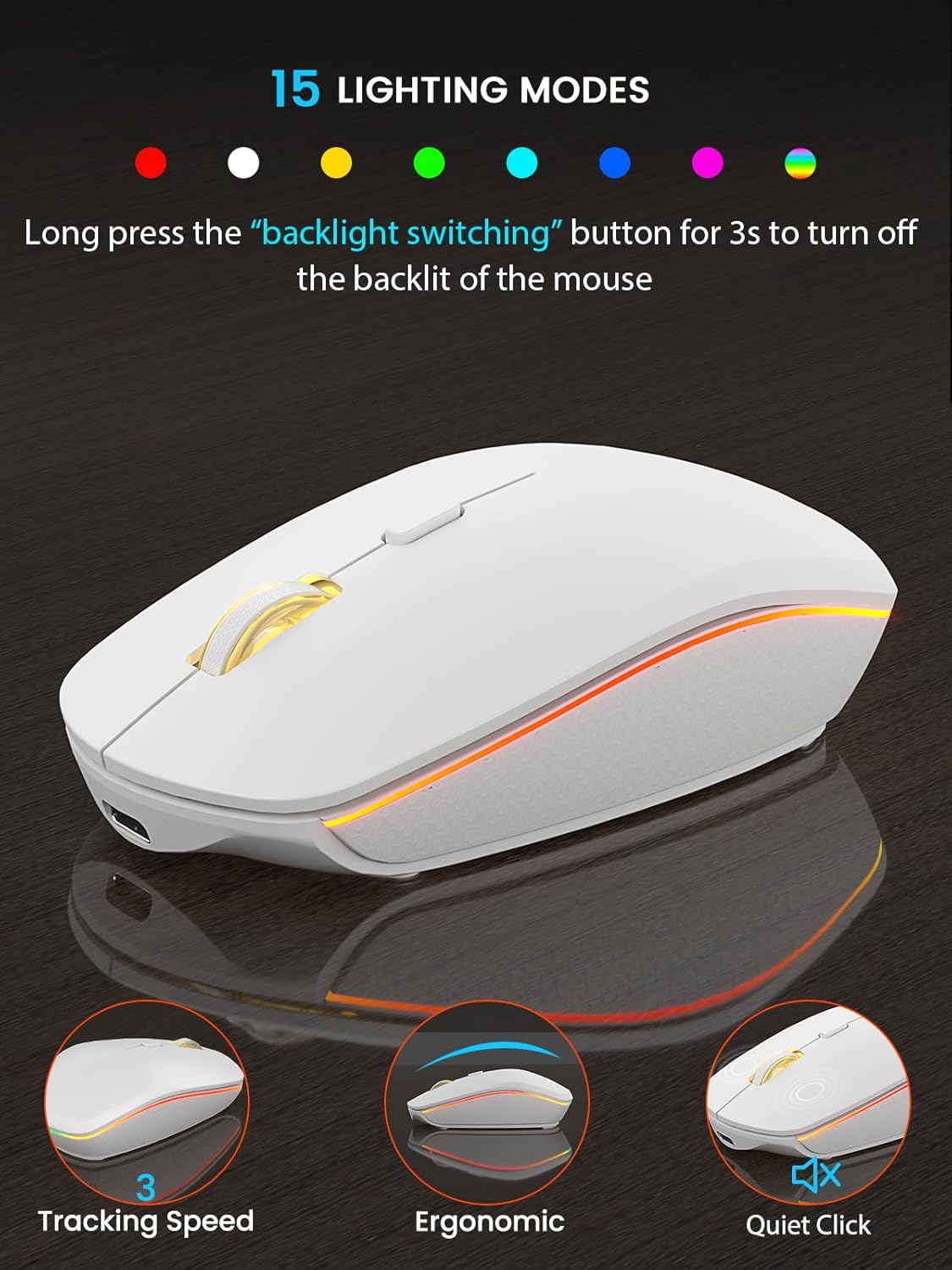
- Mouse Backlight: The mouse features 15 lighting modes. To turn off the mouse backlight, long press the 'backlight switching' button for 3 seconds.

3.2 Sleep Mode for Power Saving
- Keyboard Sleep: The keyboard enters sleep mode after 30 minutes of inactivity. Press any key to wake it.
- Mouse Sleep: The mouse enters sleep mode after 1.5 minutes of inactivity. Move or click to wake it.
- Power Indicator: A power indicator light will flash when the battery is low, signaling the need for recharging.
3.3 Efficient Shortcut Keys
The keyboard includes dedicated shortcut keys for enhanced productivity. Use the Fn key in combination with other keys to access multimedia controls and system functions.
3.4 Ergonomic Design
The keyboard features adjustable tilt legs, allowing you to customize the typing angle for maximum comfort and to reduce hand fatigue during extended use.

3.5 Indicator Lights
The keyboard includes indicator lights for various statuses:
- WIN/Num Indicator: Shows Windows mode or Num Lock status.
- MAC/Caps Indicator: Shows Mac mode or Caps Lock status.
- Power Indicator: Flashes when the battery is low.

4. Maintenance
- Cleaning: Use a soft, dry cloth to clean the surface of the keyboard and mouse. For deeper cleaning, a slightly damp cloth with mild soap can be used, ensuring no liquid enters the device.
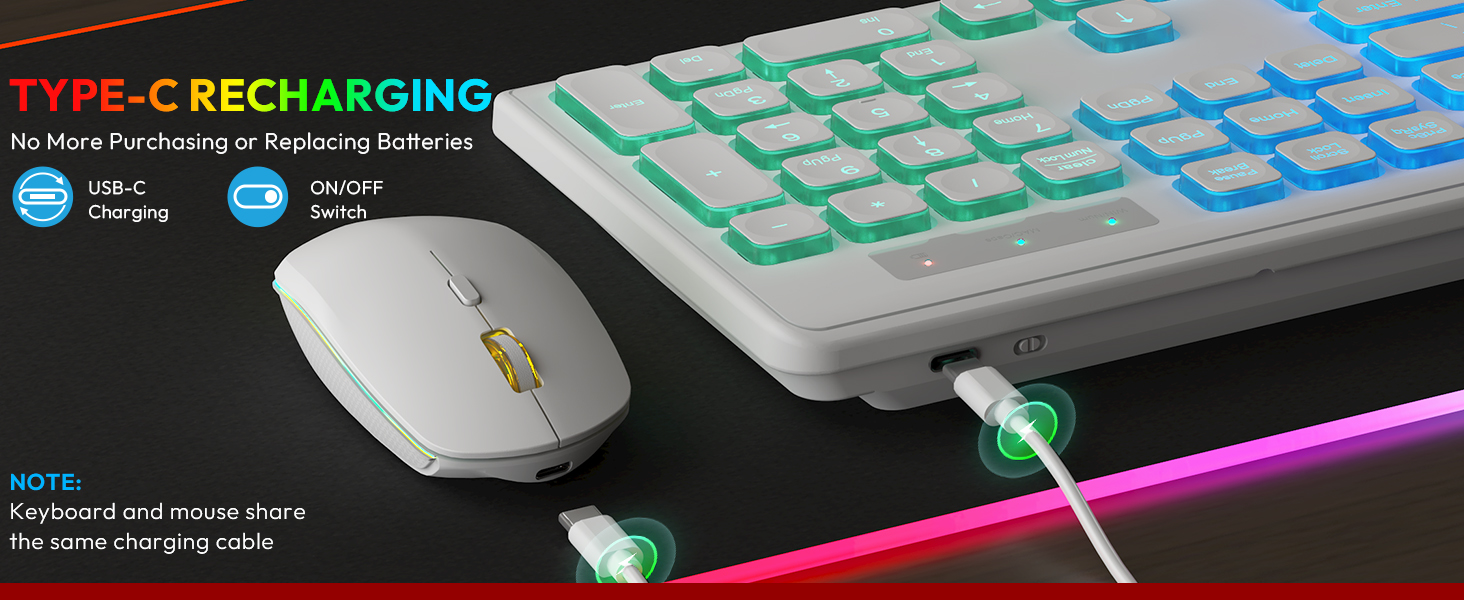
- Charging: Both the keyboard and mouse are rechargeable via a USB-C cable. Ensure regular charging to maintain optimal performance. The keyboard offers up to 365 days of standby time, and the mouse up to 270 days. For typical 9-5 office use, the keyboard battery lasts at least 4 weeks with the backlight off.
- Storage: Store the devices in a cool, dry place away from direct sunlight and extreme temperatures when not in use for extended periods.


5. Troubleshooting
- Connectivity Issues (Lag/No Connection):
- Ensure the USB receiver is securely plugged into a working USB port.
- Verify both the keyboard and mouse are powered on.
- Move the devices closer to the USB receiver to rule out range issues (up to 33ft operating range).
- Try plugging the USB receiver into a different USB port on your computer.
- Keys Sticking or Unresponsive:
- Gently clean around the affected keys to remove any debris.
- Ensure the keyboard is fully charged.
- If the issue persists, contact customer support.
- Backlight Not Working:
- Press Fn + Shift to ensure the backlight is turned on and adjusted to a visible brightness level.
- Check the battery level; low battery can affect backlight functionality.
- Mouse Tracking Issues:
- Ensure the mouse is fully charged.
- Clean the optical sensor on the bottom of the mouse.
- Use the mouse on a suitable surface; reflective or uneven surfaces can affect tracking.
6. Specifications
| Feature | Detail |
|---|---|
| Product Dimensions | 17.44 x 5.35 x 1.77 inches |
| Item Weight | 1.54 pounds |
| Item Model Number | KB319, MC219 |
| Batteries | 1 Lithium Ion batteries required (included) |
| Connectivity Technology | 2.4GHz Wireless (USB Wireless) |
| Special Features | Backlit, Rechargeable, Sleep Modes, Silent, Ergonomic |
| Compatible Devices | Chromebook, Notebook, Dell XPS 13/15, Inspiron, HP ENVY, Pavilion, Spectre, Macbook Pro, Macbook Air, iMac (Windows, Mac OS, Linux, Chrome OS, Android) |

7. Warranty and Support
SABLUTE is committed to quality and customer satisfaction. Your product is covered by the following:
- Replacement Policy: 90-day replacement period.
- Manufacturer Warranty: 360-day manufacturer warranty.
For technical support or warranty claims, please contact us:
- Phone (US): 1-888-905-9607
- Email: sabluteservice@outlook.com