
Introduction
Thank you for choosing the eufy LR20 Robot Vacuum. This manual provides essential information for the safe operation, maintenance, and troubleshooting of your device. Please read it thoroughly before using the product and retain it for future reference.
Important Safety Instructions
Before using this product, read all safety instructions. Failure to follow these instructions may result in electric shock, fire, or serious injury.
- This appliance can be used by children aged 8 years and above and persons with reduced physical, sensory or mental capabilities or lack of experience and knowledge if they have been given supervision or instruction concerning use of the appliance in a safe way and understand the hazards involved.
- Children should be supervised to ensure that they do not play with the appliance.
- Cleaning and user maintenance shall not be made by children without supervision.
- Only use the original power adapter provided by the manufacturer.
- Do not use the appliance in wet environments or on wet surfaces.
- Keep hair, loose clothing, fingers, and all parts of the body away from openings and moving parts.
- Do not pick up anything that is burning or smoking, such as cigarettes, matches, or hot ashes.
- Do not use without dust bin and/or filters in place.
- Store the appliance indoors.
Package Contents
Verify that all components are present in the package:
- eufy LR20 Robot Vacuum
- Charging Base
- Power Adapter
- Side Brushes (x2)
- Cleaning Tool
- User Manual
Product Overview
Familiarize yourself with the components of your eufy LR20 Robot Vacuum.
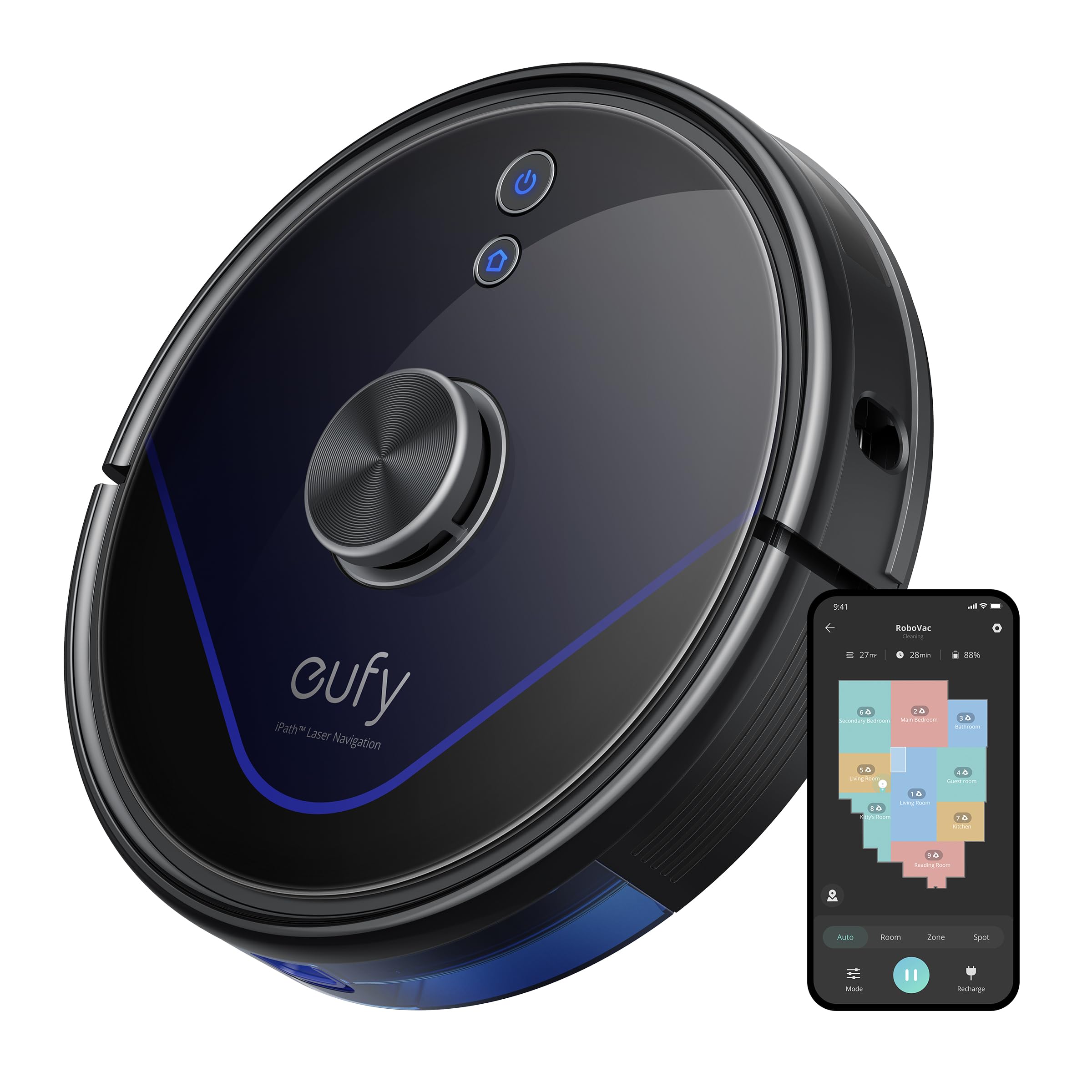
Image: The eufy LR20 Robot Vacuum shown with its charging base. The robot is black, circular, and features a laser navigation dome on top. The charging base is compact and designed for the robot to dock automatically.
Robot Vacuum Components:
- Top: Laser Navigation Sensor (LiDAR), Power/Clean Button, Wi-Fi Indicator.
- Front: Bumper Sensor.
- Bottom: Side Brushes, Main Brush, Driving Wheels, Universal Wheel, Drop Sensors, Charging Contacts.
- Dust Bin: Located under the top cover, includes a filter.
Charging Base Components:
- Charging Pins
- Power Indicator
- Power Port
Setup
1. Prepare the Cleaning Area
- Remove power cords, small objects, and anything that could entangle the robot.
- Fold tasseled edges of area rugs underneath to prevent tangling.
- Avoid placing the robot on very dark-colored carpets or surfaces, as this may interfere with drop sensors.
2. Install Side Brushes
- Press the side brushes onto the posts at the bottom of the robot until they click into place.
3. Place the Charging Base
- Place the charging base on a hard, level surface against a wall.
- Ensure there is at least 3 ft (1 m) of clear space to the front and 1 ft (0.3 m) to each side of the charging base.
- Connect the power adapter to the charging base and plug the other end into a wall outlet.
- Do not place the charging base near stairs or open doorways.
4. Initial Charging
- Place the robot onto the charging base, ensuring its charging contacts align with the pins on the base.
- The robot will automatically turn on and begin charging. The LED indicator on the robot will breathe orange while charging and turn solid blue when fully charged.
- Fully charge the robot before its first use (approximately 5-6 hours).
5. Download the EufyHome App
- Download the "EufyHome" app from the App Store (iOS devices) or Google Play (Android devices).
- Open the app and follow the on-screen instructions to create an account and add your LR20 robot vacuum.
- Ensure your Wi-Fi network is 2.4GHz, as the LR20 only supports 2.4GHz Wi-Fi.
Operating the Robot Vacuum
Starting a Cleaning Cycle
- Via Robot: Press the Power/Clean button once to start cleaning in Auto mode. Press again to pause.
- Via App: Open the EufyHome app, select your LR20, and tap "Start" or choose a specific cleaning mode.
Cleaning Modes
- Auto Clean: The robot cleans automatically using iPath Laser Navigation, following a Z-shaped path for efficient coverage.
- Spot Clean: Cleans a specific area intensely. Place the robot in the center of the desired area and select Spot Clean in the app.
- Zone Clean: Define a specific area on the map in the EufyHome app for the robot to clean.
BoostIQ Technology
The LR20 automatically increases suction power within 1.5 seconds when it detects extra vacuuming strength is needed, such as on carpets.
Multi-Floor Mapping and No-Go Zones
- The robot can recognize and store up to three different floor maps.
- Use the EufyHome app to set virtual boundaries or "No-Go Zones" on your map to prevent the robot from entering specific areas.
Scheduling
Set cleaning schedules through the EufyHome app for automated cleaning at preferred times.
Maintenance
Regular maintenance ensures optimal performance of your eufy LR20. Always turn off the robot and disconnect it from the charging base before performing any maintenance.
Emptying the Dust Bin (After each use)
- Press the dust bin release button and pull out the dust bin.
- Open the dust bin cover and empty its contents into a trash can.
Cleaning the Filter (Weekly)
- Remove the filter from the dust bin.
- Tap the filter to remove dust and debris. Do not wash the filter with water.
- Replace the filter every 3-6 months, depending on usage.
Cleaning the Main Brush (Weekly)
- Remove the brush guard by pressing the release tabs.
- Lift out the main brush.
- Use the cleaning tool to remove hair and debris wrapped around the brush.
- Reinstall the main brush and brush guard.
Cleaning the Side Brushes (Monthly)
- Pull the side brushes off their posts.
- Remove any hair or debris.
- Replace if damaged or worn.
Cleaning Sensors and Charging Contacts (Monthly)
- Wipe the drop sensors, bumper sensor, and charging contacts on both the robot and the charging base with a dry cloth.
Troubleshooting
If the robot vacuum encounters an issue, refer to the following table for common problems and solutions.
| Problem | Solution |
|---|---|
| Robot does not turn on. | Ensure the robot is fully charged. Check if the power switch is ON. |
| Robot cannot charge. | Verify the charging base is powered on. Clean the charging contacts on both the robot and the base. |
| Robot gets stuck frequently. | Clear obstacles from the cleaning path. Use No-Go Zones in the app for problematic areas. Clean driving wheels. |
| Suction power is weak. | Empty the dust bin. Clean or replace the filter. Clean the main brush. |
| Robot cannot connect to Wi-Fi. | Ensure your Wi-Fi is 2.4GHz. Restart your router and the robot. Follow app instructions for re-pairing. |
| Robot makes unusual noises. | Check the main brush and side brushes for tangled hair or debris. Inspect the universal wheel for obstructions. |
Specifications
| Feature | Specification |
|---|---|
| Model | LR20 |
| Suction Power | 3200Pa (Ultra-strong) |
| Navigation System | iPath Laser Navigation (LiDAR) |
| Dust Bin Capacity | 600 Milliliters |
| Battery Type | Lithium Ion |
| Battery Life | Up to 145 minutes |
| Noise Level | 57.9 Decibels |
| Wi-Fi Support | 2.4GHz only |
| Control Method | App Control, Alexa, Google system |
| Special Features | BoostIQ Technology, Multi-Floor Mapping, HEPA Filtration |
Warranty and Support
eufy provides a limited warranty for this product. For detailed warranty information, please refer to the warranty card included in your package or visit the official eufy website.
For technical support, troubleshooting assistance, or to purchase replacement parts, please contact eufy customer service:
- Website: www.eufylife.com
- Email: Refer to your warranty card or website for specific contact email.
- Phone: Refer to your warranty card or website for specific contact number.
Please have your model number (LR20) and purchase information ready when contacting support.


