
1. Introduction
This user manual provides comprehensive instructions for the FoMaKo PTZ Camera System, which includes three BH202 AI Auto Tracking 20x Optical Zoom PTZ Cameras, one KC601 Pro Video Mixer Switcher, and one KC608 Pro PTZ Controller. This system is designed for professional video production and live streaming applications in various environments such as churches, educational institutions, conferences, and events. Please read this manual thoroughly before operating the equipment to ensure proper setup, optimal performance, and safe use.
2. Product Overview
The FoMaKo PTZ Camera System is a complete solution for multi-camera video production. It combines high-quality PTZ cameras with an intuitive video mixer and a precise PTZ controller.
2.1 System Components
- 3x FoMaKo BH202 PTZ Cameras: AI Auto Tracking, 20x Optical Zoom, HDMI, 5G-SDI, IP, USB outputs, PoE support.
- 1x FoMaKo KC601 Pro Video Mixer Switcher: Quad HDMI inputs (1080P 60fps max), Dual HDMI outputs, USB recording, UVC streaming.
- 1x FoMaKo KC608 Pro PTZ Controller: 4D Joystick, VISCA, PELCO-P & D, RS232, RS422, RS485, Ethernet IP control, PoE support.

Figure 2.1: Overview of the FoMaKo PTZ Camera System components.
3. Setup Guide
Follow these steps to set up your FoMaKo PTZ Camera System.
3.1 System Connection Diagram

Figure 3.1: Recommended system connection diagram.
3.2 FoMaKo BH202 PTZ Camera Setup
- Mounting: Securely mount the PTZ cameras in desired locations using appropriate mounting hardware (not included, unless specified in packaging).
- Power: Connect the camera to power using the provided power adapter or via Power over Ethernet (PoE) if using a PoE-enabled network switch.
- Video Output: Connect the camera to the KC601 Pro Video Mixer Switcher using HDMI or SDI cables. For IP streaming, connect the camera to your network via an Ethernet cable.
- Control: Connect the camera to the KC608 Pro PTZ Controller via RS232, RS422, RS485, or Ethernet IP for control.

Figure 3.2: FoMaKo BH202 PTZ Camera rear panel connections.
3.3 FoMaKo KC601 Pro Video Mixer Switcher Setup
- Power: Connect the mixer to a power source using the provided adapter.
- Inputs: Connect up to four HDMI video sources (e.g., PTZ cameras, computers) to the HDMI input ports.
- Outputs: Connect your program (PGM) and multi-view (MVR) monitors to the HDMI output ports. For live streaming, connect the USB output to a computer.
- Audio: Connect external audio sources to the audio input ports if needed.

Figure 3.3: FoMaKo KC601 Pro Video Mixer Switcher.
3.4 FoMaKo KC608 Pro PTZ Controller Setup
- Power: Connect the controller to power or use PoE if available.
- Control Connection: Connect the controller to your PTZ cameras via Ethernet (IP control) or serial cables (RS232, RS422, RS485). Ensure the communication protocols (VISCA, PELCO-P/D) are correctly configured on both the controller and cameras.
- Network Configuration: Configure the IP address settings for the controller and cameras to ensure they are on the same network for IP control.

Figure 3.4: FoMaKo KC608 Pro PTZ Controller.
4. Operating Instructions
This section details the operation of each component within the FoMaKo PTZ Camera System.
4.1 FoMaKo BH202 PTZ Camera Operation
- Pan/Tilt/Zoom (PTZ) Control: Use the KC608 Pro controller's joystick to adjust the camera's pan, tilt, and zoom. Adjust PTZ speed settings on the controller or camera menu for smooth movements.
- AI Auto Tracking: Activate the AI auto-tracking feature through the camera's menu or controller. The camera will automatically follow a designated subject.
- Presets: Store and recall specific camera positions (pan, tilt, zoom, focus) using the preset buttons on the controller. The camera supports up to 255 presets.
- Video Formats: The camera supports various HD video formats including 1080P60/50, 1080P30/25, 720P60/50, and 720P30/25.
- Encoding: Utilizes H.264/H.265 encoding for efficient video transmission, especially under low bandwidth conditions.

Figure 4.1: PTZ Camera with AI Auto Tracking enabled.

Figure 4.2: PTZ Camera 20x Optical Zoom in action.
4.2 FoMaKo KC601 Pro Video Mixer Switcher Operation
- Input Switching: Use the dedicated buttons on the mixer to seamlessly switch between the four HDMI input sources.
- Program (PGM) and Multi-view (MVR) Monitoring: Monitor the live program output and a multi-view display of all inputs simultaneously on separate monitors.
- USB Recording: Connect a USB storage device to the mixer to record the program output in 1080P 60FPS.
- UVC Streaming: Connect the mixer to a computer via USB for direct UVC (USB Video Class) streaming to platforms like YouTube, Twitch, OBS Studio, vMix, etc.
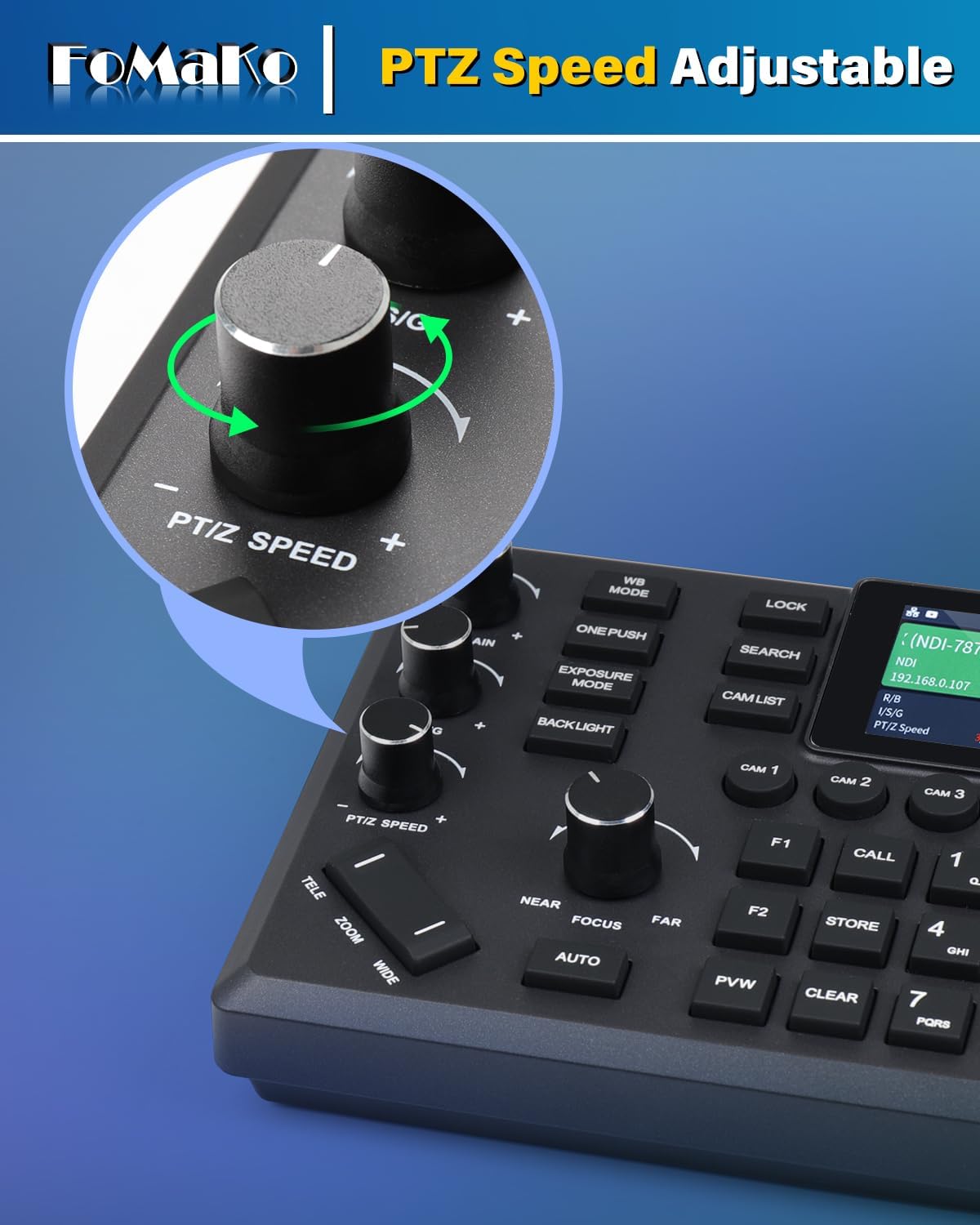
Figure 4.3: KC601 Pro Mixer with USB recording setup.
4.3 FoMaKo KC608 Pro PTZ Controller Operation
- 4D Joystick: The joystick provides precise control over pan, tilt, and zoom functions of connected PTZ cameras.
- Camera Selection: Use the camera selection buttons to choose which PTZ camera to control.
- Preset Management: Store, recall, and clear camera presets directly from the controller.
- LCD Screen: The integrated 3-inch LCD screen displays camera preview (PVW) and system parameters such as IP address, pan/tilt/zoom values, and focus mode.
- Speed Adjustment: Adjust pan/tilt/zoom speed and preset speed using dedicated knobs and buttons for smooth camera movements.

Figure 4.4: KC608 Pro Controller LCD screen displaying camera information.

Figure 4.5: PTZ Speed Adjustment on the KC608 Pro Controller.
5. Maintenance
- Cleaning: Use a soft, dry cloth to clean the exterior surfaces of all components. For camera lenses, use a specialized lens cleaning cloth and solution. Avoid abrasive cleaners or solvents.
- Firmware Updates: Periodically check the FoMaKo website for firmware updates for your cameras, mixer, and controller. Firmware updates can improve performance, add features, and fix bugs.
- Storage: When not in use for extended periods, store the equipment in a cool, dry place, away from direct sunlight and extreme temperatures.
- NDI Upgrade: Note that NDI functionality for some devices may require an additional license purchase and firmware upgrade. Refer to FoMaKo support for details.
6. Troubleshooting
If you encounter issues, refer to the following common troubleshooting steps:
- No Power: Ensure all power cables are securely connected and power outlets are functional. Check power indicators on each device.
- No Video Output: Verify HDMI/SDI/USB cables are correctly connected. Check input selections on the mixer and display monitors. Ensure cameras are powered on and outputting video.
- Camera Not Responding to Controller: Confirm the control cable (Ethernet, RS232, etc.) is properly connected. Check communication protocol settings (VISCA, PELCO-P/D) and IP addresses for IP control. Ensure the correct camera is selected on the controller.
- AI Auto Tracking Issues: Ensure the tracking feature is enabled. Check lighting conditions and subject visibility. Avoid rapid, erratic movements that may confuse the tracking algorithm.
- USB Recording Failure: Verify the USB storage device is properly formatted and has sufficient free space. Check the recording settings on the KC601 Pro mixer.
- Network Connectivity Problems: Ensure all network cables are connected. Check IP addresses, subnet masks, and gateway settings for all IP-enabled devices. Confirm your network switch/router is functioning correctly.
For further assistance, contact FoMaKo customer support.
7. Specifications
| Feature | Description |
|---|---|
| Brand | FoMaKo |
| Model Name | BH202, KC601 Pro, KC608 Pro |
| Compatible Devices | Computer, Smartphone, Tablet, Television |
| Video Capture Resolution | 1080p |
| Optical Zoom (Camera) | 20x |
| Focus Type (Camera) | Auto Focus |
| Connectivity Technology | HDMI, SDI, IP, USB, RS232, RS422, RS485, PoE |
| Video Capture Format | MP4 (for recording) |
| Special Features | AI Auto Tracking, Optical Zoom, IP Live Streaming, PoE Support, 4D Joystick Control, USB Recording |
| Included Components | Camera Body (3x), PTZ Controller (1x), Video Mixer Switcher (1x) |
| Water Resistance Level | Not Water Resistant |
8. Warranty and Support
FoMaKo provides comprehensive support for its products:
- 3-Year Limited Warranty: Your purchase is covered by a 3-year limited warranty.
- 30-Day Money-Back Guarantee: Enjoy a 30-day no-questions-asked money-back guarantee.
- Free Online Training: Resources are available to help you get started easily.
- 24/7 Expert Assistance: Expect responses within 24 hours. Please include your Order ID for efficient service.
- Lifetime Customer Technical Support: FoMaKo offers lifetime technical support to ensure your satisfaction. Remote assistance can be provided if necessary.
For support, please visit the official FoMaKo website or contact their customer service team.


