
Introduction
This manual provides detailed instructions for the setup, operation, and maintenance of your INFINMIND L910 Wireless Bluetooth Mouse. Please read this manual thoroughly before using the product to ensure optimal performance and longevity.
Product Overview
The INFINMIND L910 is a versatile multi-device wireless mouse designed for comfort and efficiency. It features a smart flying scroll wheel, ergonomic design, and silent clicks, making it suitable for various computing environments.

Figure 1: INFINMIND L910 Wireless Bluetooth Mouse (White)
Setup and Installation
1. Battery Installation
The INFINMIND L910 mouse requires two AA batteries (included). You can choose to install one or two batteries based on your preference for mouse weight.
- Locate the battery compartment on the underside of the mouse.
- Slide the battery compartment cover open.
- Insert one or two AA batteries, ensuring correct polarity (+/-).
- Close the battery compartment cover securely.

Figure 2: Battery compartment with option for one or two AA batteries.
2. Connecting to Devices
The L910 mouse supports connection to up to three devices simultaneously: one via 2.4G wireless USB receiver and two via Bluetooth.
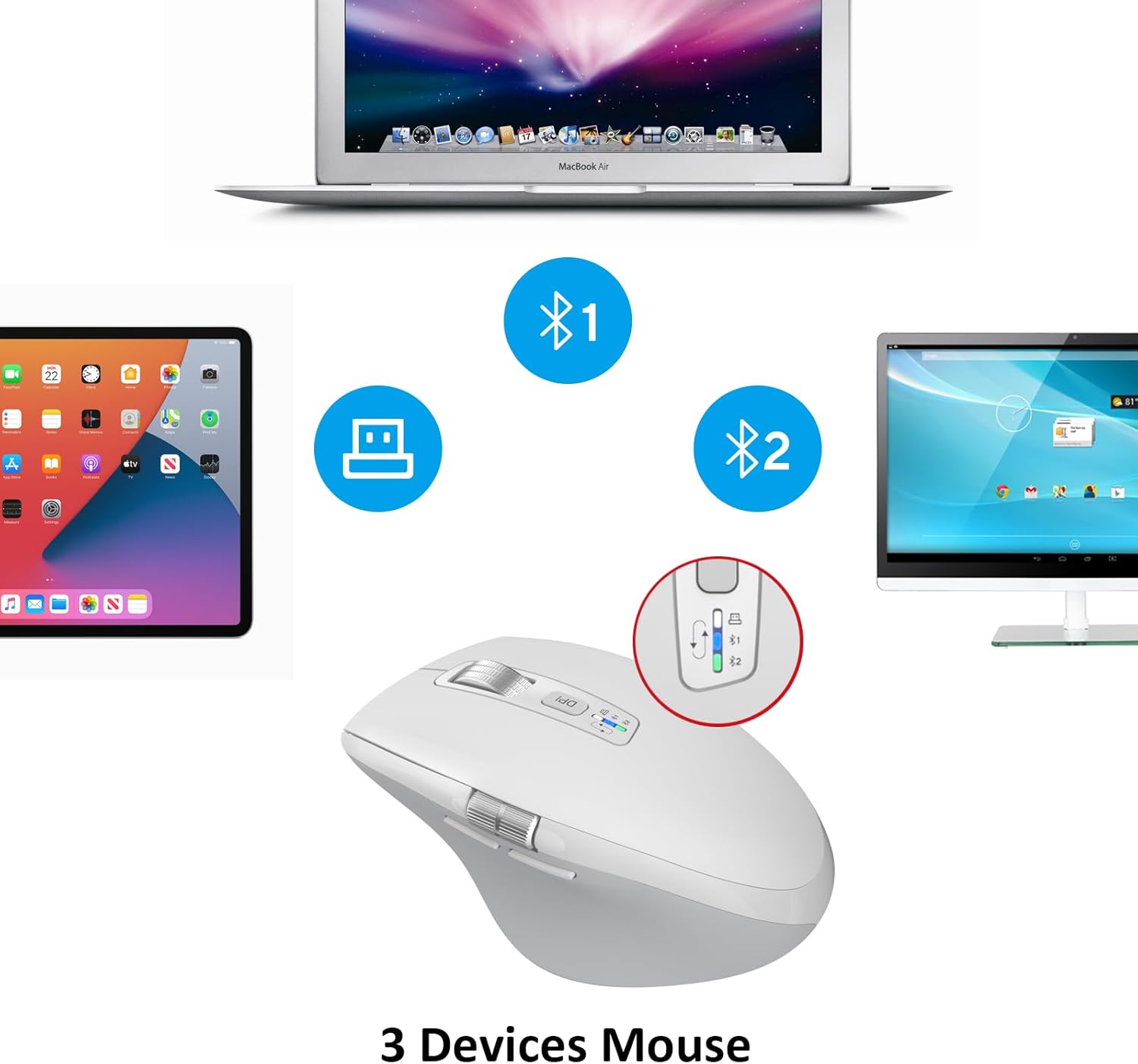
Figure 3: Multi-device connectivity of the INFINMIND L910 mouse.
2.1. 2.4G Wireless Connection
- Locate the USB receiver inside the battery compartment of the mouse.
- Remove the USB receiver and plug it into an available USB port on your computer.
- Turn on the mouse using the power switch on the bottom.
- Press the device switch button (located near the DPI button) until the indicator light for the 2.4G mode (usually marked with a USB icon) is active.
- Your computer should automatically detect and connect to the mouse.
2.2. Bluetooth Connection (BT1 & BT2)
- Turn on the mouse using the power switch on the bottom.
- Press the device switch button to select either BT1 or BT2 mode. The corresponding indicator light will blink.
- On your device (computer, laptop, tablet, smartphone), go to Bluetooth settings.
- Search for new devices and select "INFINMIND L910" from the list.
- Once paired, the indicator light on the mouse will stop blinking and remain solid.
- Repeat these steps for a second Bluetooth device using the other Bluetooth mode (BT2).
The mouse is compatible with Windows, Mac OS, Linux, iOS, Android, and Chrome OS.

Figure 4: Operating system compatibility.
Operating Instructions
1. DPI Adjustment
The mouse features 4 adjustable DPI levels (1000/1600/2400/3000) to suit different tasks and preferences. Press the DPI button (located behind the main scroll wheel) to cycle through the settings.
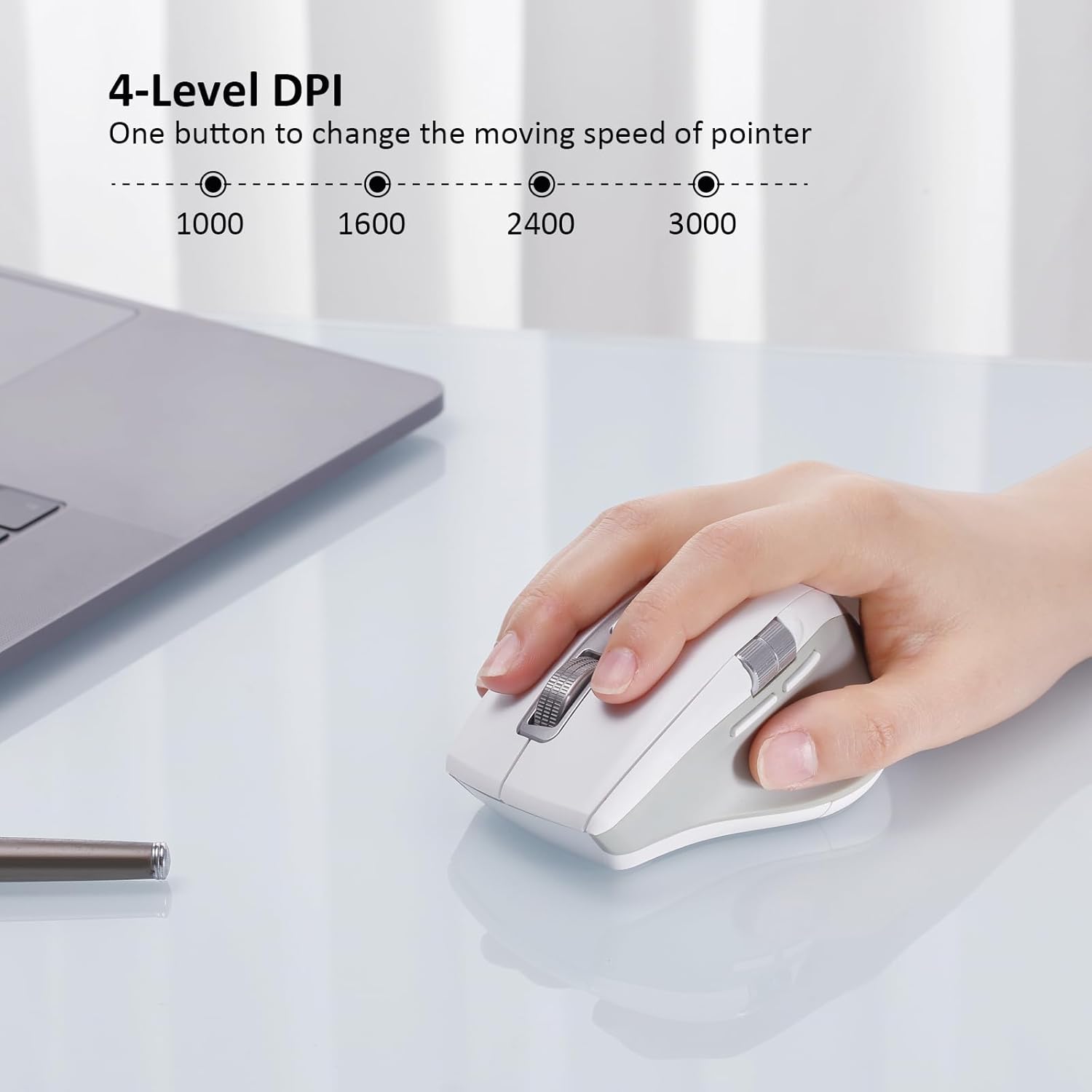
Figure 5: Adjusting DPI settings.
2. Smart Flying Scroll Wheel
The main scroll wheel features a "Smart Flying Scroll" design, allowing for rapid and silent scrolling through long documents or web pages. A quick flick of the wheel enables continuous scrolling.

Figure 6: Detail of the Smart Flying Scroll wheel.
3. Thumb Wheel and Side Buttons
The mouse is equipped with a thumb wheel and two side buttons (forward/backward) for enhanced navigation and productivity, especially useful for horizontal scrolling in spreadsheets or browsing web pages.
4. Silent Clicks
The left and right click buttons are designed for silent operation, reducing noise in quiet environments.
5. Switching Between Devices
To switch between connected devices (2.4G, BT1, BT2), press the device switch button located near the DPI button. The corresponding indicator light will illuminate to show the active connection.
Maintenance
1. Cleaning
To clean your mouse, gently wipe the surface with a soft, dry cloth. Avoid using harsh chemicals or abrasive materials.
2. Battery Replacement
When the mouse's performance degrades or the low battery indicator appears, replace the AA batteries. Ensure the mouse is turned off before replacing batteries.
3. Storage
When not in use for extended periods, turn off the mouse to conserve battery life. Store the mouse in a dry, cool place.
Troubleshooting
- Mouse not responding:
- Ensure the mouse is turned on.
- Check battery levels and replace if necessary.
- For 2.4G connection, ensure the USB receiver is securely plugged in and the mouse is in 2.4G mode.
- For Bluetooth connection, ensure Bluetooth is enabled on your device and the mouse is correctly paired in the selected BT1 or BT2 mode. Try re-pairing if issues persist.
- Cursor movement is erratic or slow:
- Clean the optical sensor on the bottom of the mouse.
- Ensure you are using the mouse on a suitable surface. Highly reflective surfaces may affect tracking.
- Adjust the DPI setting using the DPI button.
- Cannot connect to a new Bluetooth device:
- Ensure the mouse is in pairing mode (indicator light blinking for BT1 or BT2).
- Check if your device's Bluetooth is enabled and discoverable.
- Remove any previous pairings of the mouse from your device's Bluetooth settings and try pairing again.
Specifications
| Feature | Detail |
|---|---|
| Model Number | L910 |
| Connectivity Technology | 2.4G Wireless, Bluetooth (BT1, BT2) |
| DPI Levels | 1000, 1600, 2400, 3000 |
| Movement Detection Technology | Optical |
| Special Features | Ergonomic Design, Smart Flying Scroll, Thumb Scroll, Silent Clicks |
| Battery Type | 2 x AA batteries (included) |
| Battery Life | Up to 40 months (varies with usage) |
| Compatible Operating Systems | Windows, Mac OS, Linux, iOS, Android, Chrome OS |
| Dimensions | 4.61 x 3.31 x 2.13 inches |
| Item Weight | 7 ounces |
Warranty and Support
For warranty information and technical support, please refer to the documentation provided with your purchase or visit the official INFINMIND website. Keep your proof of purchase for warranty claims.
Manufacturer: INFINMIND