
Keychron K13 Max
Keychron K13 Max Wireless Mechanical Keyboard User Manual
Model: K13 Max
1. Introduction
The Keychron K13 Max is a versatile low-profile wireless mechanical keyboard designed for enhanced productivity and customization. It features an 80% layout with an integrated number pad, offering a compact yet fully functional typing experience. This keyboard supports multiple connectivity options including 2.4 GHz wireless, Bluetooth 5.1, and wired USB-C, ensuring seamless integration across various devices and operating systems.
Equipped with QMK/VIA support, the K13 Max allows for extensive key remapping and macro programming, providing users with the flexibility to tailor the keyboard to their specific workflow. Its ultra-slim aluminum body houses hot-swappable low-profile Gateron switches, enabling easy customization of the typing feel without soldering. The keyboard also features vibrant RGB backlighting, enhancing its aesthetic appeal and usability in different lighting conditions.

Figure 1.1: Keychron K13 Max Wireless Mechanical Keyboard with a detailed view of a Gateron low-profile brown switch.
2. Setup Guide
2.1 Package Contents
Before proceeding with the setup, please ensure all items are present in the package:
- 1x Keychron K13 Max Wireless Mechanical Keyboard
- 1x USB Type-C to Type-C Cable
- 1x USB Type-A to Type-C Adapter
- 1x 2.4 GHz Receiver
- 1x Switch Puller
- 1x Keycap Puller
- Additional Keycaps for Windows/Mac layouts

Figure 2.1: Contents included with the Keychron K13 Max keyboard.
2.2 Connectivity Modes
The K13 Max supports three connection modes: 2.4 GHz wireless, Bluetooth 5.1, and wired USB-C.
- Wired Connection:
Connect the keyboard to your device using the provided USB Type-C cable. Ensure the mode switch on the back of the keyboard is set to "Cable". This mode provides a stable connection and charges the keyboard's internal battery.
- 2.4 GHz Wireless Connection:
Insert the 2.4 GHz receiver into an available USB port on your computer. Set the mode switch on the back of the keyboard to "2.4G". The keyboard should automatically pair with the receiver. This mode offers a rapid 1000 Hz polling rate for responsive input.
- Bluetooth 5.1 Connection:
Set the mode switch on the back of the keyboard to "BT". The keyboard can connect to up to three Bluetooth devices. To pair, press and hold Fn + 1 (for device 1), Fn + 2 (for device 2), or Fn + 3 (for device 3) for 4 seconds until the indicator light flashes rapidly. On your device, search for "Keychron K13 Max" in Bluetooth settings and connect.

Figure 2.2: Tri-Mode Connection options for the Keychron K13 Max.
2.3 Operating System Compatibility Switch
The K13 Max includes a switch to optimize key functions for different operating systems. Locate the "Win/Android Mac/iOS" switch on the back of the keyboard.
- Set to "Mac/iOS" for Apple macOS and iOS devices.
- Set to "Win/Android" for Windows and Android devices.
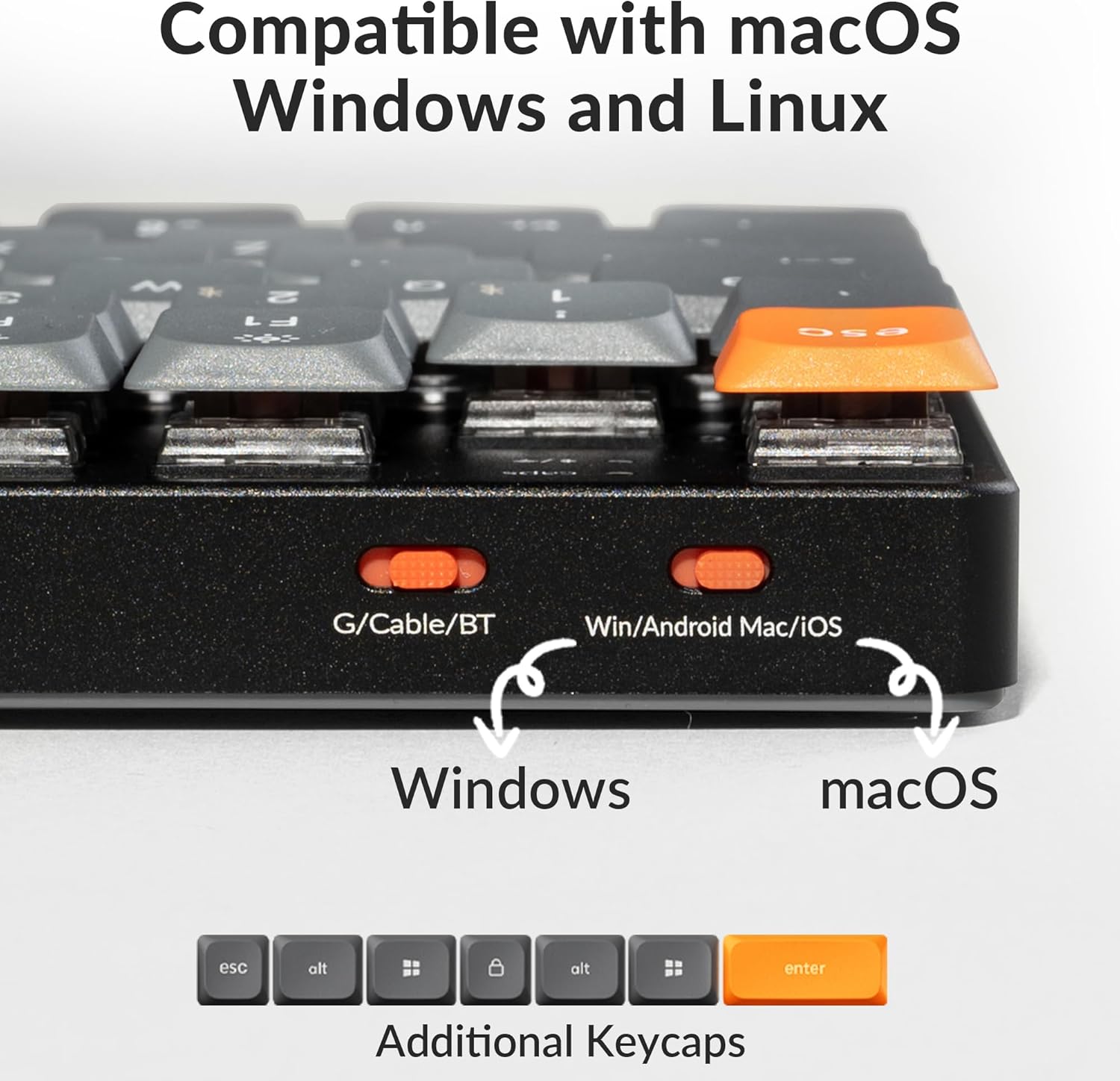
Figure 2.3: Operating system compatibility switches on the Keychron K13 Max.
3. Operation
3.1 Key Remapping with QMK/VIA
The Keychron K13 Max supports QMK/VIA firmware, allowing for advanced customization of key functions and macros. To remap keys:
- Download Keychron Launcher: Visit the official Keychron website to download the latest Keychron Launcher software compatible with your operating system (macOS, Windows, or Linux).
- Connect Keyboard: Ensure your K13 Max is connected to your computer via the USB-C cable.
- Launch Software: Open the Keychron Launcher application. The software should detect your keyboard.
- Remap Keys: Use the graphical interface to drag and drop desired key functions or macro commands to any key on the keyboard. You can create multiple layers of keymaps for different uses.
- Save Changes: Apply the changes within the software. The new keymap will be saved directly to the keyboard's firmware.

Figure 3.1: QMK/VIA interface for key remapping and macro commands.
3.2 RGB Backlight Control
The K13 Max features customizable RGB backlighting. Use the dedicated function keys to adjust lighting effects:
- Fn + F5: Decrease backlight brightness.
- Fn + F6: Increase backlight brightness.
- Fn + F7: Cycle through different RGB lighting effects.
- Fn + F8: Change backlight color (for static modes).

Figure 3.2: RGB Backlight in operation on the Keychron K13 Max.
4. Maintenance
4.1 Cleaning the Keyboard
To maintain the keyboard's appearance and functionality:
- Disconnect the keyboard from all power sources before cleaning.
- Use a soft, lint-free cloth slightly dampened with water or a mild cleaning solution to wipe the keycaps and chassis.
- For dust and debris between keys, use compressed air.
- Avoid using harsh chemicals, abrasives, or solvents.
4.2 Hot-Swapping Switches
The K13 Max features hot-swappable low-profile Gateron mechanical switches, allowing you to change switches without soldering. Note: The K13 Max is compatible only with Gateron low-profile mechanical switches.
- Remove Keycap: Use the provided keycap puller to gently remove the desired keycap.
- Remove Switch: Use the provided switch puller to grasp the switch firmly and pull it straight up.
- Insert New Switch: Align the pins of the new low-profile Gateron mechanical switch with the holes on the PCB. Press the switch down gently until it clicks into place. Ensure the pins are not bent.
- Replace Keycap: Place the keycap back onto the new switch.
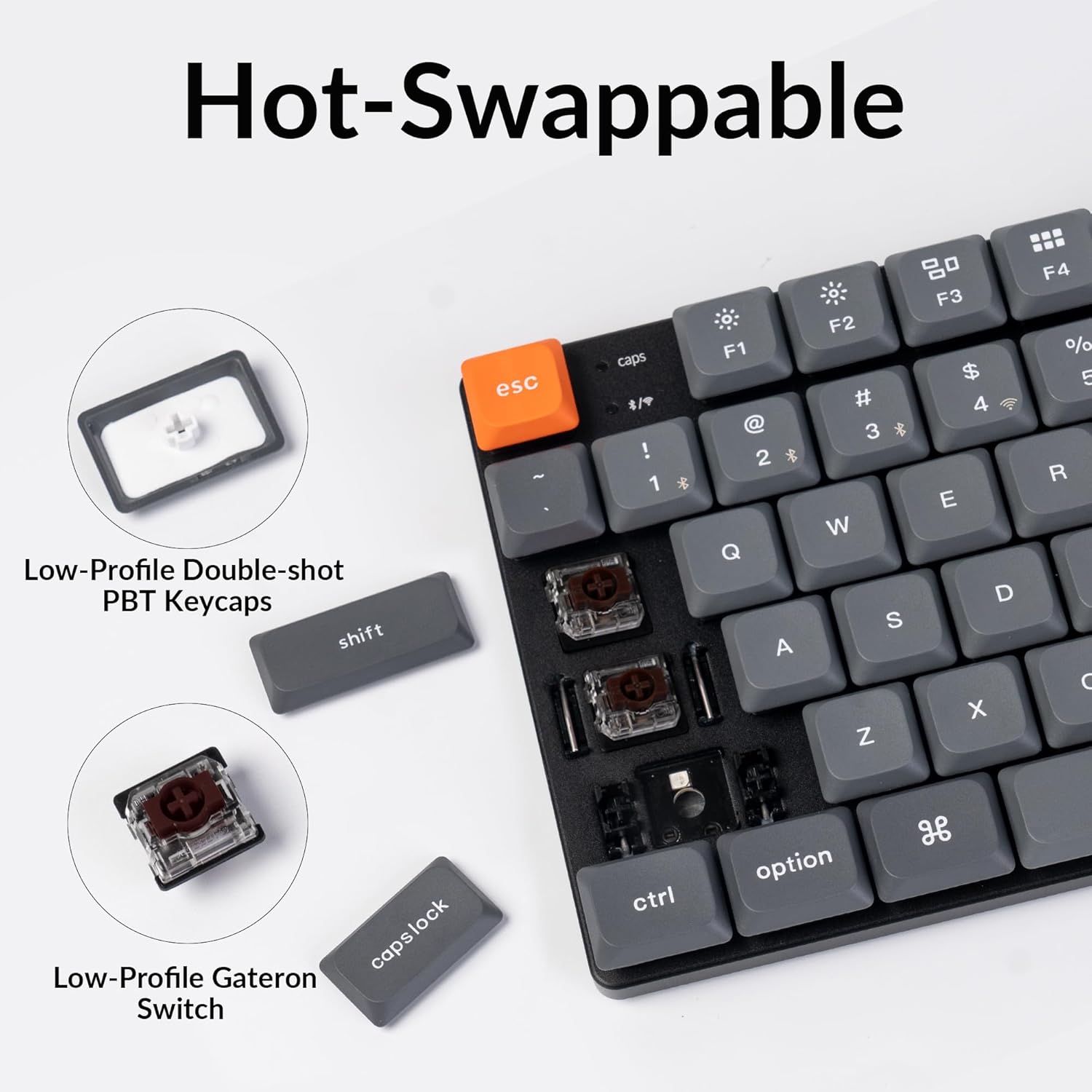
Figure 4.1: Hot-swappable switch and keycap components.
5. Troubleshooting
| Problem | Possible Cause | Solution |
|---|---|---|
| Keyboard not connecting via 2.4 GHz. | Receiver not properly inserted, keyboard not in 2.4G mode, interference. | Ensure receiver is fully inserted. Set keyboard switch to "2.4G". Try a different USB port. Move closer to the receiver. |
| Bluetooth connection issues. | Keyboard not in pairing mode, device not discoverable, too many paired devices. | Set keyboard switch to "BT". Press and hold Fn + 1/2/3 to enter pairing mode. Remove previous pairings from your device. Ensure your device's Bluetooth is on. |
| Keys not responding or incorrect input. | Loose switch, incorrect QMK/VIA mapping, software conflict. | Check if switches are fully seated. Verify key mapping in Keychron Launcher. Restart your computer. |
| RGB backlight not working or dim. | Brightness set too low, specific lighting mode selected, battery low. | Increase brightness using Fn + F6. Cycle through lighting effects with Fn + F7. Charge the keyboard. |
| Keyboard not charging. | Faulty cable, USB port issue, keyboard not in wired mode. | Try a different USB-C cable and USB port. Ensure the keyboard switch is set to "Cable" when charging. |
6. Specifications
| Feature | Detail |
|---|---|
| Model | K13 Max |
| Brand | Keychron |
| Connectivity Technology | Bluetooth 5.1, 2.4 GHz Wireless, USB-C Wired |
| Keyboard Layout | TKL (Tenkeyless) with Number Pad (80% layout) |
| Number of Keys | 90 |
| Switch Type | Low-Profile Gateron Mechanical (Hot-Swappable) |
| Backlighting | RGB |
| Compatible Devices | macOS, Windows, Linux |
| Special Features | QMK/VIA Programmable, Ultra-Slim Design, Ergonomic Support |
| Battery | 1 Lithium Polymer battery (included) |
| Item Weight | 2.14 pounds (approx. 0.97 kg) |
| Package Dimensions | 14.75 x 6.44 x 1.81 inches (approx. 37.47 x 16.36 x 4.6 cm) |
| Manufacturer | Keychron |
7. Warranty and Support
7.1 Product Warranty
Keychron products typically come with a limited warranty covering manufacturing defects. For detailed warranty terms and conditions, including coverage period and claim procedures, please refer to the official Keychron website or contact Keychron customer support directly. Keep your proof of purchase for warranty claims.
7.2 Customer Support
For further assistance, technical support, or inquiries regarding your Keychron K13 Max keyboard, please visit the official Keychron support page. You can also refer to the digital user manual available for download on the Keychron website for more in-depth information.
- Official Keychron Website: www.keychron.com
- User Guide (PDF): Download User Guide
Related documentsK13 Max


Ask a question about this manual
Ask about setup, troubleshooting, compatibility, parts, safety, or missing instructions. Manuals+ will review the question and use this page’s manual context to help answer it.