
1. Introduction
The ISDT MA331 is a powerful three-channel battery charging hub designed for DJI Air 3 and Air 3S drone batteries. It integrates fast charging, battery storage, power aggregation, and equalization functions, providing efficient and intelligent power management for your drone operations. This manual provides detailed instructions for setting up, operating, and maintaining your charging hub.
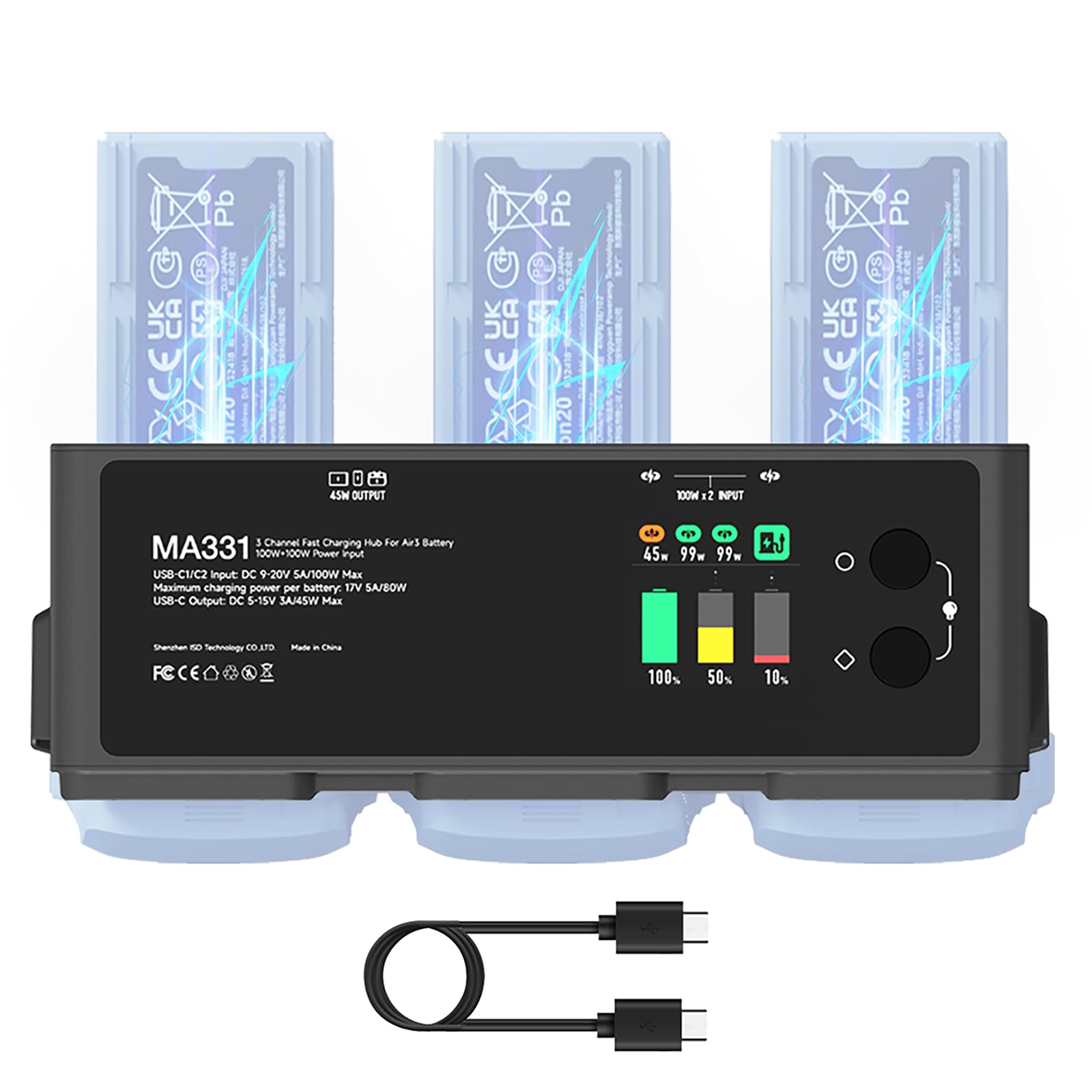
Figure 1: ISDT MA331 Charging Hub with batteries.
2. Product Features
- Triple-Channel Fast Charging: Supports simultaneous charging of three batteries with up to 200W input.
- Dual USB-C Input: Accepts two 100W power adapters (not included) for maximum charging speed.
- Color Screen Display: Provides real-time information on voltage, battery capacity, temperature, power, and cycle count.
- APP Connection: Connects to a mobile application for visualizing charger operation, firmware updates, and advanced control.
- Multiple Charging Modes: Includes 100% Standard Mode, 95% Fast Charge Mode, and 60% Storage Mode.
- Power Bank Function: Can act as a portable power source with a maximum output of 45W.
- Battery Aggregation: Consolidates power from multiple batteries into one.
- Battery Equalization: Balances charge levels across multiple batteries for optimal health.
- Efficient Heat Dissipation: Equipped with turbulence fans to prevent overheating during fast charging.
- Outdoor Features: Includes indicator lights and alarm functions for convenience during outdoor use.

Figure 2: Key features of the MA331 Charging Hub.
3. Package Contents
Verify that all items are present in your package:
- ISDT MA331 Battery Charging Hub
- User Guide (Multilingual Manual)
- USB-C Cable (100W)
Video 1: Unboxing and overview of the DJI Air3/3S three-channel 200W smart charging manager.
4. Setup
4.1 Connecting Power
- Connect one or two 100W USB-C power adapters (not included) to the USB-C input ports on the charging hub.
- Ensure the power adapters are securely connected to a power source.
4.2 Inserting Batteries
- Align the DJI Air 3/3S drone batteries with the three charging slots on the hub.
- Gently push each battery into its slot until it clicks into place. The hub will automatically detect the batteries and display their status on the LCD screen.

Figure 3: Batteries inserted and dual USB-C inputs.
5. Operating Instructions
5.1 Understanding the Display
The integrated color LCD screen provides detailed information for each battery, including:
- Current voltage (CV)
- Battery capacity (CAP)
- Temperature (TEMP)
- Power (PWR)
- Cycle count (CYC)

Figure 4: Detailed battery information on the display.
5.2 Selecting Charging Modes
Long press the upper button on the hub to cycle through the available charging modes:
- Storage Mode (60%): Charges batteries to 60% capacity, ideal for long-term storage or air transport to maintain battery health.
- Fast Charge Mode (95%): Charges batteries to 95% capacity for quick turnaround. The first battery can be fully charged in approximately 40 minutes with 200W input.
- Full Charging Mode (100%): Charges batteries to 100% capacity. All three batteries can be fully charged in approximately 80 minutes with 200W input.

Figure 5: Three distinct charging modes.
5.3 Power Bank Function (45W Output)
The MA331 can function as a power bank, allowing you to use drone batteries to charge other devices via its 45W USB-C output. This is useful for outdoor emergency situations.
5.4 Battery Aggregation and Equalization
- Aggregation Mode: In a power outage or when a single battery is needed quickly, you can aggregate the power from two less-charged batteries into one. The hub prioritizes discharging the battery with lower power to ensure uninterrupted flight.
- Equalization Mode: This mode distributes battery power evenly among all inserted batteries, ensuring they have similar charge levels for optimal performance and longevity.

Figure 6: Battery aggregation and equalization features.
5.5 Charging Scenarios
The compact and portable design of the MA331 allows for versatile charging in various environments:
- Outdoor Charging (with a portable power station)
- In-Car Charging (with a car charger)
- Home Charging (with wall adapters)
- Emergency Charging (using the power bank function)
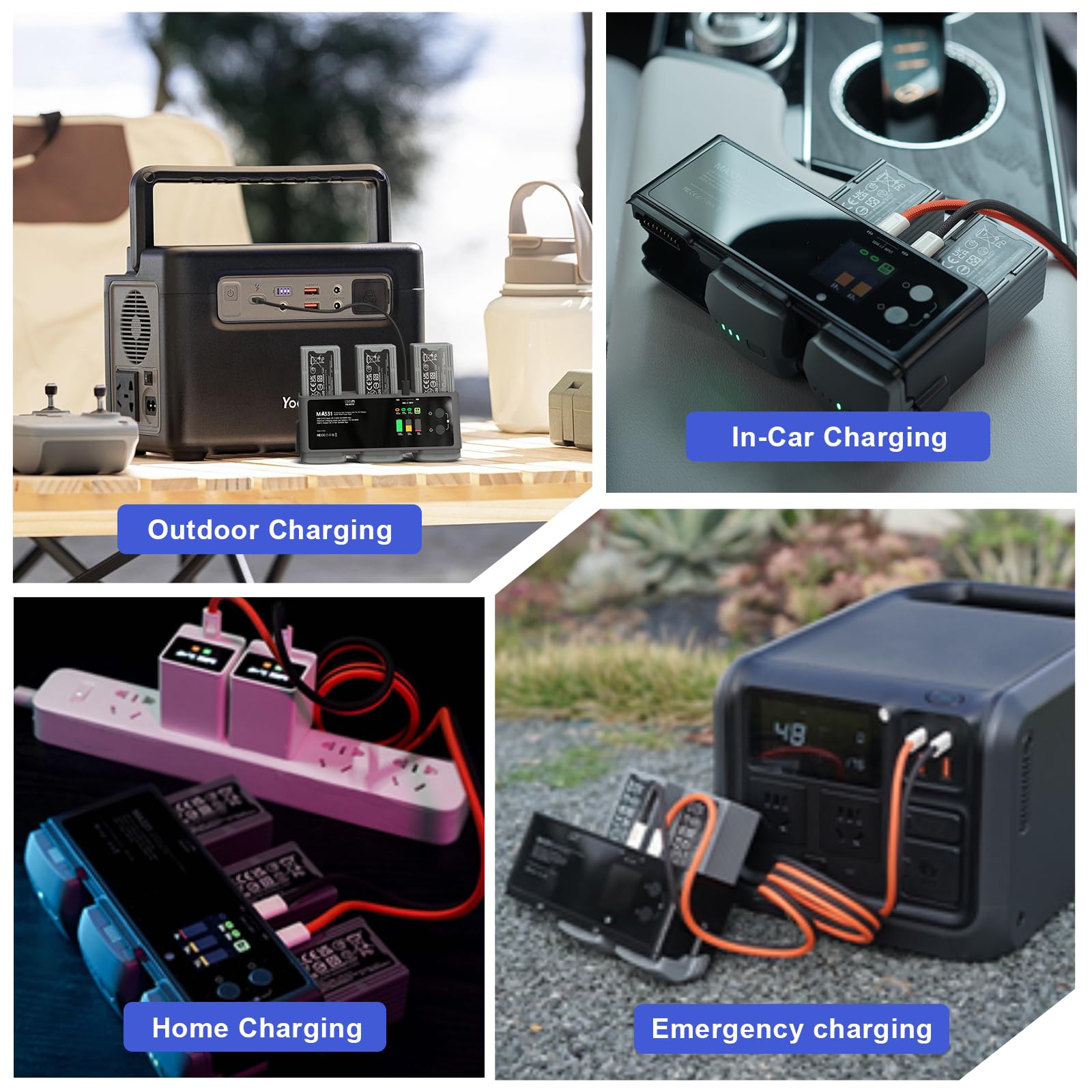
Figure 7: Versatile charging scenarios.
6. APP Connection
The MA331 charging hub supports connection to a mobile application (Polying app) via Bluetooth for enhanced control and monitoring. This allows for timely updates and the latest firmware support.
6.1 Connection Steps
- Turn on Bluetooth on your mobile phone.
- Open the Polying app.
- Plug the power supply into the device's input port.
- Bring your phone closer to the device to add it.
- When a prompt appears on the mobile app, confirm the connection.
- Click the 'Confirm' button on the device after hearing the prompt sound.

Figure 8: Bluetooth connection operation instructions.
7. Maintenance
To ensure the longevity and optimal performance of your ISDT MA331 Charging Hub, follow these maintenance guidelines:
- Cleaning: Use a soft, dry cloth to clean the exterior of the charging hub. Avoid using harsh chemicals or abrasive materials.
- Storage: When not in use, store the charging hub in a cool, dry place away from direct sunlight and extreme temperatures. Disconnect batteries once charging is complete; do not store batteries in the charger long-term.
- Heat Dissipation: The hub features turbulence fans for efficient heat dissipation. Ensure the fan vents are not obstructed during operation to prevent overheating.

Figure 9: Turbulence fans for heat dissipation.
8. Troubleshooting
If you encounter issues with your ISDT MA331 Charging Hub, refer to the following common troubleshooting steps:
- Charger Not Powering On: Ensure power adapters are correctly connected and functioning. Check the power source.
- Batteries Not Charging: Verify that batteries are correctly inserted into the slots. Check the display for any error messages. Ensure the power input is sufficient (e.g., using 100W adapters for fast charging).
- App Connection Issues: Ensure Bluetooth is enabled on your phone and the Polying app is open. Bring the phone close to the device during pairing. Check for app updates.
- Overheating: Ensure the fan vents are clear of obstructions. Operate the charger in a well-ventilated area.
- Slow Charging: Confirm that two 100W power adapters are used for maximum speed. Check the quality of your USB-C cables.
9. Specifications
| Feature | Specification |
|---|---|
| Brand | ISDT |
| Model Number | MA331 |
| Product Dimensions | 6.7"D x 2.06"W x 2.35"H |
| Item Weight | 152 Grams |
| Input Voltage | 20 Volts (USB-C1/C2 Input: DC 9-20V 5A/100W Max) |
| Output Voltage | 15 Volts (Maximum charging power per battery: 17V 5A/80W) |
| USB-C Output | DC 5-15V 3A/45W Max |
| Battery Charge Time (100W input) | 60 minutes (first battery) |
| Battery Charge Time (200W input) | 80 minutes (all three batteries) |
| Color | Gray |
10. Warranty Information
The ISDT MA331 Battery Charging Hub comes with a 1-year free warranty. Please retain your proof of purchase for warranty claims. For detailed warranty terms and conditions, refer to the official ISDT website or contact customer support.
11. Support
For further assistance, technical support, or inquiries regarding your ISDT MA331 Charging Hub, please visit the official ISDT website or contact their customer service department. You can also refer to the Polying app for firmware updates and additional product information.

