1. Introduction
This manual provides essential instructions for the safe and efficient operation of your Furvveerr A4 L805 UV Flatbed Printer. Please read this manual thoroughly before using the printer and retain it for future reference. The Furvveerr A4 L805 is designed for high-precision printing on a variety of materials, offering versatile capabilities for both flat and cylindrical objects.

Figure 1: Furvveerr A4 L805 UV Flatbed Printer with ink bottles and accessories.
2. Package Contents
Verify that all items listed below are included in your package. If any items are missing or damaged, please contact customer support.
- 1x A4 L805 UV Printer
- 1x Bottle Holder
- 6x Ink Bottles (Inks are not included and must be purchased separately)
- 1x Software (AcroRIP White ver10.3)
- 1x USB User Manual
- 1x Ink Damper
- 1x Syringe
- USB Cable
- Power Cable

Figure 2: All components included in the Furvveerr A4 L805 UV Printer package.
3. Setup
3.1 Unpacking and Placement
- Carefully remove the printer and all accessories from the packaging.
- Place the printer on a stable, level surface with adequate ventilation. Ensure sufficient space around the printer for operation and maintenance.
3.2 Power Connection
- Connect the power cable to the printer's power input and then to a suitable electrical outlet (110V~220V).
- Locate the main power switch on the side of the printer and ensure it is in the OFF position before connecting.
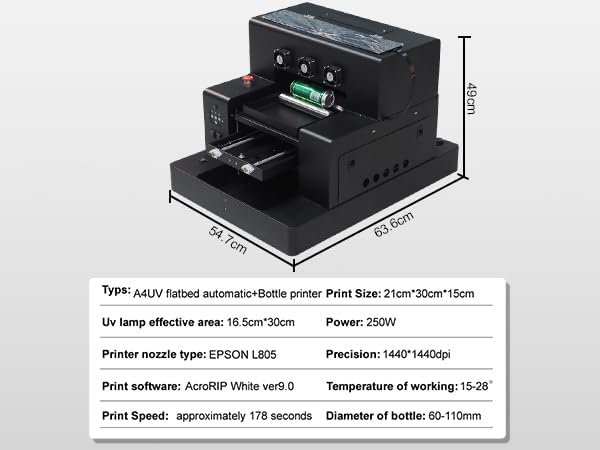
Figure 3: Power switch and USB port for printer connectivity.
3.3 Software Installation
- Insert the provided USB User Manual (containing the AcroRIP White ver10.3 software) into your computer.
- Follow the on-screen instructions to install the AcroRIP software. This software is compatible with XP, Windows 7, and Windows 10 operating systems.
- Connect the printer to your computer using the supplied USB 2.0 cable.
3.4 Ink Installation
- Refer to the detailed instructions within the AcroRIP software or the USB User Manual for proper ink filling procedures. The printer uses CMYK+WW 6-color printing.
- Ensure correct ink colors are placed in their respective reservoirs.
4. Operation
4.1 Basic Printing Modes
The A4 L805 UV printer supports various printing modes, including flat printing and 360-degree cylindrical printing with the included bottle holder.

Figure 4: Illustration of flat printing and 360-degree cylindrical printing capabilities.
4.2 Loading Materials
- For flat materials (e.g., phone cases, acrylic, metal, leather), place the item on the vacuum platform. The built-in vacuum platform securely holds the material to prevent movement during printing.
- For cylindrical objects (e.g., bottles, golf balls), install the bottle holder and secure the object in place.
4.3 Printing Process
- Prepare your design using the AcroRIP software.
- Select the appropriate print settings for your material and desired effect (e.g., varnish, 3D embossing, UV DTF).
- Initiate the print job from the software. The printer will automatically begin the printing process.
- The UV lamps will cure the ink as it is applied, ensuring immediate drying and durability.
Video 1: Demonstration of UV Printer in action, printing on metal. This video shows the printer applying ink and curing it with UV light.
Video 2: Flatbed Printer performing bronzing paper printing. This video illustrates the process of printing on bronzing paper for special effects.
Video 3: UV Printer performing leather printing. This video demonstrates the printer's capability to print directly onto leather materials.
Video 4: UV Flatbed Printer performing acrylic printing. This video shows the printer creating designs on acrylic sheets.
Video 5: Flatbed Automatic Printer performing AB film printing. This video demonstrates the printer's use with AB film for transfer applications.
Video 6: UV Printer performing rotating body printing. This video showcases the printer's ability to print on cylindrical objects using the rotating fixture.
5. Maintenance
5.1 White Ink Mixing and Circulation System
The printer features a white ink mixing and circulation system with an automatic cleaning function. This system is crucial for preventing ink clogging and ensuring even ink distribution, which contributes to clearer, finer printed patterns and extended equipment life. Regularly monitor the system to ensure proper function.
5.2 General Cleaning
Keep the printer's exterior and print area clean from dust and ink residue. Use a soft, lint-free cloth for cleaning. Avoid using harsh chemicals that may damage the printer's surfaces.
6. Troubleshooting
For common issues such as print quality problems, connectivity errors, or software malfunctions, refer to the detailed troubleshooting guide provided in the USB User Manual. Ensure all cables are securely connected and the software is correctly installed. If problems persist, contact customer support.
7. Specifications
| Feature | Detail |
|---|---|
| Brand | Furvveerr |
| Model Name | ZM-A4 flatbed printer |
| Connectivity Technology | USB 2.0 |
| Printing Technology | Inkjet |
| Special Feature | Refillable Ink Tank |
| Color | Black |
| Printer Output | Color |
| Maximum Print Speed (Color) | 10 ppm |
| Max Printspeed Monochrome | 20 ppm |
| Item Weight | 34 Kilograms |
| Ink Color | Cyan, Magenta, Yellow, Black, Light Cyan, Light Magenta, White, White |
| Resolution | 2880 x 1440 dpi |
| Item Dimensions D x W x H | 35.83"D x 27.36"W x 23.23"H |
| Power Consumption | 250 Watts |
| Maximum Media Size | A4 |
| Compatible Devices | Laptops, PC |
8. Warranty & Support
The Furvveerr A4 L805 UV Flatbed Printer comes with a 1-year limited warranty from the manufacturer, Wuhan ZMINKJET Technology Co. LTD. For warranty claims, technical assistance, or customer support, please refer to the contact information provided with your purchase or visit the official Furvveerr store on Amazon.