
WAVLINK WN695X2
Contents
WAVLINK AX5400 WiFi 6E USB 3.0 Adapter User Manual
Model: WN695X2 | Brand: WAVLINK
Introduction
The WAVLINK AX5400 WiFi 6E USB 3.0 Adapter is designed to provide enhanced wireless connectivity for your computer. This adapter supports the latest WiFi 6E standard, offering tri-band operation (2.4GHz, 5GHz, and 6GHz) for superior speeds and reduced interference. Equipped with four high-gain antennas and a built-in driver, it ensures easy installation and extended coverage for a stable and high-speed internet experience.

Figure 1: WAVLINK AX5400 WiFi 6E USB 3.0 Adapter with its four adjustable antennas and USB cable.
Package Contents
- WAVLINK AX5400 WiFi 6E USB 3.0 Adapter (Model: WN695X2)
- USB 3.0 Cable (approximately 1 meter)
- Quick Start Guide

Figure 2: The adapter, USB cable, and quick start guide as included in the product packaging.
Setup and Installation
The WAVLINK AX5400 adapter features a built-in driver for Windows 10/11, simplifying the installation process. Follow these steps to set up your adapter:
- Insert the Adapter: Connect the USB 3.0 cable to the adapter and then insert the USB end into an available USB 3.0 port on your PC or laptop.
- Access the Driver: Once connected, the adapter will appear as a "CD Drive" in "This PC" (or "My Computer"). Double-click on this drive.
- Install the Driver: Locate and double-click the driver installation file (e.g., "setup.exe" or similar) within the "CD Drive" folder. Follow the on-screen instructions to complete the driver installation.
- Restart (if prompted): If prompted, restart your computer to finalize the installation.
- Connect to Wi-Fi: After installation, your computer should recognize the adapter. You can now connect to your desired Wi-Fi network through your operating system's network settings.

Figure 3: Visual guide for the three-step installation process: insert, find "CD Drive", and install driver.
System Compatibility
This adapter is fully compatible with:
- Windows 10 (64-bit)
- Windows 11 (64-bit)
It works seamlessly with all WiFi 6E or WiFi 6 routers and mesh systems.

Figure 4: The adapter connected to a desktop PC and a laptop, illustrating its compatibility with Windows 10 and 11 systems.
Operating Modes
The WAVLINK AX5400 adapter supports two primary operating modes:
1. Receive Mode (Client Mode)
In Receive Mode, the adapter functions as a standard wireless client, allowing your computer to connect to an existing Wi-Fi network. This is the most common use case for accessing the internet wirelessly.
2. Launch Mode (Hotspot Mode)
In Launch Mode, the adapter can create a Wi-Fi hotspot, allowing other devices (such as smartphones, tablets, or other laptops) to connect to your computer's internet connection. This is useful for sharing a wired internet connection or extending an existing Wi-Fi signal.
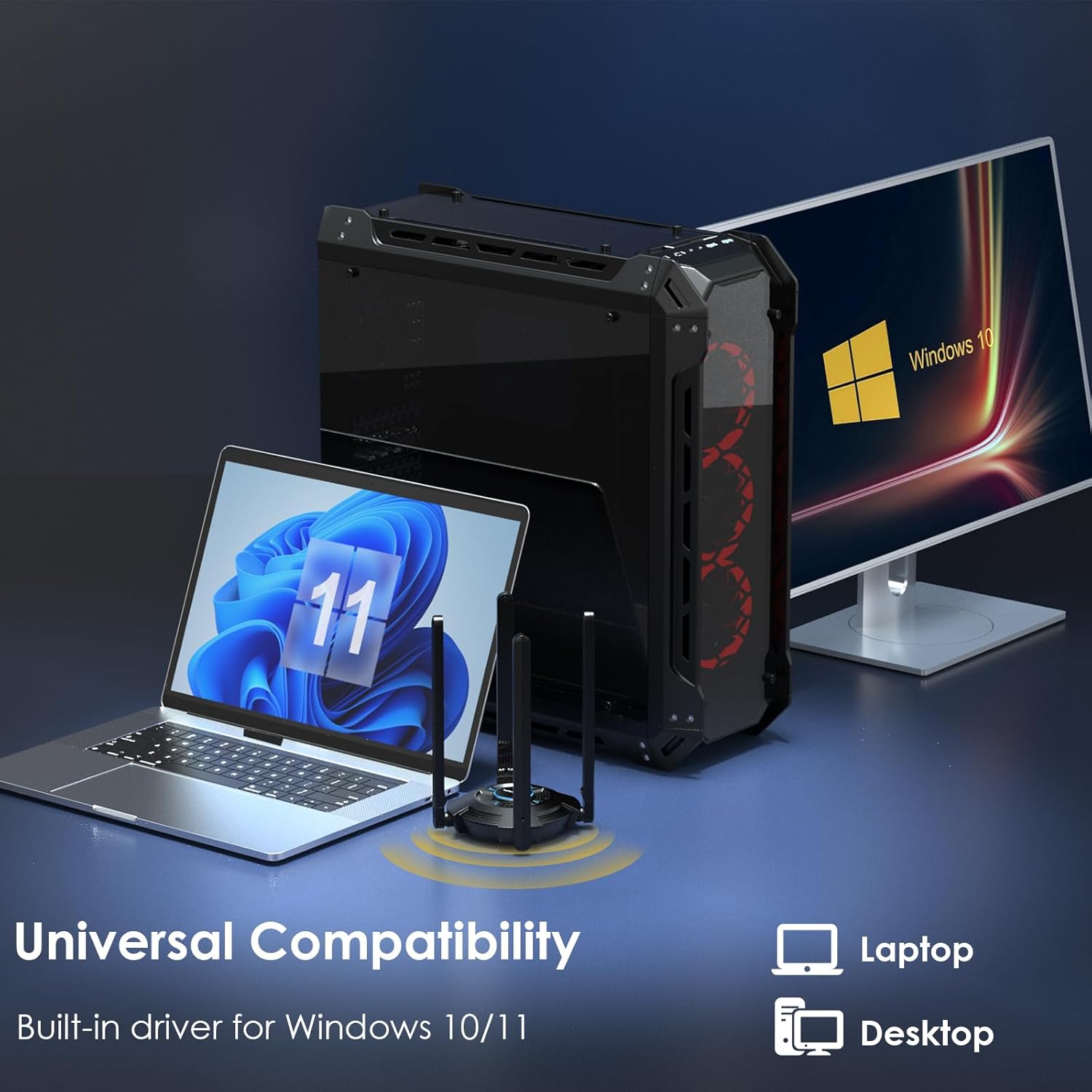
Figure 5: Diagram showing the adapter in Receive Mode (connecting PC to WiFi) and Launch Mode (creating a WiFi hotspot for sharing).
Key Features and Benefits
- WiFi 6E Upgrade: Supports the latest WiFi 6E standard with advanced features like OFDMA, MU-MIMO, and 1024QAM for optimized data transmission, higher speeds, and more efficient bandwidth usage.
- Tri-Band Speeds: Utilizes 2.4GHz, 5GHz, and 6GHz bands.
- 2.4 GHz: Up to 573 Mbps (for long-range transmission)
- 5 GHz: Up to 2402 Mbps (ideal for gaming and 4K streaming)
- 6 GHz: Up to 2402 Mbps (ensures smooth gaming and immersive VR)

Figure 6: Illustration of the tri-band speeds (2.4GHz, 5GHz, 6GHz) and their typical applications like VR, 4K streaming, and general browsing.
- Extended WiFi Coverage: Equipped with four rotatable 5dBi high-gain antennas, enhancing signal strength and coverage. These antennas effectively penetrate walls and obstacles, reducing dead zones and ensuring a stable connection throughout your space.
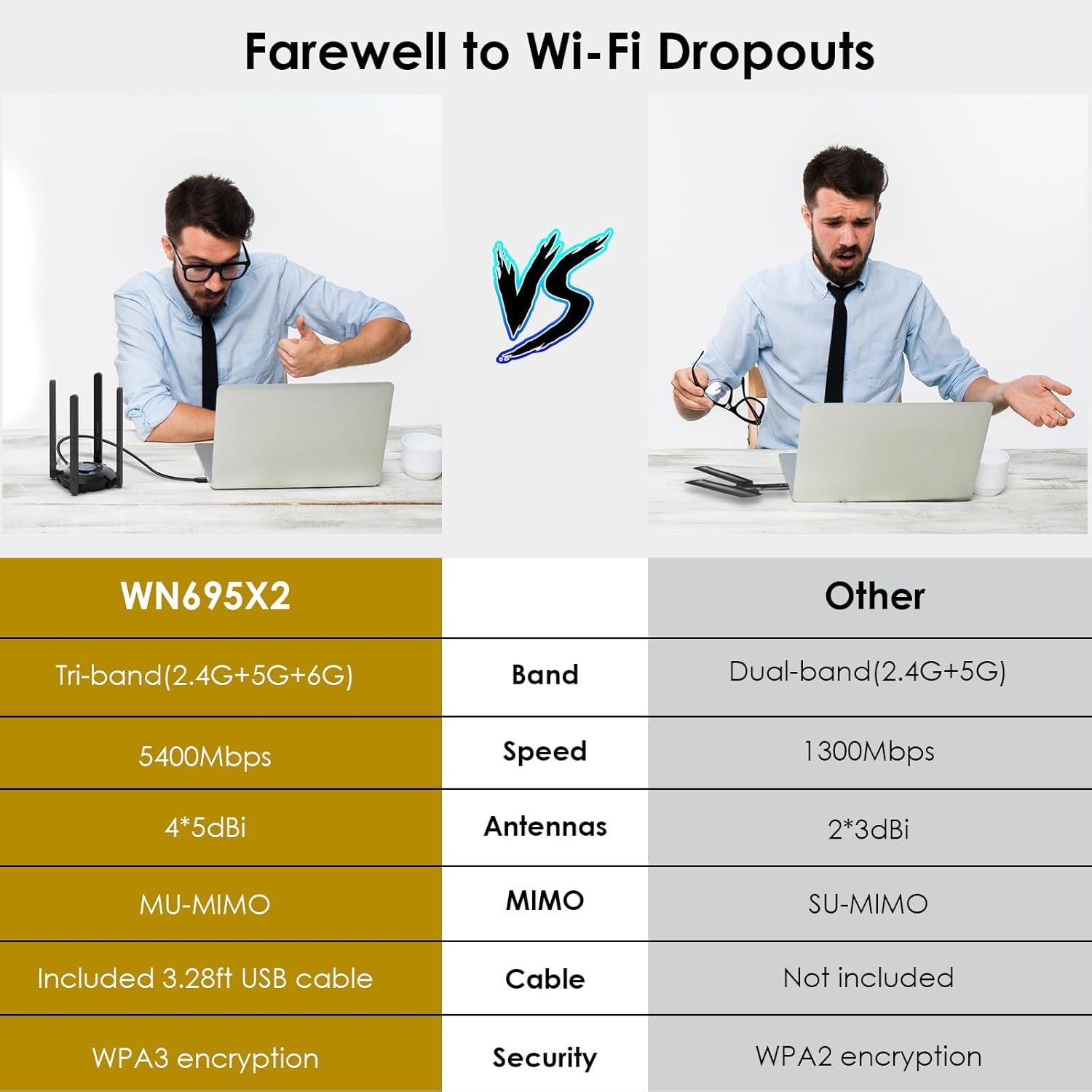
Figure 7: The adapter positioned on a desk, demonstrating how its four high-gain antennas improve signal reception and range compared to standard adapters.
- Flexible Placement: The included 1-meter USB 3.0 cable allows flexible positioning of the adapter for optimal signal reception. USB 3.0 provides data transfer rates up to 10 times faster than USB 2.0.
- Enhanced Security: Supports WPA3 encryption for robust network security.
- Reduced WiFi Dropouts: Designed to provide a more stable and reliable connection compared to older dual-band adapters.

Figure 8: A comparative table highlighting the advantages of the WN695X2, including tri-band support, 5400Mbps speed, 4*5dBi antennas, MU-MIMO, included USB cable, and WPA3 encryption, versus typical "other" adapters.
Specifications
| Feature | Detail |
|---|---|
| Brand | WAVLINK |
| Model Number | WN695X2 |
| Color | Black |
| Hardware Interface | USB 3.0 |
| Data Transfer Rate | 5377 Megabits per second (Mbps) |
| Wireless Standard | WiFi 6E (802.11ax) |
| Frequency Bands | 2.4GHz, 5GHz, 6GHz |
| Antennas | 4 * 5dBi High-Gain Rotatable Antennas |
| Compatibility | Windows 10/11 |
| Driver | Built-in Driver |
Troubleshooting
- Adapter Not Detected:
- Ensure the adapter is securely plugged into a USB 3.0 port.
- Try a different USB port on your computer.
- Restart your computer.
- Check Device Manager (Windows) to see if the device is listed (it might appear under "Network adapters" or "Other devices").
- No Internet Connection:
- Verify that the driver is correctly installed (refer to "Setup and Installation" section).
- Ensure your Wi-Fi router is powered on and broadcasting a signal.
- Check if you are connected to the correct Wi-Fi network and have entered the correct password.
- Try restarting your router and modem.
- Ensure your computer's network settings are configured to obtain an IP address automatically (DHCP).
- Slow Speeds or Frequent Disconnections:
- Ensure the adapter is positioned for optimal signal reception, away from obstructions.
- Check for interference from other electronic devices (e.g., microwaves, cordless phones).
- Ensure your router supports WiFi 6E for optimal performance on the 6GHz band.
- Update your router's firmware.
- Temporarily disable any VPN or firewall software to see if it's causing interference.
Maintenance
To ensure the longevity and optimal performance of your WAVLINK AX5400 adapter, consider the following maintenance tips:
- Keep Clean: Gently wipe the adapter with a soft, dry cloth to remove dust. Avoid using liquid cleaners or abrasive materials.
- Proper Placement: Place the adapter in a well-ventilated area to prevent overheating. Avoid placing it near heat sources or in direct sunlight.
- Handle with Care: Avoid dropping the adapter or subjecting it to strong impacts. When adjusting the antennas, do so gently.
- Software Updates: Periodically check the WAVLINK official website for any updated drivers or firmware for your model to ensure compatibility and performance improvements.
Warranty and Support
WAVLINK products typically come with a standard manufacturer's warranty. Please refer to the warranty card included in your product packaging or visit the official WAVLINK website for detailed warranty terms and conditions specific to your region.
For technical support, driver downloads, or further assistance, please visit the official WAVLINK support website. You may also find FAQs and troubleshooting guides there.
WAVLINK Official Website: www.wavlink.com
Documents and downloads
Ask a question about this manual
Ask about setup, troubleshooting, compatibility, parts, safety, or missing instructions. Manuals+ will review the question and use this page’s manual context to help answer it.