1. Introduction
This manual provides detailed instructions for the installation, operation, and maintenance of your Anweller Smart Deadbolt Lock, Model D03-E. This lock offers multiple access methods including fingerprint, passcode, mobile application, and traditional key. It is designed for enhanced security and convenience in residential settings.

Figure 1: Anweller Smart Deadbolt Lock overview highlighting key features.
2. Package Contents
Verify that all components are present before beginning installation:
- 1 x Front Lock Body
- 1 x Rear Lock Body
- 1 x Lock Latch
- 2 x Mechanical Keys
- 1 x Screwdriver and All Screws
- 1 x Strike Plate
- 1 x Strike Hole Cover
- 1 x User Manual
3. Product Features
- Four Unlocking Methods: Access your door using fingerprint, a numerical passcode, the dedicated mobile application, or a traditional mechanical key.
- Advanced Fingerprint Sensor: Features an upgraded 3D fingerprint sensor with a capacity for up to 50 unique fingerprints. It offers fast identification in approximately 0.2 seconds and 360-degree recognition.
- Passcode Security: Supports up to 50 passcodes, including anti-peeping functionality where random digits can be entered before or after the actual code to prevent unauthorized viewing. One-time passcodes can also be generated for temporary access.
- Long Battery Life & Emergency Power: Designed for low power consumption, providing up to 360 days of standby time. A low battery reminder is included. In case of full battery depletion, the lock can be temporarily powered via a USB Type-C power bank or unlocked with a mechanical key.
- Auto-Lock Function: Configurable auto-lock time from 1 to 1800 seconds, ensuring the door is secured automatically after closing.
- Passage Mode: Allows the lock to remain unlocked for continuous access, suitable for periods of high traffic.
- Durable and Weather-Resistant: Constructed from alloy steel and zinc, rated ANSI Grade 3 for security and IP66 for water and dust resistance. Operates in temperatures from -4°F to 158°F.
- Anti-Theft Design: Incorporates features to deter tampering and unauthorized entry.

Figure 2: The four primary methods for unlocking the Anweller Smart Deadbolt Lock.
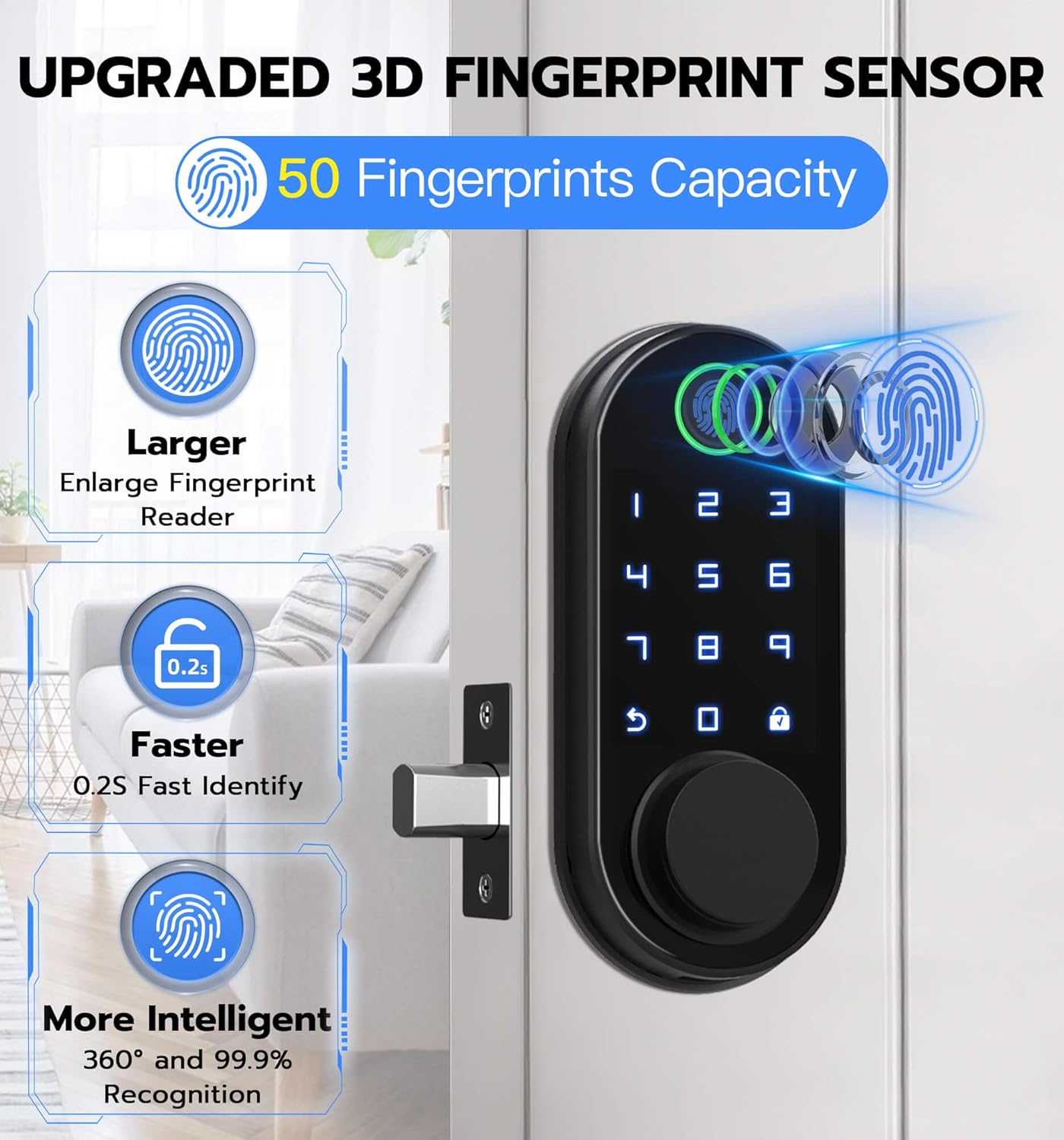
Figure 3: Details of the upgraded 3D fingerprint sensor.

Figure 4: Passcode features, including anti-peeping and one-time passcode generation.

Figure 5: Battery installation and emergency unlock options.
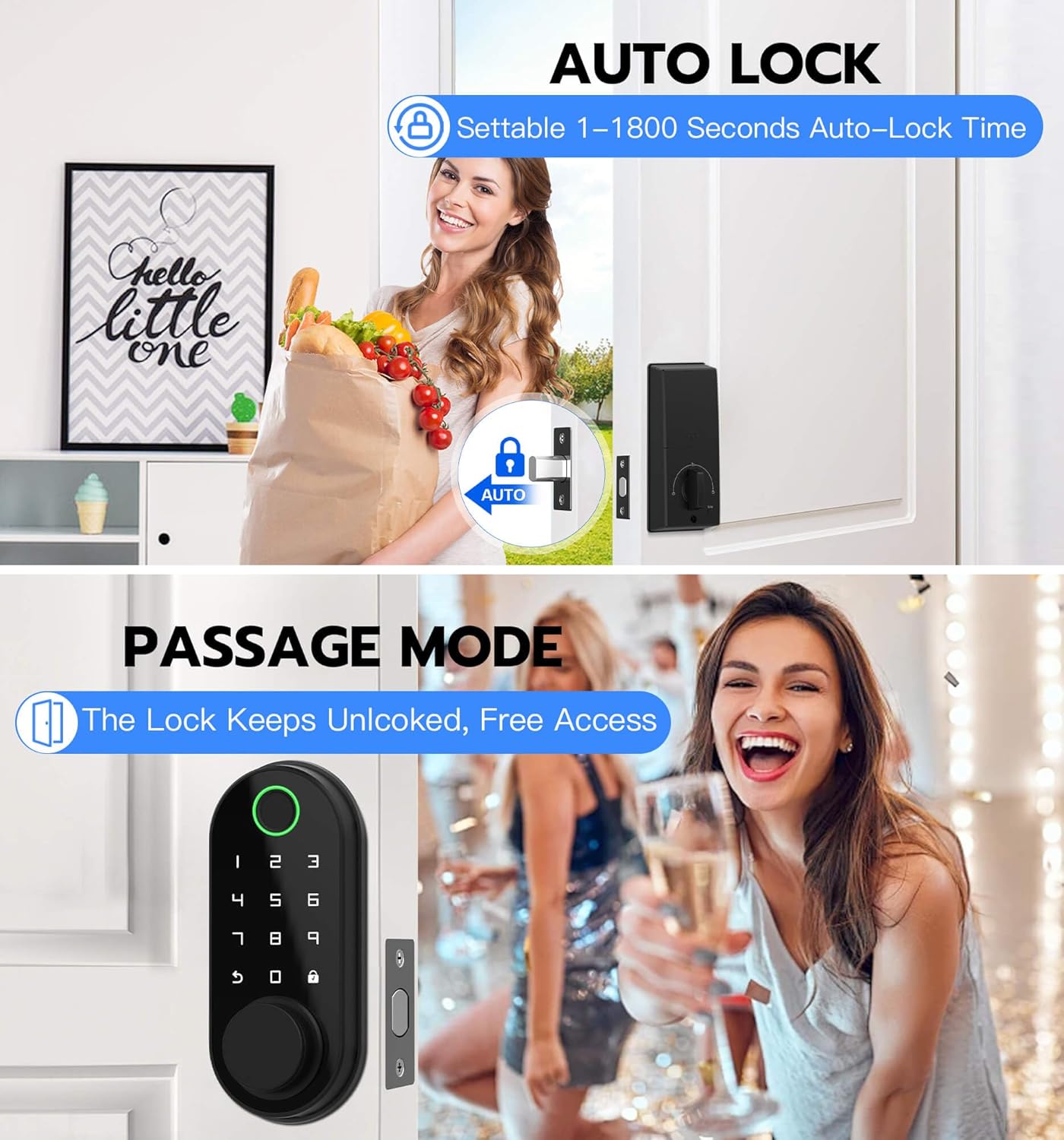
Figure 6: Auto-lock and Passage Mode functionalities.
4. Installation Guide
The Anweller Smart Deadbolt Lock is designed for easy installation, typically requiring only a screwdriver. It is compatible with most American standard left and right-handed doors. No additional drilling is usually required if replacing an existing deadbolt.
4.1 Door Compatibility
Ensure your door meets the following specifications:
- Backset: 2-3/8 inches (60mm) or 2-3/4 inches (70mm)
- Applicable Door Thickness: 1-3/8 inches to 2-1/8 inches (35mm - 55mm)
- Cross Bore Diameter: 2-1/8 inches (54mm)
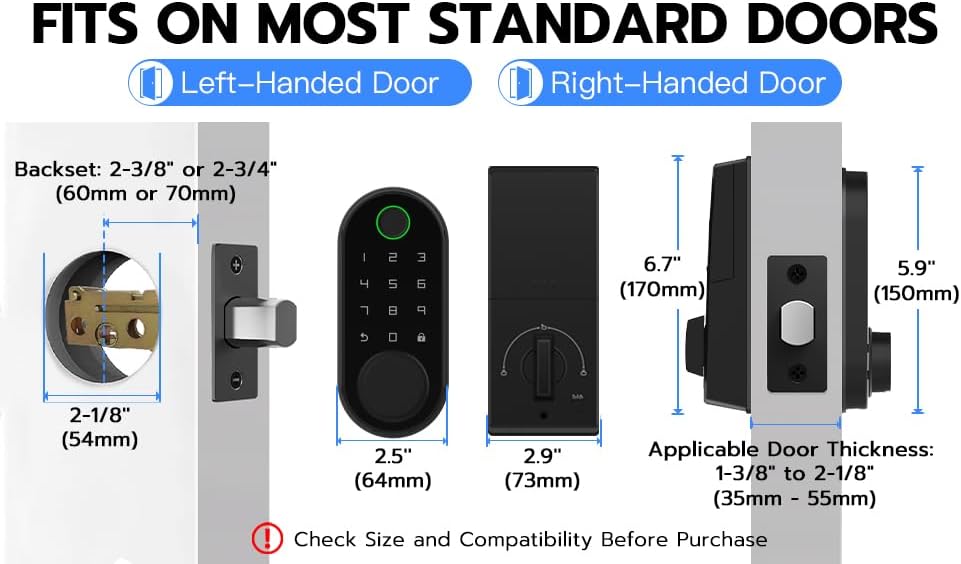
Figure 7: Door compatibility and dimensions.
4.2 Installation Steps
- Remove your existing deadbolt lock.
- Install the new lock latch into the door edge, ensuring the 'UP' marking is correctly oriented.
- Feed the wire from the exterior lock body through the door hole and align the exterior lock body with the latch.
- Install the interior mounting plate, ensuring the wire is not pinched and the spindle is correctly engaged. Secure with screws.
- Connect the wire from the exterior lock body to the interior lock body.
- Attach the interior lock body to the mounting plate and secure it.
- Insert 4 AA batteries (not included) into the battery compartment.
- Perform a manual test of the deadbolt mechanism to ensure smooth operation.
For a visual guide, please refer to the official installation video below:
Video 1: Official Anweller Smart Deadbolt Lock installation and operation guide. This video demonstrates the physical installation process and various unlocking methods.
5. Operation Guide
Your Anweller Smart Deadbolt Lock offers several convenient ways to secure and access your property.
5.1 Fingerprint Unlock
Place your registered finger on the fingerprint sensor. The lock will unlock if the fingerprint is recognized.

Figure 8: Fingerprint sensor in use.
5.2 Passcode Unlock
Enter your registered passcode on the keypad. You may include random digits before or after your actual code for privacy. The lock will unlock upon correct entry.

Figure 9: Keypad for passcode entry.
5.3 App Unlock
Use the dedicated mobile application (Tuya Smart / Smart Life App) on your smartphone to unlock the door via Bluetooth connectivity.

Figure 10: Mobile application interface for unlocking.
5.4 Key Unlock
In case of electronic malfunction or depleted batteries, use the provided mechanical key to unlock the deadbolt. The keyhole is discreetly located.
5.5 Auto-Lock Function
The lock can be configured to automatically lock after a set period (1-1800 seconds) once it has been unlocked. This setting is managed through the mobile application.
5.6 Passage Mode
Activate Passage Mode via the mobile application to keep the door continuously unlocked. This is useful for periods when the door needs to remain open or frequently accessed without requiring credentials.
6. Maintenance
6.1 Battery Replacement
The lock uses 4 AA batteries. Replace them when the low battery indicator is active. Always use new, high-quality alkaline batteries for optimal performance and longevity.
6.2 Cleaning
Clean the lock's exterior surfaces with a soft, dry cloth. Avoid abrasive cleaners or solvents that could damage the finish or electronic components.
7. Troubleshooting
- Lock not responding: Check battery levels. If batteries are low or depleted, replace them or use emergency power via USB Type-C.
- Fingerprint not recognized: Ensure your finger is clean and dry. Re-register your fingerprint if issues persist.
- Passcode not working: Verify the correct passcode is entered. Ensure the lock is not in Passage Mode.
- App connectivity issues: Ensure Bluetooth is enabled on your smartphone and you are within range of the lock. Restart the app or your phone if necessary.
- Lock mechanism stiff: Ensure proper installation and alignment. Do not force the mechanism.
- Resetting the lock: A reset button is located in the battery compartment. Pressing this button will restore factory settings.
8. Specifications
| Brand | Anweller |
| Model Name | AW-D03-E |
| Lock Type | Biometric, Code, Deadbolt, Keypad |
| Material | Alloy Steel, Zinc |
| Item Dimensions (L x W x H) | 6.1 x 2.7 x 2.6 inches |
| Item Weight | 1.9 Pounds |
| Power Source | 4 x AA Batteries (not included) |
| Connectivity Protocol | Bluetooth |
| Controller Type | Android, iOS (via App) |
| Special Features | 4 Unlocking Ways, ANSI Grade 3, IP66 Waterproof, Anti-Theft Design, High Sensitivity Capacitive Numeric Keypad |
9. Warranty and Support
Anweller provides a 12-month warranty for this product. For technical support or warranty claims, please contact Anweller customer service. Lifetime technical support is available.
Email: hongjdzwj@outlook.com


