
Hisense 50A68N
Hisense 50A68N Series 4K UHD Smart Google TV User Manual
Model: 50A68N | Brand: Hisense
This manual provides essential information for the setup, operation, and maintenance of your Hisense 50A68N 4K UHD Smart Google TV.
1. Important Safety Information
Please read all safety and operating instructions thoroughly before using this television. Keep these instructions for future reference.
- Power Source: Operate the TV only from the type of power source indicated on the marking label.
- Ventilation: Ensure proper ventilation. Do not block any ventilation openings.
- Water and Moisture: Do not expose the TV to rain or moisture. Do not use near water.
- Cleaning: Unplug the TV from the wall outlet before cleaning. Use a soft, dry cloth.
- Lightning: Unplug the TV during lightning storms or when unused for long periods.
- Servicing: Do not attempt to service this product yourself. Refer all servicing to qualified service personnel.
2. Package Contents
Verify that all items listed below are included in your package:
- Hisense 50A68N 4K UHD Smart Google TV
- Remote Control (with 2x AAA batteries)
- Power Cord
- TV Stand (2 pieces)
- Screws for TV Stand
- Quick Setup Guide
- Warranty Card (if applicable)
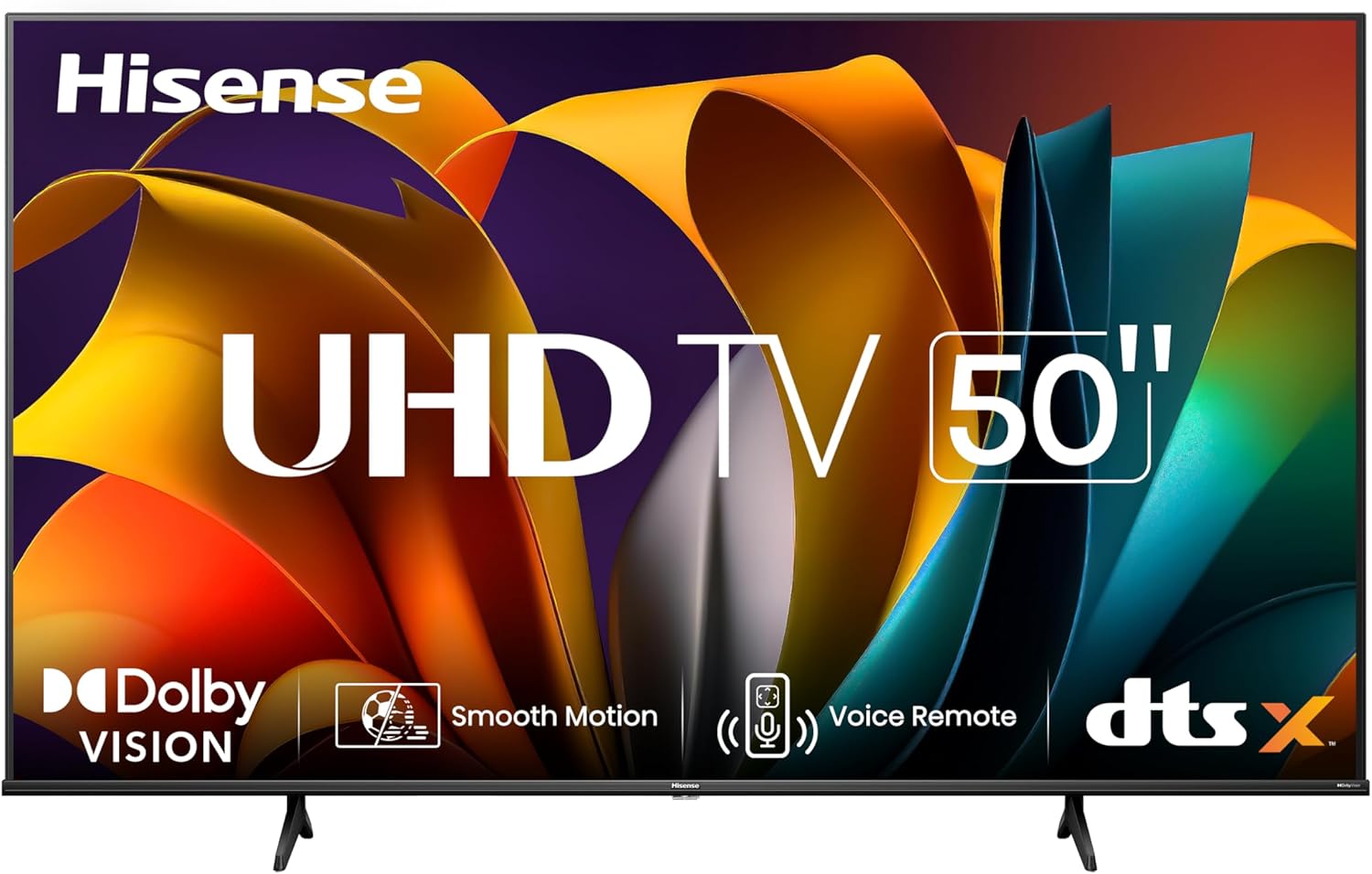
Image: Front view of the Hisense 50A68N 4K UHD Smart Google TV, showcasing its sleek design and key feature logos.
3. Setup
3.1 Attaching the TV Stand
- Carefully place the TV face-down on a soft, clean surface to prevent screen damage.
- Align each stand piece with the corresponding slots on the bottom of the TV.
- Secure each stand piece with the provided screws. Ensure they are tightened firmly.
- Carefully lift the TV and place it on a stable, level surface.
Note: If you plan to wall-mount your TV, refer to the wall-mount bracket's instructions for installation. Ensure the stand is removed before wall-mounting.

Image: Angled view of the Hisense 50A68N TV, showing the attached stand feet.
3.2 Connecting Peripherals
The Hisense 50A68N TV offers various ports for connecting external devices. Refer to the image below for port locations.

Image: Detailed view of the Hisense 50A68N TV's input/output ports, including HDMI, USB, LAN, and optical audio connections.
- HDMI Ports: Connect Blu-ray players, game consoles, cable/satellite boxes, or other HDMI-enabled devices. This model features multiple HDMI inputs.
- USB Ports: Connect USB storage devices for media playback. This model has 2 USB ports.
- Antenna/Cable Input: Connect an antenna or cable TV coaxial cable.
- Optical Audio Out: Connect to a soundbar or audio receiver for digital audio output.
- LAN Port: Connect an Ethernet cable for a wired internet connection.
- Power Input: Connect the provided power cord to the TV and a wall outlet.
3.3 Initial Power On and Google TV Setup
- After connecting all desired peripherals and the power cord, press the Power button on the remote control or the TV.
- The TV will guide you through the initial setup process for Google TV. Follow the on-screen prompts.
- You will be prompted to connect to a Wi-Fi network or use a wired Ethernet connection.
- Sign in with your Google account to access Google TV features, apps, and personalized recommendations.
- Complete the channel scan for over-the-air broadcasts if using an antenna.
4. Operating the TV
4.1 Remote Control Overview
The remote control allows you to navigate the TV's features and settings.

Image: The remote control for the Hisense 50A68N TV, showing its layout including dedicated buttons for popular streaming services.
- Power Button: Turns the TV on or off.
- Input Button: Selects the input source (HDMI, TV, etc.).
- Navigation Pad (Up/Down/Left/Right/OK): Navigates menus and confirms selections.
- Volume Up/Down: Adjusts the volume level.
- Channel Up/Down: Changes TV channels.
- Home Button: Returns to the Google TV home screen.
- Voice Control Button: Activates the voice assistant.
- Dedicated App Buttons: Quick access to popular streaming services like Netflix, Prime Video, YouTube, Disney+, and Tubi.
4.2 Key Features and Settings
- Google TV: The integrated Google TV platform organizes movies, shows, and more from all your subscriptions. It provides curated recommendations and allows searching across over 10,000 apps.
- 4K AI Upscaler: This feature enhances non-4K content to near-4K quality by analyzing and restoring details, reducing image noise, and computing neighboring pixel colors.
- Precision Colour: Utilizes precise algorithmic analysis to reproduce true-to-life colors, enhancing natural scenery and maintaining lifelike human faces.
- Dolby Vision: Experience enhanced picture quality with improved brightness, contrast, and color accuracy for compatible content.
- DTS Virtual:X: Provides an immersive audio experience with virtual surround sound.
- Game Mode Plus: Designed for gamers, this mode combines a 60Hz variable refresh rate (VRR) and Auto Low Latency Mode (ALLM) to reduce screen tearing and input lag, providing smoother gameplay.
- AI Sports Mode: Optimizes picture and sound settings specifically for sports content, enhancing clarity and dynamic scenes.
- Voice Control: Use the voice control button on your remote to command your TV, search for content, adjust settings, and more using voice commands.
- Share to TV (Screen Sharing): Mirror content from your compatible devices directly to the TV screen.
- Bluetooth Connectivity: Pair Bluetooth headphones or other audio devices for private listening or enhanced sound.
5. Maintenance
5.1 Cleaning Your TV
- Screen: Gently wipe the screen with a soft, lint-free cloth. For stubborn marks, lightly dampen the cloth with water or a specialized screen cleaner (ensure it's safe for TV screens) and wipe gently. Do not spray liquid directly onto the screen.
- Body: Use a soft, dry cloth to wipe the TV's frame and stand.
- Important: Always unplug the TV from the power outlet before cleaning. Avoid using abrasive cleaners, waxes, or solvents.
5.2 Software Updates
Your Hisense Google TV may receive software updates periodically to improve performance and add new features. Ensure your TV is connected to the internet to receive these updates automatically or check for them manually through the TV's settings menu.
6. Troubleshooting
If you encounter issues with your TV, refer to the following common problems and solutions:
| Problem | Possible Solution |
|---|---|
| No Power | Ensure the power cord is securely plugged into both the TV and a working wall outlet. Test the outlet with another device. |
| No Picture, But Sound is Present | Check the input source. Press the "Input" button on the remote to cycle through inputs. Ensure external devices are powered on and connected correctly. |
| No Sound, But Picture is Present | Check the volume level. Ensure the TV is not muted. Check audio cables for external sound systems. |
| Remote Control Not Working | Replace the batteries in the remote control. Ensure there are no obstructions between the remote and the TV's IR sensor. |
| Poor Picture Quality | Check antenna/cable connections. Adjust picture settings (brightness, contrast, sharpness). For streaming content, check internet speed. |
| Cannot Connect to Wi-Fi | Ensure your Wi-Fi router is on and functioning. Re-enter the Wi-Fi password carefully. Try restarting your router and the TV. |
| Smart Features Not Responding | Ensure the TV is connected to the internet. Try restarting the TV by unplugging it for a few minutes and plugging it back in. |
For further assistance, please refer to the Hisense support website or contact customer service.
7. Specifications
Detailed technical specifications for the Hisense 50A68N 4K UHD Smart Google TV:

Image: Dimensional diagram of the Hisense 50A68N TV, indicating its width, height, and depth with the stand.
| Feature | Detail |
|---|---|
| Model Name | 50A68N |
| Screen Size | 50 Inches |
| Display Technology | LED |
| Display Resolution | 3840 x 2160 (4K UHD) |
| Refresh Rate | 60 Hz |
| Operating System | Google TV |
| HDR Support | HDR+/HDR10, Dolby Vision |
| Audio Technology | DTS Virtual:X |
| Connectivity | HDMI, USB (2 ports), Ethernet (LAN), Optical Audio Out, Bluetooth |
| Wireless Connectivity | Wi-Fi, Bluetooth |
| Dimensions (with stand) | 112.01 cm (W) x 70.1 cm (H) x 27.43 cm (D) |
| Weight | 8.8 kg |
| Power Source | AC 120V, 60Hz |
8. Warranty and Support
For detailed warranty information, please refer to the warranty card included with your product or visit the official Hisense website. For technical support, product registration, or service inquiries, please contact Hisense customer support through their official channels.
You can often find additional resources, FAQs, and software updates on the Hisense Support Website.
Ask a question about this manual
Ask about setup, troubleshooting, compatibility, parts, safety, or missing instructions. Manuals+ will review the question and use this page’s manual context to help answer it.