1. Overview
The Lenovo IdeaCentre 5 AIO Desktop is an all-in-one personal computer designed for efficiency and versatility. It features a 27-inch QHD (2560x1440) touchscreen display with a 100Hz refresh rate, powered by a 12th Gen Intel Core i7-12700H Processor. This model comes equipped with 32GB of high-bandwidth DDR5 RAM and a 1TB PCIe NVMe M.2 Solid State Drive, ensuring smooth multitasking and fast data access. It runs on Windows 11 Pro and includes integrated Wi-Fi 6 and Bluetooth for seamless connectivity.

Figure 1.1: Front view of the Lenovo IdeaCentre 5 AIO Desktop, showcasing the 27-inch display, integrated webcam, and included wireless keyboard and mouse.
2. Setup Guide
Follow these steps to set up your Lenovo IdeaCentre 5 AIO Desktop:
- Unboxing: Carefully remove the AIO desktop, wireless keyboard, wireless mouse, power adapter, and any documentation from the packaging.
- Placement: Place the AIO desktop on a stable, flat surface with adequate ventilation. Ensure there is enough space around the unit for airflow.
- Connect Power: Connect the power adapter to the power input port on the back of the AIO desktop, then plug the power cord into a wall outlet.
- Connect Wireless Keyboard and Mouse: Insert the USB receiver for the wireless keyboard and mouse into an available USB port on the AIO desktop. Ensure batteries are installed in both the keyboard and mouse.
- Initial Boot: Press the power button, usually located on the side or back of the display. The system will power on and guide you through the Windows 11 Pro initial setup process.

Figure 2.1: Rear view of the AIO desktop, highlighting the various input/output ports including power, HDMI, Ethernet, and USB ports.

Figure 2.2: Side view of the AIO desktop, showing additional USB ports and the power button location.
3. Operating Instructions
Your Lenovo IdeaCentre 5 AIO Desktop is ready for use after the initial setup. Here are some key operating features:
- Windows 11 Pro: Navigate the intuitive interface of Windows 11 Pro. Utilize the Start Menu for applications, settings, and power options.
- Touchscreen Functionality: The 27-inch QHD display supports multi-touch gestures. Interact directly with applications, scroll through documents, and zoom in/out using your fingers.
- Connectivity:
- Wi-Fi 6: Connect to high-speed wireless networks for internet access.
- Bluetooth: Pair wireless devices such as headphones, speakers, or additional peripherals.
- HDMI: Use the HDMI port to connect an external display or projector.
- USB Ports: Utilize the various USB 3.2 Type-A and Type-C ports for connecting external drives, printers, and other accessories.
- Integrated IR Camera: The built-in camera supports Windows Hello for secure facial recognition login and is suitable for video conferencing.
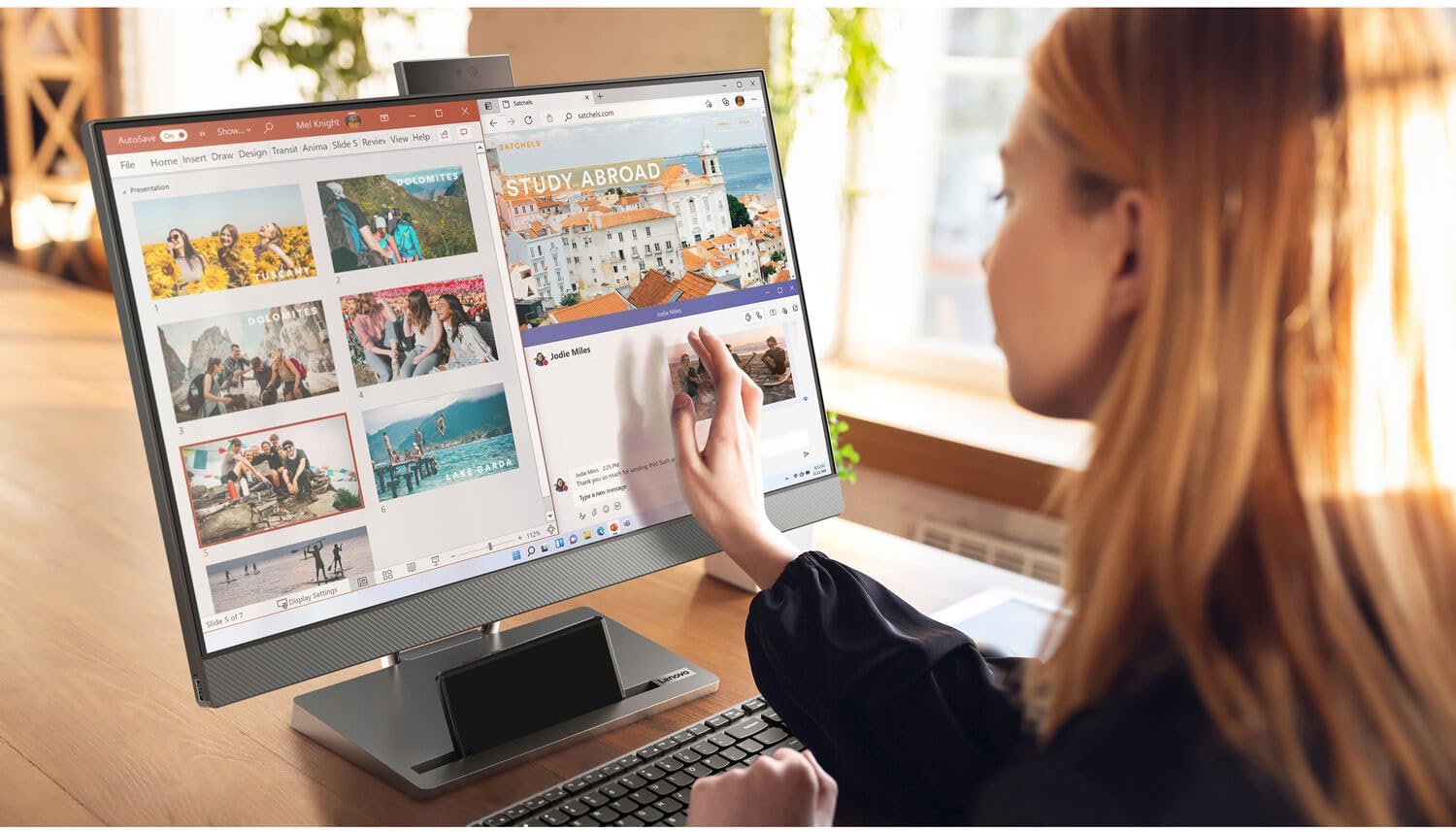
Figure 3.1: A user demonstrating the touchscreen capabilities of the IdeaCentre 5 AIO, interacting with on-screen elements directly.

Figure 3.2: A user engaged in productivity tasks on the IdeaCentre 5 AIO, demonstrating its use in a professional setting, potentially with a secondary display or laptop connected.
4. Maintenance
To ensure the longevity and optimal performance of your AIO desktop, consider the following maintenance tips:
- Cleaning:
- Screen: Use a soft, lint-free cloth specifically designed for electronics screens. Dampen it slightly with water or a screen cleaner solution. Avoid harsh chemicals.
- Chassis: Wipe the exterior surfaces with a soft, dry cloth. For stubborn marks, a slightly damp cloth can be used.
- Software Updates: Regularly check for and install Windows updates and Lenovo driver updates to ensure system stability, security, and performance.
- Ventilation: Ensure the ventilation openings on the back and sides of the AIO are not blocked to prevent overheating.
- Data Backup: Periodically back up important data to an external drive or cloud storage to prevent data loss.
5. Troubleshooting
This section provides solutions to common issues you might encounter:
| Problem | Possible Cause | Solution |
|---|---|---|
| No Power | Power cable loose, power outlet issue. | Check power cable connections. Try a different power outlet. |
| Display Not Working | System in sleep mode, display settings issue. | Press any key or move mouse to wake. Restart the computer. |
| Wireless Keyboard/Mouse Not Responding | Low batteries, USB receiver issue. | Replace batteries. Re-insert USB receiver into a different port. |
| Slow Performance | Too many applications running, low disk space. | Close unnecessary applications. Free up disk space. Check for malware. |
6. Technical Specifications
Detailed specifications for the Lenovo IdeaCentre 5 AIO Desktop (Model F0GQ):

Figure 6.1: Visual summary of the AIO desktop's key features including CPU, RAM, storage, display, and operating system.
| Feature | Detail |
|---|---|
| Display Size | 27 Inches |
| Screen Resolution | 2560 x 1440 (QHD) |
| Refresh Rate | 100Hz |
| Processor | 12th Gen Intel Core i7-12700H (Up to 4.7 GHz) |
| RAM | 32 GB DDR5 |
| Storage | 1 TB PCIe NVMe M.2 SSD |
| Graphics Coprocessor | Intel UHD Graphics (Integrated) |
| Operating System | Windows 11 Pro |
| Wireless Connectivity | Wi-Fi 6 (802.11ax), Bluetooth |
| Ports | 3 x USB 3.2 Type-A, 2 x USB Type-C, 2 x HDMI, 1 x Ethernet RJ45 |
| Item Weight | 34 pounds |
| Product Dimensions | 18.66 x 24.2 x 7.38 inches |
| Color | Black |
7. Package Contents
The following items are included in the product package:
- Lenovo IdeaCentre 5 AIO Desktop
- Wireless Keyboard
- Wireless Mouse
- Power Adapter and Cord
- Documentation (Quick Start Guide, Safety Information)
8. Warranty and Support
For warranty claims and technical support, please note the following:
- Warranty: According to customer feedback, the warranty for this product is handled by PCONLINE, not directly by Lenovo. Please refer to the warranty documentation provided with your purchase for specific terms and conditions.
- Technical Support: For technical assistance, troubleshooting beyond this manual, or service requests, please contact the seller or PCONLINE directly. Refer to your purchase invoice or packaging for contact details.
- Online Resources: You may also find additional support resources, drivers, and FAQs on the official Lenovo support website.

Figure 8.1: PCONLINE company logo, indicating the primary warranty provider.