Introduction
The Radioshack Smart IP Camera Bulb Z5 is an intelligent security camera designed to provide comprehensive surveillance with ease of use. Featuring a high-resolution sensor, infrared night vision, and two-way audio, it offers clear monitoring day and night. Its smart functions like automatic tracking and motion detection ensure you stay informed about your surroundings. This manual provides essential information for setting up, operating, and maintaining your camera bulb.
Key Features
- High-Resolution Video: Equipped with an impressive 3MP (2304 x 1296p) resolution, capturing every detail with clarity.
- Enhanced Night Vision: Features IR support and LED light for unparalleled surveillance in low light conditions, providing clear images day and night.
- Two-Way Audio: Communicate with your environment bidirectionally, allowing you to listen and speak through the camera.
- Automatic Tracking: Ensures no detail escapes by adjusting its position to keep focus on moving objects.
- Motion Detection & Alerts: Instantly activates recording and sends real-time notifications upon detecting suspicious activity.
- Flexible Storage: Supports MicroSD card for convenient storage and access to video files.
Product Components
Your Radioshack Smart IP Camera Bulb Z5 package includes the following:
- Smart IP Camera Bulb (Foco Camara)
- User Manual (this document)

Image: The Radioshack Smart IP Camera Bulb Z5 shown alongside a smartphone displaying its app interface.

Image: The Radioshack Smart IP Camera Bulb positioned next to a standard light bulb socket adapter, illustrating its installation method.
Setup Guide
Follow these steps to set up your Radioshack Smart IP Camera Bulb Z5:
- Install the Camera Bulb: Screw the camera bulb into a standard E27 light bulb socket. Ensure the power is off before installation.
- Power On: Turn on the power to the light socket. The camera bulb will power on and enter pairing mode.
- Download the App: Download the "Radioshack Home" app from your mobile device's app store (compatible with iOS and Android).
- Create Account/Log In: Open the app and create a new account or log in if you already have one.
- Add Device: Follow the in-app instructions to add your new camera bulb. This typically involves scanning a QR code on the device or selecting it from a list of nearby devices. Ensure your phone is connected to a 2.4GHz Wi-Fi network during setup.
- Configure Settings: Once connected, you can configure various settings such as Wi-Fi connection, motion detection sensitivity, recording preferences, and notification alerts.

Image: A smartphone screen showing the Radioshack Home application, illustrating the user interface for managing the smart camera.
Operating Instructions
Once your camera bulb is set up, you can utilize its various features through the Radioshack Home app:
- Live View: Access real-time video feed from your camera anytime, anywhere.
- Two-Way Audio: Use the microphone and speaker icons in the app to communicate with people near the camera.
- Motion Detection: Enable motion detection to receive instant alerts on your phone when movement is detected. You can adjust sensitivity levels in the app settings.
- Automatic Tracking: When enabled, the camera will automatically pan and tilt to follow detected motion, ensuring the subject remains in view.
- Night Vision: The camera automatically switches to infrared night vision in low light conditions, providing clear black and white images. The integrated LED light can also be activated for color night vision or as a regular light source.
- Video Recording & Playback: Videos triggered by motion detection or manually recorded are saved to the inserted MicroSD card (if installed). You can review recorded footage directly from the app.

Image: The Radioshack Smart IP Camera Bulb providing surveillance of an outdoor area during nighttime, demonstrating its low-light capabilities.
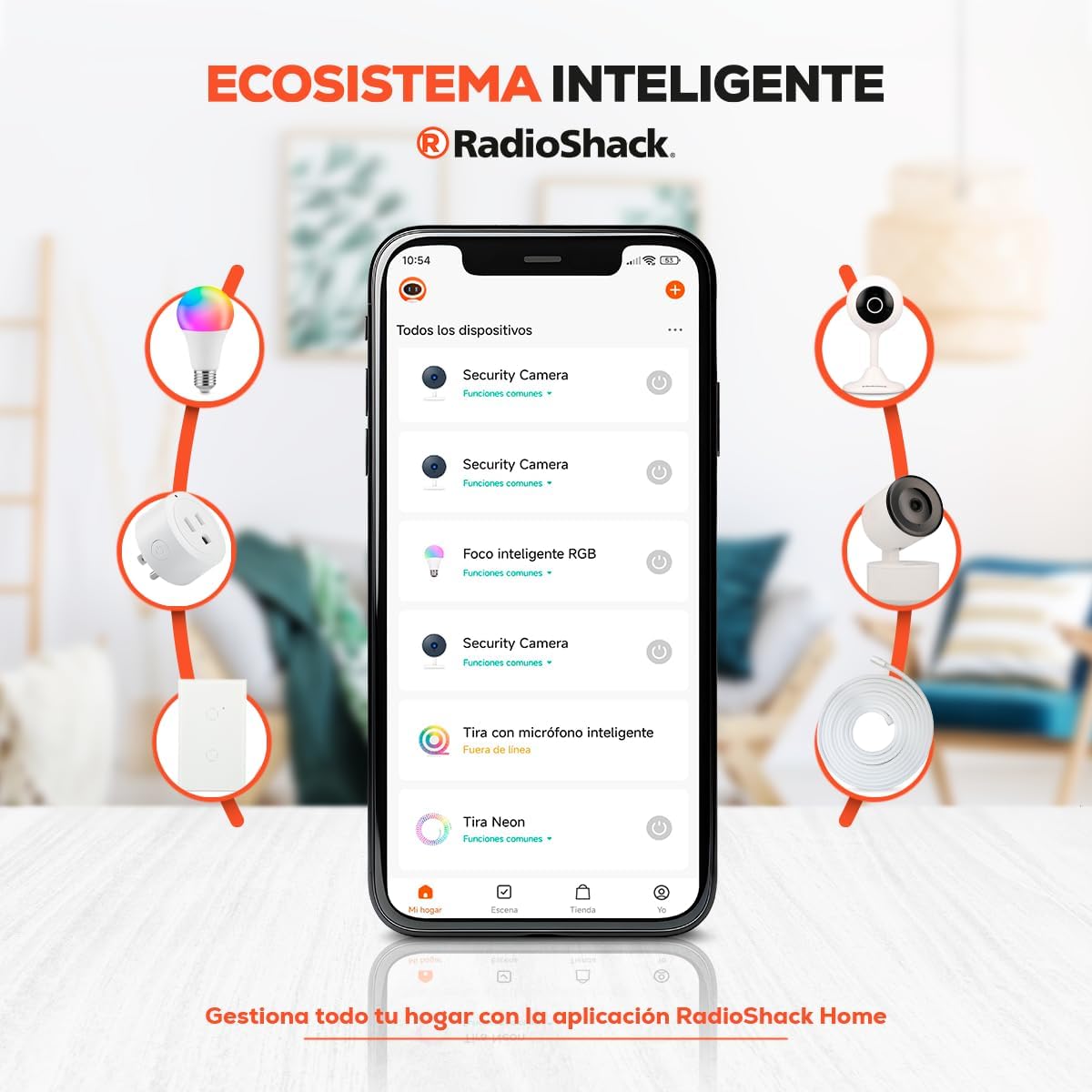
Image: The Radioshack Smart IP Camera Bulb installed in a ceiling fixture, monitoring a baby's crib indoors, highlighting its use for indoor surveillance.
Specifications
| Feature | Detail |
|---|---|
| Brand | Radioshack |
| Model Name | Smart IP Camera Z5 Radioshack |
| Product Model Number | 100126698 |
| ASIN | B0CW2427PB |
| Video Capture Resolution | 2304 x 1296p (3MP) |
| Special Features | Two-way audio, Motion detection, Automatic tracking, Infrared night vision, LED light |
| Connectivity Protocol | Wi-Fi |
| Controller Type | Amazon Alexa (via app) |
| Mounting Type | In socket |
| Power Source | Electric cable |
| Indoor/Outdoor Use | Indoor |
| Material | Plastic |
| Item Dimensions (L x W x H) | 17.8 x 10 x 8.9 cm (7 x 3.93 x 3.5 inches) |
| Product Weight | 340 g |
| Batteries Needed? | No |

Image: Rear view of the Radioshack Smart IP Camera Bulb, displaying the QR code for setup and various product information labels.
Maintenance
To ensure optimal performance and longevity of your Radioshack Smart IP Camera Bulb Z5, follow these maintenance guidelines:
- Cleaning: Gently wipe the camera lens and body with a soft, dry cloth. Do not use liquid cleaners or abrasive materials, as they may damage the device.
- Software Updates: Regularly check the Radioshack Home app for firmware updates. Keeping your camera's software up-to-date ensures you have the latest features and security enhancements.
- Environmental Conditions: Ensure the camera is used within its specified operating temperature and humidity ranges. Avoid exposing it to extreme temperatures, direct water, or high humidity.
- Power Cycle: If the camera experiences minor issues, try power cycling it by turning off the light switch for a few seconds and then turning it back on.
Troubleshooting
If you encounter issues with your Radioshack Smart IP Camera Bulb Z5, refer to the following common problems and solutions:
- Camera Not Connecting to Wi-Fi:
- Ensure your Wi-Fi network is 2.4GHz. The camera does not support 5GHz networks.
- Check your Wi-Fi password for accuracy.
- Move the camera closer to your Wi-Fi router to improve signal strength.
- Restart your router and the camera.
- Poor Video Quality:
- Check your internet connection speed. A stable and fast connection is crucial for high-resolution streaming.
- Ensure the camera lens is clean and free from dust or smudges.
- Verify that the camera is receiving adequate power.
- Motion Detection Not Working:
- Check the motion detection settings in the Radioshack Home app. Ensure it is enabled and sensitivity is set appropriately.
- Ensure there are no obstructions blocking the camera's view.
- Consider environmental factors like strong light changes or moving objects (e.g., tree branches) that might trigger false alarms or prevent detection.
- Two-Way Audio Issues:
- Ensure your phone's microphone and speaker permissions are granted to the Radioshack Home app.
- Check the volume settings on both your phone and within the app.
- Ensure there is no excessive background noise near the camera or your phone.
Warranty and Support
Radioshack products are designed for reliability and performance. For warranty information and technical support, please refer to the official Radioshack website or contact their customer service. Keep your purchase receipt as proof of purchase for any warranty claims.
Manufacturer: Radioshack
Product on Amazon.com.mx since: February 20, 2024


