1. Introduction
Welcome to the user manual for your AVM FRITZ!Mesh Set, featuring the FRITZ!Box 7530 AX and a FRITZ!Repeater AX 1200. This set is designed to provide a robust and high-performance Wi-Fi network, extending coverage and ensuring stable connections throughout your home or office.
This manual will guide you through the installation, configuration, and daily use of your FRITZ!Mesh devices, helping you optimize your network experience.

Figure 1: The AVM FRITZ!Box 7530 AX router (left) and the compact FRITZ!Repeater AX 1200 (right). The FRITZ!Box features multiple indicator lights and a distinctive red top grille, while the repeater is a smaller, wall-plug design.
2. Setup Guide
Setting up your FRITZ!Mesh system is designed to be straightforward. Follow these steps for initial installation.
2.1. FRITZ!Box 7530 AX Initial Setup
- Unpack Contents: Ensure you have the FRITZ!Box 7530 AX, power adapter, DSL cable, and network cable.
- Connect to DSL Line: Connect the DSL cable from your wall socket to the "DSL" port on the FRITZ!Box.
- Power On: Connect the power adapter to the FRITZ!Box and plug it into an electrical outlet. Wait for the "Power/DSL" LED to light up steadily.
- Connect a Computer: Use the included network cable to connect your computer to one of the "LAN" ports on the FRITZ!Box, or connect wirelessly using the Wi-Fi credentials provided on the device's underside.
- Access User Interface: Open a web browser and enter http://fritz.box or http://192.168.178.1 into the address bar.
- Run Setup Wizard: Follow the on-screen setup wizard to configure your internet connection (e.g., DSL provider settings), Wi-Fi network name (SSID), and password. For many standard connections, the FRITZ!Box can automatically detect provider settings.
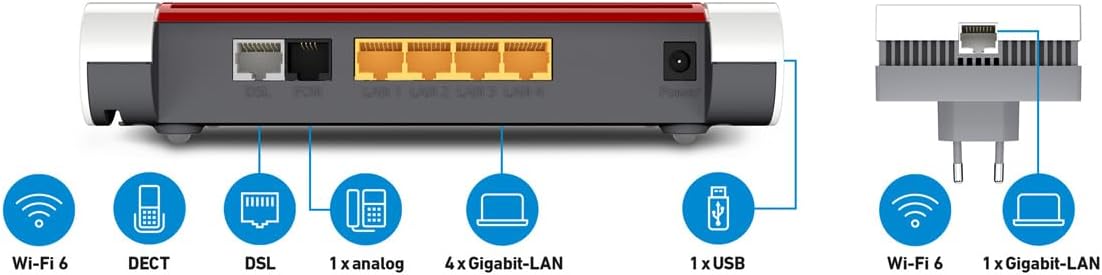
Figure 2: Detailed diagram of the FRITZ!Box 7530 AX's rear ports, including DSL, Phone (FON), LAN (4x Gigabit), and USB. The FRITZ!Repeater is shown with its Wi-Fi and Gigabit-LAN capabilities.
2.2. FRITZ!Repeater AX 1200 Setup (Mesh Integration)
To integrate the FRITZ!Repeater into your FRITZ!Mesh network, use the WPS (Wi-Fi Protected Setup) function.
- Initial Placement: Plug the FRITZ!Repeater into a power outlet near your FRITZ!Box.
- Activate WPS on FRITZ!Box: Press and hold the "Connect" or "WPS" button on your FRITZ!Box until its Wi-Fi LED starts flashing.
- Activate WPS on FRITZ!Repeater: Within two minutes, press the "Connect" or "WPS" button on the FRITZ!Repeater. The repeater's LEDs will flash during the connection process.
- Confirmation: Once connected, the repeater's signal strength LEDs will indicate a successful connection. You can then unplug the repeater and move it to its desired location, ensuring it receives a good signal from the FRITZ!Box.
- Optimal Placement: Place the repeater roughly halfway between your FRITZ!Box and the area where you need improved Wi-Fi coverage. Ensure the signal strength indicator on the repeater shows a good connection.
3. Operation
Your FRITZ!Mesh system operates largely automatically after initial setup. Here are some key operational aspects.
3.1. Wi-Fi Network
- Mesh Wi-Fi: The FRITZ!Mesh system creates a single, unified Wi-Fi network (SSID) across your FRITZ!Box and FRITZ!Repeater. Devices automatically connect to the access point with the strongest signal.
- Wi-Fi 6 (802.11ax): Both devices support Wi-Fi 6 for faster speeds and improved efficiency with compatible devices.
- Dual-Band: The system operates on both 2.4 GHz and 5 GHz frequencies, providing flexibility and performance.
3.2. FRITZ!Box Features
- Telephony: The FRITZ!Box supports DECT phones and analog phones via its "FON" ports.
- Gigabit LAN Ports: Four Gigabit Ethernet ports allow for high-speed wired connections to devices like PCs, gaming consoles, or network-attached storage (NAS).
- USB Port: A USB port enables connection of USB storage devices for network sharing (NAS functionality) or printers.
- FRITZ!OS: Manage all settings and features through the FRITZ!OS web interface (http://fritz.box), including parental controls, guest Wi-Fi, VPN, and smart home integration.
3.3. FRITZ!Repeater Features
- Gigabit LAN Port: The repeater includes a Gigabit Ethernet port, allowing you to connect a wired device (e.g., a smart TV or PC) to your network even if it's far from the main router.
- Signal Strength Indicator: LEDs on the repeater indicate the quality of the connection to the FRITZ!Box, helping you find the optimal placement.
4. Maintenance
Regular maintenance ensures optimal performance and security for your FRITZ!Mesh system.
- Firmware Updates: Regularly check for and install FRITZ!OS updates via the web interface (http://fritz.box). Updates provide new features, security enhancements, and performance improvements.
- Physical Cleaning: Keep the devices free from dust. Use a soft, dry cloth to clean the exterior. Ensure ventilation slots are not blocked.
- Password Security: Change default passwords for the FRITZ!Box web interface and Wi-Fi network to strong, unique passwords.
- Backup Settings: Periodically back up your FRITZ!Box configuration settings through the FRITZ!OS interface. This allows for quick restoration in case of a reset or replacement.
- Restart Devices: If you experience minor network issues, a simple restart of both the FRITZ!Box and FRITZ!Repeater can often resolve them. Unplug them from power for 10 seconds, then plug them back in.
5. Troubleshooting
If you encounter issues with your FRITZ!Mesh system, refer to the following common solutions.
- No Internet Connection:
- Check if the "Power/DSL" LED on the FRITZ!Box is solid green. If it's flashing or off, check your DSL cable connection and contact your internet service provider if the issue persists.
- Verify your internet connection settings in the FRITZ!OS interface.
- Restart the FRITZ!Box.
- Wi-Fi Not Working or Slow:
- Ensure the Wi-Fi LED on the FRITZ!Box is lit.
- Check the placement of your FRITZ!Repeater. The signal strength LEDs should indicate a good connection to the FRITZ!Box.
- Try restarting both the FRITZ!Box and the FRITZ!Repeater.
- Ensure your devices are connecting to the correct Wi-Fi network.
- Check for interference from other electronic devices (e.g., microwaves, cordless phones).
- Repeater Not Connecting to FRITZ!Box:
- Ensure the repeater is plugged into a power outlet and is within range of the FRITZ!Box.
- Repeat the WPS setup process (Section 2.2).
- If WPS fails, you can manually configure the repeater via its own web interface (refer to the repeater's specific manual or AVM support for details).
- Accessing FRITZ!OS Interface:
- Ensure your device is connected to the FRITZ!Box network (wired or wireless).
- Try http://fritz.box or http://192.168.178.1.
- Clear your browser's cache or try a different browser.
- Device Not Associating (as per user review):
- If a device fails to associate after multiple resets and attempts, ensure the FRITZ!Box firmware is up to date.
- Perform a factory reset on the device (refer to the specific device's manual for instructions on how to perform a factory reset).
- Contact AVM support for advanced diagnostics if the issue persists.
6. Specifications
Key technical specifications for the AVM FRITZ!Mesh Set 7530AX Repeater AX 1200.
| Feature | Detail |
|---|---|
| Brand | AVM |
| Model Name | 7530AX |
| Item Model Number | 20003049 |
| Product Dimensions | 5.91 x 8.19 x 1.06 inches |
| Item Weight | 11.2 ounces |
| Wireless Communication Standard | 802.11ax (Wi-Fi 6) |
| Frequency Band Class | Dual-Band |
| Special Feature | WPS |
| Connectivity Technology | Ethernet |
| Compatible Devices | Computers (laptops, desktops), mobile devices (smartphones, tablets), video game consoles, streaming devices, smart thermostats, security cameras |
| Recommended Uses | Business, Home |
| Color | Black |
| Included Components | 1 package (FRITZ!Box 7530 AX, FRITZ!Repeater AX 1200, power adapters, DSL cable, network cable) |
7. Warranty & Support
AVM provides comprehensive support for its products.
- Warranty Information: For detailed warranty terms and conditions, please refer to the documentation included with your product or visit the official AVM website. Warranty periods may vary by region.
- Technical Support: If you require technical assistance, have questions about advanced features, or encounter issues not covered in this manual, please visit the official AVM support website. You can typically find FAQs, knowledge bases, and contact information for customer support there.
- Online Resources: AVM's website (https://en.avm.de/service/) offers extensive resources, including updated manuals, firmware downloads, and troubleshooting guides.


