
1. Introduction
Thank you for choosing the Sharp 50FQ5EG 50-inch QLED 4K Google TV. This manual provides essential information for setting up, operating, maintaining, and troubleshooting your new television. Please read it thoroughly before use and keep it for future reference.
Key Features:
- 50-inch QLED 4K Ultra HD Display with 144 Hz Refresh Rate
- Google TV Operating System with Google Assistant and Chromecast built-in
- Harman/Kardon Hybrid Speaker System with Dolby Atmos
- Dolby Vision IQ, HDR10, HLG Support
- Multiple Connectivity Options: 4 x HDMI 2.1, 2 x USB, Bluetooth 5.3, Wi-Fi, Ethernet
- Frameless Aluminum Design
Included Components:
- Sharp 50FQ5EG Television
- Pedestal Stand
- Remote Control (requires 2 AAA batteries, included)
- Instruction Manual
- Power Cable
2. Safety Information
To ensure safe operation and prevent damage, please observe the following safety precautions:
- Power Supply: Connect the TV only to an AC 220V, 50Hz power outlet. Do not overload power outlets.
- Ventilation: Ensure adequate ventilation around the TV. Do not block ventilation openings.
- Liquid and Moisture: Do not expose the TV to rain, moisture, or dripping/splashing liquids. Do not place objects filled with liquids on the TV.
- Heat Sources: Keep the TV away from heat sources such as radiators, heat registers, stoves, or other heat-producing appliances.
- Cleaning: Unplug the TV from the wall outlet before cleaning. Use a soft, dry cloth. Do not use liquid cleaners or aerosol cleaners.
- Servicing: Do not attempt to service this product yourself. Refer all servicing to qualified service personnel.
- Children: Supervise children to ensure they do not play with the TV or remote control.
3. Setup
3.1 Unpacking
Carefully remove the TV and all accessories from the packaging. Retain the packaging materials for future transport or servicing.
3.2 Attaching the Pedestal Stand
If you are not wall-mounting the TV, attach the included pedestal stand:
- Place the TV face down on a soft, flat surface to prevent screen damage.
- Align the stand components with the mounting holes on the bottom of the TV.
- Secure the stand using the provided screws. Ensure the stand is firmly attached before placing the TV upright.

Image: Close-up view of the TV's pedestal stand and integrated Harman/Kardon speakers.
3.3 Wall Mounting (Optional)
The Sharp 50FQ5EG supports VESA wall mounts with a standard of 200 x 200 mm. Use M6 screws (not included) with a length appropriate for your wall mount bracket. Consult a professional for wall mounting to ensure safety and proper installation.
3.4 Connecting Peripherals
Connect your external devices to the TV's ports. The TV features 4 HDMI 2.1 ports, 2 USB ports, Ethernet, and an optical audio output.
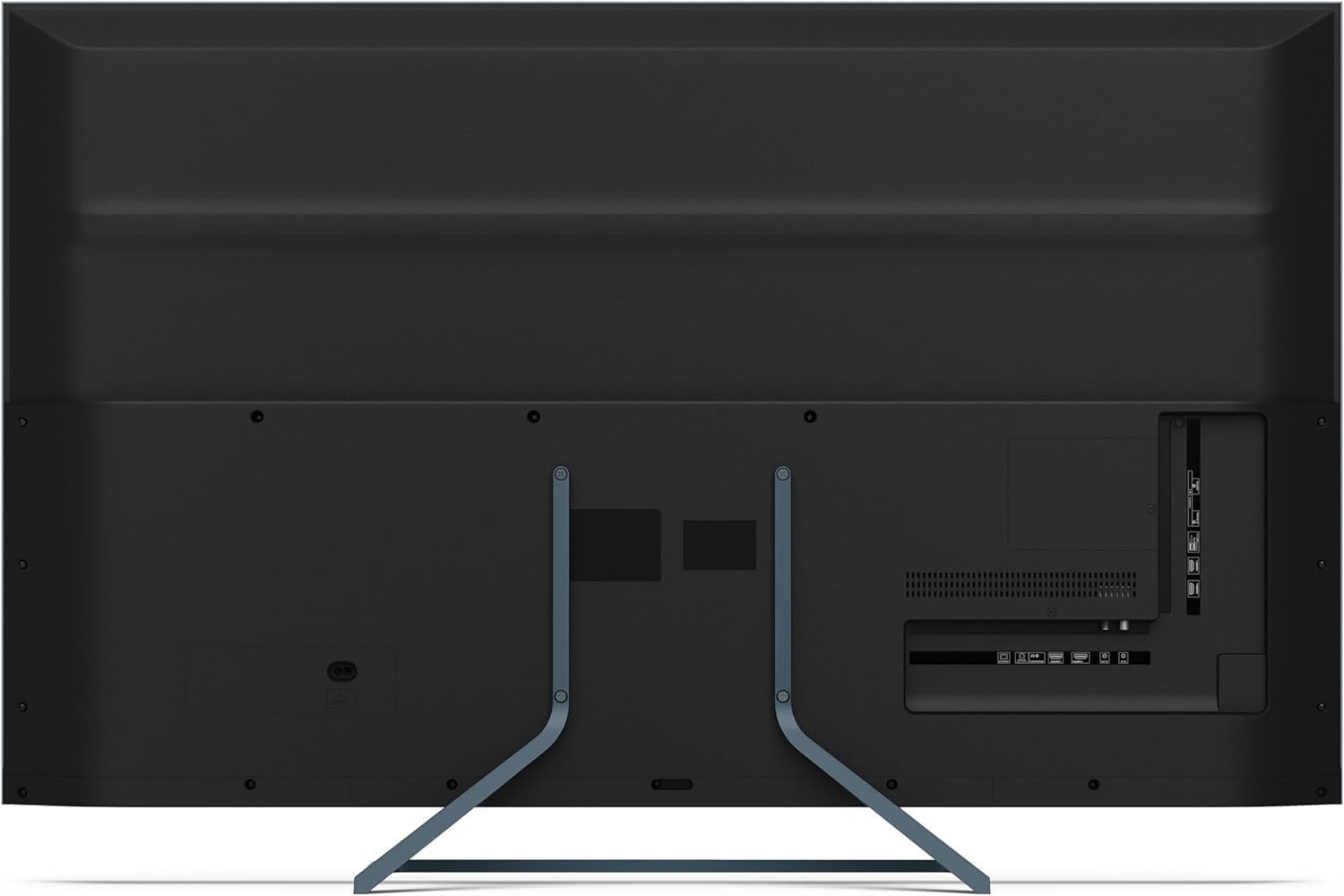
Image: Rear view of the television displaying the arrangement of HDMI, USB, and other connectivity ports.
- HDMI: Connect Blu-ray players, game consoles, or set-top boxes. HDMI 2.1 supports eARC and ALLM for enhanced audio and gaming.
- USB: Connect USB storage devices for media playback.
- Ethernet: For a wired internet connection.
- Power: Connect the power cable to the TV and then to a wall outlet.
3.5 Initial Power-On and Google TV Setup
- Plug the TV into a power outlet.
- Press the power button on the remote control or the TV.
- The TV will guide you through the initial setup process, including language selection, network connection (Wi-Fi or Ethernet), and Google account sign-in.
- Remote Control Pairing: During initial setup, you may need to pair the Bluetooth remote control. Follow the on-screen instructions, typically involving pressing specific buttons on the remote simultaneously.
4. Operating the TV
4.1 Remote Control
The included remote control uses Bluetooth for enhanced functionality. It allows navigation, voice control via Google Assistant, and quick access to various features.
4.2 Google TV Interface
The Google TV interface organizes your content from various streaming services and apps. Use the remote's directional pad to navigate through menus, select apps, and browse content.

Image: The television screen showing the Google TV home interface with recommended content and installed applications.
4.3 Picture Settings
Your Sharp 50FQ5EG TV features advanced picture technologies:
- QLED Q-Colour: Provides vibrant and accurate color reproduction.
- 4K Ultra HD: Delivers sharp and detailed images.
- 144 Hz Refresh Rate: Ensures smooth motion, especially beneficial for gaming and fast-paced content.
- Dolby Vision IQ, HDR10, HLG: Supports various High Dynamic Range formats for enhanced contrast and brightness.
- AQUOS Motion: Improves motion clarity by reducing blur.
- Eco Sensor: Automatically adjusts brightness based on ambient light conditions.
Access picture settings through the TV's menu to customize brightness, contrast, color, and other display options.
4.4 Sound Settings
The TV is equipped with a Harman/Kardon Hybrid Speaker System and supports Dolby Atmos for immersive audio.
- Harman/Kardon Speakers: Delivers clear sound with powerful bass.
- Dolby Atmos: Provides a three-dimensional audio experience.
Adjust sound modes, equalizer settings, and volume levels via the TV's audio menu.
4.5 Connectivity
- Wi-Fi/Ethernet: Connect to your home network for internet access and streaming.
- Bluetooth 5.3: Connect wireless headphones, soundbars, or other Bluetooth-enabled devices.
- Google Cast: Cast content from your mobile devices or computer directly to the TV.
4.6 Using Applications
The Google TV platform provides access to a wide range of applications from the Google Play Store, including:
- Netflix, Amazon Prime Video, HBO, Disney+, Movistar+, DAZN, Atresmedia
- KODI, IPTV, Steamlink, Twitch, VLC, YouTube
- Puffin TV Browser, Spotify, Deezer, TuneIn Radio
Navigate to the 'Apps' section on the Google TV home screen to browse, download, and manage your applications.
5. Maintenance
5.1 Cleaning the TV
- Screen: Gently wipe the screen with a soft, lint-free cloth. For stubborn marks, slightly dampen the cloth with water or a specialized screen cleaner (apply to cloth, not directly to screen).
- Body: Wipe the TV's frame and stand with a soft, dry cloth.
- Do Not Use: Abrasive cleaners, alcohol, benzene, or thinners, as these can damage the TV's surface.
5.2 Software Updates
Your TV may receive software updates to improve performance and add new features. Ensure your TV is connected to the internet to receive these updates automatically or check for them manually in the settings menu.
6. Troubleshooting
If you encounter issues with your TV, refer to the following common problems and solutions:
| Problem | Possible Solution |
|---|---|
| No Power | Check if the power cable is securely connected to the TV and the wall outlet. Ensure the outlet has power. Try a different outlet. |
| No Picture, but Sound is Present | Check the input source. Ensure external devices are powered on and connected correctly. Try a different HDMI cable. |
| No Sound, but Picture is Present | Check the volume level. Ensure mute is not activated. Check audio output settings (e.g., internal speakers, external soundbar). |
| Remote Control Not Responding | Replace the batteries. Ensure there are no obstructions between the remote and the TV. Re-pair the Bluetooth remote if necessary (refer to initial setup). |
| Cannot Connect to Wi-Fi | Check your router and modem. Ensure the Wi-Fi password is correct. Try restarting the TV and your router. |
| Apps Not Working/Freezing | Ensure the TV has a stable internet connection. Try clearing the app's cache or reinstalling the app. Restart the TV. |
If the problem persists after trying these solutions, please contact customer support.
7. Specifications

Image: Technical drawing illustrating the width, height, and depth of the television with and without its stand.
| Feature | Specification |
|---|---|
| Model Number | 50FQ5EG |
| Screen Size | 50 Inches |
| Display Technology | QLED, LED |
| Resolution | 4K Ultra HD (3840 x 2160) |
| Refresh Rate | 144 Hz |
| HDR Support | Dolby Vision IQ, HDR10, HLG |
| Operating System | Google TV |
| Audio Output | 2.1 Channel Harman/Kardon Speakers, 15W Max Power, Dolby Atmos |
| Connectivity | 4 x HDMI 2.1, 2 x USB 2.0, Bluetooth 5.3, Wi-Fi, Ethernet |
| VESA Mounting Standard | 200 x 200 mm |
| Dimensions with Stand (W x H x D) | 113.22 x 73.89 x 23.2 cm |
| Dimensions without Stand (W x H x D) | 113.22 x 66.87 x 6.0 cm |
| Weight (without stand) | 11.5 kg |
| Power Consumption (Operating) | 84 Watts |
| Annual Energy Consumption | 64 kWh/year |
| Control Method | Voice (Google Assistant), Remote Control |
| Color | Anthracite Grey Aluminum |
8. Warranty and Support
8.1 Warranty Information
This Sharp 50FQ5EG television comes with a Limited Warranty. Please refer to the warranty card included with your product or visit the official Sharp website for detailed terms and conditions regarding coverage, duration, and service procedures.
8.2 Customer Support
For technical assistance, troubleshooting beyond this manual, or warranty claims, please contact Sharp customer support. Contact details can typically be found on the Sharp official website or in the documentation provided with your TV.


