
1. Introduction
Thank you for choosing the Zunate 13.5 Inch Dual Touchscreen Laptop. This device is designed for versatility and performance, featuring dual touchscreens, a foldable design, and powerful internal components. This manual provides essential information for setting up, operating, maintaining, and troubleshooting your new laptop. Please read it thoroughly before use.
2. Package Contents
Please check the package for the following items:
- Zunate 13.5 Inch Dual Touchscreen Laptop
- Power Adapter
- Power Plug (US Plug)
- Instruction Manual (this document)

Image: The Zunate 13.5 Inch Dual Touchscreen Laptop displayed alongside its power adapter and power plug, illustrating the main components included in the package.
3. Product Overview
The Zunate Dual Touchscreen Laptop features two 13.5-inch touch displays with 2256x1504 resolution, offering an expansive workspace. Its 180-degree foldable design allows for various usage modes, from a traditional laptop to a tablet-like experience.

Image: The Zunate laptop in an open position, showcasing both 13.5-inch touchscreens displaying a user interface, with a stylus hovering over the top screen.

Image: The Zunate Dual Touchscreen Laptop open, with the upper screen displaying a virtual keyboard and the lower screen showing a vibrant floral image, highlighting its dual-screen capability.

Image: The Zunate Dual Touchscreen Laptop open, displaying a large butterfly image seamlessly across both screens, demonstrating the extended display potential.

Image: A close-up view of the Zunate laptop's display, emphasizing its 2.5K ultra-clear resolution and narrow bezel design, showcasing image clarity.

Image: A detailed view of an Intel processor chip, illustrating the powerful internal computing core of the Zunate laptop.
4. Setup
4.1 Charging the Laptop
- Connect the power adapter to the DC 3.5 charging port on the laptop.
- Plug the power plug into a wall outlet (100-240V).
- The charging indicator light (if present) will illuminate. Allow the laptop to charge fully before first use, or until the indicator shows a full charge.
4.2 First Power-On
- Press and hold the power button (location typically on the side or top edge) for a few seconds until the screens light up.
- The laptop will boot into the pre-installed Windows 11 Pro operating system.
4.3 Initial Windows Setup
Follow the on-screen prompts to complete the Windows 11 Pro setup process. This typically includes:
- Selecting your region and keyboard layout.
- Connecting to a Wi-Fi network.
- Signing in with a Microsoft account or creating a local account.
- Setting up privacy settings.
5. Operating the Laptop
5.1 Using the Dual Touchscreens
Both 13.5-inch screens support 10-point multi-touch input. You can interact with the operating system and applications directly using your fingers or a compatible MPP2.0 protocol stylus (not included). The screens can function as:
- Extended Display: Use both screens to expand your workspace, allowing you to view more content simultaneously.
- Split Screen: Run different applications on each screen for enhanced multitasking.
- Virtual Keyboard: The lower screen can display a full-size virtual keyboard for typing.
5.2 Foldable Modes
The laptop's 180-degree foldable design allows for various configurations:
- Laptop Mode: Traditional laptop orientation with one screen acting as the primary display and the other as a secondary display or virtual keyboard.
- Tablet Mode: Fold the device completely flat for a single large touch surface or two back-to-back displays.
- Tent Mode: Position the laptop in an inverted 'V' shape for presentations or media consumption.

Image: A collage illustrating the Zunate laptop's versatility, showing it in a folded book-like configuration, displaying detailed graphics, and demonstrating split-screen functionality for drawing and editing.
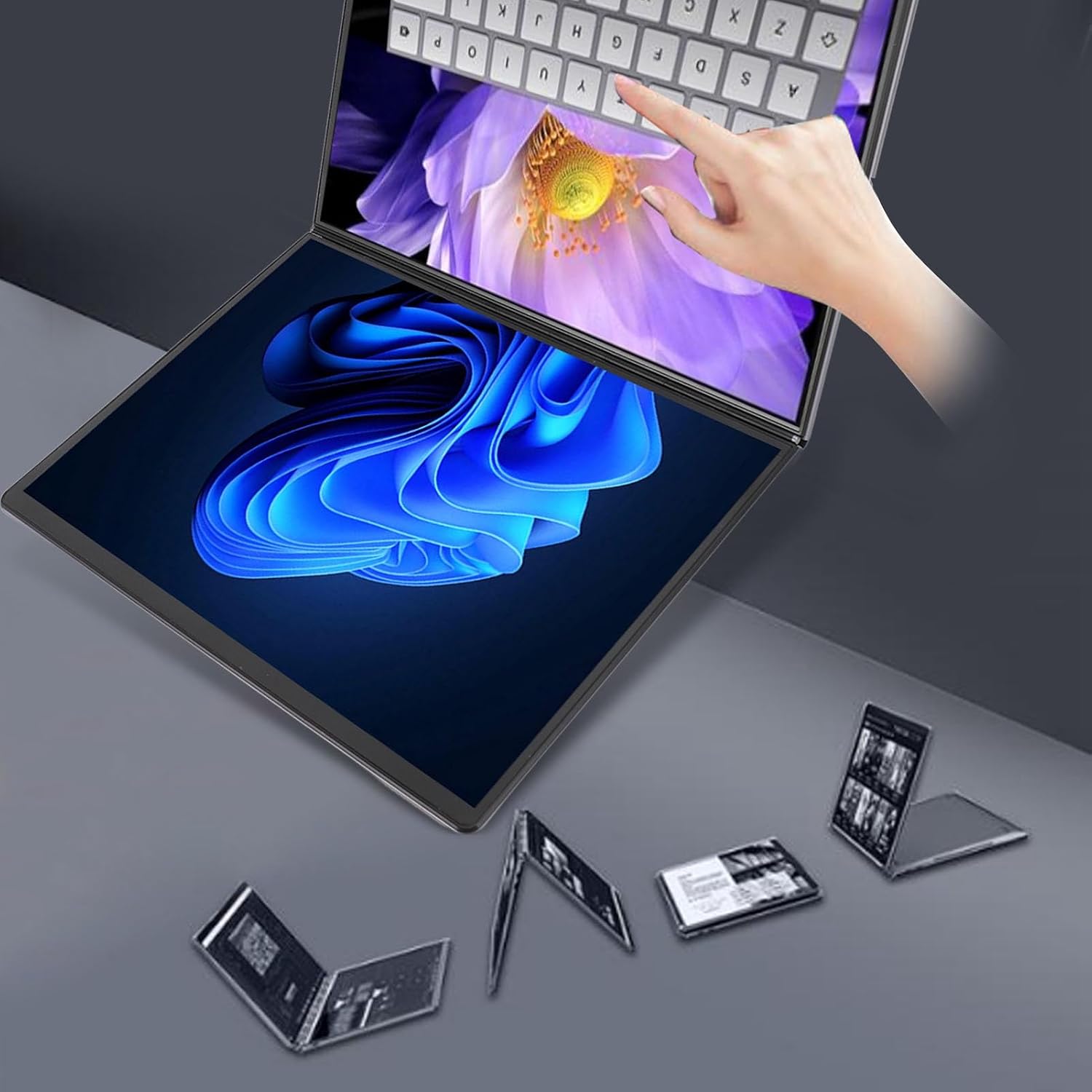
Image: The Zunate laptop shown in various stages of folding, from fully open to a compact book-like form, with a hand interacting with the touchscreen in one of the configurations.
5.3 Connecting Peripherals
- Type-C Ports: The laptop features two full-featured Type-C interfaces. These can be used for data transfer, video output (DisplayPort Alt Mode), and power delivery.
- Headphone Jack: A 3.5mm standard headphone jack is provided for audio output to headphones or external speakers.
5.4 Wireless Connectivity
- Wi-Fi: Connect to wireless networks using the built-in dual-band Wi-Fi 802.11ac (b/g/n) module. Access Wi-Fi settings through the Windows taskbar or Settings app.
- Bluetooth: Pair Bluetooth 5.0 compatible devices such as mice, keyboards, or headphones via Windows Bluetooth settings.
6. Maintenance
6.1 Cleaning
- Screens: Use a soft, lint-free cloth slightly dampened with water or a screen-cleaning solution. Avoid harsh chemicals or abrasive materials.
- Body: Wipe the aluminum alloy body with a soft, dry cloth.
6.2 Battery Care
- Avoid fully discharging the battery frequently.
- Store the laptop in a cool, dry place if not used for extended periods, with the battery charged to around 50-60%.
- Use only the provided power adapter.
6.3 Software Updates
Regularly check for and install Windows updates to ensure optimal performance, security, and compatibility. Go to Settings > Windows Update to manage updates.
7. Troubleshooting
7.1 Laptop Does Not Power On
- Ensure the power adapter is securely connected to both the laptop and a working power outlet.
- Check if the battery is sufficiently charged.
- Try holding the power button for 10-15 seconds for a hard reset.
7.2 Touchscreen Not Responding
- Restart the laptop.
- Ensure the screens are clean and free of debris.
- Check for updated display or touchscreen drivers in Device Manager.
7.3 Wi-Fi or Bluetooth Connectivity Issues
- Ensure Wi-Fi/Bluetooth is enabled in Windows settings.
- Restart your router/modem for Wi-Fi issues.
- Update wireless drivers via Device Manager.
8. Specifications
| Feature | Specification |
|---|---|
| Model | Zunatekmtyu0hbqc-11 |
| Screen Size | Dual 13.5 Inch Touchscreens |
| Screen Resolution | 2256x1504 (Primary & Auxiliary) |
| CPU | Intel Processor N Series (Alder Lake N, 4 Core, 4 Thread, 6M Cache) |
| GPU | Intel(R) UHD Graphics |
| RAM | 16GB DDR5 4800MHz |
| Storage | 256GB M.2 2280 SATA/NVME SSD |
| Camera | Front (0.9MP) |
| Speakers | Dual Channel Stereo 8Ω 1Wx2 |
| Wireless Module | Dual Band Wi-Fi 802.11ac b/g/n |
| Bluetooth | Bluetooth 5.0 |
| Ports | 2x Full-featured Type-C, 1x 3.5mm Headphone Jack, 1x DC 3.5 Charging Port |
| Battery | Built-in 9000mAh Lithium-Ion |
| Operating System | Windows 11 Pro (Pre-installed) |
| Plug Voltage | 100-240V |
9. Warranty and Support
Your Zunate laptop comes with a standard manufacturer's warranty. Please refer to the warranty card included in your package or contact your retailer for specific warranty terms and conditions. For technical support or service inquiries, please contact the vendor or Zunate customer service through the contact information provided at the point of purchase.