
1. Introduction
This manual provides detailed instructions for the installation, operation, and maintenance of your Chameye C420 4K 20X Optical Zoom PTZ Camera. Please read this manual thoroughly before using the product to ensure proper and safe operation. Keep this manual for future reference.
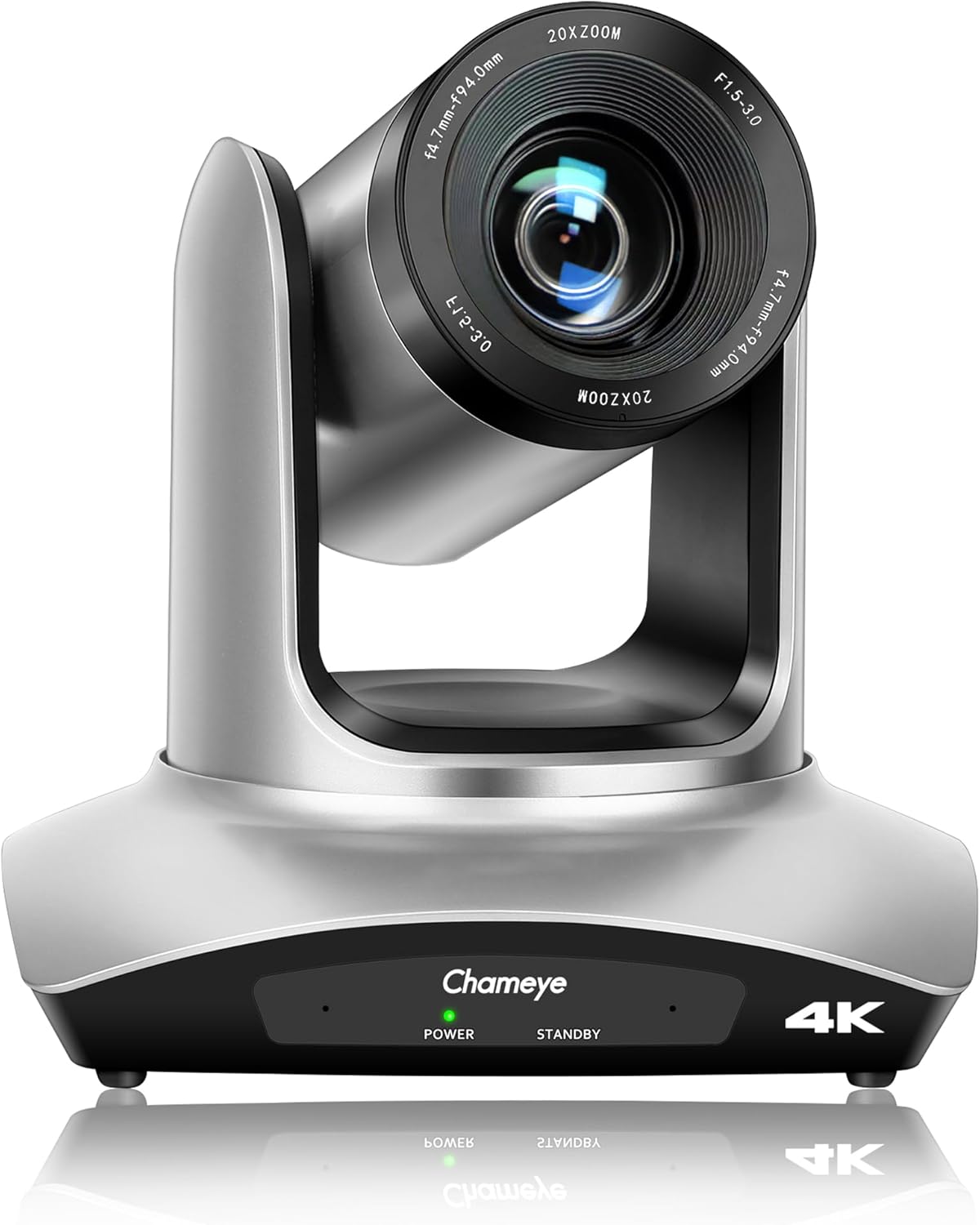
Front view of the Chameye C420 4K PTZ Camera, showcasing its lens and base with power and standby indicators.
2. Product Overview
2.1 Key Features
- 4K UHD Resolution: Delivers crystal-clear video quality up to 3840x2160 at 30fps, utilizing a 1/2.8-inch CMOS sensor with 8.5MP effective pixels.
- 20x Optical Zoom: Provides high-quality remote capture with a 60° wide field of view, allowing for detailed imaging from a distance.
- Flexible Connectivity: Supports HDMI, USB 3.0, and IP streaming (RTSP, RTMP, H.264/H.265 encoding).
- Power over Ethernet (PoE): Enables power, control, and video/audio streaming through a single network cable via the LAN port.
- Pan/Tilt Movement: Offers 355° pan and 120° tilt ranges for precise camera positioning.
- Multiple Presets: Supports 10 preset positions via IR remote control and 255 presets with the Chameye PTZ controller E300.
- Wide Compatibility: Plug-and-play USB3.0 compatibility with Windows (XP to 11), Mac OS (10.4+), and major platforms like Zoom, Teams, YouTube, vMix, OBS, WebEx, and GoToMeeting.
- Advanced Image Technology: Features fast auto-focus, image flip and mirror functions, and high SNR CMOS with 2D/3D noise reduction for optimal performance in various lighting conditions.
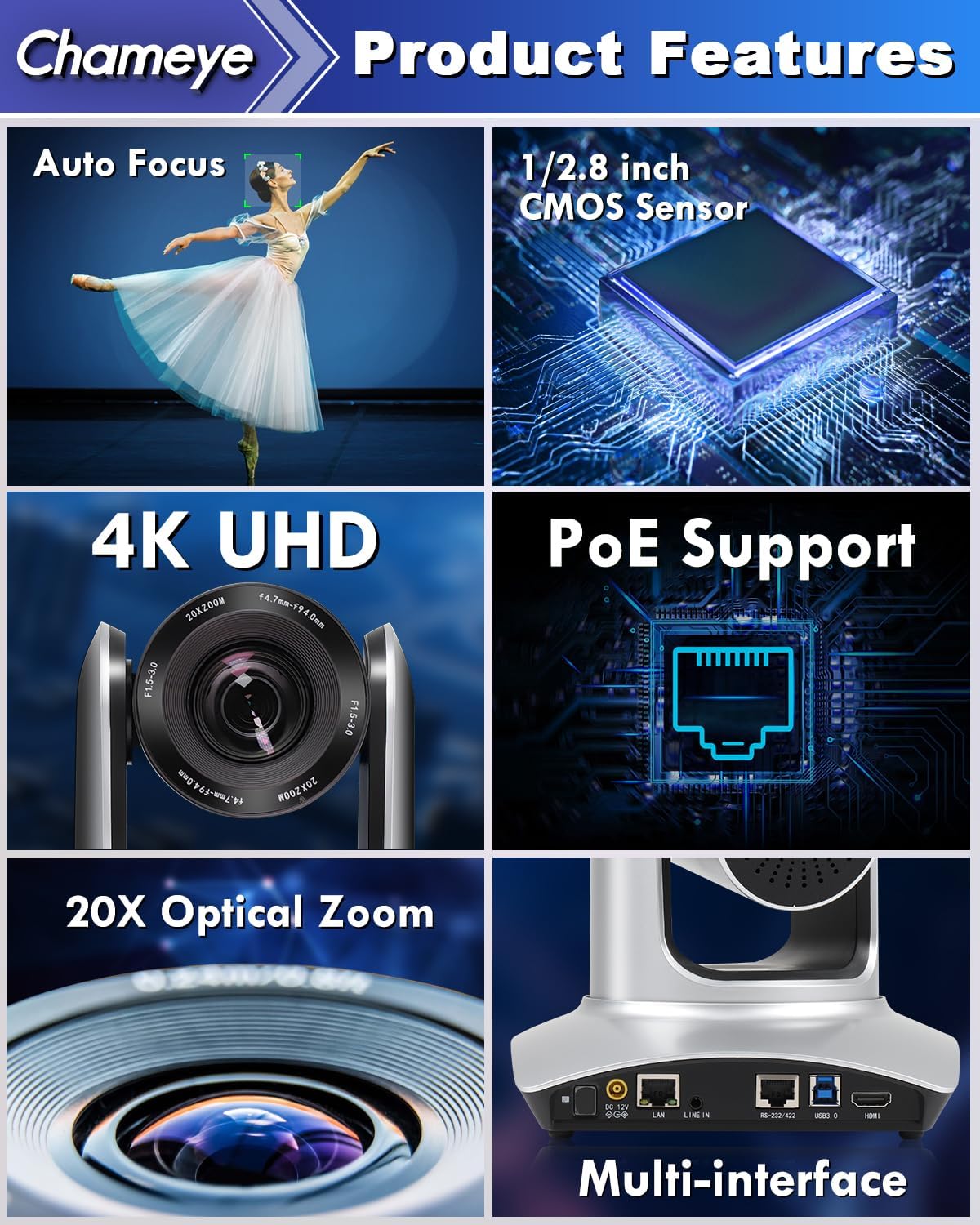
A collage highlighting the main features of the Chameye C420 PTZ Camera, including its auto-focus capability, 1/2.8-inch CMOS sensor, 4K UHD resolution, Power over Ethernet (PoE) support, 20x optical zoom, and multiple connectivity interfaces.
2.2 Package Contents
Verify that all items are present in the package:
- Chameye C420 PTZ Camera
- IR Remote Controller
- E300 PTZ Controller (if purchased as part of a bundle)
- HDMI Cable
- LAN Cable
- USB Cable
- Power Adapter
- Mounting Hardware
- User Manual (this document)
3. Setup
3.1 Physical Installation
- Mounting: The camera can be installed on a wall, tripod, or ceiling. Ensure the mounting surface is stable and can support the camera's weight.
- Positioning: Place the camera in a location that provides the desired field of view for your application (e.g., conference room, church, classroom).
3.2 Connecting the Camera
The Chameye C420 offers multiple connectivity options:
- Power over Ethernet (PoE): Connect a single LAN cable from the camera's LAN port to a PoE-enabled router or switch. This provides both power and network connectivity.
- HDMI Output: Connect an HDMI cable from the camera's HDMI port to a display or video switcher for direct video output.
- USB 3.0 Output: Connect a USB 3.0 cable from the camera's USB 3.0 port to a computer for video capture and control.
- RS-232/422 Control: Use the RS-232/422 port for external PTZ control systems.
- Line In: Connect an external audio source to the Line In port if needed.
- DC 12V Power: If not using PoE, connect the included power adapter to the DC 12V port and a power outlet.

The back panel of the Chameye C420 PTZ Camera, detailing its various input and output ports for power, audio, video, and control, including LAN (PoE), HDMI, USB3.0, and RS-232/422.

A two-step diagram showing how to set up the Chameye C420 PTZ Camera: Step 1 involves connecting the camera to a PoE router/switch, and Step 2 shows configuring and starting real-time streaming on a monitor.
4. Operation
4.1 Powering On/Off
Once connected to power (either via PoE or DC 12V adapter), the camera will automatically power on. The power indicator light on the front of the camera will illuminate. To power off, disconnect the power source.
4.2 Using the IR Remote Control
The included IR remote control allows for basic camera functions:
- Pan/Tilt: Use the directional arrows to move the camera horizontally (pan) and vertically (tilt).
- Zoom: Use the zoom in/out buttons to adjust the optical zoom.
- Focus: Adjust focus manually or enable auto-focus.
- Presets: Set and recall up to 10 preset positions. To set a preset, move the camera to the desired position, press the 'SET' button, then press a number (0-9). To recall, press the number.
- Menu: Access the on-screen display (OSD) menu for advanced settings.
4.3 Advanced Control (E300 PTZ Controller)
For more comprehensive control, including up to 255 preset positions and multi-camera management, use the Chameye PTZ controller E300 (sold separately or as part of a bundle). Refer to the E300 controller's manual for detailed instructions.
4.4 Live Streaming and Video Conferencing
The Chameye C420 is compatible with various platforms:
- USB 3.0: Connect to a computer and select the camera as a video input device in applications like Zoom, Teams, OBS, vMix, WebEx, or GoToMeeting. No drivers are required for Windows (XP to 11) or Mac OS (10.4+).
- IP Streaming: Configure the camera's IP settings via its web interface. Use streaming software (e.g., OBS, vMix) to receive the RTSP/RTMP stream for platforms like YouTube and Facebook Live.

The Chameye C420 PTZ Camera positioned next to a monitor displaying a live streaming interface, compatible with platforms like vMix, YouTube, Facebook Live, Skype, and Twitch.
5. Maintenance
- Cleaning: Use a soft, dry cloth to clean the camera body. For the lens, use a specialized lens cleaning cloth and solution. Avoid harsh chemicals.
- Environment: Operate the camera in a clean, dry environment. Avoid extreme temperatures, humidity, and direct sunlight.
- Firmware Updates: Periodically check the manufacturer's website for firmware updates to ensure optimal performance and access to new features.
6. Troubleshooting
6.1 Common Issues and Solutions
| Issue | Possible Cause | Solution |
|---|---|---|
| No power | Power cable disconnected; PoE not active. | Ensure power adapter is securely connected or PoE switch is providing power. |
| No video output | HDMI/USB cable loose; incorrect input selected on display/software. | Check cable connections; select correct input source; verify software settings. |
| Remote control not working | Batteries low/dead; IR sensor blocked; too far from camera. | Replace batteries; ensure clear line of sight to camera's IR sensor; operate within range. |
| Image blurry/out of focus | Manual focus engaged; auto-focus not functioning. | Adjust focus manually using the remote or enable auto-focus. |
| Network streaming issues | Incorrect IP settings; network congestion; firewall blocking. | Verify IP address and network settings; check network bandwidth; configure firewall rules. |
7. Specifications
- Model: C420
- Sensor: 1/2.8-inch CMOS, 8.5MP Effective Pixels
- Video Resolution: 4K (3840x2160) @ 30fps; 1080P @ 60fps
- Optical Zoom: 20x
- Field of View: 60°
- Pan Range: 355°
- Tilt Range: 120°
- Connectivity: HDMI, USB 3.0, LAN (PoE), RS-232/422, Line In
- Encoding: H.264/H.265 (IP Streaming)
- Dimensions: 7.28 x 7.28 x 7.09 inches (18.5 x 18.5 x 18 cm)
- Weight: 7.13 pounds (3.23 kg)
8. Warranty and Support
Chameye provides the following support for the C420 PTZ Camera:
- 30-Day Money-Back Guarantee: For any reason.
- 3-Year Limited Warranty: Covers manufacturing defects and malfunctions under normal use.
- Lifetime Online Support: Access to technical assistance for the product's lifespan.
- Customer Service: Support team guarantees responses within 24 hours to resolve issues efficiently.
For support, please visit the official Chameye website or contact their customer service directly.


