
1. Introduction
This manual provides essential information for the installation, operation, and maintenance of your Linkind Smart A21 E26 1600LM RGBTW Smart Light Bulbs. These bulbs offer advanced features including color changing, tunable white light, music synchronization, and voice control compatibility with Alexa and Google Home. Please read this manual thoroughly before use to ensure proper functionality and safety.
2. Safety Information
- Indoor Use Only: These bulbs are designed for indoor use in dry locations.
- Not Compatible with Dimmer Switches: Do not use with traditional dimmer switches, as this may cause flickering or buzzing. Smart dimming is controlled via the AiDot app or voice commands.
- Proper Installation: Ensure the bulb is screwed securely into a suitable E26 fixture.
- Voltage: Operate only within the specified voltage range of 100-120 Volts and 60 Hertz.
- Avoid Water: Do not expose the bulbs to water or moisture.
- Heat: Do not install near heat sources.
3. Package Contents
- Linkind Smart A21 E26 RGBTW Smart Light Bulbs (2-pack)
- Operation Manual
4. Specifications
| Brand | Linkind |
| Model Number | LS10012142 |
| Light Type | LED |
| Wattage | 14 Watts |
| Incandescent Equivalent | 100 Watts |
| Brightness | 1600 Lumens |
| Bulb Shape Size | A21 |
| Bulb Base | E26 |
| Color Temperature | 1800K-6500K (Tunable White) |
| Color Rendering Index (CRI) | 90.0 |
| Connectivity | 2.4GHz Wi-Fi & Bluetooth (5GHz Wi-Fi NOT supported) |
| Control Method | App, Voice |
| Average Life | 25,000 Hours |
5. Setup
5.1 Physical Installation
Screw the Linkind Smart Light Bulb into a standard E26 light fixture. Ensure the fixture size matches the A21 bulb. These bulbs are not compatible with traditional dimmer switches.
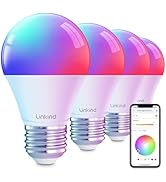
Image: Comparison of A15, A19, and A21 bulb sizes, highlighting the A21 bulb. A warning indicates incompatibility with dimmer switches.
5.2 App Installation (AiDot App)
Download the AiDot App from the App Store (iOS) or Google Play Store (Android). Create an account or sign in.

Image: Visual guide for connecting smart light bulbs via the AiDot app, showing steps from powering on to successful device addition.
5.3 Connecting to Wi-Fi & Bluetooth
Ensure your phone's 2.4GHz Wi-Fi and Bluetooth are enabled. Open the AiDot app, tap the '+' icon, and select 'Add Device' or 'Nearby'. The app will guide you through connecting the bulb to your 2.4GHz Wi-Fi network. (Note: 5GHz Wi-Fi is not supported).
5.4 Integrating with Voice Assistants (Alexa, Google Home)
After connecting your bulbs to the AiDot app, navigate to the 'Integration' section within the app. Select Amazon Alexa or Google Home and follow the on-screen instructions to link your AiDot account with your voice assistant account. This enables voice control for your smart bulbs.
Image: Instructions for integrating Linkind smart bulbs with Alexa or Google Home, showing the process within the AiDot app.
Video: This video demonstrates the process of connecting Linkind Smart Light Bulbs to the AiDot app and integrating them with voice assistants like Alexa and Google Home.
6. Operating Instructions
6.1 Basic Controls (On/Off, Brightness)
Control your lights using the AiDot app or voice commands through Alexa or Google Home. You can turn lights on/off and adjust brightness from 1% to 100%.
Image: A living room scene demonstrating voice control of smart lights using Alexa and Google Home devices.
6.2 Color Changing & Tunable White
Access 16 million colors and tunable white light (1800K-6500K) via the AiDot app. Adjust the color temperature to create a warm, relaxing ambiance or a cool, energetic setting.
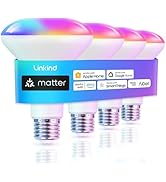
Image: A living room illuminated with various colors and tunable white light, showcasing the bulb's versatility.
6.3 Preset Scenes
The AiDot app offers various preset scenes (e.g., Party, Dynamic, Calm, Auto Rhythm) to instantly set the mood for any occasion. You can also create custom scenes.
6.4 Music Sync
Enable the music sync feature in the AiDot app to make your lights dance to the rhythm of your music. (Microphone access required for the app).

Image: A couple dancing in a room with smart lights changing colors in sync with music, controlled via the AiDot app.
6.5 Group Control
Group multiple Linkind smart bulbs together in the AiDot app to control them simultaneously. This allows for unified lighting control across rooms or specific areas without needing a separate hub.
Image: A living room scene illustrating how multiple smart bulbs can be grouped and controlled together through the AiDot app.
6.6 Scheduling
Set schedules for your lights to turn on/off or change settings at specific times, enhancing convenience and energy efficiency.
6.7 Light Show Setup
Create dynamic light shows using the AiDot app. You can choose from preset light shows or customize your own with various effects, colors, and speeds.
Video: This video demonstrates how to create and customize light shows with Linkind Color Changing Smart Bulbs using the AiDot app.
Video: This video showcases the Linkind 1600LM Brighter Smart Bulb's features, including color changing and integration with Alexa and Google Home.
7. Maintenance
- Cleaning: Ensure the bulb is powered off and cool before cleaning. Wipe with a soft, dry cloth. Do not use liquid cleaners.
- Storage: Store bulbs in a cool, dry place when not in use for extended periods.
8. Troubleshooting
- Cannot connect the bulb to AiDot App:
- Ensure your smartphone's Wi-Fi is enabled and connected to a 2.4GHz network (5GHz is not supported).
- Check that Bluetooth is turned on.
- Make sure your smartphone is close to the bulb during the initial setup.
- Verify the correct Wi-Fi password.
- If the home network is unstable, try connecting to another phone's hotspot for testing.
- Flickering or Buzzing: This product is not compatible with traditional dimmer switches. Ensure it is connected to a standard on/off switch. Smart dimming is controlled exclusively through the AiDot app or voice commands.
- Voice Control Issues (Alexa/Google Home): Ensure the AiDot app is correctly linked to your Alexa or Google Home account. Verify that the device name assigned in the AiDot app is recognized by your voice assistant.
- How to Reset the Device: Turn the bulb ON/OFF more than 5 times until it alternates flashing (indicates reset success). This can help resolve connection issues.
9. Warranty and Support
Linkind products typically come with a 1-year coverage. For technical support, warranty claims, or any inquiries, please contact Linkind customer service.
- Phone: 1-877-770-5727 (Monday - Friday, 9 AM to 5 PM PST)
- Email: service@linkind.com
- Website: www.linkind.com


