
Introduction
This manual provides detailed instructions for the setup, operation, and maintenance of your Sunffice Bluetooth Keyboard with Touchpad. This ultra-slim, portable wireless keyboard features a responsive touchpad, 7-color RGB backlighting, and broad compatibility with various operating systems. Please read this manual thoroughly before using the product to ensure proper function and longevity.
Package Contents
- Sunffice Bluetooth Keyboard with Touchpad
- USB Type-C Charging Cable
- User Manual (this document)
Setup
1. Charging the Keyboard
Before initial use, fully charge the keyboard. Connect the provided USB Type-C charging cable to the keyboard's charging port and the other end to a USB power source (e.g., computer, wall adapter). The charging indicator light will illuminate during charging and turn off when fully charged. A full charge typically takes 2-3 hours and provides 60-90 hours of continuous use or 90-180 days of standby time.

Image: The Sunffice Bluetooth Keyboard connected via its Type-C charging cable, highlighting its rechargeable battery and usage statistics.
2. Powering On/Off
Locate the power switch on the side or back of the keyboard. Slide the switch to the 'ON' position to power on the keyboard. Slide it to the 'OFF' position to power off.
3. Bluetooth Pairing
- Ensure the keyboard is fully charged and powered on.
- Press the Fn key and the C key simultaneously. The Bluetooth indicator light will start flashing, indicating the keyboard is in pairing mode.
- On your device (tablet, smartphone, laptop), go to Bluetooth settings and turn on Bluetooth.
- Search for available devices. The keyboard will appear as "Bluetooth Keyboard" or a similar name.
- Select the keyboard from the list to connect. The Bluetooth indicator light on the keyboard will stop flashing once successfully paired.

Image: The Bluetooth keyboard connected to a tablet, demonstrating the successful pairing process.
Operating Instructions
1. System Switching
To optimize keyboard functions for your specific operating system, press the following key combinations after pairing:
- Fn + Q for Android devices
- Fn + W for Windows devices
- Fn + E for iOS/Mac OS devices
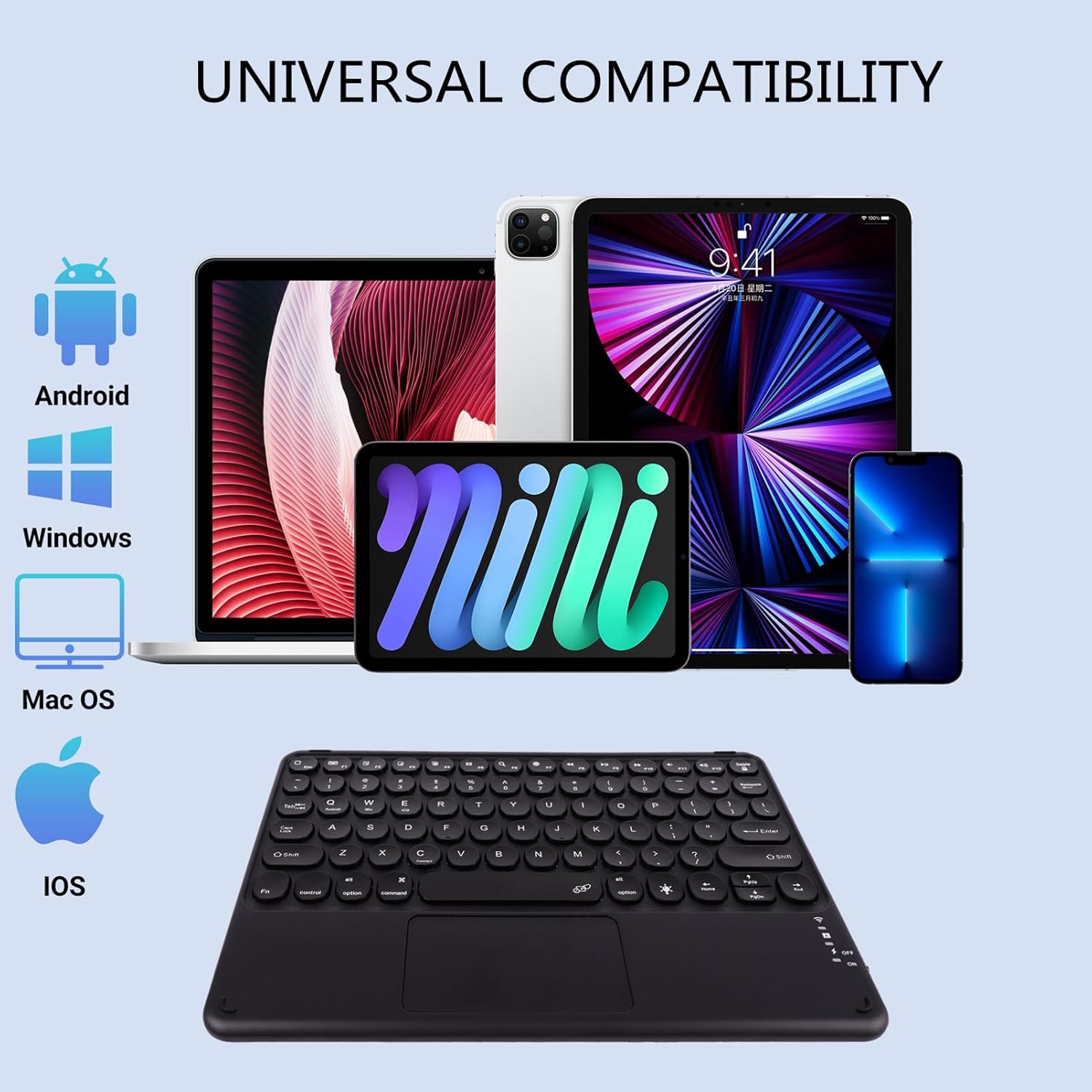
Image: The keyboard shown with various devices (tablet, laptop, phone) and operating system logos, indicating universal compatibility.
2. Backlight Control
The keyboard features 7-color RGB backlighting. To cycle through the backlight colors, press the Fn key and the light bulb icon key simultaneously. Each press will switch to a different color. To turn off the backlight, continue cycling until the lights turn off.

Image: The keyboard illustrating the 7 available backlight colors and the key combination to change them.
3. Touchpad Functionality
The integrated touchpad allows for precise navigation and control. It supports standard gestures:
- Single Tap: Left-click
- Two-Finger Tap: Right-click
- Two-Finger Scroll: Scroll up/down
- Pinch to Zoom: (May vary by OS)

Image: A hand demonstrating interaction with the keyboard's precision touchpad.
4. Scissor Switch Keys
The keyboard utilizes scissor-switch keys, designed for a comfortable and quiet typing experience with quick rebound.

Image: A visual representation of the scissor-switch key mechanism, emphasizing comfortable typing.
Maintenance
1. Cleaning
To clean the keyboard, power it off first. Use a soft, lint-free cloth slightly dampened with water or a mild cleaning solution. Avoid using harsh chemicals, abrasives, or excessive moisture. For dust between keys, use compressed air.
2. Storage
Store the keyboard in a cool, dry place away from direct sunlight and extreme temperatures. Avoid placing heavy objects on the keyboard to prevent damage.
3. Battery Care
To prolong battery life, avoid fully discharging the keyboard frequently. Recharge the battery when the low battery indicator appears. Do not expose the battery to high temperatures or attempt to disassemble it.
Troubleshooting
- Keyboard not pairing:
Ensure the keyboard is charged and powered on. Make sure Bluetooth is enabled on your device. Re-enter pairing mode by pressing Fn+C. If issues persist, try restarting both the keyboard and your device. - Keys not responding:
Check if the keyboard is powered on and connected. Ensure the battery is not depleted. If specific keys are unresponsive, try cleaning around them. - Backlight not working:
Press Fn + light bulb icon to cycle through backlight modes. Ensure the keyboard has sufficient battery charge. - Touchpad not working:
Ensure the keyboard is connected. Some devices may require specific settings for external touchpads. Check your device's accessibility or mouse/touchpad settings. - Intermittent connection:
Ensure there are no obstructions between the keyboard and your device. Move closer to your device. Avoid strong electromagnetic interference.
Specifications
| Model Number | FMWS0524-10B |
| Product Dimensions | 9.57 x 6.69 x 0.28 inches (243 x 170 x 7 mm) |
| Item Weight | 11.6 ounces (0.52 lb / 237g) |
| Connectivity Technology | Bluetooth |
| Battery Type | 1 Lithium Ion battery (included) |
| Charging Time | 2-3 hours |
| Continuous Use Time | 60-90 hours |
| Standby Time | 90-180 days |
| Backlight Colors | 7 Colors RGB |
| Compatible Devices | Laptop, PC, Smartphone, Tablet (iPad, iPad Air, iPad Pro, iPad Mini, Android Tablets, Windows devices) |
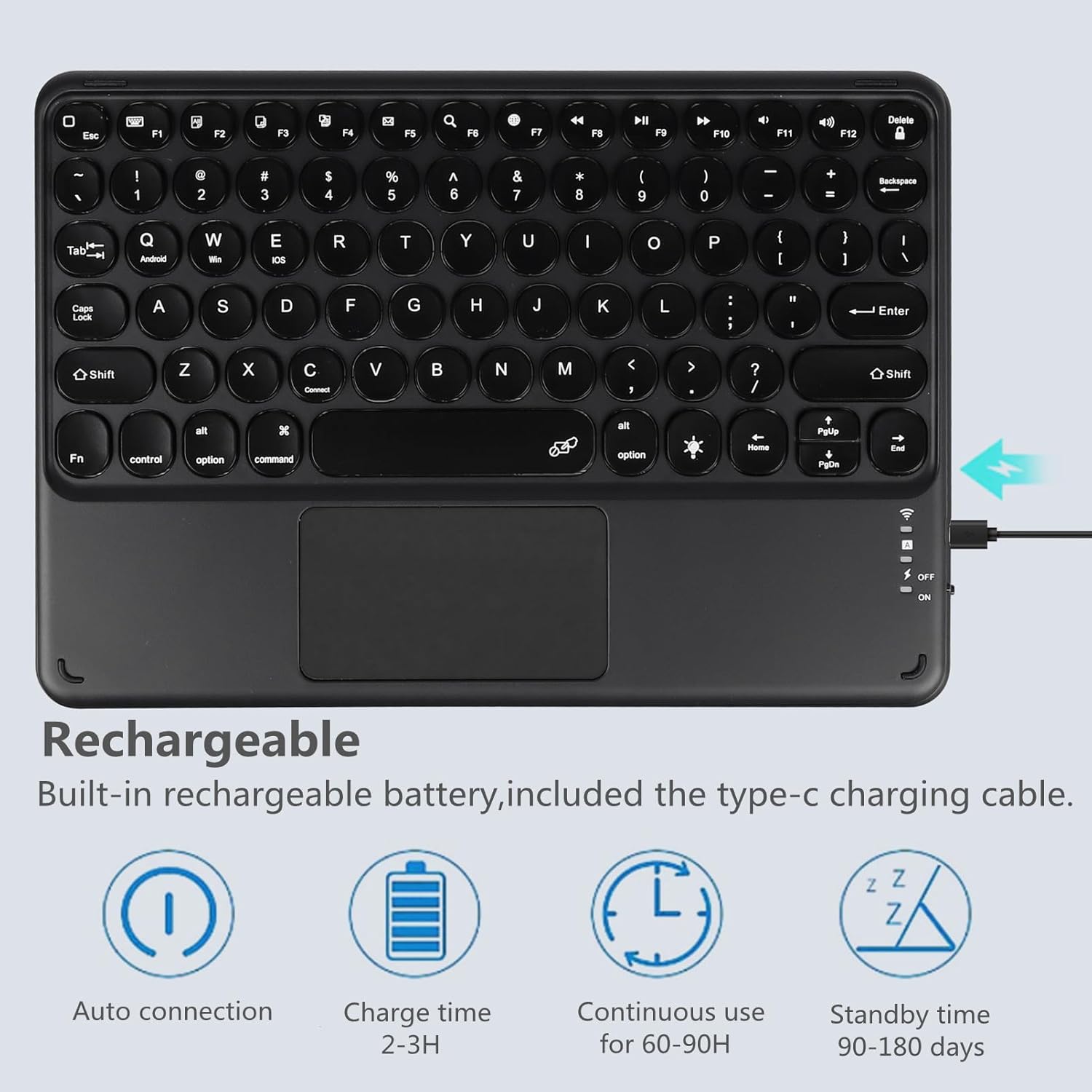
Image: A diagram illustrating the physical dimensions and weight of the keyboard.
Warranty and Support
This product comes with a standard manufacturer's warranty. For specific warranty details, please refer to the product packaging or contact the retailer where the product was purchased. For technical support or further assistance, please contact Sunffice customer service through the contact information provided on the product packaging or their official website.
