
Dinosoo H36
Dinosoo Wireless Controller User Manual
Model: H36
Brand: Dinosoo
Product Overview
The Dinosoo Wireless Controller is designed for an enhanced gaming experience across multiple platforms, including Xbox Series X/S, Xbox One, PC Steam Games, Android, and iOS. It features Hall Effect Joysticks for high sensitivity, dual vibration motors for immersive feedback, a six-axis gyroscope for precise motion control, and a Turbo function for rapid input. Additionally, it includes programmable buttons for personalized configurations and a 3.5mm headphone jack for audio connectivity.

Front view of the Dinosoo Wireless Controller in electric volt green.
Package Contents
- Dinosoo Wireless Controller (H36)
- USB-C Charging/Data Cable
- User Manual (this document)
Setup and Initial Connection
Important: PC Upgrade Required for Xbox Connectivity
Before connecting the Dinosoo Wireless Controller to your Xbox console, an essential firmware upgrade must be performed using a Windows PC. This process ensures full compatibility and functionality. The upgrade typically takes 2-3 minutes.

Visual guide for connecting the controller to a Windows PC for the necessary firmware upgrade.
- Download Upgrade Program: Open your web browser on a Windows PC and navigate to the following URL: we.tl/t-Y125bCGsJb. Download the provided upgrade program.
- Run Upgrade Program: Once downloaded, open and run the upgrade program.
- Connect Controller: While holding down the Y button on the controller, connect the controller to your PC using the provided USB-C cable. The program should indicate "Connected" upon successful recognition.
- Start Download: Click the "Download" button within the upgrade program. The progress bar will indicate the upgrade status. A 100% progress bar signifies a successful upgrade.
- Initial Xbox Connection (Wired): After the upgrade, first connect the controller to your Xbox console using the USB-C cable. This step is crucial for the controller to be recognized by the Xbox system.
- Wireless Connection: Once the controller functions correctly via wired connection, you can then disconnect the cable and connect wirelessly to your Xbox console following the standard Xbox pairing procedure.
Video Tutorial: Controller Upgrade Guide
This video demonstrates the step-by-step process for upgrading the controller's firmware on a PC, which is necessary before connecting to an Xbox console.
Multi-Platform Compatibility
The Dinosoo Wireless Controller offers versatile connectivity options (Bluetooth/WIFI/Wired) and is compatible with a wide range of devices:
- Xbox One
- Xbox Series X
- Xbox Series S
- Xbox One S
- Xbox One X
- Android devices
- iOS devices
- Windows 11/10/8/7 PCs

The controller's wide compatibility across various gaming platforms.
Operating Instructions
Controller Layout

Detailed diagram illustrating the various buttons and components of the Dinosoo Wireless Controller.
- USB-C Port: For wired connection and charging.
- Pairing Key: Used for wireless pairing with devices.
- PR/PL Buttons: Programmable advanced game buttons.
- SET Button: Used for programming PR/PL buttons.
- HOME Button: Main system button.
- View Button: Accesses in-game menus or system views.
- Menu Button: Accesses game or system menus.
- Left/Right Joysticks: For precise analog control.
- Direction-Pad (D-Pad): For directional input.
- A/B/X/Y Buttons: Standard action buttons.
- TURBO Button: Activates Turbo function.
Key Features and Functions
- High Sensitivity Hall Effect Joysticks: These joysticks are designed to prevent drift and delay, offering 90% increased sensitivity for precise control.

Illustrates the dual vibration and 6-axis gyro sensor capabilities for enhanced gaming immersion.
- Dual Vibration: Vibration motors are integrated into the side grips and triggers to provide tactile feedback, enhancing immersion in game scenes, collisions, and weapon effects.
- Six-Axis Gyroscope: Detects every movement and reacts quickly, providing precise motion control for compatible games.
- TURBO Function: Press the "TURBO" button to toggle between different combo settings, allowing for rapid, repeated input of a button press, which can be advantageous in certain games.

Depiction of the Turbo function, enabling rapid button presses for competitive play.
- Programmable Buttons (PL/PR): The PL and PR buttons on the back of the controller can be mapped to other functions for advanced gameplay.
- To program: Press and hold the "SET" button for 3 seconds, then press the PL/PR button you wish to program, followed by the button you want to map to it.
- To clear mapping: After pressing "SET" for 3 seconds, press the PL/PR button to quickly clear its current mapping.

Rear view of the controller highlighting the programmable PL and PR buttons for custom configurations.
- 3.5mm Headphone Jack: Connect your gaming headset directly to the controller for immersive audio and communication.
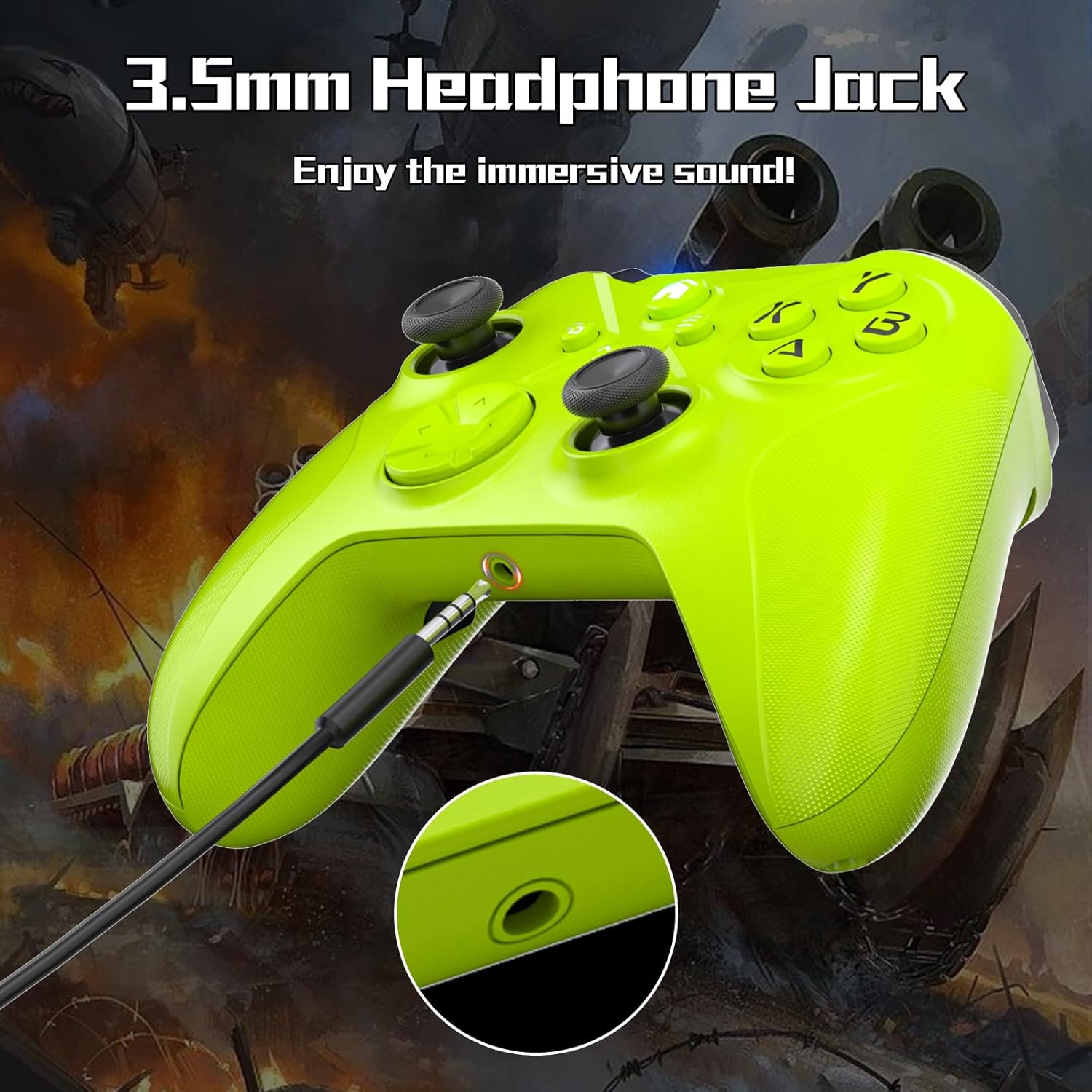
Close-up of the controller's 3.5mm headphone jack for audio connectivity.
Maintenance
- Keep the controller clean by wiping it with a soft, dry cloth.
- Avoid exposing the controller to extreme temperatures, humidity, or direct sunlight.
- Do not disassemble the controller, as this may void the warranty and cause damage.
- Store the controller in a safe place when not in use to prevent accidental damage.
Troubleshooting
| Problem | Possible Cause / Solution |
|---|---|
| Controller does not connect to Xbox. |
|
| Controller not recognized by PC. |
|
| Vibration function is not working. |
|
| Buttons or joysticks are unresponsive. |
|
Specifications
| Feature | Detail |
|---|---|
| Model Number | H36 |
| Connectivity | Bluetooth, WIFI, Wired (USB-C) |
| Compatibility | Xbox Series X/S, Xbox One (all models), PC (Windows 7/8/10/11), Android, iOS |
| Joysticks | Hall Effect Joysticks |
| Vibration | Dual Vibration Motors |
| Motion Sensor | Six-axis Gyroscope |
| Audio Port | 3.5mm Headphone Jack |
| Special Functions | TURBO Function, Programmable PL/PR Buttons |
| Dimensions | 7.91 x 6.73 x 2.83 inches |
| Weight | 9.91 ounces |
Warranty and Support
For warranty information and technical support, please refer to the product packaging or contact Dinosoo customer service directly. Keep your purchase receipt for any warranty claims.
Protection plans may be available for purchase separately to extend coverage beyond the manufacturer's warranty. Please check with your retailer for details on available protection plans.
Ask a question about this manual
Ask about setup, troubleshooting, compatibility, parts, safety, or missing instructions. Manuals+ will review the question and use this page’s manual context to help answer it.