
X88 Tanix W2
Tanix W2 Android 11.0 TV Box User Manual
Model: Tanix W2 | Brand: X88
1. Introduction
The Tanix W2 Android 11.0 TV Box is a smart media player designed to transform your television into a powerful entertainment hub. Featuring an Amlogic S905W2 Quad Core ARM Cortex A35 CPU, 4GB RAM, and 64GB ROM, it offers a smooth and stable user experience for streaming 4K/6K content, playing games, and running various applications. With dual-band Wi-Fi (2.4G/5.8G) and Bluetooth 4.2, it ensures reliable connectivity for all your media needs.
2. Package Contents
Please verify that all items listed below are included in your package:
- Tanix W2 TV Box
- AC Adapter
- Remote Control
- HD Cable (HDMI Cable)
- User Guide

Image: All components included in the Tanix W2 TV Box package.
Video: An unboxing video demonstrating the contents of the Tanix W2 Android TV Box package.
3. Product Features
- Latest Android 11.0 OS: Runs on Android 11.0 with Amlogic S905W2 Quad Core ARM Cortex A35 CPU for a smooth, buffer-free experience.
- Ample Memory: Equipped with 4GB RAM and 64GB ROM, providing significant space for apps, games, and media.
- Advanced Connectivity: Supports 2.4G/5.8G/ac tri-WiFi (802.11 b/g/n/AC) for fast and stable internet, and Bluetooth 4.2 for peripheral connections.
- High-Resolution Support: Capable of 4K (75fps) and 6K video playback with professional HDR10 and AV1 video decoding technology for superior image quality.
- Ultra-fast Performance: Powered by Amlogic S905W2 Quad core A35 processor at 2.0 GHz and Mali 450MP3 GPU for efficient processing of apps, videos, and games.
- Chromecast Built-in: Easily cast content from your mobile devices to your TV.
- 3D Display Support: Enjoy an immersive 3D viewing experience.

Image: Key specifications and features of the Tanix W2 TV Box.

Image: The upgraded Amlogic S905W2 chipset powering the device.

Image: The TV box runs on the latest Android 11 operating system.

Image: New generation AV1 coding format for superior picture quality.

Image: Experience immersive 3D display with the TV box.

Image: Chromecast built-in for easy content sharing.
4. Setup Guide
Follow these simple steps to set up your Tanix W2 TV Box:
- Connect TV Box to TV: Use the provided HD Cable (HDMI) to connect the TV Box to an available HDMI port on your television.
- Connect to Power: Plug the AC adapter into the TV Box's DC port and then into a power outlet.
- Connect to Internet: For optimal performance, connect an Ethernet cable to the LAN port on the TV Box. Alternatively, you can connect via Wi-Fi during the initial setup process.
- Power On: Turn on your TV and select the correct HDMI input. The TV Box should power on automatically or can be powered on using the remote control.
- Initial Setup: Follow the on-screen instructions to complete the initial setup, including language selection, network connection (if using Wi-Fi), and Google account login.

Image: Three simple steps to get your TV box running.
5. Operating Instructions
5.1 Basic Navigation
Use the provided remote control to navigate the Android TV interface. The directional pad (up, down, left, right) is used to move between items, and the 'OK' button selects them. The 'Home' button returns you to the main screen, and the 'Back' button goes to the previous screen.
5.2 App Usage
The Tanix W2 comes pre-installed with popular streaming services and access to the Google Play Store. You can download and install a wide variety of applications.
- YouTube: Access millions of videos, music, and live streams.
- Netflix: Stream movies and TV shows (subscription may be required).
- Google Play Store: Download additional apps, games, and content.

Image: Access to a vast library of movies and TV episodes from various streaming services.
5.3 Connectivity
The device supports both 2.4G and 5.8G Wi-Fi for flexible and stable internet connection, along with Bluetooth 4.2 for connecting wireless accessories.
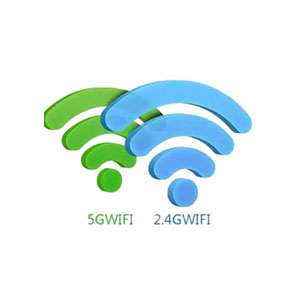
Image: Dual-band Wi-Fi support.

Image: Bluetooth 4.2 connectivity.
6. Ports and Connections
The Tanix W2 TV Box features a variety of ports for connecting external devices and peripherals:
- TF CARD: MicroSD card slot for expandable storage.
- USB 2.0: Standard USB port for connecting USB devices.
- USB 3.0: High-speed USB port for faster data transfer.
- AV: Audio/Video output for older televisions.
- SPDIF: Optical digital audio output.
- LAN: Ethernet port for wired internet connection.
- HD (HDMI): High-Definition Multimedia Interface for connecting to modern TVs.
- DC: Power input port.

Image: Overview of all available ports on the Tanix W2 TV Box.
7. Specifications
| Feature | Specification |
|---|---|
| Brand Name | X88 |
| Item Model Number | Tanix W2 |
| Operating System | Android 11.0 |
| CPU | Amlogic S905W2 Quad Core ARM Cortex A35 |
| GPU | Mali 450MP3 |
| RAM | 4GB |
| ROM | 64GB |
| Wi-Fi | 2.4G/5.8G/ac (802.11 b/g/n/AC) |
| Bluetooth | BT 4.2 |
| Resolution Support | 4K (75fps), 6K |
| Video Decoding | HDR10, AV1 |
| Special Features | Miracast, Chromecast built-in |
| Product Dimensions | 4.13 x 4.13 x 0.7 inches |
| Item Weight | 10.6 ounces (0.3 Kilograms) |
| Connectivity Technology | Ethernet, Wifi, HDMI, BT4.2, USB |
| Supported Internet Services | Youtube, Play Store, Netflix, etc. |
8. Maintenance
To ensure the longevity and optimal performance of your Tanix W2 TV Box, please follow these maintenance guidelines:
- Keep Clean: Regularly wipe the device with a soft, dry cloth. Avoid using liquid cleaners or abrasive materials.
- Ventilation: Ensure the TV Box is placed in a well-ventilated area to prevent overheating. Do not block ventilation openings.
- Power Off Properly: Always power off the device correctly through the system menu or by pressing the power button on the remote, rather than simply unplugging it.
- Software Updates: Periodically check for and install system updates to ensure you have the latest features and security patches.
- Avoid Extreme Conditions: Do not expose the device to extreme temperatures, humidity, or direct sunlight.
9. Troubleshooting
If you encounter issues with your Tanix W2 TV Box, refer to the following common problems and solutions:
| Problem | Solution |
|---|---|
| No Power | Ensure the power adapter is securely connected to the TV Box and a working power outlet. Try a different outlet. |
| No Picture/Signal | Check HDMI cable connections. Ensure your TV is set to the correct HDMI input source. Try a different HDMI port or cable. |
| No Wi-Fi Connection | Verify your Wi-Fi router is on and working. Re-enter the Wi-Fi password. Try restarting both the TV Box and your router. Ensure the TV Box is within range of your Wi-Fi signal. |
| Remote Control Not Working | Check and replace the batteries in the remote control. Ensure there are no obstructions between the remote and the TV Box. |
| Apps Crashing/Freezing | Close and restart the app. Clear the app's cache and data in the Android settings. Ensure there is enough free storage space. Restart the TV Box. |
| Slow Performance | Close unused background applications. Clear cache regularly. Consider a factory reset if performance issues persist after other steps. |
10. Warranty and Support
For warranty information and technical support, please refer to the documentation included with your purchase or contact the seller directly. Specific warranty terms and conditions may vary by region and retailer.
Ask a question about this manual
Ask about setup, troubleshooting, compatibility, parts, safety, or missing instructions. Manuals+ will review the question and use this page’s manual context to help answer it.