1. Introduction
This manual provides detailed instructions for the installation, operation, and maintenance of your MOES FingerBot Tuya Bluetooth Hub. This device acts as a gateway, connecting your Bluetooth-enabled smart devices to your Wi-Fi network, enabling remote control and integration with popular smart home platforms like Alexa and Google Home.

Image 1.1: MOES FingerBot Tuya Bluetooth Hub with its packaging.
2. Product Overview
The MOES FingerBot Tuya Bluetooth Hub is a compact device designed to bridge Bluetooth Low Energy (BLE) devices with your 2.4GHz Wi-Fi network. This allows for extended control range, voice control capabilities, and integration into broader smart home ecosystems.
Key Features:
- Bluetooth to Wi-Fi Connectivity: Enables remote control of Bluetooth devices via the Smart Life App.
- Voice Control Integration: Compatible with Amazon Alexa and Google Home for hands-free operation.
- Smart Scene Creation: Supports IFTTT and allows for automation scenarios with other smart devices.
- Multi-Device Support: One gateway can connect and manage multiple FingerBots and other Bluetooth devices.
- Enhanced Stability: Bluetooth solution offers a stable connection for smart home automation.

Image 2.1: The Bluetooth Hub facilitates flexible control for a wide range of Bluetooth devices via app and voice commands, compatible with Google Assistant and Amazon Alexa.
3. Setup Instructions
- Power On: Connect the MOES Bluetooth Hub to a power source using the provided USB cable and adapter (5V 1A or 5V 2A, depending on model). The status LED indicator will light up.
- Download App: Download the "Smart Life" or "Tuya Smart" app from your mobile device's app store (iOS or Android).
- Register/Login: Open the app and register for a new account or log in with an existing one.
- Add Device: In the app, tap the "+" icon or "Add Device" to begin the pairing process. Select "Gateway" or "Hub" from the device list.
- Network Configuration: Follow the in-app instructions to connect the hub to your 2.4GHz Wi-Fi network. Ensure your mobile device is also connected to the same 2.4GHz Wi-Fi network during setup.
- Pair Bluetooth Devices: Once the hub is connected to Wi-Fi, you can then add your Bluetooth-enabled devices (e.g., FingerBots, sensors) through the hub within the Smart Life app.

Image 3.1: Illustration of the Bluetooth Mesh Gateway (Hub) linking various smart devices to your Wi-Fi network for app and voice control.
4. Operating Instructions
4.1 Remote Control via App
Once your Bluetooth devices are paired with the hub and the hub is connected to Wi-Fi, you can control them from anywhere using the Smart Life app. This extends the control range beyond typical Bluetooth limits.

Image 4.1: Demonstrates the extended control range achieved by using the Bluetooth Hub, allowing remote management of devices like a water timer from outside the immediate Bluetooth range.
4.2 Voice Control
Integrate the Smart Life app with Amazon Alexa or Google Home to enable voice commands for your connected devices. Follow the instructions within the Alexa or Google Home app to link your Smart Life account.
- Example Command (Alexa): "Alexa, turn on the Bluetooth Switch."
- Example Command (Google Home): "Hey Google, activate the FingerBot."

Image 4.2: Voice control setup showing Amazon Alexa and Google Assistant devices interacting with a smart switch through the Tuya Smart App.
4.3 Smart Scenarios and Automation
Create automated routines and smart scenarios within the Smart Life app. For example, link a Bluetooth window/door sensor to a smart bulb via the hub to automatically turn on lights when a door opens.

Image 4.3: Example of a discovery scenario where opening/closing a door triggers a smart bulb to turn on/off automatically, facilitated by the Bluetooth Hub and a window/door sensor.

Image 4.4: The Bluetooth Mesh (SIG) Gateway acts as a central point for connecting various smart devices, including Fingerbots, sensors, switches, thermostats, and alarms, into a unified smart home system.
5. Maintenance
- Cleaning: Use a soft, dry cloth to clean the exterior of the hub. Do not use liquid cleaners or abrasive materials.
- Firmware Updates: Periodically check the Smart Life app for available firmware updates for the hub to ensure optimal performance and security.
- Placement: Ensure the hub is placed in a central location within your home to maximize Bluetooth signal coverage for connected devices and Wi-Fi signal reception. Avoid placing it near large metal objects or other sources of interference.
6. Troubleshooting
| Problem | Possible Cause | Solution |
|---|---|---|
| Hub not connecting to Wi-Fi. | Incorrect Wi-Fi password, 5GHz network, weak signal, or hub too far from router. |
|
| Bluetooth devices not pairing with hub. | Device out of range, device not in pairing mode, or interference. |
|
| Voice control not working. | Smart Life account not linked to Alexa/Google Home, incorrect device name, or internet connectivity issues. |
|
7. Specifications
| Feature | Detail |
|---|---|
| Model Number | BHUB-WH-MS-N |
| Product Dimensions | 65mm x 65mm x 15mm (2.559 x 2.559 x 0.59 inches) |
| Weight | 1.76 ounces |
| Adaptor Output | 5V 2A (or 5V 1A, depending on specific unit) |
| Status LED Indicator | 2 LEDs (Wi-Fi + Bluetooth) |
| Working Temperature | -10 to 45°C (14 to 113°F) |
| Working Humidity | 10%–90%RH (non-condensing) |
| Wireless Technology | Wi-Fi 802.11 b/g/n (2.4GHz), Bluetooth single point & Mesh |
| Manufacturer | WENZHOU NOVA NEW ENERGY CO., LTD-Wenzhou Morning Electronics Co., LTD' |
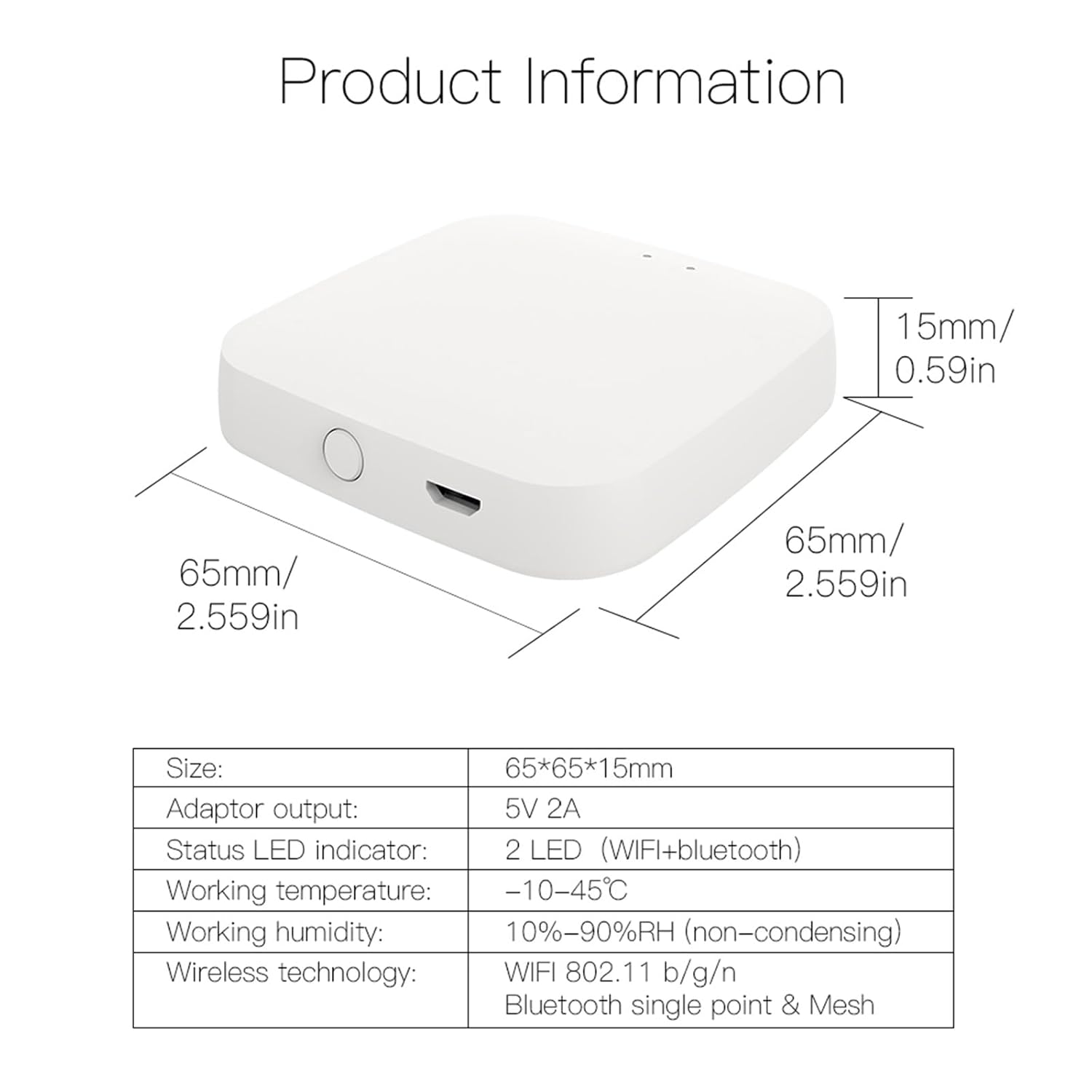
Image 7.1: Detailed product information including size, adaptor output, LED indicators, operating conditions, and wireless technology.
8. Warranty and Support
Specific warranty information is not provided in this manual. For warranty details, technical support, or further assistance, please refer to the product packaging, the manufacturer's official website, or contact MOES customer service directly.
Manufacturer: WENZHOU NOVA NEW ENERGY CO., LTD-Wenzhou Morning Electronics Co., LTD'


