
Introduction
This manual provides detailed instructions for the PAINTAUDIO MIDI CAPTAIN MINI 6, a versatile and portable MIDI controller. It supports various MIDI commands (PC, CC, NOTE) and offers USB-MIDI and USB-HID functionalities for controlling software and hardware.
Safety Warnings
WARNING: When using a multi-port USB fast charger, do not power the MIDI CAPTAIN and other devices simultaneously. Simultaneous power supply may cause the charger to output high voltage, potentially damaging the MIDI CAPTAIN's circuit. Always use a quality-guaranteed USB charger and power the MIDI CAPTAIN independently.
Product Overview
Components and Interfaces

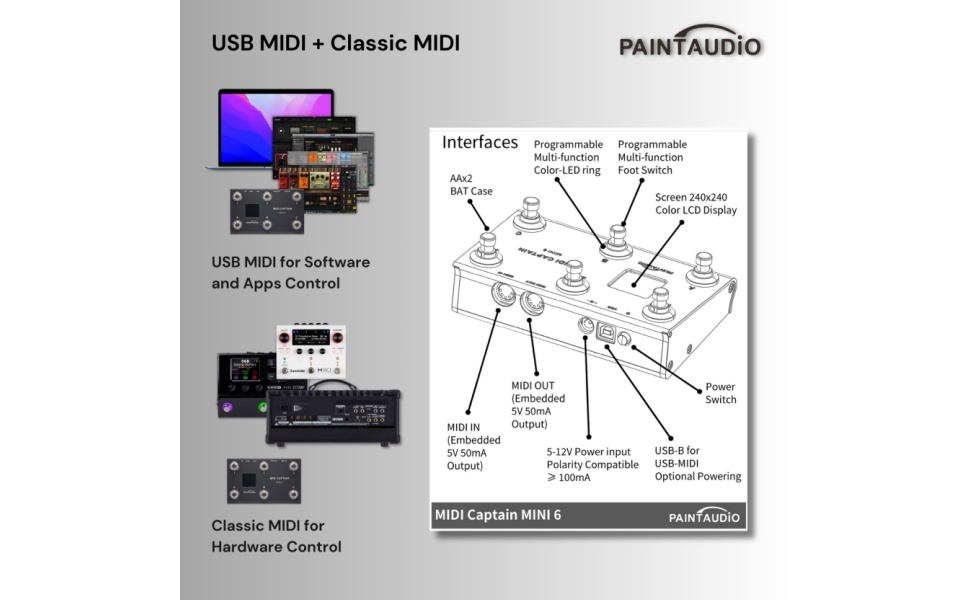
This diagram illustrates the various interfaces and controls on the MIDI Captain MINI 6. Key components include:
- Programmable Multi-function Color-LED ring
- Screen 240x240 Color LCD Display
- MIDI OUT (Embedded 5V 50mA Output)
- MIDI IN (Embedded 5V 50mA Output)
- 5-12V Power input (Polarity Compatible > 100mA)
- USB-B for USB-MIDI Optional Powering
- Power Switch
Key Features
- Combined Command Transmission: Transmit multiple MIDI commands (PC/CC/NOTE) across different MIDI channels simultaneously.
- Multiple Switch Trigger Timings: Configure commands to be sent upon switch press, release, hold, or multiple timings, offering diverse trigger options.
- USB-MIDI Support: Control DAW software, synthesizers, and effect software on your computer via USB-MIDI functionality.
- USB-HID Support: Simulate common keyboard keys or mouse clicks, enabling mixed control of USB HID and MIDI.

Front view of the MIDI CAPTAIN MINI 6, showing the six footswitches labeled 1, 2, 3, A, B, C, the central display, and the PAINTAUDIO logo.

Side view of the MIDI CAPTAIN MINI 6, illustrating its compact design and the arrangement of the footswitches.

Rear view of the MIDI CAPTAIN MINI 6, showing the MIDI IN, MIDI OUT, USB port, and power input.
Setup
Initial Connection
Connect the MIDI CAPTAIN MINI 6 to your computer using a USB cable. The device will appear as a disk drive on your computer (Windows/Mac).

This image demonstrates connecting the MIDI CAPTAIN MINI 6 to a computer via USB. The device appears as a drive, allowing access to configuration files.
Power Supply
The device can be powered via USB or an external 5-12V power supply. Ensure the power supply meets the specifications to prevent damage. Refer to the safety warnings regarding multi-port chargers.
Operating Instructions
Super Mode Control
The Super Mode allows for advanced control by combining multiple button presses, command types, and USB-HID simulations. This enables rich and flexible configurations to meet various operational requirements for host devices and software/applications using MIDI IN control.

This diagram illustrates the "Super Mode Control" functionality, detailing how different actions (short press, short release, still holding, long release) and multiple presses (up to 9 times) can trigger various MIDI commands (PC, CC, NOTE) and LED color changes.
For detailed instructions on Super Mode configuration, please refer to the official PDF manual: Super Mode V1.2 English PDF.
USB-MIDI Functionality
The MIDI CAPTAIN MINI 6 can control Digital Audio Workstations (DAWs), software synthesizers, and effect plugins on your computer. Connect the device via USB, and it will be recognized as a MIDI input device.

This image shows the application of USB MIDI for software and app control, and Classic MIDI for hardware control, demonstrating the versatility of the MIDI Captain MINI 6.
USB-HID Functionality
The device supports USB-HID, allowing it to simulate keyboard keys or mouse clicks. This feature can be used in conjunction with MIDI control for enhanced functionality.
This diagram illustrates the USB HID support, showing how the MIDI Captain MINI 6 can simulate various keyboard keys (e.g., Enter, Shift, Ctrl, Alt, F1-F12) and mouse clicks, enabling control over computer applications.
Configuration (USB Setup Mode)
To configure the MIDI CAPTAIN MINI 6, enter USB Setup Mode:
- Press and hold key 0 (or the designated setup key).
- Connect the USB cable to your computer (Windows/Mac).
- The computer will display a "MIDICAPTAIN" disk.
- On this disk, you will find text files (e.g.,
page0.txt,page1.txt) that can be edited to customize the device's behavior. - Scan the QR code (if available in the product packaging or on the device) to access a PDF guide for detailed setup procedures.
This image visually guides the user through the USB Setup Mode, showing the device connected to a laptop, the file explorer displaying configuration files, and a QR code for further instructions.
Note: Configuration involves editing text files. Users unfamiliar with this method may find it challenging. Refer to the detailed PDF guide for assistance.
Maintenance
- Keep the device clean and free from dust. Use a soft, dry cloth for cleaning.
- Avoid exposing the device to extreme temperatures or humidity.
- Do not attempt to disassemble the device. This will void the warranty.
- Store in a safe place when not in use to prevent physical damage.

Image showing the MIDI Captain MINI 6 along with its accessories, including USB cables and documentation. Proper care of these components ensures longevity.
Troubleshooting
Device Not Recognized by Computer
- Ensure the USB cable is securely connected to both the MIDI CAPTAIN MINI 6 and your computer.
- Try a different USB port on your computer.
- Try a different USB cable.
- Restart your computer and the MIDI CAPTAIN MINI 6.
- Make sure you are in USB Setup Mode if you intend to access configuration files.
Commands Not Being Sent
- Verify that the device is powered on.
- Check your software (DAW, synthesizer) settings to ensure the MIDI CAPTAIN MINI 6 is selected as an input device.
- Review your configuration files in USB Setup Mode to ensure commands are correctly programmed for each footswitch and trigger timing.
- Consult the Super Mode PDF manual for advanced command programming.
Power Issues
- Ensure the USB power source or external power adapter is providing sufficient and stable power (5-12V).
- Avoid using multi-port USB fast chargers simultaneously with other devices, as this can cause voltage fluctuations and damage. Power the MIDI CAPTAIN independently.
Specifications
| Feature | Specification |
|---|---|
| Brand | PAINTAUDIO |
| Model Name | MINI 6 |
| Number of Keys/Footswitches | 6 |
| Connectivity Technology | USB |
| Product Dimensions (D x W x H) | 9.5 x 15.5 x 5.5 cm |
| Item Weight | 0.15 kg |
| Compatible Software | Cubase (and other DAWs/MIDI-compatible software) |
| Hardware Interface | USB |
| Control Type | Footswitch, Touch |
| Human Interface Input | Buttons |
| Platform | NOTE (likely referring to laptop/computer use) |
| Instrument Type | Guitar (MIDI controller for guitar effects/DAW) |
| Country of Origin | China |
Warranty and Support
The PAINTAUDIO MIDI CAPTAIN MINI 6 comes with a 1-year manufacturer's warranty.
For technical support, troubleshooting assistance, or warranty claims, please contact PAINTAUDIO customer service or the retailer from whom you purchased the product.
You can also refer to the official PAINTAUDIO store on Amazon for additional resources and contact information: PAINTAUDIO Amazon Store.


