
1. Product Overview
The Everest PSN-18 is a 2.4GHz wireless presentation device designed for professional use. It combines a laser pointer with presentation control functions, allowing users to navigate slides and highlight key information during presentations. The device features a compact design and a USB receiver for easy plug-and-play connectivity.
Key Features:
- 2.4GHz Wireless Technology
- Integrated Laser Pointer
- Slide Navigation (Page Up/Down)
- Plug-and-Play USB Receiver
- Compact and Ergonomic Design
2. Safety Information
Please read and understand all safety instructions before using this device. Failure to follow these instructions may result in injury or damage to the product.
- Laser Safety: Do not stare directly into the laser beam. Do not point the laser at people or animals. Avoid direct eye exposure. The laser is a Class 2 laser product.
- Battery Safety: Use only specified battery types (AAA). Do not mix old and new batteries. Do not expose batteries to excessive heat or dispose of them in fire. Remove batteries if the device will not be used for an extended period.
- General Use: Keep the device away from water and high humidity. Do not attempt to disassemble or repair the device yourself. Refer all servicing to qualified personnel.
3. Device Components
Familiarize yourself with the different parts of your Everest PSN-18 presentation device.
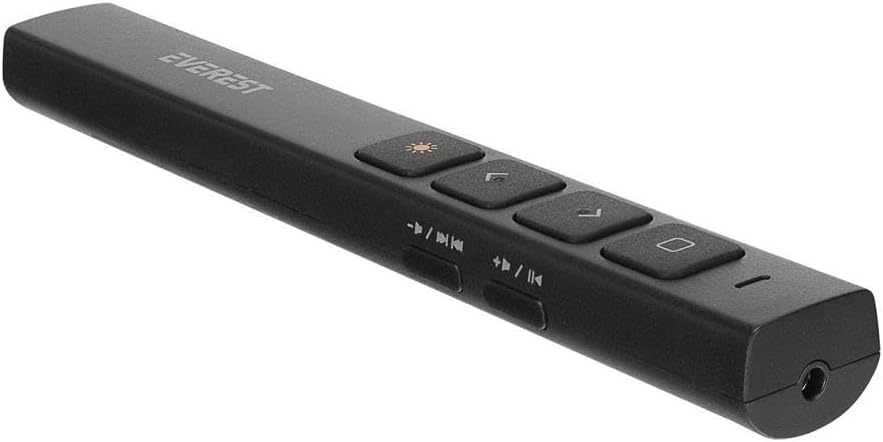
Figure 3.1: Top view of the Everest PSN-18 presentation device, showing the laser button, page up/down buttons, and media control buttons.
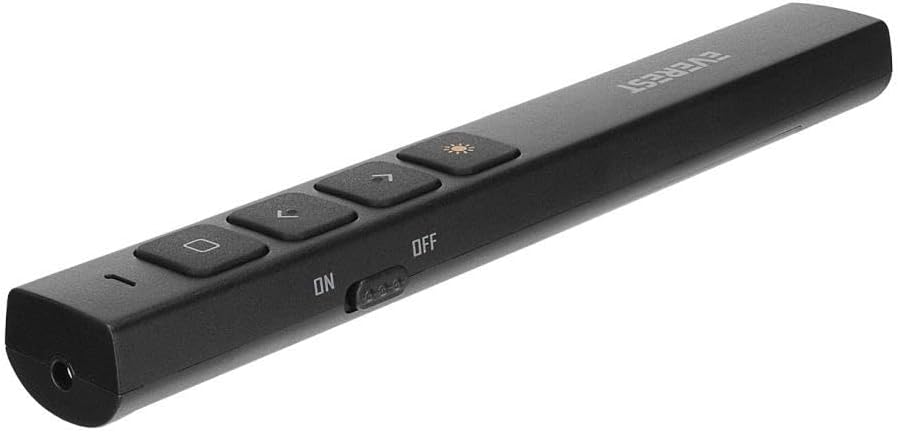
Figure 3.2: Bottom view of the Everest PSN-18 presentation device, highlighting the ON/OFF power switch.
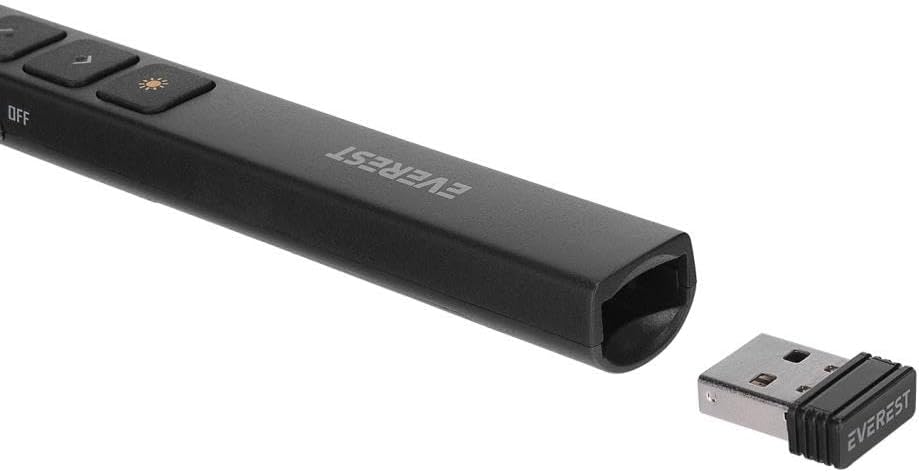
Figure 3.3: The compact USB receiver for the Everest PSN-18, which plugs into your computer's USB port.
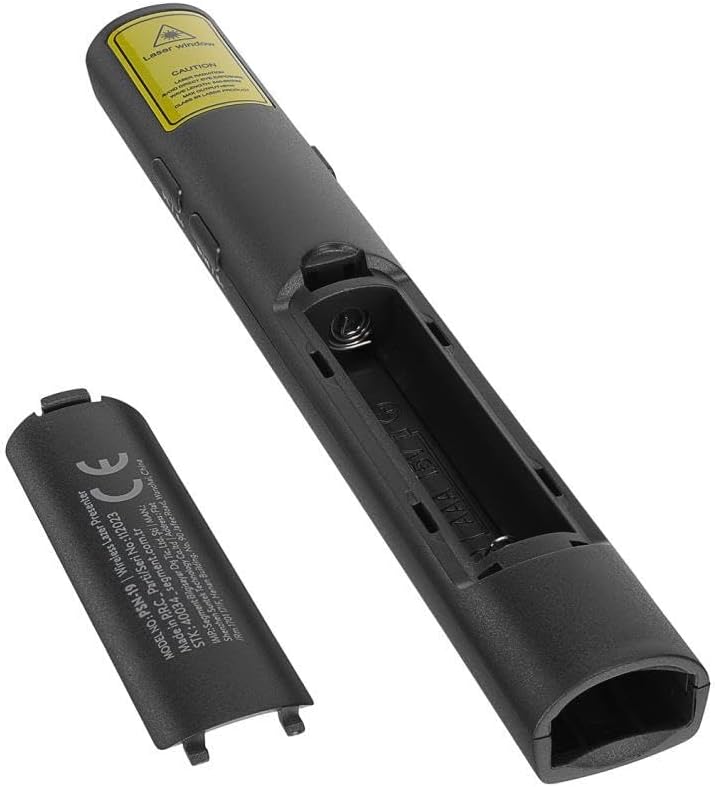
Figure 3.4: The battery compartment of the Everest PSN-18, showing where to insert the AAA batteries.
Button Functions:
- Laser Button (Sun icon): Activates the laser pointer.
- Page Up Button (Up arrow): Moves to the previous slide in a presentation.
- Page Down Button (Down arrow): Moves to the next slide in a presentation.
- Play/Pause / Volume Up Button: Controls media playback (play/pause) and increases volume.
- Previous Track / Volume Down Button: Skips to the previous track and decreases volume.
- Next Track / Mute Button: Skips to the next track and mutes audio.
- Black Screen Button (Square icon): Toggles a black screen during a presentation.
- ON/OFF Switch: Powers the device on or off.
4. Setup
4.1. Installing Batteries
- Locate the battery compartment cover on the back of the presentation device.
- Slide the cover open.
- Insert two AAA batteries, ensuring correct polarity (+/-) as indicated inside the compartment.
- Close the battery compartment cover securely.
4.2. Connecting the USB Receiver
- Remove the USB receiver from its storage slot, usually located at the bottom or side of the presentation device.
- Plug the USB receiver into an available USB port on your computer.
- Your computer will automatically detect and install the necessary drivers. This may take a few moments. No additional software installation is required.
5. Operating Instructions
5.1. Powering On/Off
- To power on the device, slide the ON/OFF switch to the "ON" position.
- To power off the device, slide the ON/OFF switch to the "OFF" position. This conserves battery life.
5.2. Presentation Control
- Laser Pointer: Press and hold the Laser Button (sun icon) to activate the laser pointer. Release the button to turn off the laser.
- Next Slide: Press the Page Down Button (down arrow) to advance to the next slide in your presentation.
- Previous Slide: Press the Page Up Button (up arrow) to go back to the previous slide.
- Black Screen: Press the Black Screen Button (square icon) to toggle a black screen during your presentation. Press again to return to the slide.
5.3. Media Control (if supported by your software)
- Play/Pause & Volume Up: Use the designated button for media play/pause and volume increase.
- Previous Track & Volume Down: Use the designated button for previous track and volume decrease.
- Next Track & Mute: Use the designated button for next track and mute.
6. Maintenance
- Cleaning: Wipe the device with a soft, dry cloth. Do not use abrasive cleaners or solvents.
- Storage: When not in use, store the device in a cool, dry place. Remove batteries if storing for an extended period to prevent leakage.
- USB Receiver: Always store the USB receiver in its designated slot within the presentation device to prevent loss.
7. Troubleshooting
| Problem | Possible Cause | Solution |
|---|---|---|
| Device not responding. |
|
|
| Laser pointer not working. |
|
|
| Slide navigation not working. |
|
|
8. Specifications
| Model | PSN-18 |
| Brand | EVEREST |
| Wireless Technology | 2.4GHz RF |
| Interface | USB |
| Power Supply | AAA Batteries (2x) |
| Laser Type | Class 2 Laser |
| Operating System Compatibility | Windows, macOS, Linux (Plug & Play) |
9. Warranty and Support
For warranty information and technical support, please refer to the documentation provided with your purchase or visit the official EVEREST website. Keep your proof of purchase for warranty claims.
Manufacturer: EVEREST
Part Number: 550.60.40.0033