
1. Product Overview
The ZTE T5400 is a high-performance Wi-Fi 6 dual-band router designed to provide fast and reliable wireless internet connectivity for your home or office. Featuring advanced Wi-Fi 6 (802.11ax) technology, it supports both 2.4 GHz and 5 GHz frequency bands, offering enhanced speed, capacity, and efficiency for multiple connected devices.
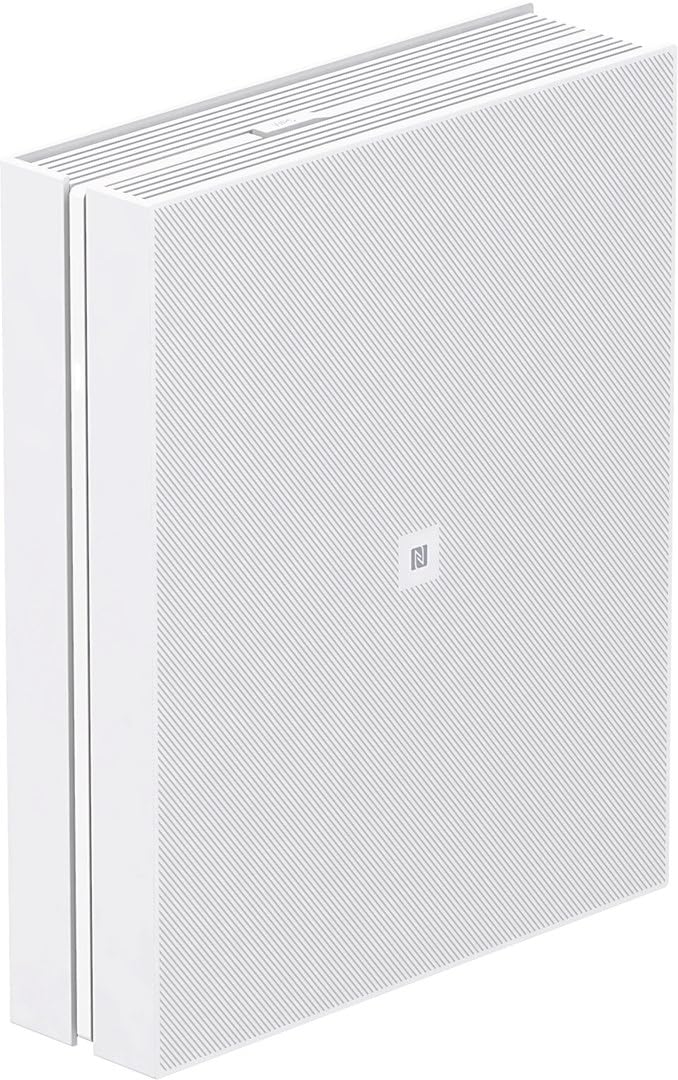
Figure 1: ZTE T5400 Wi-Fi 6 Dual-Band Router (Front View)
This image displays the ZTE T5400 router, a white rectangular device with the ZTE logo on its side, indicating its modern and compact design.
Key Features:
- Wi-Fi 6 (802.11ax) Standard: Next-generation Wi-Fi for faster speeds and improved network efficiency.
- Dual-Band Operation: Simultaneous 2.4 GHz and 5 GHz networks for flexible connectivity.
- Enhanced Security: Features for internet security to protect your network.
- Multiple LAN Ports: Provides wired connectivity for various devices.
2. Setup Guide
Follow these steps to set up your ZTE T5400 Wi-Fi 6 Dual-Band Router.
2.1 Package Contents
- ZTE T5400 Wi-Fi 6 Dual-Band Router
- Power Adapter
- Ethernet Cable (may vary by package)
2.2 Connecting the Router

Figure 2: Rear Panel Ports of ZTE T5400 Router
This image shows the rear panel of the ZTE T5400 router, highlighting the various ports including PHONE, LAN1, LAN2, LAN3, WAN/LAN4, and POWER input.
- Connect the Power Adapter: Insert one end of the power adapter into the POWER port on the router and the other end into a standard electrical outlet. The router will power on automatically.
- Connect to the Internet (WAN): Connect an Ethernet cable from your modem's LAN port to the WAN/LAN4 port on the ZTE T5400 router. This port is typically labeled for WAN connection.
- Connect Wired Devices (LAN): For wired connections, connect Ethernet cables from your computers, gaming consoles, or other network devices to the LAN1, LAN2, or LAN3 ports on the router.
- Initial Configuration:
- Wait for the router to fully boot up. Refer to the LED indicators (if available on the device) for status.
- Connect a computer to the router either via an Ethernet cable (to a LAN port) or wirelessly using the default Wi-Fi network name (SSID) and password found on the router's label.
- Open a web browser and enter the router's default IP address (e.g., 192.168.1.1 or 192.168.0.1). Refer to the router's label or a separate quick start guide for the exact IP address and default login credentials.
- Follow the on-screen instructions to complete the initial setup, including changing the default Wi-Fi name and password, and setting up an administrator password for the router's interface.
3. Operating Instructions
Once your router is set up, you can manage its operation and connect your devices.
3.1 Wi-Fi Connectivity
- Connecting Devices: On your wireless devices (smartphones, tablets, laptops), search for available Wi-Fi networks. Select your router's Wi-Fi network name (SSID) and enter the password you configured during setup.
- Dual-Band Advantage: The T5400 operates on both 2.4 GHz and 5 GHz bands.
- The 2.4 GHz band offers wider coverage and better penetration through walls, suitable for devices further away or for general browsing.
- The 5 GHz band provides faster speeds and lower latency, ideal for bandwidth-intensive activities like streaming 4K video or online gaming, especially for devices closer to the router.
3.2 Router Management Interface
You can access the router's web-based management interface to configure advanced settings, monitor network status, and update firmware.
- Open a web browser and enter the router's IP address (e.g., 192.168.1.1).
- Log in using your administrator username and password.
- From here, you can manage Wi-Fi settings, parental controls, guest networks, security features, and more.
4. Maintenance
Regular maintenance helps ensure optimal performance and security for your router.
- Firmware Updates: Periodically check the ZTE support website for firmware updates for your T5400 router. Firmware updates often include performance improvements, new features, and security patches. Follow the instructions provided by ZTE for updating firmware.
- Security Practices:
- Change the default administrator password for the router's web interface.
- Use strong, unique passwords for your Wi-Fi networks.
- Enable WPA2/WPA3 encryption for your Wi-Fi networks.
- Cleaning: Keep the router in a well-ventilated area. Gently clean the exterior with a soft, dry cloth. Do not use liquid cleaners or aerosols.
- Rebooting: If you experience network issues, a simple reboot (unplugging the power for 10 seconds and plugging it back in) can often resolve minor problems.
5. Troubleshooting
This section addresses common issues you might encounter with your ZTE T5400 router.
5.1 No Internet Connection
- Check Cables: Ensure all Ethernet cables (especially the one from your modem to the router's WAN/LAN4 port) are securely connected.
- Modem Status: Verify that your modem is working correctly and has an active internet connection.
- Reboot Devices: Power cycle your modem, then your router, and then your computer/device.
- Router Settings: Access the router's web interface to check WAN settings and ensure it's receiving an IP address from your ISP.
5.2 Slow Wi-Fi Speed
- Device Location: Move your wireless devices closer to the router. Obstacles like walls and large appliances can degrade signal quality.
- Interference: Other electronic devices (cordless phones, microwaves) can interfere with Wi-Fi signals. Try changing your Wi-Fi channel in the router settings.
- Band Selection: Connect devices that require high speed (e.g., streaming devices) to the 5 GHz band, and devices further away to the 2.4 GHz band.
- Network Congestion: Too many devices or bandwidth-intensive activities can slow down the network.
5.3 Cannot Connect to Wi-Fi
- Correct Password: Ensure you are entering the correct Wi-Fi password. Passwords are case-sensitive.
- SSID Broadcast: Check if your router is broadcasting its SSID. If not, you may need to manually add the network on your device.
- Router Reboot: Reboot the router.
- Device Wi-Fi: Ensure Wi-Fi is enabled on your device.
6. Specifications
Detailed technical specifications for the ZTE T5400 Wi-Fi 6 Dual-Band Router.
| Feature | Description |
|---|---|
| Brand | ZTE |
| Model Number | T5400 |
| Wireless Standard | 802.11ax (Wi-Fi 6) |
| Frequency Bands | 2.4 GHz, 5 GHz |
| Special Feature | Internet Security |
| Included Components | 1 package (Router, Power Adapter, Ethernet Cable - typical) |
| Color | Black (Note: Product image shows white, but specification lists black. Please verify product color upon receipt.) |
| ASIN | B0CVVW2HC7 |
| Manufacturer | ZTE Poland |
7. Warranty and Support
Information regarding product warranty and how to obtain support.
7.1 Product Warranty
The ZTE T5400 router comes with a 2-year manufacturer's warranty. This warranty covers defects in materials and workmanship under normal use. Please retain your proof of purchase for warranty claims. The return policy allows for a 30-day refund/replacement period from the date of purchase, subject to seller terms.
7.2 Customer Support
For technical assistance, troubleshooting, or warranty inquiries, please contact ZTE customer support. You can typically find support contact information, FAQs, and driver/firmware downloads on the official ZTE website.
Online Resources: Visit the official ZTE support website for the latest information and assistance.
Manufacturer: ZTE Poland


