
1. Introduction
This manual provides detailed instructions for the installation, setup, and operation of your XTRONS IA72DLRLS Android 12 Car Stereo Multimedia Player. Please read this manual thoroughly before using the product to ensure proper functionality and to prevent damage. This unit is specifically designed for the Land Rover Freelander 2.
2. Safety Information
- Professional Installation Recommended: Due to the complexity of car electrical systems, professional installation is highly recommended.
- Disconnect Battery: Always disconnect the vehicle's negative battery terminal before beginning any installation or wiring work to prevent electrical shorts and damage.
- Wiring: Ensure all wiring connections are secure and properly insulated to prevent short circuits.
- Driving Safety: Do not operate the unit in a way that distracts you from driving. Always prioritize road safety.
- Temperature: Avoid exposing the unit to extreme temperatures or direct sunlight for prolonged periods.
3. Package Contents
Carefully unpack the box and verify that all items listed below are present and undamaged. If any items are missing or damaged, contact your retailer immediately.
- XTRONS IA72DLRLS Head Unit
- External Control Panel
- Power Wiring Harness
- RCA Cables
- USB Cables
- GPS Antenna
- 4G LTE Antenna
- External Microphone
- User Manual

4. Product Overview
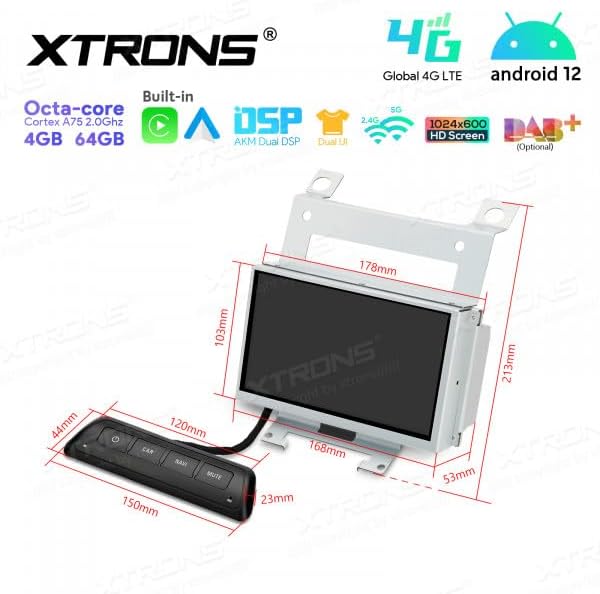
The XTRONS IA72DLRLS is an advanced Android 12 car stereo multimedia player designed to enhance your driving experience. It features a powerful Octa-core Cortex A75 2.0GHz processor, 4GB RAM, and 64GB ROM for smooth performance. The unit boasts a 1024x600 HD screen, built-in DSP for superior audio, and supports Global 4G LTE connectivity. Integrated CarPlay and Android Auto provide seamless smartphone integration.

5. Installation
This section provides general guidelines for installing the XTRONS IA72DLRLS unit. For specific vehicle disassembly instructions, consult your Land Rover Freelander 2 service manual or a qualified installer.
5.1. Compatibility Notes
Before installation, it is crucial to verify compatibility with your vehicle's existing setup:
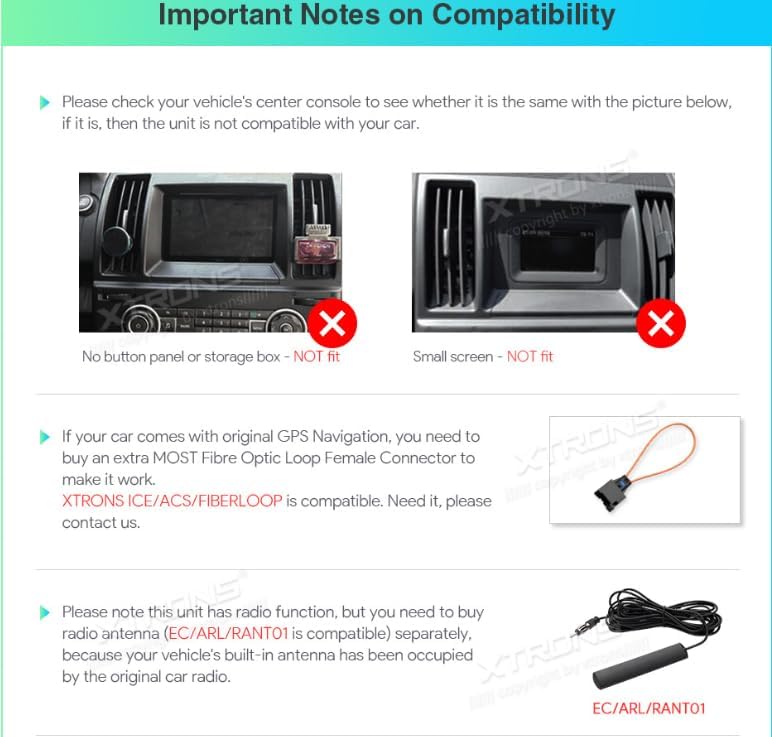
- Center Console Configuration: This unit is not compatible with Land Rover Freelander 2 models that have a button panel or storage box in the center console, or those with a small factory screen. Refer to Figure 5.1 for visual examples.
- Original GPS Navigation: If your vehicle is equipped with original GPS navigation, an additional MOST Fibre Optic Loop Female Connector (XTRONS ICE/ACS/FIBERLOOP compatible) may be required to ensure proper functionality.
- Radio Function: If your vehicle's original antenna is already occupied, you may need to purchase a separate radio antenna (model EC/ARL/RANT01) to enable the radio function on the XTRONS unit.
5.2. General Installation Steps
- Prepare Vehicle: Disconnect the negative terminal of the car battery.
- Remove Factory Unit: Carefully remove the existing factory car stereo and trim panels.
- Connect Wiring: Connect the XTRONS wiring harnesses to the vehicle's wiring. Ensure all connections are secure. Connect the GPS antenna, 4G LTE antenna, and external microphone.
- Mount Unit: Securely mount the XTRONS IA72DLRLS head unit into the dashboard opening.
- Reconnect Battery: Reconnect the negative terminal of the car battery.
- Test Functionality: Turn on the vehicle and test all functions of the new unit before reassembling the dashboard trim.
6. Setup
After successful installation, follow these steps for initial setup:
- Initial Boot-up: The unit will power on and display the XTRONS logo, then proceed to the Android home screen.
- Language and Time: Navigate to 'Settings' to set your preferred language, time zone, and date.
- Network Connection: Connect to a Wi-Fi network or insert a 4G SIM card (if applicable) to enable internet access for app downloads and online services.
- Google Account: Log in with your Google account to access the Google Play Store and synchronize data.
- GPS Calibration: Ensure the GPS antenna is properly positioned for optimal signal reception. The system will automatically calibrate the GPS.
- CarPlay/Android Auto: Connect your smartphone via USB or wirelessly (if supported) to activate CarPlay or Android Auto. Follow the on-screen prompts.
7. Operating Instructions
The XTRONS IA72DLRLS operates like a standard Android tablet, with additional car-specific functionalities. Use the touchscreen interface and the external control panel for navigation.
7.1. Home Screen and Navigation
The home screen provides quick access to frequently used applications. Swipe left or right to access additional app pages. Use the 'Navi' icon to launch your preferred navigation application.
7.2. Radio
Tap the 'Radio' icon to access the FM/AM tuner. You can scan for stations, save presets, and switch between bands. If a DAB+ module is installed (optional), you can access digital radio stations.
7.3. Media Playback
The unit supports various media sources:
- USB: Connect USB drives to play audio and video files.
- Bluetooth Music: Stream music from your smartphone via Bluetooth.
- Online Streaming: Download streaming apps from the Google Play Store (e.g., Spotify, YouTube).
7.4. Bluetooth Phone
Pair your smartphone via Bluetooth to make and receive hands-free calls. Access your phonebook and call history directly from the unit.
7.5. CarPlay / Android Auto
Once connected, CarPlay or Android Auto will mirror essential smartphone apps (Navigation, Music, Messages, Phone) onto the unit's screen, optimized for driving. Use voice commands for safe operation.
7.6. Settings
Access the 'Settings' menu to customize various aspects of the unit, including display, sound (DSP settings), network, connected devices, and system information.
8. Maintenance
- Cleaning: Use a soft, dry cloth to clean the screen and unit. Avoid abrasive cleaners or solvents.
- Software Updates: Periodically check for system software updates via the 'Settings' menu to ensure optimal performance and access to new features.
- Data Backup: Regularly back up important data if stored on the unit.
9. Troubleshooting
If you encounter issues with your XTRONS IA72DLRLS unit, refer to the following common problems and solutions:
| Problem | Possible Cause | Solution |
|---|---|---|
| Unit does not power on | Loose power connection, blown fuse, vehicle battery issue | Check power wiring, inspect fuses, verify vehicle battery voltage. |
| No sound | Volume too low, incorrect audio source, loose speaker wires, amplifier issue | Increase volume, select correct audio source, check speaker connections, verify amplifier power. |
| GPS signal weak or lost | GPS antenna obstructed or improperly placed, faulty antenna | Ensure clear line of sight for GPS antenna, reposition if necessary, check antenna connection. |
| Touchscreen unresponsive | System freeze, software glitch | Restart the unit (if possible), perform a factory reset (data will be lost). |
| Bluetooth connection issues | Device not in pairing mode, interference, incorrect pairing process | Ensure both devices are in pairing mode, delete previous pairings and re-pair, move closer to the unit. |
If the problem persists after attempting these solutions, please contact XTRONS customer support for further assistance.
10. Specifications
| Feature | Specification |
|---|---|
| Brand | XTRONS |
| Model | IA72DLRLS |
| Operating System | Android 12 |
| Processor | Octa-core Cortex A75 2.0GHz |
| RAM | 4GB |
| ROM (Internal Storage) | 64GB |
| Display | LCD, 1024x600 HD |
| Connectivity | USB, 4G LTE, Wi-Fi, Bluetooth |
| Special Features | CarPlay, Android Auto, Built-in DSP, GPS |
| Compatible Devices | Smartphone |
| Mounting Type | In-dash |
| Audio Output Mode | Digital or Stereo |
| Input Interface | Touchscreen |
11. Warranty and Support
XTRONS products are covered by a manufacturer's warranty. For specific warranty terms and conditions, please refer to the warranty card included with your product or visit the official XTRONS website. For technical support, troubleshooting assistance, or inquiries regarding parts and accessories, please contact XTRONS customer service through their official channels.


