1. Introduction
The ASUS VA27UQSB is a 27-inch 4K UHD (3840 x 2160) business monitor designed for professional use, offering crisp visuals, extensive connectivity, and ergonomic adjustments. This manual provides essential information for setting up, operating, and maintaining your monitor.

Figure 1.1: Front view of the ASUS VA27UQSB Monitor.
2. Setup
2.1 Unpacking the Monitor
Carefully remove all components from the packaging. The box should contain the following items:
- VA27UQSB Monitor
- DisplayPort cable
- HDMI cable
- L-shaped Screwdriver
- Power cord
- Quick start guide
- Warranty Card
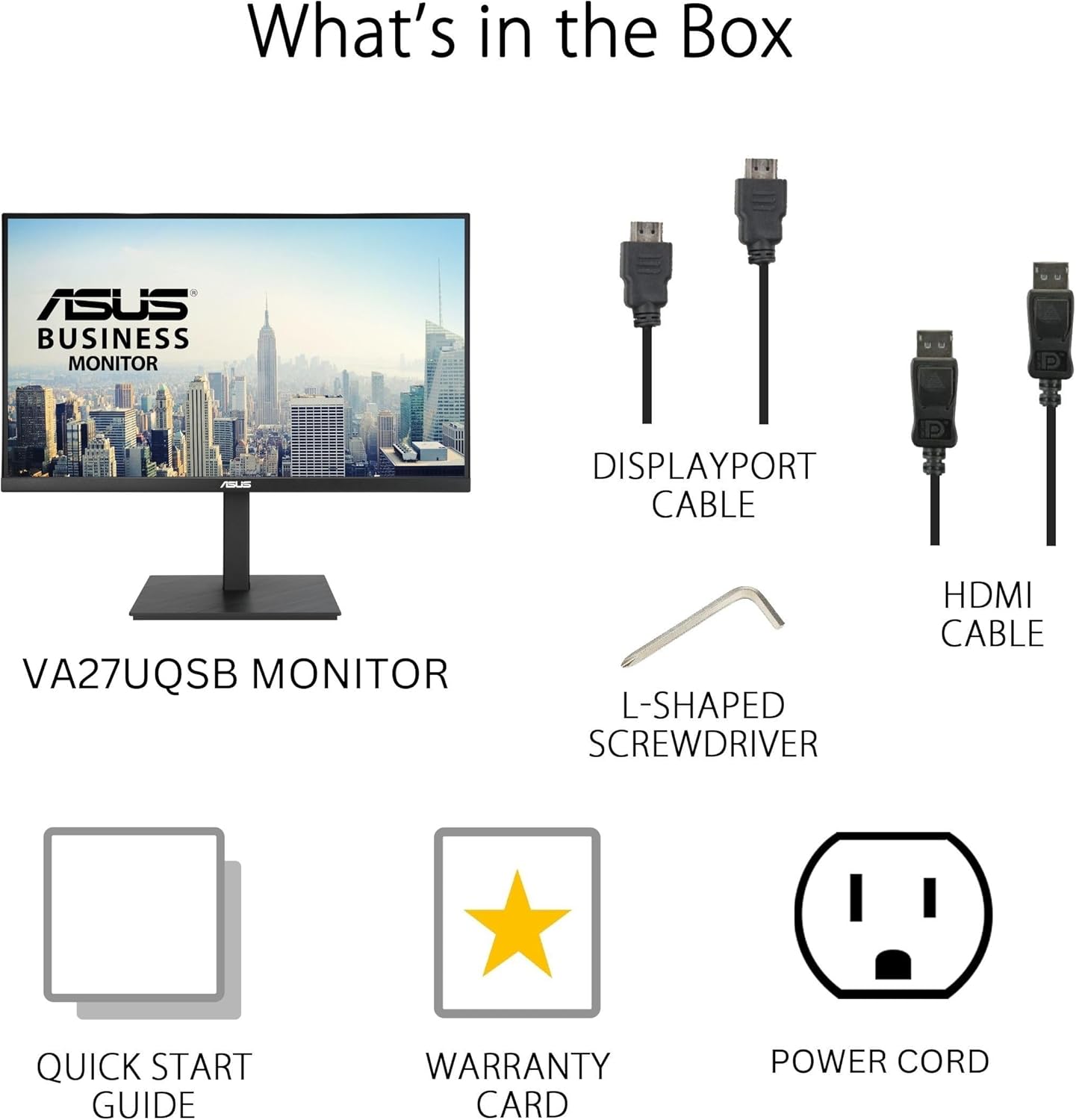
Figure 2.1: Included accessories and components in the box.
2.2 Assembling the Stand
- Attach the stand base to the stand neck.
- Secure the base using the provided L-shaped screwdriver.
- Carefully attach the assembled stand to the back of the monitor until it clicks into place.
2.3 Connecting the Monitor
The VA27UQSB monitor offers extensive connectivity options. Connect your computer or other devices using the appropriate cables.
- Dual HDMI Ports: Connect up to two HDMI-enabled devices.
- DisplayPort: Connect to devices supporting DisplayPort for high-resolution output.
- USB Hub: Utilize the integrated USB hub for connecting peripherals.
- Earphone Out: Connect headphones or external speakers.
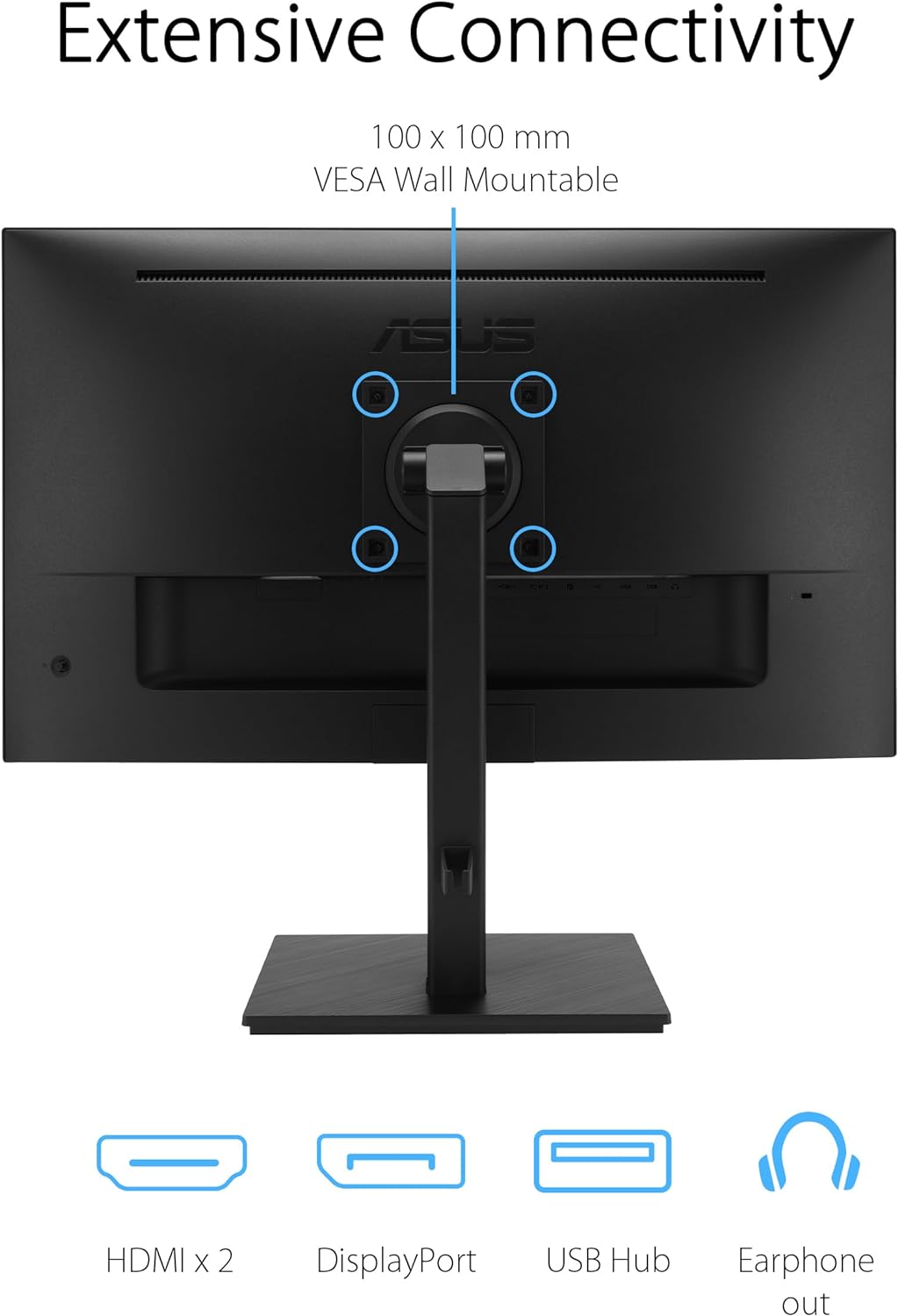
Figure 2.2: Rear view illustrating the various input and output ports.
3. Operating the Monitor
3.1 Power On/Off
Locate the power button/joystick on the back of the monitor. Press it to turn the monitor on or off. A short press typically brings up the OSD (On-Screen Display) menu.
3.2 Basic Display Settings
Access the OSD menu using the joystick to adjust settings such as brightness, contrast, color temperature, and input source. Navigate through the menu options by moving the joystick up, down, left, or right, and press to confirm selections.
3.3 Ergonomic Adjustments
The VA27UQSB monitor features a highly ergonomic stand for comfortable viewing. Adjust the monitor to your preferred position:
- Tilt: Adjust the screen angle from +35° to -5°.
- Swivel: Rotate the monitor horizontally up to ±180°.
- Pivot: Rotate the screen vertically up to ±90° for portrait mode.
- Height Adjustment: Adjust the screen height up to 150 mm.

Figure 3.1: Ergonomic adjustments for optimal viewing comfort.
3.4 Eye Care Features
The monitor incorporates TÜV Rheinland-certified Flicker-free and Low Blue Light technologies to reduce eye strain during prolonged use.
- Flicker-free: Eliminates screen flickering for a more comfortable viewing experience.
- Low Blue Light: Reduces harmful blue light emissions. Adjust the Low Blue Light level through the OSD menu.

Figure 3.2: Visual representation of Flicker-free technology.
3.5 HDR-10 Support
The monitor supports HDR-10, enhancing bright and dark areas for a more lifelike viewing experience with compatible content.

Figure 3.3: HDR-10 enhances visual detail in both bright and dark scenes.
3.6 ASUS DisplayWidget Center
ASUS DisplayWidget Center allows users to easily change monitor settings via an intuitive software interface on their computer. Install the software from the ASUS support website for your model.
4. Maintenance
4.1 Cleaning the Monitor
- Always power off the monitor and unplug the power cord before cleaning.
- Use a soft, lint-free cloth slightly dampened with water or a mild, non-abrasive cleaner specifically designed for electronics.
- Do not spray liquid directly onto the screen or monitor casing.
- Avoid using benzene, thinner, ammonia-based cleaners, or abrasive materials.
4.2 Storage
When storing the monitor for extended periods, ensure it is powered off, unplugged, and stored in a cool, dry place away from direct sunlight and extreme temperatures. It is recommended to use the original packaging for protection.
5. Troubleshooting
If you encounter issues with your monitor, refer to the following common problems and solutions:
| Problem | Possible Solution |
|---|---|
| No image on screen | Ensure power cable is securely connected. Check video cable connection (HDMI/DisplayPort) to both monitor and computer. Verify correct input source is selected via OSD menu. |
| Image is blurry or distorted | Ensure the monitor's native resolution (3840 x 2160) is set in your computer's display settings. Check video cable for damage. |
| No sound from speakers/earphone out | Check monitor volume settings in OSD. Ensure audio output is routed to the monitor in your computer's sound settings. Verify audio cable (if separate) is connected. |
| USB ports not working | Ensure the USB upstream cable (if applicable) is connected from the monitor to your computer. Check device drivers on your computer. |
If the issue persists after trying these solutions, please contact ASUS customer support.
6. Specifications
Detailed technical specifications for the ASUS VA27UQSB monitor:
| Feature | Specification |
|---|---|
| Screen Size | 27 Inches |
| Panel Type | IPS |
| Resolution | 4K UHD (3840 x 2160) |
| Aspect Ratio | 16:9 |
| HDR Support | HDR-10 |
| Connectivity | 2 x HDMI, 1 x DisplayPort, 2 x USB 3.0 Ports, Earphone Out |
| Ergonomics | Tilt (+35°/-5°), Swivel (±180°), Pivot (±90°), Height Adjustment (150 mm) |
| Eye Care Features | Flicker-free, Low Blue Light (TÜV Rheinland Certified) |
| Dimensions (LxWxH) | 8.9 x 24.2 x 20.4 inches |
| Weight | 14.3 pounds |

Figure 6.1: Product dimensions of the VA27UQSB monitor.
7. Warranty and Support
7.1 Product Warranty
The ASUS VA27UQSB monitor comes with a 3-year limited warranty. Please refer to the included Warranty Card for detailed terms and conditions regarding coverage, limitations, and service procedures.
7.2 Customer Support
For technical assistance, troubleshooting beyond this manual, or warranty claims, please visit the official ASUS support website or contact their customer service department. Keep your product serial number and proof of purchase readily available when seeking support.
You can find more information and support resources at the ASUS Support Website.


