
TESLA Q75S939GUS2
TESLA 75-Inch QLED 4K S939 Series Smart TV User Manual
Model: Q75S939GUS2
1. Introduction
Welcome to the user manual for your new TESLA 75-Inch QLED 4K S939 Series Smart TV. This manual provides essential information for setting up, operating, maintaining, and troubleshooting your television. Please read this manual thoroughly before using your TV to ensure proper and safe operation. Keep this manual for future reference.
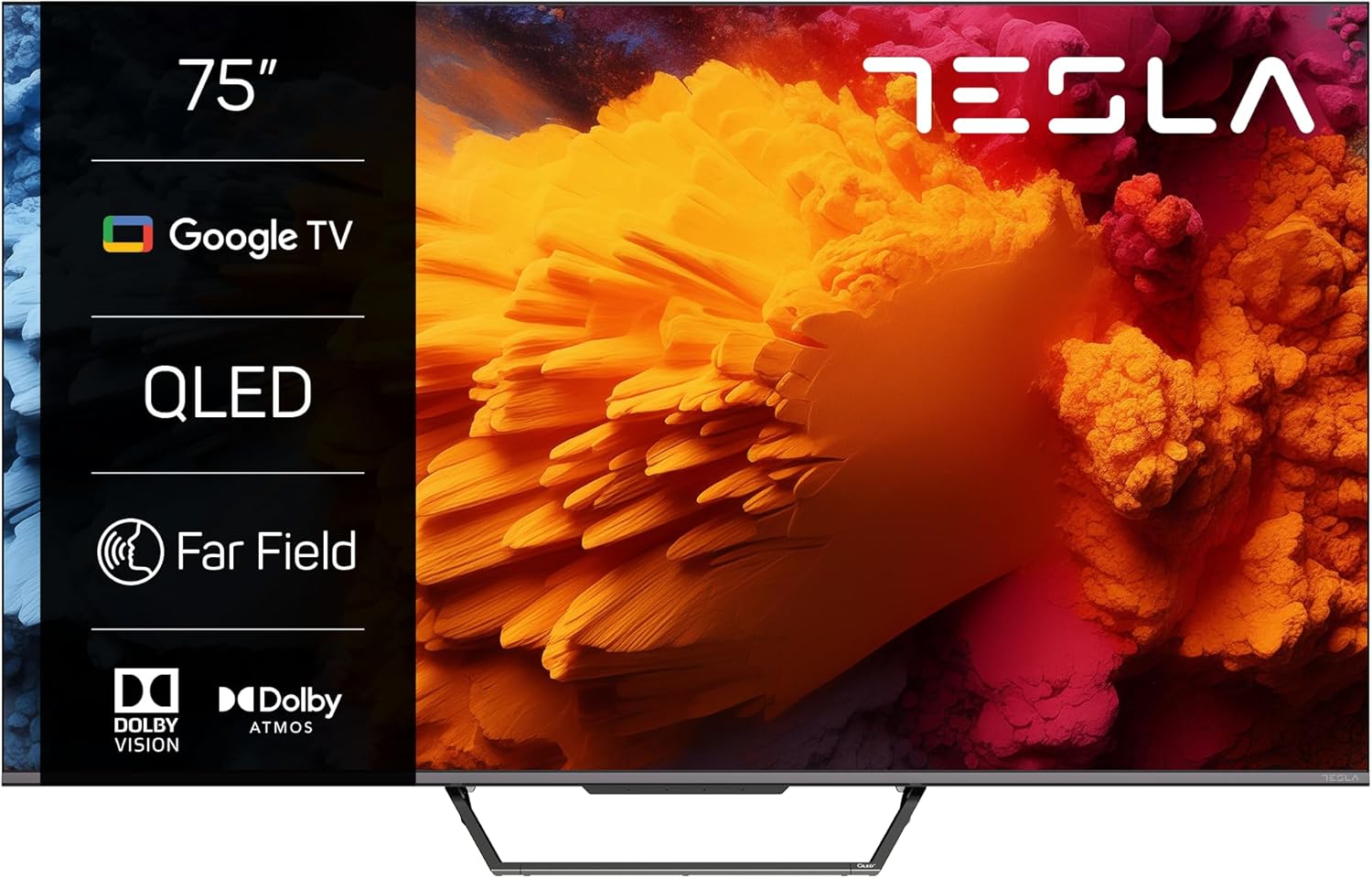
Figure 1.1: Front view of the TESLA 75-Inch QLED 4K S939 Series Smart TV, highlighting its large display and sleek design.
2. Product Overview
The TESLA 75-Inch QLED 4K S939 Series Smart TV is designed to deliver an immersive viewing and audio experience. It integrates advanced display and sound technologies with smart features for a comprehensive entertainment hub.
Key Features:
- Outstanding 75-Inch QLED 4K Picture: Features QLED technology with a 3840x2160 resolution and 60Hz native refresh rate, offering over a billion shades of color, bright images, and excellent contrast (Dynamic Contrast: 1200:1).
- Beautifully Designed Television: Boasts a sophisticated design with an aluminum center stand for stability and a modern aesthetic.
- Connected Smart Television: Powered by Google TV OS, providing access to Chromecast, Bluetooth, Google Play Store (10,000+ apps), Google Assistant, and a virtual remote.
- Voice Control Technology: Equipped with Far-Field Technology and two microphones with noise cancellation for hands-free voice commands via "Hey Google."
- Dolby Vision and Dolby Atmos: Enhances viewing with greater contrast, wider color range, and increased brightness, while delivering immersive, engaging audio.

Figure 2.1: Angled view of the TESLA 75-Inch QLED 4K S939 Series Smart TV, showcasing its slim profile and QLED display.

Figure 2.2: Visual comparison illustrating the enhanced color and contrast of QLED technology compared to conventional TV displays.
3. Setup
3.1 Unboxing and Inspection
Carefully remove the TV from its packaging. Inspect the TV and all accessories for any signs of damage. Retain the packaging materials for future transport or service needs.
3.2 Attaching the Stand or Wall Mounting
Your TESLA TV comes with a central aluminum stand for tabletop placement. Alternatively, you can wall-mount the TV using a compatible VESA mount (not included).
- For Stand Installation: Follow the instructions provided in the separate quick start guide to securely attach the aluminum stand to the TV. Ensure all screws are tightened.
- For Wall Mounting: Refer to the wall mount manufacturer's instructions. Ensure the wall mount is suitable for the TV's weight and VESA pattern. Disconnect the power cord before mounting.

Figure 3.1: Rear view of the TV, showing the VESA mounting points and general layout.
3.3 Connecting Peripherals
Connect your external devices to the TV using the available ports. The TV offers a wide range of connectivity options:
- HDMI (x3): For high-definition audio and video devices like Blu-ray players, game consoles, and set-top boxes.
- USB (x2): For connecting USB storage devices for media playback or software updates.
- RF Input (x1): For connecting an antenna or cable TV.
- Composite + AV Input: For older devices using RCA cables.
- SPDIF (Optical Audio Output): For connecting to external sound systems.
- LAN (Ethernet): For a wired internet connection.
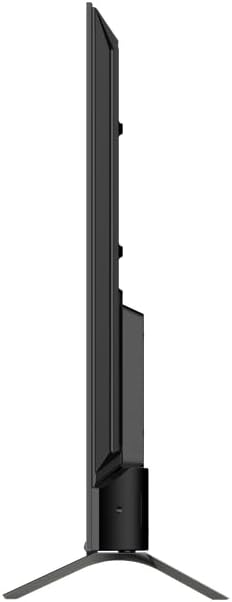
Figure 3.2: Side view of the TV, illustrating the location of various input and output ports.

Figure 3.3: Overview of the TV's comprehensive connectivity options, including wireless and wired connections.
3.4 Initial Power On and Network Setup
After connecting all necessary cables, plug the TV's power cord into an electrical outlet. The TV will guide you through the initial setup process, including language selection, network connection (Wi-Fi or Ethernet), and Google TV account setup.
- Wi-Fi Connection: The TV supports 2.4GHz & 5GHz built-in Wi-Fi. Select your network from the list and enter the password.
- Google Account: Sign in with your Google account to access Google TV features, apps, and personalized content.
4. Operating
4.1 Power On/Off
Press the Power button on the remote control or the TV to turn the TV on or off. The TV will enter standby mode when turned off.

Figure 4.1: The included remote control for your TESLA Smart TV, featuring dedicated buttons for popular streaming services and Google Assistant.
4.2 Navigating Google TV
The Google TV interface organizes your content from various streaming services and apps into a single, easy-to-navigate home screen. Use the directional pad and OK button on your remote to browse. You can also use the virtual remote feature via your smartphone.
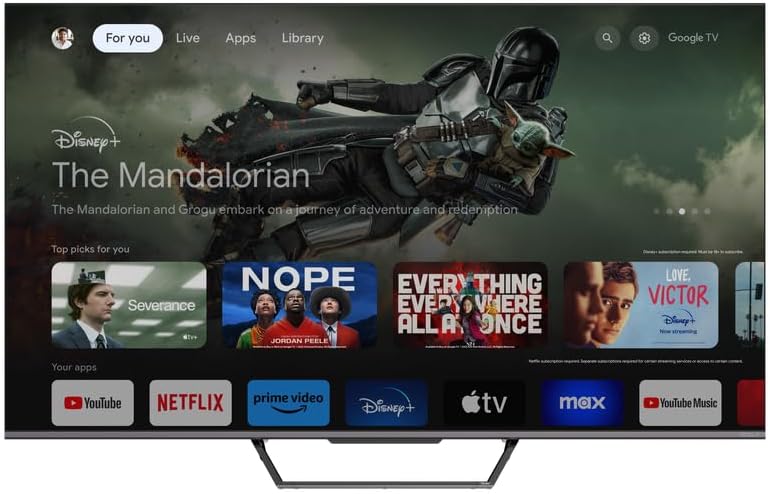
Figure 4.2: The Google TV home screen, displaying various streaming apps and personalized content recommendations.

Figure 4.3: An example of the Google TV interface, showing how content is curated and presented to the user.
4.3 Using Voice Control (Far-Field Technology)
Your TV supports Far-Field Voice Control. Simply say "Hey Google" followed by your command. The TV's built-in microphones and noise cancellation feature allow it to hear you even from a distance or in noisy environments. This feature is available in supported languages.

Figure 4.4: Illustration of a user interacting with the TV using the Far-Field Voice Control feature.
4.4 Connecting Bluetooth Devices
You can connect Bluetooth-enabled devices such as headphones, speakers, or gamepads to your TV. Navigate to the Bluetooth settings in the TV menu to pair new devices.
4.5 Using Chromecast Built-in
The TV has Chromecast built-in, allowing you to cast content from your compatible smartphone, tablet, or computer directly to the TV screen. Ensure your device and TV are on the same Wi-Fi network.

Figure 4.5: Depiction of casting content from a mobile device to the TV using the integrated Chromecast feature.
4.6 Picture and Sound Settings
Access the TV's settings menu to adjust picture and sound preferences. Take advantage of Dolby Vision for enhanced visual quality and Dolby Atmos for immersive audio.

Figure 4.6: Visual representation of the enhanced audio-visual experience provided by Dolby Vision and Dolby Atmos technologies.
4.7 Special Modes
The TV offers various picture modes optimized for different content types:
- Film Mode: Optimizes settings for cinematic viewing, enhancing details and color accuracy.
- Sport Mode: Adjusts motion smoothing and brightness for a clearer view of fast-paced sports.
- Game Mode: Reduces input lag for a more responsive gaming experience.

Figure 4.7: Film Mode enhances the viewing of movies, leveraging technologies like Dolby Vision and HDR10 for a rich cinematic experience.

Figure 4.8: Sport Mode provides optimized settings for watching live sports, ensuring smooth motion and clear visuals.

Figure 4.9: Game Mode is designed to reduce input lag and optimize display settings for a more responsive and immersive gaming experience.
5. Maintenance
5.1 Cleaning the Screen and Body
To clean the screen, gently wipe it with a soft, lint-free cloth. For stubborn marks, dampen the cloth slightly with water or a screen-cleaning solution. Avoid using harsh chemicals or abrasive materials. For the TV body, use a soft, dry cloth.
5.2 Software Updates
Your TV may receive software updates periodically to improve performance and add new features. Ensure your TV is connected to the internet to receive these updates automatically or check for them manually in the settings menu.
6. Troubleshooting
If you encounter issues with your TESLA TV, refer to the following common troubleshooting steps:
| Problem | Possible Cause | Solution |
|---|---|---|
| No Power | Power cord disconnected; power outlet issue. | Ensure power cord is securely plugged into TV and outlet. Test outlet with another device. |
| No Picture / Black Screen | Incorrect input source; loose HDMI/AV cable; device not powered on. | Check input source (e.g., HDMI 1, TV). Reconnect cables. Ensure connected devices are powered on. |
| No Sound | Volume too low/muted; external audio system issue; incorrect audio settings. | Increase volume, check mute status. If using external audio, ensure it's on and connected correctly. Check TV audio output settings. |
| Wi-Fi Connection Issues | Incorrect password; router issue; TV too far from router. | Re-enter Wi-Fi password. Restart router. Move TV closer to router or use a wired LAN connection. |
| Voice Control Not Responding | Microphones blocked; feature disabled; language not supported. | Ensure nothing is blocking the TV's microphones. Check voice control settings. Confirm supported language. |
For more complex issues, please refer to the online support resources or contact TESLA customer service.
7. Specifications
Detailed technical specifications for the TESLA 75-Inch QLED 4K S939 Series Smart TV:
| Feature | Specification |
|---|---|
| Brand Name | TESLA |
| Model Number | Q75S939GUS2 |
| Screen Size | 75 Inches (191 cm visible diagonal) |
| Display Technology | QLED |
| Resolution | 4K (3840x2160) |
| Refresh Rate | 60 Hz |
| Aspect Ratio | 16:9 |
| Operating System | Google TV OS |
| Special Features | Far-Field Technology, Dolby Vision, Dolby Atmos, Chromecast Built-in |
| Connectivity Technology | Wi-Fi (2.4GHz & 5GHz), Bluetooth, HDMI (x3), USB (x2), RF Input, Composite + AV Input, SPDIF, LAN |
| Speaker Type | Built-In |
| Output Wattage (Audio) | 12 Watts |
| On-mode Power Consumption | 280 watts |
| Voltage | 110 Volts (AC) |
| Item Weight | 66 Pounds |
| Product Dimensions (D x W x H) | 14 x 66 x 41 inches |
| Color Name | Grey |
| Batteries Required (Remote) | 2 AA batteries (included) |
| Energy Efficiency | Energy Star Compliant |

Figure 7.1: Diagram illustrating the physical dimensions of the TESLA 75-Inch QLED 4K S939 Series Smart TV.
8. Warranty and Support
For information regarding product warranty, technical support, or service, please refer to the warranty card included with your product or visit the official TESLA support website. Keep your purchase receipt as proof of purchase for warranty claims.
Online Resources:
- Visit the TESLA Store on Amazon for product information and updates.
Related documentsQ75S939GUS2


Ask a question about this manual
Ask about setup, troubleshooting, compatibility, parts, safety, or missing instructions. Manuals+ will review the question and use this page’s manual context to help answer it.