1. Introduction
This manual provides essential information for the setup, operation, maintenance, and troubleshooting of your SAMSUNG LS32CM703UNXZA 32-Inch M70C Series UHD Smart Computer Monitor. Please read this manual thoroughly before using the product to ensure safe and optimal performance. Keep this manual for future reference.
2. Setup
2.1 Unpacking and Contents
Carefully unpack all components from the box. Ensure all items listed below are present.
- Samsung 32-Inch M70C Series UHD Smart Computer Monitor
- HDMI Cable
- USB-C Cable
- Remote Control
- Power Adapter & Cable
2.2 Physical Assembly
Follow these steps to assemble the monitor stand and attach it to the display panel.
- Carefully remove the monitor from its packaging and place it face down on a soft, clean surface to prevent scratches.
- Attach the stand neck to the base, securing it with the provided screws.
- Align the assembled stand with the mounting area on the back of the monitor panel and secure it firmly.

Rear view of the Samsung M70C Smart Monitor, illustrating the clean design of the back panel, the central stand attachment, and the VESA mounting points.
2.3 Connecting Cables
Connect the necessary cables to the monitor and your devices.
- Connect the power adapter to the DC 20V port on the monitor and then plug it into a power outlet.
- For video input, connect an HDMI cable from your computer or other device to the HDMI IN port on the monitor. Alternatively, use the USB-C Upstream port for video, data, and power delivery with compatible devices.
- Connect USB devices (e.g., keyboard, mouse) to the USB 2.0 ports.

Detailed rear view of the Samsung M70C Smart Monitor's connectivity panel. Ports are clearly numbered and labeled: 1. USB-C Upstream, 2. HDMI In, 3. USB 2.0, 4. USB 2.0, 5. DC 20V power input.
3. Operating Instructions
3.1 Power On/Off
Press the power button on the monitor or the remote control to turn the monitor on or off. The power button is typically located on the bottom right side of the monitor frame.
3.2 Smart Monitor Features
The M70C Smart Monitor integrates various smart functionalities for entertainment and productivity.
- Streaming TV: Access embedded TV applications directly on the monitor without needing an external device.
- PC Access: Work on documents and access files from PCs wirelessly.
- Gaming Hub: Play games from top streaming partners without a PC or console.
- Multi View: Use Microsoft 365 and the internet browser simultaneously on the same screen.
- SmartThings App: Manage smart home devices directly from your monitor.
- AirPlay Integration: Wirelessly connect Apple devices to the Smart Monitor to view content on a larger screen.
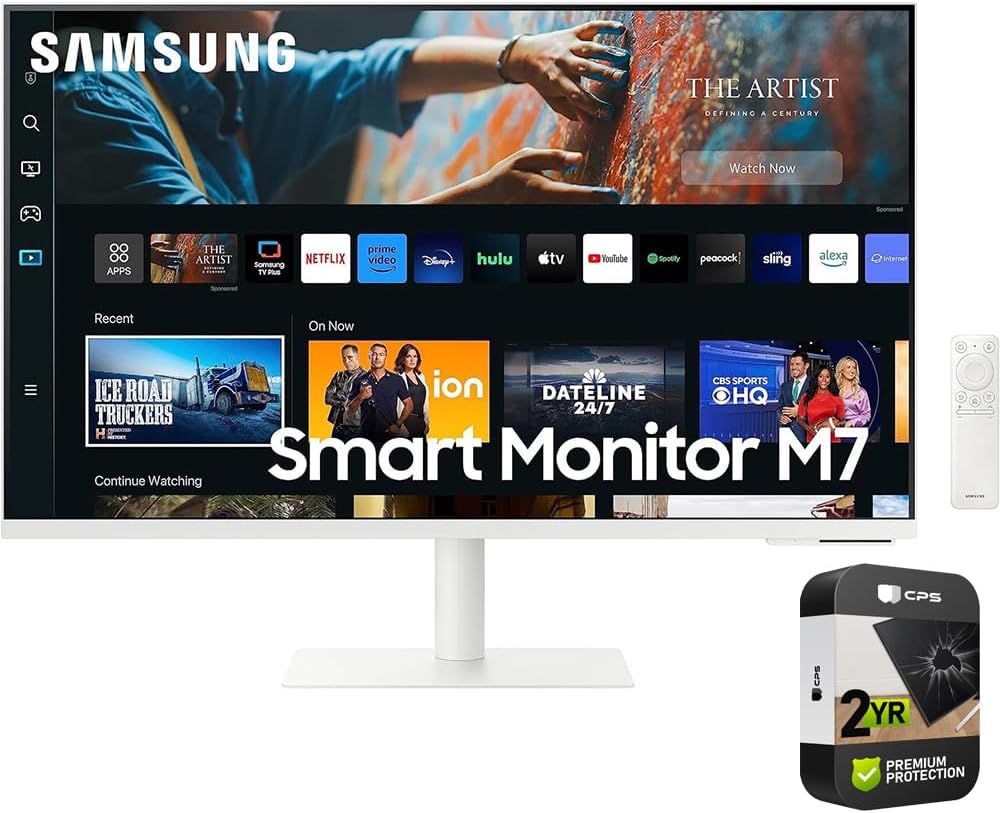
Front view of the Samsung M70C Smart Monitor, showcasing its display with various streaming applications and a remote control on the right side. The monitor is white with a minimalist stand.
3.3 Monitor Adjustments
The monitor offers ergonomic adjustments for optimal viewing comfort.
- Height Adjustment: Adjust the monitor's height by up to 4.7 inches (120 mm).
- Tilt Adjustment: Tilt the screen from -2 to 15 degrees.
- Rotation Adjustment: Pivot the screen 90 degrees for vertical viewing (184 degrees total rotation, -92 to 92 degrees).

Side profile of the Samsung M70C Smart Monitor, demonstrating its thin display panel and the adjustable stand that allows for tilt.
4. Specifications
Detailed technical specifications for the SAMSUNG LS32CM703UNXZA monitor.
| Feature | Specification |
|---|---|
| Display Size | 32 inches |
| Panel Type | VA LCD |
| Aspect Ratio | 16:9 |
| Resolution | 3840 x 2160 (UHD 4K) |
| Maximum Brightness | 300 nits / cd/m2 |
| HDR Compatibility | HDR10 |
| Contrast Ratio | 3000:1 |
| Response Time | 4 ms (GtG) |
| Refresh Rate | 60 Hz |
| Color Support | 8-Bit+FRC (1.07 Billion Colors) |
| Viewing Angle (H x V) | 178 x 178 degrees |
| Inputs | 1 x HDMI (2.0), 1 x USB-C (65W Power Delivery) |
| USB I/O | 2 x USB-A 2.0 |
| Built-In Speakers | Yes, 2 x 5 W |
| Mounting-Hole Pattern | 100 x 100 mm (VESA) |
| Dimensions (with Stand) | 28.1 x 25.3 x 7.9 inches (713.4 x 643.5 x 200 mm) |
| Weight (with Stand) | 14.1 lb (6.4 kg) |

An image illustrating the overall dimensions of the Samsung M70C Smart Monitor with its stand. The width is 28.1 inches, height is 25.3 inches, and depth is 7.9 inches.
5. Maintenance
Proper maintenance ensures the longevity and performance of your monitor.
- Cleaning the Screen: Gently wipe the screen with a soft, lint-free cloth. For stubborn marks, lightly dampen the cloth with water or a specialized screen cleaner. Avoid using harsh chemicals or abrasive materials.
- Cleaning the Body: Use a soft, dry cloth to wipe the monitor's casing.
- Ventilation: Ensure the monitor's ventilation openings are not blocked to prevent overheating.
6. Troubleshooting
Refer to this section for common issues and their solutions.
- No Power:
- Check if the power cable is securely connected to the monitor and the power outlet.
- Verify that the power outlet is functioning correctly.
- No Signal:
- Ensure the HDMI or USB-C cable is properly connected to both the monitor and the source device.
- Select the correct input source using the monitor's menu or remote control.
- Check if the source device (e.g., computer) is powered on and outputting a signal.
- Picture is Unclear or Distorted:
- Adjust the resolution and refresh rate settings on your source device to match the monitor's optimal settings (3840x2160 at 60Hz).
- Check the cable for damage or loose connections.
- Remote Control Not Working:
- Ensure there are no obstructions between the remote control and the monitor.
- Replace the batteries in the remote control if necessary.
7. Warranty and Support
This product comes with a manufacturer's warranty. For detailed warranty information, product support, or service requests, please refer to the warranty card included in your product packaging or visit the official Samsung support website. Keep your proof of purchase for warranty claims.
For additional assistance, you may contact Samsung customer service directly.


