
1. Introduction
This user manual provides detailed instructions for the Maxcom MM248 4G mobile phone. Please read this manual carefully before using your device to ensure proper operation and to maximize its lifespan. Keep this manual for future reference.
2. Device Overview
Familiarize yourself with the physical components of your Maxcom MM248 phone.
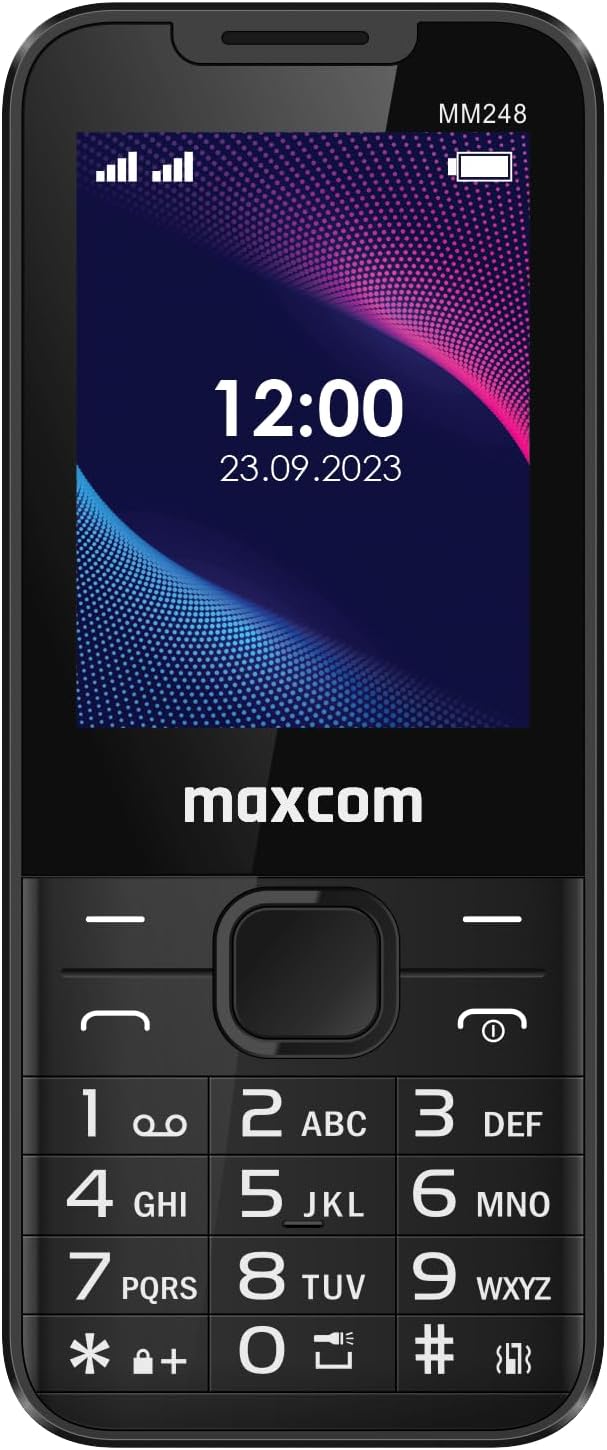
Figure 2.1: Front View of Maxcom MM248
This image displays the front of the Maxcom MM248 phone, highlighting its 2.4-inch screen and traditional alphanumeric keypad. The screen shows the current time and date, along with signal and battery indicators. The Maxcom logo is visible below the screen.

Figure 2.2: Side View of Maxcom MM248
This image shows the side profile of the Maxcom MM248, illustrating its compact and ergonomic design.

Figure 2.3: Bottom View of Maxcom MM248
This image highlights the bottom of the device, featuring the USB Type-C charging port and a 3.5mm headphone jack for audio accessories.

Figure 2.4: Top View of Maxcom MM248
This image shows the top of the phone, where the integrated flashlight is located.
3. Setup
3.1. Installing the Battery
- Carefully remove the back cover of the phone. This may require firm but gentle pressure, as noted by some users.
- Insert the battery into its compartment, ensuring the gold contacts align with the phone's terminals.
- Replace the back cover, pressing firmly until it clicks into place.
3.2. Inserting SIM and Memory Cards
The Maxcom MM248 supports SIM cards for network connectivity and a memory card (e.g., microSD) for expanded storage.
- With the back cover and battery removed, locate the SIM card slot(s) and the memory card slot.
- Insert your SIM card(s) into the designated slot(s) with the gold contacts facing down, following the orientation indicated on the phone.
- If using a memory card, insert it into the memory card slot until it is securely seated.
- Reinstall the battery and back cover.
3.3. Charging the Battery
Before first use, fully charge the phone's battery.
- Connect the USB Type-C cable to the charging port at the bottom of the phone.
- Connect the other end of the cable to a compatible USB power adapter and plug it into a wall outlet.
- The charging indicator on the screen will show the charging status.
- Once fully charged, disconnect the charger.
Note: If the provided charger does not function, please use a compatible USB Type-C charger. Ensure the charger is working correctly before use.
3.4. Powering On/Off
- To Power On: Press and hold the Power/End Call button until the screen lights up.
- To Power Off: Press and hold the Power/End Call button, then select "Power Off" from the options on the screen.
4. Operating Instructions
4.1. Basic Navigation
- Use the directional navigation keys (up, down, left, right) to move through menus and options.
- Press the central "OK" or "Select" button to confirm a selection.
- Use the "Back" or "Clear" button to return to the previous screen or delete characters.
4.2. Making and Receiving Calls
- To Make a Call: Enter the phone number using the keypad and press the Green Call button.
- To Receive a Call: Press the Green Call button when the phone rings.
- To End a Call: Press the Red End Call button.
4.3. Sending and Receiving Messages
- Navigate to the "Messages" application from the main menu.
- Select "New Message" to compose an SMS. Enter the recipient's number and your message.
- Press the "Send" option.
- Received messages will appear in your inbox.
4.4. Internet Connectivity (4G)
The Maxcom MM248 supports 4G connectivity for internet access via KaiOS.
- Ensure your SIM card has an active data plan.
- Navigate to the "Browser" application from the main menu.
- Use the keypad to type in website addresses or search queries.
4.5. Using the Camera
The phone includes a basic camera function.
- Access the "Camera" application from the main menu.
- Frame your shot using the screen as a viewfinder.
- Press the central "OK" or "Select" button to capture a photo.
4.6. FM Radio
The Maxcom MM248 features an FM radio that does not require headphones to function as an antenna.
- Open the "FM Radio" application.
- Use the navigation keys to scan for stations or tune to a specific frequency.
- Adjust the volume using the dedicated volume keys (if present) or menu options.
4.7. Flashlight
Activate the built-in flashlight for illumination.
- Typically, the flashlight can be activated via a shortcut key or through the main menu's "Tools" or "Utilities" section. Refer to your phone's on-screen prompts for the exact method.
5. Maintenance
5.1. Cleaning Your Device
- Use a soft, dry cloth to clean the phone's screen and body.
- Avoid using harsh chemicals or abrasive materials, which can damage the device.
5.2. Battery Care
- To prolong battery life, avoid exposing the phone to extreme temperatures.
- Do not leave the phone charging for extended periods after it is fully charged.
- If the battery is removable, ensure it is properly seated.
5.3. Software Updates
While specific software update information is not available, it is generally recommended to keep your device's software updated to ensure optimal performance and security. Check the phone's settings for any available updates.
6. Troubleshooting
6.1. Common Issues and Solutions
- Phone not powering on: Ensure the battery is charged and correctly installed. Try connecting the charger.
- No network signal: Check if the SIM card is properly inserted and active. Ensure you are in an area with network coverage.
- Charger not working: Verify the charger cable and adapter are functional. Try a different compatible USB Type-C charger.
- Difficulty removing back cover: Apply firm, even pressure to the designated opening points. If persistent, consult a service center.
For issues not listed here, please refer to the support section or contact customer service.
7. Specifications
| Feature | Detail |
|---|---|
| Brand | Maxcom |
| Model Name | MM248 |
| Operating System | KaiOS |
| Screen Size | 2.4 Inches |
| Cellular Technology | 4G |
| Wireless Carrier | Unlocked |
| Connectivity | GSM, 4G, USB Type-C, 3.5mm Connector |
| Special Features | Internet access, FM Radio, Flashlight |
| RAM Size | 128 MB |
| Storage Capacity | 16 GB (likely internal, expandable via microSD) |
| CPU Model | Cortex |
| Resolution | 480 x 800 or 480 x 854 |
| Battery | 1 Non-standard battery required |
| Product Type | Bar Phone |
| Color | Black/Red (as per product details, though images show black) |
8. Warranty and Support
Specific warranty information for the Maxcom MM248 is not detailed in the product listing. For warranty claims or technical support, please contact your retailer or the manufacturer directly.
- Spare Parts Availability: Information regarding the availability of spare parts is not provided.
- Software Updates Guarantee: Information regarding guaranteed software updates is not provided.
Always retain your proof of purchase for warranty purposes.


