
HIKVISION DS-KV9503-WBE1
Contents
Hikvision DS-KV9503-WBE1 Facial Access Terminal User Manual
Model: DS-KV9503-WBE1
1. Introduction
This manual provides comprehensive instructions for the installation, operation, and maintenance of the Hikvision DS-KV9503-WBE1 Facial Access Terminal. This device is designed for secure and efficient access control using advanced facial recognition technology, suitable for various environments requiring controlled entry.
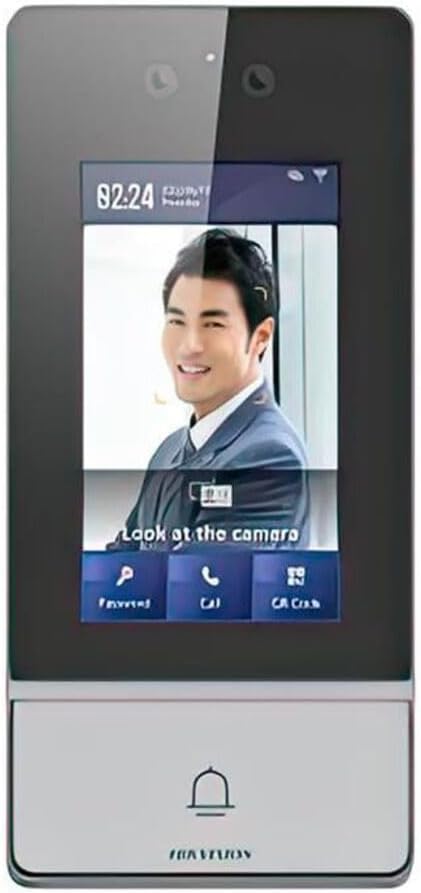
Image 1.1: Front view of the Hikvision DS-KV9503-WBE1 Facial Access Terminal, showing the display screen and integrated camera.
2. Safety Precautions
Please read these safety instructions carefully before operating the device to prevent injury or damage.
- Power Supply: Use only the specified power adapter. Ensure the power supply is stable and meets the device's requirements.
- Environment: Do not expose the device to extreme temperatures, humidity, dust, or corrosive environments. Avoid direct sunlight.
- Installation: Ensure the device is securely mounted to prevent falling. Follow all local electrical codes and regulations.
- Cleaning: Use a soft, dry cloth for cleaning. Do not use harsh chemicals or abrasive cleaners.
- Servicing: Do not attempt to disassemble or repair the device yourself. Refer all servicing to qualified personnel.
3. Package Contents
Verify that all components are present and in good condition upon unpacking:
- DS-KV9503-WBE1 Facial Access Terminal
- Mounting Bracket
- Power Adapter
- Mounting Screws and Wall Plugs
- Wiring Connectors
- Quick Start Guide
4. Setup and Installation
4.1 Mounting the Device
- Choose a suitable mounting location, preferably on a solid wall, at a height that allows for optimal facial recognition (typically 1.2m to 1.5m from the ground).
- Use the mounting bracket as a template to mark the drilling holes on the wall.
- Drill holes and insert wall plugs if necessary.
- Secure the mounting bracket to the wall using the provided screws.
- Carefully attach the DS-KV9503-WBE1 terminal to the mounting bracket, ensuring it clicks securely into place.
4.2 Wiring Connections
Connect the necessary cables to the terminal's ports:
- Power: Connect the power adapter to the DC 12V port.
- Network: Connect an Ethernet cable to the RJ45 port for network connectivity.
- Lock Control: Connect the access control lock to the designated lock output terminals (NO/NC/COM).
- Door Sensor: Connect a door sensor to the corresponding input terminals if door status monitoring is required.
4.3 Initial Power-On
After all connections are made, plug in the power adapter. The device will power on and initiate its boot sequence. Follow the on-screen prompts for initial setup, including language selection and network settings.
5. Operating the Device
5.1 User Enrollment
To enroll new users for facial recognition access:
- Access the device's menu (requires administrator password).
- Navigate to 'User Management' and select 'Add User'.
- Follow the on-screen instructions to capture the user's facial data. Ensure good lighting and a clear view of the face.
- Assign an ID and any other relevant information (e.g., access permissions, validity period).
- Save the user profile.
5.2 Access Control
Once users are enrolled, they can gain access by presenting their face to the terminal's camera. The device will verify the facial data against its database and, if a match is found and permissions allow, will trigger the lock to open.
5.3 Network Configuration
The DS-KV9503-WBE1 supports both wired and Wi-Fi network connections. To configure network settings:
- Access 'Network Settings' from the main menu.
- For wired connection, ensure DHCP is enabled or configure a static IP address.
- For Wi-Fi, select your network from the list, enter the password, and connect.
- The device can be integrated with Hikvision's iVMS-4200 client software or Hik-Connect app for remote management and monitoring.
6. Maintenance
6.1 Cleaning
Regularly clean the device's screen and camera lens with a soft, lint-free cloth. Do not use liquid cleaners directly on the device. If necessary, slightly dampen the cloth with water or a mild, non-abrasive cleaner.
6.2 Firmware Updates
Periodically check the Hikvision official website for firmware updates. Updating the firmware can improve performance, add new features, and enhance security. Follow the instructions provided with the firmware update package carefully.
7. Troubleshooting
| Problem | Possible Cause | Solution |
|---|---|---|
| Device does not power on. | No power supply; faulty adapter; loose connection. | Check power adapter and cable connection. Ensure power outlet is functional. |
| Facial recognition fails. | Poor lighting; face not centered; user not enrolled; dirty lens. | Ensure adequate lighting. Position face correctly. Re-enroll user if necessary. Clean camera lens. |
| Cannot connect to network. | Incorrect network settings; cable issue; Wi-Fi signal weak. | Verify IP address/DHCP settings. Check Ethernet cable. Ensure Wi-Fi signal strength is good. |
| Lock does not open. | Wiring error; lock malfunction; access permission denied. | Check lock wiring. Test the lock independently. Verify user's access permissions. |
8. Specifications
| Feature | Detail |
|---|---|
| Model | DS-KV9503-WBE1 |
| Brand | HIKVISION |
| Package Dimensions | 24 x 12 x 9 cm; 800 g |
| ASIN | B0CVS1YM6Q |
| EAN | 6942160428260 |
| Available for purchase since | November 29, 2023 |
| Best Sellers Rank | #47,759 in Computers & Informatics; #88 in Wireless Access Points |
9. Warranty Information
The Hikvision DS-KV9503-WBE1 Facial Access Terminal comes with a standard manufacturer's warranty. Please refer to the warranty card included in the product packaging or visit the official Hikvision website for detailed warranty terms and conditions specific to your region.
10. Customer Support
For technical assistance, troubleshooting, or product inquiries, please contact Hikvision customer support through their official website or the contact information provided in your product documentation. Ensure you have your product model number and serial number ready when contacting support.
Documents and downloads
Ask a question about this manual
Ask about setup, troubleshooting, compatibility, parts, safety, or missing instructions. Manuals+ will review the question and use this page’s manual context to help answer it.