1. Introduction
This manual provides detailed instructions for the installation, operation, and maintenance of your XTRONS IA7250FLCS GPS Car Stereo. This advanced multimedia system is designed specifically for the Fiat 500, integrating Android 12, GPS navigation, Wi-Fi, 4G connectivity, Apple CarPlay, and Android Auto for an enhanced in-car experience. Please read this manual thoroughly before using the product to ensure proper functionality and safety.

Figure 1.1: XTRONS IA7250FLCS GPS Car Stereo. This image displays the front view of the car stereo unit, showcasing its 7-inch touchscreen display and integrated control buttons, designed to fit seamlessly into a Fiat 500 dashboard.
2. Safety Information
To ensure safe operation and prevent damage, please observe the following precautions:
- Professional Installation Recommended: Due to the complexity of car electrical systems, professional installation is highly recommended. Incorrect wiring can cause damage to the unit or the vehicle.
- Power Supply: Connect the unit only to a 12V DC power supply with a negative ground.
- Avoid Water and Moisture: Do not expose the unit to water or excessive moisture.
- Temperature: Operate the unit within the specified temperature range. Avoid extreme heat or cold.
- Driving Safety: Do not operate the unit in a way that distracts you from driving. Always prioritize road safety.
- Ventilation: Ensure adequate ventilation around the unit to prevent overheating.
3. Package Contents
Please check the package contents upon unpacking to ensure all items are present:
- XTRONS IA7250FLCS Main Unit
- Power Cable Harness
- GPS Antenna
- USB Cables (multiple)
- RCA Output Cables
- SIM Card Reader
- 4G Antenna
- User Manual

Figure 3.1: Included Components. This image shows all the accessories and cables that come with the XTRONS IA7250FLCS unit, including the main head unit, various wiring harnesses, antennas, and the user manual.
4. Setup and Installation
This section provides general guidance for setting up your XTRONS IA7250FLCS. For detailed vehicle-specific installation, it is highly recommended to consult a professional installer or refer to the specific wiring diagrams provided with the unit.
4.1 Physical Installation
- Preparation: Disconnect the vehicle's battery before starting any electrical work.
- Remove Old Unit: Carefully remove the existing car stereo from your Fiat 500 dashboard.
- Connect Wiring: Connect the provided power harness, speaker wires, and other necessary cables (e.g., GPS antenna, USB cables, RCA cables, 4G antenna) to the corresponding ports on the XTRONS unit and your vehicle's wiring. Ensure all connections are secure.
- Mounting: Securely mount the XTRONS IA7250FLCS into the dashboard opening.
- Reconnect Battery: Once all connections are made and secured, reconnect the vehicle's battery.
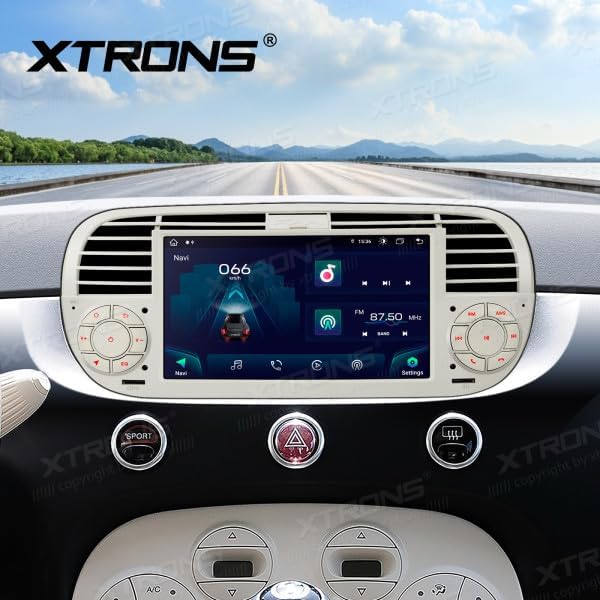
Figure 4.1: Unit Installed in Dashboard. This image illustrates the XTRONS IA7250FLCS unit seamlessly integrated into the dashboard of a Fiat 500, demonstrating its perfect fit and aesthetic appeal.
4.2 Initial Power On and Basic Setup
- Power On: Turn on your vehicle's ignition. The unit should power on automatically.
- Language Selection: Follow the on-screen prompts to select your preferred language.
- Time and Date: Set the correct time and date, or enable automatic synchronization via GPS/network.
- Wi-Fi Connection: Navigate to Settings > Network & Internet > Wi-Fi to connect to an available Wi-Fi network for internet access and app downloads.
- 4G Connectivity: Insert a compatible SIM card into the provided SIM card reader for 4G mobile data access. Ensure the 4G antenna is connected.
- GPS Setup: Ensure the GPS antenna is properly positioned (e.g., on the dashboard with a clear view of the sky) for optimal signal reception. The unit will automatically acquire satellite signals for navigation.
5. Operating Instructions
The XTRONS IA7250FLCS operates on Android 12, providing a familiar and intuitive user interface.
5.1 Home Screen and Navigation
- Home Button: Press the physical or on-screen Home button to return to the main interface.
- App Drawer: Swipe up or tap the app icon to access all installed applications.
- Widgets: Customize your home screen with widgets for quick access to navigation, music, and other functions.
5.2 Audio Playback
- Radio: Access the FM/AM radio application. Use the scan function to find stations or manually tune.
- USB Playback: Connect a USB drive to one of the USB ports to play audio or video files.
- Bluetooth Audio: Pair your smartphone via Bluetooth to stream audio wirelessly.
- DSP (Digital Sound Processor): Utilize the built-in DSP to fine-tune audio settings, including equalizer, balance, fader, and subwoofer controls, for an optimized listening experience.
5.3 Apple CarPlay and Android Auto
The unit supports both wireless and wired Apple CarPlay and Android Auto for seamless smartphone integration.
- Wireless Connection: Ensure Bluetooth is enabled on your phone and the unit. Follow the on-screen prompts to pair and initiate CarPlay/Android Auto wirelessly.
- Wired Connection: Connect your smartphone to the unit via a USB cable. The system should automatically detect and launch CarPlay/Android Auto.
- Voice Control: Use voice commands (e.g., "Hey Siri" for CarPlay, "Hey Google" for Android Auto) to control navigation, music, calls, and messages.

Figure 5.1: CarPlay and Android Auto Interface. This image demonstrates the user interface for both Apple CarPlay and Android Auto as displayed on the XTRONS IA7250FLCS screen, highlighting their wireless and wired connectivity options.
5.4 System Settings
Access the Settings menu to customize various aspects of the unit:
- Display: Adjust brightness, wallpaper, and screen timeout.
- Sound: Configure audio output, volume levels, and DSP settings.
- Network & Internet: Manage Wi-Fi, 4G, and hotspot settings.
- Connected Devices: Manage Bluetooth connections and USB preferences.
- Apps & Notifications: Manage installed applications and their permissions.
- System: Check system information, perform software updates, and reset options.
6. Maintenance
Proper maintenance ensures the longevity and optimal performance of your XTRONS IA7250FLCS.
- Screen Cleaning: Use a soft, lint-free cloth slightly dampened with water or a screen cleaner specifically designed for electronics. Do not use abrasive cleaners or solvents.
- Software Updates: Periodically check for system software updates via Wi-Fi to ensure you have the latest features and bug fixes. Navigate to Settings > System > System update.
- General Care: Avoid placing heavy objects on the unit. Keep the unit free from dust and debris.
7. Troubleshooting
If you encounter issues with your XTRONS IA7250FLCS, refer to the following common problems and solutions:
- No Power:
- Check all power connections and fuses.
- Ensure the vehicle's ignition is on.
- No Sound:
- Check speaker connections.
- Verify volume levels are not muted or set too low.
- Check audio output settings in the DSP menu.
- GPS Signal Lost/Inaccurate:
- Ensure the GPS antenna is properly connected and has a clear view of the sky.
- Move the vehicle to an open area away from tall buildings or tunnels.
- Bluetooth Connection Issues:
- Ensure Bluetooth is enabled on both the unit and your device.
- Delete previous pairings and try pairing again.
- Restart both the unit and your device.
- CarPlay/Android Auto Not Launching:
- For wired connection, try a different USB cable.
- For wireless connection, ensure Wi-Fi and Bluetooth are enabled and properly paired.
- Check your phone's settings to ensure CarPlay/Android Auto is enabled.
- Unit Freezes/Unresponsive:
- Perform a soft reset by pressing the reset button (if available) or by turning off the vehicle's ignition and restarting.
- If the issue persists, a factory reset may be necessary (Settings > System > Reset options). Note: This will erase all user data.
8. Specifications
Key technical specifications for the XTRONS IA7250FLCS:
| Brand | XTRONS |
| Model Number | IA7250FLCS |
| Operating System | Android 12 |
| Processor | Octa-core Cortex A75 |
| RAM | 4 GB |
| Internal Storage | 64 GB |
| Screen Size | 7 Inches |
| Display Type | Touchscreen, IPS |
| Connectivity Technology | Bluetooth, USB, Wi-Fi, 4G |
| Special Features | Android Auto, Apple CarPlay, Built-in DSP, GPS, BDS, GLONASS, Coaxial Audio Out, DAB+ (Optional), RDS |
| Vehicle Service Type | Car (Fiat 500 specific fit) |
| Mounting Type | Dashboard Mount |

Figure 8.1: Key Features Overview. This image highlights the core specifications and features of the XTRONS IA7250FLCS, including its Octa-core processor, 4GB RAM, 64GB ROM, 4G connectivity, Android OS, built-in DSP, and GPS capabilities.
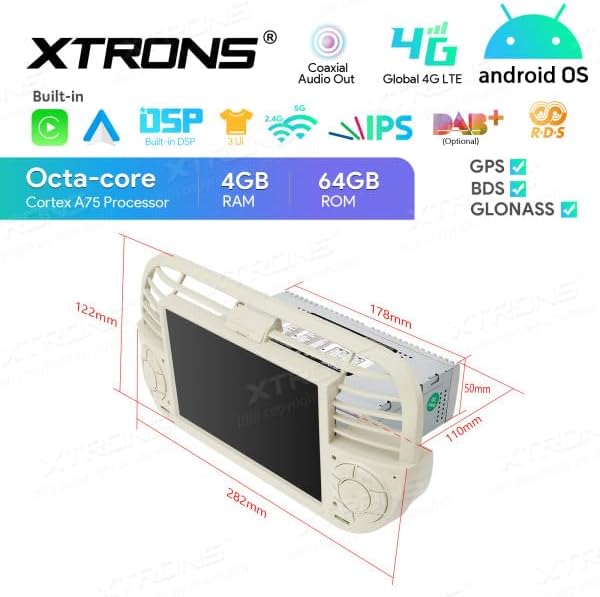
Figure 8.2: Product Dimensions. This image provides a detailed diagram of the XTRONS IA7250FLCS unit with its precise measurements in millimeters, crucial for installation planning.
9. Warranty and Support
XTRONS products are designed for reliability and performance. For information regarding warranty coverage, please refer to the warranty card included with your product or visit the official XTRONS website.
If you require technical assistance or have questions not covered in this manual, please contact XTRONS customer support through their official channels. When contacting support, please have your product model number (IA7250FLCS) and purchase details ready.
Official Website: www.xtrons.com (Note: This is a placeholder link. Please refer to the actual official website for support.)


