
Introduction
This manual provides essential information for the proper setup, operation, and maintenance of your Thrustmaster Evo Racing 32R Leather Wheel Add-On. This round wheel rim, measuring 12.6 inches (32 cm) in diameter, is designed for racing simulations across various platforms. Please read this manual thoroughly before using the product.
Product Overview
The Thrustmaster Evo Racing 32R Leather Wheel Add-On is a high-performance racing wheel rim featuring a brushed aluminum faceplate and a leather-wrapped rim. It is equipped with 25 action buttons, including 4 encoders and a D-pad, along with 7 LEDs for displaying RPM and other racing information. The design incorporates long, curved paddle shifters with magnetic sensors for precise gear changes.
Key Features:
- Round, leather-wrapped wheel rim (12.6 inches / 32 cm) suitable for rally and other racing simulations.
- Long, curved paddle shifters for quick and accurate gear shifts.
- 25 programmable action buttons, including 4 encoders and a D-pad, for comprehensive control.
- 7 LEDs with 2 display modes to indicate RPM and critical racing data.
- Part of the EVO Racing range, featuring a detachable hub for customizable wheel rims and paddle shifters.
- Premium construction with a brushed aluminum faceplate and genuine leather-wrapped rim.

This image displays the front of the Evo Racing 32R Leather wheel, highlighting its round shape, leather finish, and the central control panel with various buttons and encoders.
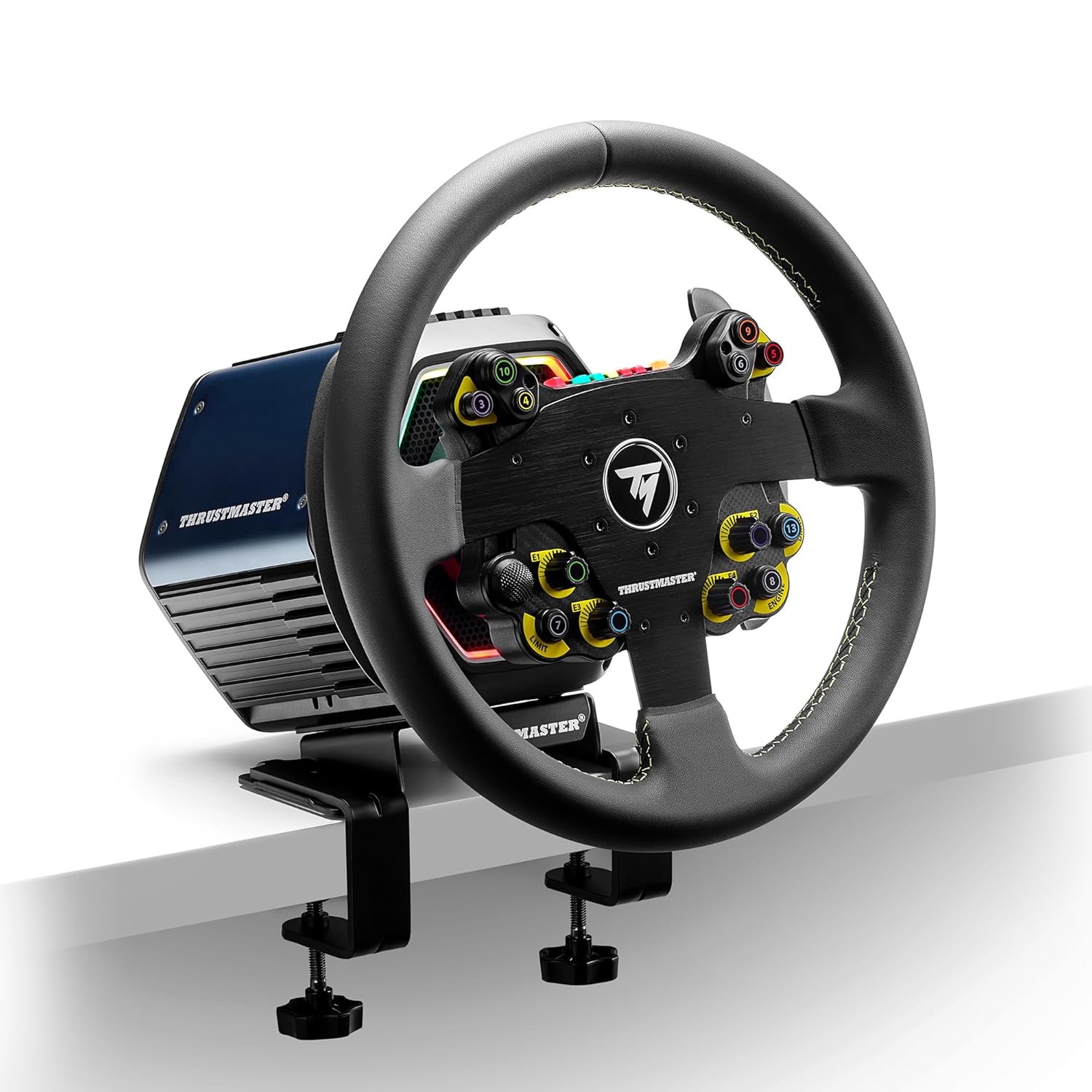
Here, the wheel add-on is shown attached to a Thrustmaster wheel base, demonstrating its integration into a complete racing setup. The base is clamped to a desk.

This image illustrates the contents of the product package, including the wheel rim, two different hub adapters for compatibility, and a sheet of customizable button stickers.

This diagram provides the physical dimensions of the wheel, confirming its 320 mm (12.6 inches) diameter and overall size.

This chart visually represents the compatibility of the Evo Racing 32R Leather wheel with various Thrustmaster wheel bases, shifters, and pedal sets, illustrating its place within the broader ecosystem.
Official Product Video:
Video 1: Overview of the Thrustmaster EVO Racing 32R Leather Wheel Add-On. This video provides a visual demonstration of the product's features and design.
Setup
The Evo Racing 32R Leather Wheel Add-On is designed for easy attachment to compatible Thrustmaster wheel bases. Ensure your wheel base is powered off and disconnected from the power source before beginning installation.
- Prepare the Wheel Base: Locate the quick-release mechanism on your Thrustmaster wheel base. If another wheel rim is attached, carefully remove it by unscrewing the locking ring and pulling the rim straight off.
- Select the Correct Adapter: The Evo Racing 32R Leather comes with different hub adapters. Choose the adapter that matches your specific Thrustmaster wheel base.
- Attach the Adapter to the Wheel Rim: Align the chosen adapter with the mounting holes on the back of the Evo Racing 32R Leather wheel rim. Secure it using the provided screws and an appropriate tool (e.g., Allen key).
- Mount the Wheel Rim to the Base: Align the assembled wheel rim and adapter with the shaft of your wheel base. Push the wheel firmly onto the shaft until it clicks into place.
- Secure the Locking Ring: Tighten the quick-release locking ring on the wheel base to firmly secure the wheel rim. Do not overtighten.
- Connect and Power On: Reconnect your wheel base to the power source and your gaming system (PC, PlayStation, Xbox). The system should detect the new wheel rim automatically.
- Driver Installation (PC Only): For PC users, ensure you have the latest Thrustmaster drivers installed. These can be downloaded from the official Thrustmaster support website.
Refer to your specific wheel base manual for detailed instructions on attaching and detaching wheel rims.
Operating Instructions
Once the wheel add-on is properly installed and recognized by your system, you can begin using it for racing simulations. Familiarize yourself with the controls for optimal performance.
Controls:
- Action Buttons: The wheel features 25 action buttons. These can be mapped to various in-game functions such as horn, DRS, KERS, pit limiter, etc. Use the provided stickers to customize and label buttons as desired.
- Encoders: Four rotary encoders provide precise control for functions like brake bias, differential settings, or MFD navigation. Turn clockwise or counter-clockwise to adjust.
- D-Pad: The directional pad (D-pad) is typically used for menu navigation or specific in-game commands.
- Paddle Shifters: The long, curved paddle shifters are located behind the wheel. Pull the right paddle for upshifts and the left paddle for downshifts. Their magnetic sensors ensure quick and consistent activation.
- RPM/Racing Information LEDs: The 7 LEDs located above the central Thrustmaster logo display engine RPM and other telemetry data, depending on the game and wheel base settings. These often light up progressively as RPM increases and can indicate optimal shift points. Consult your game's settings or Thrustmaster's software for LED customization options.
For specific button assignments and LED behavior, refer to the in-game control settings of your racing simulator and the documentation for your Thrustmaster wheel base.
Maintenance
Proper maintenance ensures the longevity and optimal performance of your wheel add-on.
- Cleaning: Use a soft, dry cloth to clean the wheel rim and control panel. For the leather-wrapped sections, a slightly damp cloth can be used, followed by immediate drying. Avoid abrasive cleaners, solvents, or harsh chemicals, as these can damage the materials.
- Storage: When not in use, store the wheel add-on in a clean, dry environment away from direct sunlight and extreme temperatures.
- Connection Points: Periodically inspect the connection points between the wheel rim and the wheel base for any debris or damage. Ensure the quick-release mechanism is clean and functions smoothly.
- Paddle Shifters: The magnetic paddle shifters are designed for durability. Avoid excessive force or impact on them.
Troubleshooting
If you encounter issues with your Thrustmaster Evo Racing 32R Leather Wheel Add-On, try the following steps:
- Wheel Not Detected:
- Ensure the wheel rim is securely attached to the wheel base and the locking ring is tightened.
- Verify that the wheel base is properly connected to your gaming system and powered on.
- For PC, check that the latest drivers are installed and the wheel is recognized in the Thrustmaster Control Panel.
- Try connecting the wheel base to a different USB port.
- Buttons or Paddles Not Responding:
- Check in-game control settings to ensure buttons and paddles are correctly mapped.
- Test the buttons and paddles using the Thrustmaster Control Panel (PC) to verify hardware functionality.
- Ensure no debris is obstructing the movement of buttons or paddles.
- Inconsistent Force Feedback:
- This issue is typically related to the wheel base. Refer to your wheel base manual for troubleshooting force feedback problems.
- Ensure game settings for force feedback are configured appropriately.
- LEDs Not Functioning:
- Verify that the game you are playing supports telemetry data for RPM LEDs.
- Check Thrustmaster software settings (PC) for LED configuration.
If problems persist, visit the official Thrustmaster support website for further assistance or contact customer support.
Specifications
| Model Name | Evo Racing 32R Leather |
| Brand | Thrustmaster |
| Compatible Devices | PC, PlayStation 4, PlayStation 5, Xbox Series S, Xbox Series X |
| Controller Type | Steering Wheel Add-On |
| Connectivity Technology | USB (via compatible wheel base) |
| Button Quantity | 25 (including 4 encoders and D-pad) |
| Additional Features | Ergonomic design, Magnetic Paddle Shifters, 7 RPM LEDs, Detachable Hub |
| Item Dimensions | 16.4 x 16.6 x 6.1 inches (approx. 32 cm / 12.6 inch diameter) |
| Color | Black |
| Material | Brushed aluminum faceplate, leather-wrapped rim |
| UPC | 663296424358 |
| ASIN | B0CVJR3SC7 |
Warranty and Support
The Thrustmaster Evo Racing 32R Leather Wheel Add-On comes with a one-year warranty from the date of purchase. This warranty covers manufacturing defects under normal use conditions.
For warranty claims, technical support, or additional product information, please visit the official Thrustmaster support website or contact their customer service department. Keep your proof of purchase for warranty validation.
Online Resources:


